

Registry Scanner is the product from Lishbos that tricks users into thinking their device is infected and needs a full version of this optimization tool
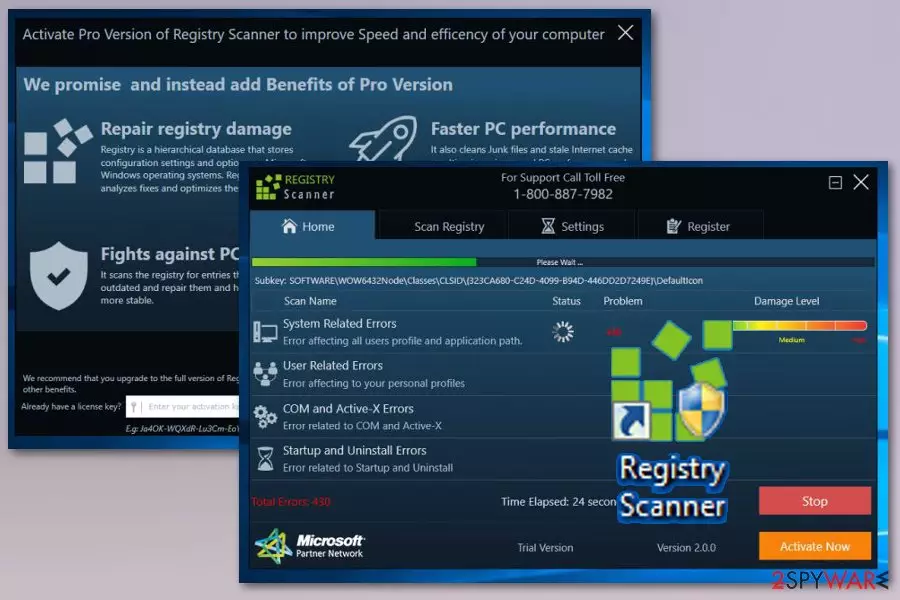
Registry Scanner by Lishbos is a registry optimizer that belongs to a PUP category because it gives no real value for the user. In promotional advertisements, this tool is called as a useful program that can fix issues on your computer. Once on the system, this scanner claims that the scan revealed problems with the device and you need to fix them with the paid version of the Registry Scanner. Various alerts about the security issues may also encourage you calling the fake support number 1-800-887-7982. This is a questionable system optimization program [1] designed and distributed by an India-based company called Lishbos. These fake registry cleaners use false positive scan results to trick users into purchasing their software.[2]
| Name | Registry Scanner |
|---|---|
| Type | System tools |
| Category | Potentially unwanted programs |
| Symptoms | Delivers fake scan results with false-positive results, encourages installing their software |
| Distribution | Software bundling, deceptive websites |
| main executable | System Ignitor.exe |
| Developed by | Lishbos |
| Elimination | Try uninstalling the fake cleaner. Use anti-malware tools like FortectIntego and scan the system entirely to find all additional intruders |
This application starts its activity on the computer as soon as its executable System Ignitor.exe is deployed on the system. According to the software creators, the scanner is compatible with the majority of Windows versions, starting with Windows XP and going up to the latest Windows 10 but it is possible that MacOS users get similar threats also.
Unfortunately, this software is not a product that will benefit your computer. On the opposite, users who have tried using it tend to express disappointment and discontent when talking about it. The majority of the complaints circle around the Registry Scanner's aggressive marketing strategies [3]. People claim that the program has shown up on their computers without warning and started scanning the system without permission.
Registry Scanner is promoted as a tool that promises to:
- Repair registry damage
- Improve PC's performance;
- Improve outdated software;
- Boost the speed of the computer.
However, these features belong to a Pro version that is encouraged to purchase when the scanner delivers results about possible issues with your machine. However, you shouldn't believe the suspicious program and its results because it automatically creates these results and shows the process of a system scan that might not even happen.

Your device is probably not affected by any of those issues you see on the screen beside the Registry Scanner PUP itself. When this tool gets installed on your device by you or automatically from the software bundle you may notice the slowness of the system or experience crashes from time to time.
Additionally. Registry Scanner icon appears on the Desktop and when you check the Task Manager it shows the process running in the background. It may show the high usage of resources like memory or CPU too. This is one of the most frustrating features about these intruders alongside intrusive commercial content.
Besides, the pop-ups that the program generates also come with a purpose. Registry Scanner virus developers try to foist the users a Pro version of the program, which should supposedly provide additional features and better computer use experience. If you are not planning on making such a purchase, there is no way to opt out these notifications.
Thus, after some time, this whole marketing strategy turns into a plain nagging [4]. You can put all of this to a stop only by carrying out Registry Scanner removal. We suggest employing reputable software like FortectIntego for this purpose.
Because of this unwelcomed guest, the infected computer may start behaving unpredictably and become more prone to various errors and malware infections. Thus, to prevent your device from experiencing further issues, we recommend to remove Registry Scanner from your PC and inspect the system for additional malware.

The many ways malware can reach your computer
The site of the scanner providers offers a paid full version of the software, but the users are also tempted with the free trial as well. Nevertheless, such an official way of obtaining this tool is just a part of the show that the fraudulent creators put up for the potential victims. In reality, it is more common for the similar scanners to be brought into the victim’s computers inside software packages together with other popular programs [5].
The users who want to keep their devices free from random programs should always choose Advanced or Custom settings when installing new software and follow all the installation steps very carefully. The process will allow you to opt out unwanted components and proceed with the installation safely.
Remove Registry Scanner from the infected device automatically
Talking about the best Registry Scanner removal techniques, we could say that the tendencies remain the same: specialized antimalware utilities to the best job taking care of the malware. Of course, the antivirus functionalities will be effective if the antivirus tool is legal and updated to the latest version.
Even if you do not have access to such a tool, do not ignore the virus or let it roam your computer unattended. Instead, skip to the manual tutorial below and try to remove Registry Scanner yourself. The removal steps are described in detail. Thus even the least tech-savvy users should be able to follow them without much difficulty.
Uninstall from Windows
Uninstall from Windows 10/8:
- Type Control Panel into the Windows search box and open the result.
- Under Programs, select Uninstall a program.


Uninstall from Windows 7/XP:
- Click on Windows Start > Control Panel (Windows XP users should click on Add/Remove Programs).
- In Control Panel, select Programs > Uninstall a program.


Remove the unwanted program:
- In the Programs and Features window, look for any recently installed suspicious entries, select them, and click Uninstall.
- If User Account Control appears, click Yes to confirm, then complete the removal.


Delete from macOS
Remove the unwanted application:
- From the menu bar, select Go > Applications.
- In the Applications folder, look for any suspicious entries, then drag them to Trash (or right-click and pick Move to Trash).


Delete leftover files and folders:
- Select Go > Go to Folder.
- Enter /Library/Application Support and remove any suspicious folders related to the unwanted program.
- Repeat the same check in the /Library/LaunchAgents and /Library/LaunchDaemons folders, deleting any suspicious entries.

- Finally, empty the Trash to permanently remove the leftovers.

Reset Internet Explorer
Remove dangerous add-ons:
- Open Internet Explorer, click on the Gear icon (IE menu) on the top-right corner of the browser
- Pick Manage Add-ons.
- You will see a Manage Add-ons window. Here, look for suspicious plugins. Click on these entries and select Disable.


Change your homepage if it was altered:
- Open IE and click on the Gear icon.
- Select Internet Options.
- In the General tab, delete the Home page address and replace it by your preferred one (for example, Google.com).
- Click Apply and then select OK.


Delete temporary files:
- Press on the Gear icon and select Internet Options.
- Under Browsing history, click Delete...
- Select relevant fields and press Delete.


Reset Internet Explorer:
- Click on Gear icon > Internet options and select Advanced tab.
- Select Reset.
- In the new window, check Delete personal settings and select Reset.


Remove from Microsoft Edge
Delete unwanted extensions from MS Edge:
- Select Menu (three horizontal dots at the top-right of the browser window) and pick Extensions.
- From the list, pick the extension and click on the Gear icon.
- Click Remove.


Clear cookies and other browser data:
- Click on the Menu (three horizontal dots at the top-right of the browser window) and select Settings > Privacy, search, and services..
- Under Clear browsing data, pick Choose what to clear.
- Select Cookies and other site data and Cached images and files. (apart from passwords, although you might want to include Media licenses as well, if applicable) and click on Clear.


Restore new tab and homepage settings:
- Click the menu icon and choose Settings.
- Then find On startup section.
- Click Remove next to any suspicious startup page.
Reset MS Edge if the above steps did not work:
- Press on Ctrl + Shift + Esc to open Task Manager.
- Click on More details arrow at the bottom of the window.
- Select Details tab.
- Now scroll down and locate every entry with Microsoft Edge name in it. Right-click on each of them and select End Task to stop MS Edge from running.


Instructions for Chromium-based Edge
Delete extensions from MS Edge (Chromium):
- Open Edge and click select Settings > Extensions.
- Delete unwanted extensions by clicking Remove.


Clear cache and site data:
- Click on Menu and go to Settings.
- Select Privacy, search and services.
- Under Clear browsing data, pick Choose what to clear.
- Under Time range, pick All time.
- Select Clear now.


Reset Chromium-based MS Edge:
- Click on Menu and select Settings.
- On the left side, pick Reset settings.
- Select Restore settings to their default values.
- Confirm with Reset.
- This will disable extensions and reset startup pages but will not delete bookmarks, saved passwords, or browsing history.


Remove from Mozilla Firefox (FF)
Remove dangerous extensions:
- Open Mozilla Firefox browser and click on the Menu (three horizontal lines at the top-right of the window).
- Select Add-ons.
- In here, select the unwanted extension and click Remove.


Reset the homepage:
- Click three horizontal lines at the top right corner to open the menu.
- Choose Settings.
- Under Home, set your preferred homepage and new tab settings.
Clear cookies and site data:
- Click Menu and pick Settings.
- Go to Privacy & Security section.
- Scroll down to locate Cookies and Site Data.
- Click on Clear Data...
- Select Cookies and Site Data and Temporary cached files and pages, then click Clear.


Reset Mozilla Firefox
If clearing the browser as explained above did not help, reset Mozilla Firefox:
- Open Mozilla Firefox browser and click the Menu.
- Go to Help and then choose Troubleshooting Information.

- Under Give Firefox a tune up section, click on Refresh Firefox...
- Once the pop-up shows up, confirm the action by pressing on Refresh Firefox.



Remove from Google Chrome
Delete malicious extensions from Google Chrome:
- Open Google Chrome, click on the Menu (three vertical dots at the top-right corner) and select More tools > Extensions.
- In the newly opened window, you will see all the installed extensions. Uninstall all suspicious extensions related to the unwanted program by clicking Remove.


Clear cache and web data from Chrome:
- Click on Menu and pick Settings.
- Under Privacy and security, select Clear browsing data.
- Select Browsing history, Cookies and other site data, as well as Cached images and files.
- Click Clear data.


Change your homepage:
- Click menu and choose Settings.
- Look for a suspicious site in the On startup section.
- Click on Open a specific or set of pages and click on three dots to find the Remove option.
Reset Google Chrome:
If the previous methods did not help you, reset Google Chrome to eliminate all the unwanted components:
- Click on Menu and select Settings.
- In the Settings, scroll down and click Advanced.
- Scroll down and locate Reset and clean up section.
- Now click Restore settings to their original defaults.
- Confirm with Reset settings.


Delete from Safari
Remove dangerous extensions:
- Open Safari, click Safari in the menu at the top-left of the screen, and select Preferences.
- Go to the Extensions tab, look for any suspicious entries, and click Uninstall to remove them.


Clear history and website data:
- Click Safari in the menu and pick Clear History.
- Set Clear to all history and confirm with Clear History.


Reset Safari:
- Click Safari in the menu and select Preferences > Advanced.
- Enable Show Develop menu in menu bar.
- From the menu bar, click Develop and select Empty Caches.


Did this guide help?
Be the first to comment