

Installation of MyFileConvert Toolbar might be the reason of hijacked browser
MyFileConvert Toolbar created by Mindspark Interactive is a browser extension[1] that allows converting files to PDF or MS Word formats. Nevertheless, this tool is legitimate and might look useful; security specialists suggest staying away from it for several reasons. It might get inside the system silently in a software bundle, alter browser’s settings, replace default homepage, search engine, and new tab URL address, and track information about users. Due to these negative features, this toolbar is known as a potentially unwanted program (PUP) and a browser hijacker. It doesn’t matter whether you install MyFileConvert directly from the official site, or install it unintentionally when installing freeware or shareware, you agree to replace your current search engine to hp.myway.com. The search engine includes quick access to social media websites, online dictionaries, and allows converting files directly from the homepage. Indeed, this feature might look useful if you need to convert files on a daily basis. However, the price of this utility includes an inability to access a reliable search engine from the start page, risking to visit a potentially dangerous website or clicking on a malicious ad.[2] Thus, you should remove MyFileConvert from the device immediately. Besides, if this toolbar was installed without your permission, you should also scan the computer with FortectIntego and make sure that any other PUPs haven’t been installed without your knowledge as well.
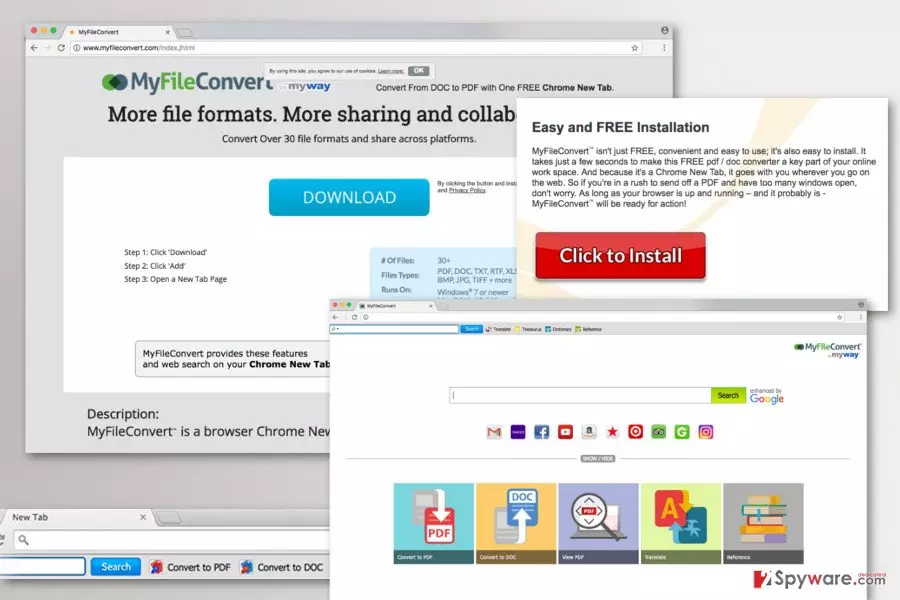
So-called MyFileConvert virus is not a dangerous program itself. Actually, it’s more an annoying application than a hazardous threat. However, having this toolbar installed on the computer, increases chances to encounter threatening cyber infections. The browser hijacker might be capable of displaying third-party ads on each visited website and including sponsored links into search results page. Thus, if you click on such commercial content, you might be redirected to potentially dangerous websites where you can get infected with malware or tricked to reveal personal information. Nevertheless, this search engine is marked as “enhanced by Google” it’s not worth relying on. This reference only means that this search tool uses Google database; however, developers might alter them if it is necessary. Necessity might occur if some business enterprises decide to promote their products or drive traffic using the help of a potentially unwanted program.[3] While users are visiting third-party sites, authors of the program generate revenue. So, if you are not excited about an idea that someone might be using you as a money-making tool, you should not delay MyFileConvert removal.
Worrying MyFileConvert redirect tendencies are not the only reason why you should uninstall or do not install at all this toolbar. Another reason hides in the Privacy Policy. When using this product, you agree that developers, as well as third parties, collect information about you. This data includes demographic details about you, IP address, postal code, browsing-related information, browsing and search history, etc. Aggregated information might be used for improving services, marketing purposes or shared with third parties. Thus, so-called MyFileConvert virus might put your personal privacy at risk.[4]

Distribution and installation of the browser hijacker
MyFileConvert Toolbar has an official website with a download link. As you already know, it might be also promoted in software bundles and infiltrate the system unnoticed. This and many other PUPs are distributed employing the same old bundling technique which allows adding the app as an optional component. If users rely on Quick or Recommended installation mode when installing new programs from the Internet, they do not know what other programs they agree to install. These installation wizards do not openly disclose about third-party software attached to them. Thus, in order to avoid MyFileConvert hijack and other undesired applications,[5] you need to opt for Advanced/Custom settings. By following each installation step carefully, you will be allowed to see the list with additional downloads and reject their installation.
MyFileConvert removal instructions
If you installed this app yourself, it should be enough to remove MyFileConvert just like any other extension from Internet Explorer, Mozilla Firefox, Google Chrome or Safari. However, we also recommend resetting your browser in order to delete tracking cookies and protect your actions online from spies. However, if this app was installed packed with other software, you should look up for other programs and extensions that might be installed on the device. In this case, you can follow our prepared instructions below or opt for the easier MyFileConvert removal option. You can get rid of this potentially unwanted program by scanning the computer with an updated anti-malware software.
Uninstall from Windows
Uninstall from Windows 10/8:
- Type Control Panel into the Windows search box and open the result.
- Under Programs, select Uninstall a program.


Uninstall from Windows 7/XP:
- Click on Windows Start > Control Panel (Windows XP users should click on Add/Remove Programs).
- In Control Panel, select Programs > Uninstall a program.


Remove the unwanted program:
- In the Programs and Features window, look for any recently installed suspicious entries, select them, and click Uninstall.
- If User Account Control appears, click Yes to confirm, then complete the removal.


Delete from macOS
Remove the unwanted application:
- From the menu bar, select Go > Applications.
- In the Applications folder, look for any suspicious entries, then drag them to Trash (or right-click and pick Move to Trash).


Delete leftover files and folders:
- Select Go > Go to Folder.
- Enter /Library/Application Support and remove any suspicious folders related to the unwanted program.
- Repeat the same check in the /Library/LaunchAgents and /Library/LaunchDaemons folders, deleting any suspicious entries.

- Finally, empty the Trash to permanently remove the leftovers.

Reset Internet Explorer
Remove dangerous add-ons:
- Open Internet Explorer, click on the Gear icon (IE menu) on the top-right corner of the browser
- Pick Manage Add-ons.
- You will see a Manage Add-ons window. Here, look for suspicious plugins. Click on these entries and select Disable.


Change your homepage if it was altered:
- Open IE and click on the Gear icon.
- Select Internet Options.
- In the General tab, delete the Home page address and replace it by your preferred one (for example, Google.com).
- Click Apply and then select OK.


Delete temporary files:
- Press on the Gear icon and select Internet Options.
- Under Browsing history, click Delete...
- Select relevant fields and press Delete.


Reset Internet Explorer:
- Click on Gear icon > Internet options and select Advanced tab.
- Select Reset.
- In the new window, check Delete personal settings and select Reset.


Remove from Microsoft Edge
Delete unwanted extensions from MS Edge:
- Select Menu (three horizontal dots at the top-right of the browser window) and pick Extensions.
- From the list, pick the extension and click on the Gear icon.
- Click Remove.


Clear cookies and other browser data:
- Click on the Menu (three horizontal dots at the top-right of the browser window) and select Settings > Privacy, search, and services..
- Under Clear browsing data, pick Choose what to clear.
- Select Cookies and other site data and Cached images and files. (apart from passwords, although you might want to include Media licenses as well, if applicable) and click on Clear.


Restore new tab and homepage settings:
- Click the menu icon and choose Settings.
- Then find On startup section.
- Click Remove next to any suspicious startup page.
Reset MS Edge if the above steps did not work:
- Press on Ctrl + Shift + Esc to open Task Manager.
- Click on More details arrow at the bottom of the window.
- Select Details tab.
- Now scroll down and locate every entry with Microsoft Edge name in it. Right-click on each of them and select End Task to stop MS Edge from running.


Instructions for Chromium-based Edge
Delete extensions from MS Edge (Chromium):
- Open Edge and click select Settings > Extensions.
- Delete unwanted extensions by clicking Remove.


Clear cache and site data:
- Click on Menu and go to Settings.
- Select Privacy, search and services.
- Under Clear browsing data, pick Choose what to clear.
- Under Time range, pick All time.
- Select Clear now.


Reset Chromium-based MS Edge:
- Click on Menu and select Settings.
- On the left side, pick Reset settings.
- Select Restore settings to their default values.
- Confirm with Reset.
- This will disable extensions and reset startup pages but will not delete bookmarks, saved passwords, or browsing history.


Remove from Mozilla Firefox (FF)
Remove dangerous extensions:
- Open Mozilla Firefox browser and click on the Menu (three horizontal lines at the top-right of the window).
- Select Add-ons.
- In here, select the unwanted extension and click Remove.


Reset the homepage:
- Click three horizontal lines at the top right corner to open the menu.
- Choose Settings.
- Under Home, set your preferred homepage and new tab settings.
Clear cookies and site data:
- Click Menu and pick Settings.
- Go to Privacy & Security section.
- Scroll down to locate Cookies and Site Data.
- Click on Clear Data...
- Select Cookies and Site Data and Temporary cached files and pages, then click Clear.


Reset Mozilla Firefox
If clearing the browser as explained above did not help, reset Mozilla Firefox:
- Open Mozilla Firefox browser and click the Menu.
- Go to Help and then choose Troubleshooting Information.

- Under Give Firefox a tune up section, click on Refresh Firefox...
- Once the pop-up shows up, confirm the action by pressing on Refresh Firefox.



Remove from Google Chrome
Delete malicious extensions from Google Chrome:
- Open Google Chrome, click on the Menu (three vertical dots at the top-right corner) and select More tools > Extensions.
- In the newly opened window, you will see all the installed extensions. Uninstall all suspicious extensions related to the unwanted program by clicking Remove.


Clear cache and web data from Chrome:
- Click on Menu and pick Settings.
- Under Privacy and security, select Clear browsing data.
- Select Browsing history, Cookies and other site data, as well as Cached images and files.
- Click Clear data.


Change your homepage:
- Click menu and choose Settings.
- Look for a suspicious site in the On startup section.
- Click on Open a specific or set of pages and click on three dots to find the Remove option.
Reset Google Chrome:
If the previous methods did not help you, reset Google Chrome to eliminate all the unwanted components:
- Click on Menu and select Settings.
- In the Settings, scroll down and click Advanced.
- Scroll down and locate Reset and clean up section.
- Now click Restore settings to their original defaults.
- Confirm with Reset settings.


Delete from Safari
Remove dangerous extensions:
- Open Safari, click Safari in the menu at the top-left of the screen, and select Preferences.
- Go to the Extensions tab, look for any suspicious entries, and click Uninstall to remove them.


Clear history and website data:
- Click Safari in the menu and pick Clear History.
- Set Clear to all history and confirm with Clear History.


Reset Safari:
- Click Safari in the menu and select Preferences > Advanced.
- Enable Show Develop menu in menu bar.
- From the menu bar, click Develop and select Empty Caches.


Did this guide help?
Be the first to comment