

GlobalWeather ads can be dangerous and annoying – avoid clicking on them
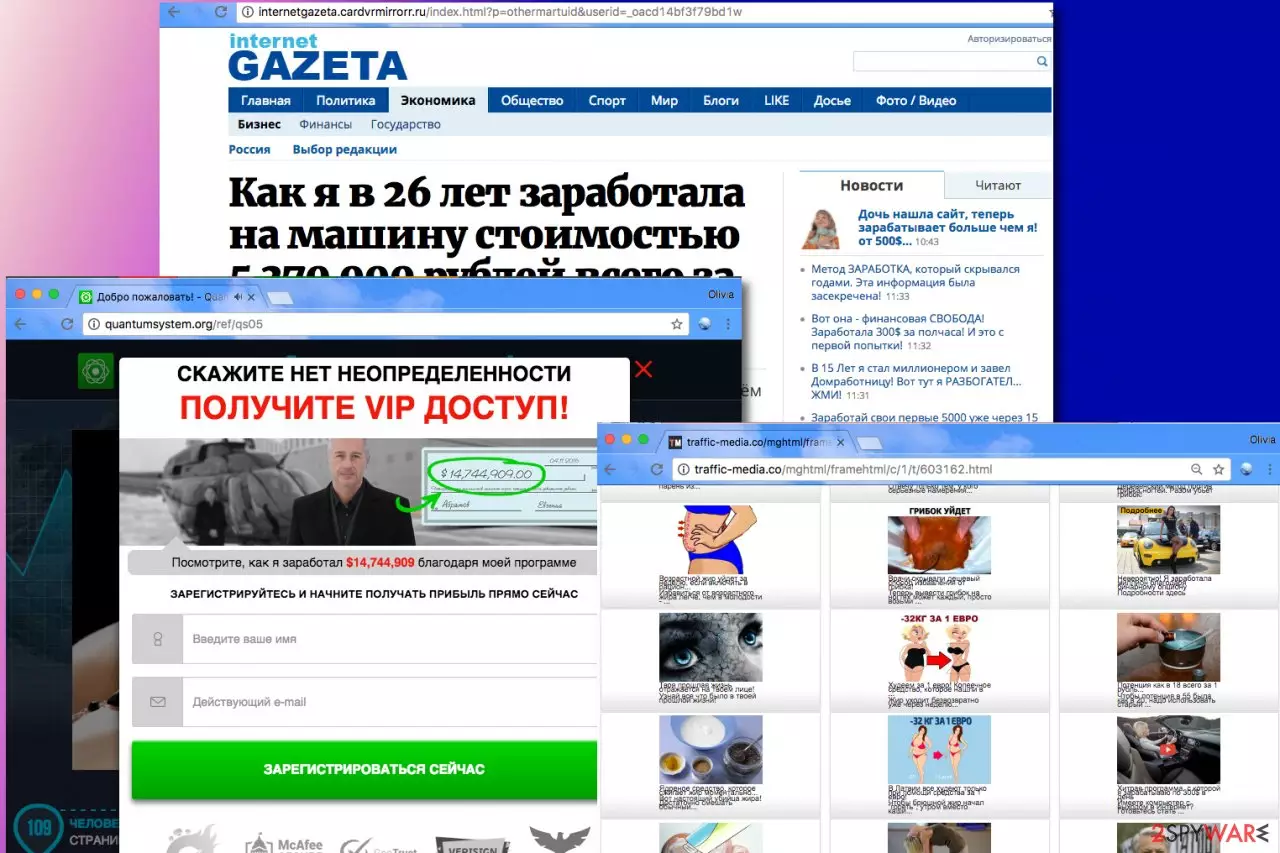
GlobalWeather is a name of a potentially unwanted program (PUP) that delivers Russian ads to the computer users who install it on their computers. Unfortunately, this questionable program often manages to get into computer systems unnoticeably. Once installed, it starts collecting your search queries, the list of visited websites, remembers what ads you click on and how much time you spend on certain websites.
What is more, Global Weather adware replaces advertisements that originate from web pages you visit with different ones, usually Russian ads. You might encounter these ads in the form of banners, pop-ups, and pop-under ads. It goes without saying that no one minds receiving one or two useful ads, however, it seems that this suspicious piece of software operates in a much more aggressive way.
| Name | GlobalWeather |
|---|---|
| Type | Adware, potentially unwanted program |
| Distribution | Software bundles, third-party websites, deceptive ads |
| Symptoms | Installed unknown browser extension or application; intrusive deals, coupons, discounts, offers, and other advertisements; redirects to commercial, scam, phishing, and other dangerous websites |
| Dangers | Redirects to malicious websites can result in unwanted site notifications, monetary losses, installation of other potentially unwanted programs/malware |
| Elimination | To get rid of unwanted apps manually, you can follow our removal guide below |
| Further steps | Malware or cyber infections can diminish the performance of your computer or cause serious stability issues. Use FortectIntego to ensure that the virus damage is fixed |
Its main process is called Weather Service, and it is responsible for connecting to various ad networks and receiving interest-based third-party ads. If you want to block these annoying ads, you need to end this process first. The reason why such suspicious programs are distributed so actively is that they bring high profits to their developers. Software that is free usually serves third-party ads, and when users click on them, the developer of such adware gets paid for driving traffic to particular websites.
Sadly, some of the external web pages can be perilous, so we highly recommend you check the site’s rating online before you dive into it. Keep in mind that untrustworthy websites firstly “welcome” the visitor by displaying suggestions to install freeware, software updates, browser toolbars, and other pieces of software. You should also not trust websites that instantly ask you to provide your email address (usually, such sites claim to be using e-mails to send newsletters and other relevant data to the user only).
However, an email address is a very important piece of information[1] and you should remember that by entering it into some hazy web forms you risk entering spammers' target list. If you would rather like to avoid such situations, remove GlobalWeather first. We suggest choosing MalwarebytesMalwarebytes or SpyHunterCombo Cleaner software. However, if you are determined to challenge yourself and complete the PUP removal manually, you should follow the instructions given below this post first.

Learn how to block potentially unwanted programs before they enter your PC system
Users can prevent installing unwanted programs from reaching their computer systems, and usually, all that it takes is to avoid installing them is deselecting a couple of extra programs during installation of a different free program[2].
If you cannot find statements about other “suggested” software in Default/Standard settings (which are usually chosen as default for you), choose the Custom or Advanced option. This option allows you to realize what software was added to your chosen program and refuse to install these additions. Once you deselect all of the never-heard-of extras, finish the installation process in a usual way.
Find and remove GlobalWeather for good with AV application
Remove GlobalWeather using computer security software, but if you do not have it, there are two options to choose from. You can uninstall this spyware variant using the programs we recommend or carry out the full virus removal by yourself.
The tutorial we decided to prepare provides in-detail explanations on how to find and delete elements of this ad-supported program. You should not ignore annoying ads and system slowdowns because having such potentially unwanted programs on the system also increases its security vulnerabilities, hence it should be deleted without a way.
Uninstall from Windows
Uninstall from Windows 10/8:
- Type Control Panel into the Windows search box and open the result.
- Under Programs, select Uninstall a program.


Uninstall from Windows 7/XP:
- Click on Windows Start > Control Panel (Windows XP users should click on Add/Remove Programs).
- In Control Panel, select Programs > Uninstall a program.


Remove the unwanted program:
- In the Programs and Features window, look for any recently installed suspicious entries, select them, and click Uninstall.
- If User Account Control appears, click Yes to confirm, then complete the removal.


Delete from macOS
Remove the unwanted application:
- From the menu bar, select Go > Applications.
- In the Applications folder, look for any suspicious entries, then drag them to Trash (or right-click and pick Move to Trash).


Delete leftover files and folders:
- Select Go > Go to Folder.
- Enter /Library/Application Support and remove any suspicious folders related to the unwanted program.
- Repeat the same check in the /Library/LaunchAgents and /Library/LaunchDaemons folders, deleting any suspicious entries.

- Finally, empty the Trash to permanently remove the leftovers.

Remove from Microsoft Edge
Delete unwanted extensions from MS Edge:
- Select Menu (three horizontal dots at the top-right of the browser window) and pick Extensions.
- From the list, pick the extension and click on the Gear icon.
- Click Remove.


Clear cookies and other browser data:
- Click on the Menu (three horizontal dots at the top-right of the browser window) and select Settings > Privacy, search, and services..
- Under Clear browsing data, pick Choose what to clear.
- Select Cookies and other site data and Cached images and files. (apart from passwords, although you might want to include Media licenses as well, if applicable) and click on Clear.


Restore new tab and homepage settings:
- Click the menu icon and choose Settings.
- Then find On startup section.
- Click Remove next to any suspicious startup page.
Reset MS Edge if the above steps did not work:
- Press on Ctrl + Shift + Esc to open Task Manager.
- Click on More details arrow at the bottom of the window.
- Select Details tab.
- Now scroll down and locate every entry with Microsoft Edge name in it. Right-click on each of them and select End Task to stop MS Edge from running.


Instructions for Chromium-based Edge
Delete extensions from MS Edge (Chromium):
- Open Edge and click select Settings > Extensions.
- Delete unwanted extensions by clicking Remove.


Clear cache and site data:
- Click on Menu and go to Settings.
- Select Privacy, search and services.
- Under Clear browsing data, pick Choose what to clear.
- Under Time range, pick All time.
- Select Clear now.


Reset Chromium-based MS Edge:
- Click on Menu and select Settings.
- On the left side, pick Reset settings.
- Select Restore settings to their default values.
- Confirm with Reset.
- This will disable extensions and reset startup pages but will not delete bookmarks, saved passwords, or browsing history.


Remove from Mozilla Firefox (FF)
Remove dangerous extensions:
- Open Mozilla Firefox browser and click on the Menu (three horizontal lines at the top-right of the window).
- Select Add-ons.
- In here, select the unwanted extension and click Remove.


Reset the homepage:
- Click three horizontal lines at the top right corner to open the menu.
- Choose Settings.
- Under Home, set your preferred homepage and new tab settings.
Clear cookies and site data:
- Click Menu and pick Settings.
- Go to Privacy & Security section.
- Scroll down to locate Cookies and Site Data.
- Click on Clear Data...
- Select Cookies and Site Data and Temporary cached files and pages, then click Clear.


Reset Mozilla Firefox
If clearing the browser as explained above did not help, reset Mozilla Firefox:
- Open Mozilla Firefox browser and click the Menu.
- Go to Help and then choose Troubleshooting Information.

- Under Give Firefox a tune up section, click on Refresh Firefox...
- Once the pop-up shows up, confirm the action by pressing on Refresh Firefox.



Remove from Google Chrome
Delete malicious extensions from Google Chrome:
- Open Google Chrome, click on the Menu (three vertical dots at the top-right corner) and select More tools > Extensions.
- In the newly opened window, you will see all the installed extensions. Uninstall all suspicious extensions related to the unwanted program by clicking Remove.


Clear cache and web data from Chrome:
- Click on Menu and pick Settings.
- Under Privacy and security, select Clear browsing data.
- Select Browsing history, Cookies and other site data, as well as Cached images and files.
- Click Clear data.


Change your homepage:
- Click menu and choose Settings.
- Look for a suspicious site in the On startup section.
- Click on Open a specific or set of pages and click on three dots to find the Remove option.
Reset Google Chrome:
If the previous methods did not help you, reset Google Chrome to eliminate all the unwanted components:
- Click on Menu and select Settings.
- In the Settings, scroll down and click Advanced.
- Scroll down and locate Reset and clean up section.
- Now click Restore settings to their original defaults.
- Confirm with Reset settings.


Delete from Safari
Remove dangerous extensions:
- Open Safari, click Safari in the menu at the top-left of the screen, and select Preferences.
- Go to the Extensions tab, look for any suspicious entries, and click Uninstall to remove them.


Clear history and website data:
- Click Safari in the menu and pick Clear History.
- Set Clear to all history and confirm with Clear History.


Reset Safari:
- Click Safari in the menu and select Preferences > Advanced.
- Enable Show Develop menu in menu bar.
- From the menu bar, click Develop and select Empty Caches.


Did this guide help?
Be the first to comment