

Untrustworthy Search.searchfpdf.com search engine serves modified results that can contain links to shady external sites
Search.searchfpdf.com is a deceptive web page that becomes user’s homepage and default search provider as soon as the victim installs Fast PDF Converter. This suspicious piece of software is considered to be a potentially unwanted program (PUP) that initiates redirects to hxxp://Search.searchfpdf.com/ page even when the victim has no intention to do so. This PUP belongs to browser hijacker category, and such programs typically promote particular search tool that is set to provide sponsored entries alongside regular search results. Now, we must say that such mixture of sponsored and organic search results can be dangerous. The developer of Searchpdf redirect virus[1] does not endorse content shared by sites that it advertises, and that means you can easily enter dangerous web pages simply by browsing through results brought by this questionable search tool. The primary aim of the hijacker is to convince unsuspecting users to use a particular search engine and make them click on results that it serves. As we have already said, such move can immediately cause a redirect to an external website that has a bad reputation[2]. For this reason, we typically recommend users to remove Search.searchfpdf.com before it is too late. This shady PC parasite can be easily eliminated manually or automatically. For more information about Search.searchfpdf removal, we suggest looking at instructions given at the end of this post.
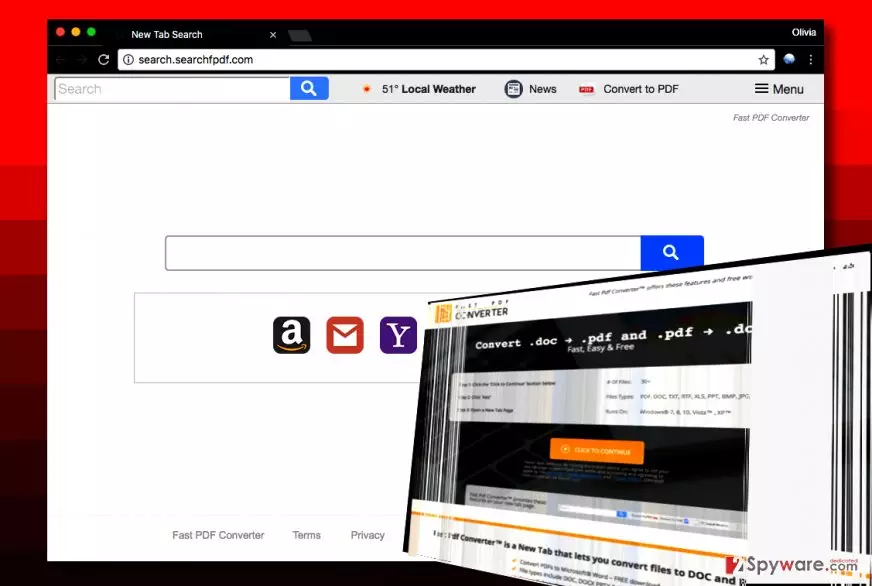
Another disadvantage of this hijacker is that it aims to collect behavioral information about the user. To be precise, it seeks to collect user’s search queries, websites that the victim visits, sites that he/she accesses frequently, ads and links one clicks on, and similar data. Although such information is not considered to be personally identifiable, keep in mind that your search queries can disclose who you are. You do not know how developers of this potentially unwanted program store such information and who can access it. Data stored on company’s computers can be illegally accessed and stolen. It is very easy to misuse such data, so we do not think that you should rely on this program that is considered to be potentially unwanted one. If you are a security-minded computer user, take actions to get rid of this virtual parasite right now.

Distribution tricks used by spyware developers
Browser hijackers, adware and other suspicious programs are classified as spyware, and these programs are mostly distributed using software bundling. Software bundling can be compared to software grouping and packing. Let’s say you just decided to download a new media player from the Internet for free – you search the web for it, enter a website that provides its download link, you get the file and then launch the installer of the desired software. At this point, you should NOT begin clicking the “Next” button repeatedly. Pay close attention to the information provided by the installer. If it says that you agree to install “recommended” programs, remove checkmarks placed next to such agreements. Sadly, such statements are often concealed under Default/Standard settings, so in order to alter your permissions, you will need to switch the selection to Custom/Advanced mode.
Quick Search.searchfpdf.com removal tutorial
We are sure that you have been looking for Search.searchfpdf.com removal tutorial if you came across this website. Look no further – the guide provided below explains how to find and remove Search.searchfpdf.com virus remains. If you cannot understand something, feel free to contact our support team and ask us to assist you. Do not delay the removal because as long as this suspicious program stays on the computer system, the computer stays vulnerable to further spyware and malware attacks.
Uninstall from Windows
Uninstall from Windows 10/8:
- Type Control Panel into the Windows search box and open the result.
- Under Programs, select Uninstall a program.


Uninstall from Windows 7/XP:
- Click on Windows Start > Control Panel (Windows XP users should click on Add/Remove Programs).
- In Control Panel, select Programs > Uninstall a program.


Remove the unwanted program:
- In the Programs and Features window, look for any recently installed suspicious entries, select them, and click Uninstall.
- If User Account Control appears, click Yes to confirm, then complete the removal.


Delete from macOS
Remove the unwanted application:
- From the menu bar, select Go > Applications.
- In the Applications folder, look for any suspicious entries, then drag them to Trash (or right-click and pick Move to Trash).


Delete leftover files and folders:
- Select Go > Go to Folder.
- Enter /Library/Application Support and remove any suspicious folders related to the unwanted program.
- Repeat the same check in the /Library/LaunchAgents and /Library/LaunchDaemons folders, deleting any suspicious entries.

- Finally, empty the Trash to permanently remove the leftovers.

Reset Internet Explorer
Remove dangerous add-ons:
- Open Internet Explorer, click on the Gear icon (IE menu) on the top-right corner of the browser
- Pick Manage Add-ons.
- You will see a Manage Add-ons window. Here, look for suspicious plugins. Click on these entries and select Disable.


Change your homepage if it was altered:
- Open IE and click on the Gear icon.
- Select Internet Options.
- In the General tab, delete the Home page address and replace it by your preferred one (for example, Google.com).
- Click Apply and then select OK.


Delete temporary files:
- Press on the Gear icon and select Internet Options.
- Under Browsing history, click Delete...
- Select relevant fields and press Delete.


Reset Internet Explorer:
- Click on Gear icon > Internet options and select Advanced tab.
- Select Reset.
- In the new window, check Delete personal settings and select Reset.


Remove from Microsoft Edge
Delete unwanted extensions from MS Edge:
- Select Menu (three horizontal dots at the top-right of the browser window) and pick Extensions.
- From the list, pick the extension and click on the Gear icon.
- Click Remove.


Clear cookies and other browser data:
- Click on the Menu (three horizontal dots at the top-right of the browser window) and select Settings > Privacy, search, and services..
- Under Clear browsing data, pick Choose what to clear.
- Select Cookies and other site data and Cached images and files. (apart from passwords, although you might want to include Media licenses as well, if applicable) and click on Clear.


Restore new tab and homepage settings:
- Click the menu icon and choose Settings.
- Then find On startup section.
- Click Remove next to any suspicious startup page.
Reset MS Edge if the above steps did not work:
- Press on Ctrl + Shift + Esc to open Task Manager.
- Click on More details arrow at the bottom of the window.
- Select Details tab.
- Now scroll down and locate every entry with Microsoft Edge name in it. Right-click on each of them and select End Task to stop MS Edge from running.


Instructions for Chromium-based Edge
Delete extensions from MS Edge (Chromium):
- Open Edge and click select Settings > Extensions.
- Delete unwanted extensions by clicking Remove.


Clear cache and site data:
- Click on Menu and go to Settings.
- Select Privacy, search and services.
- Under Clear browsing data, pick Choose what to clear.
- Under Time range, pick All time.
- Select Clear now.


Reset Chromium-based MS Edge:
- Click on Menu and select Settings.
- On the left side, pick Reset settings.
- Select Restore settings to their default values.
- Confirm with Reset.
- This will disable extensions and reset startup pages but will not delete bookmarks, saved passwords, or browsing history.


Remove from Mozilla Firefox (FF)
Remove dangerous extensions:
- Open Mozilla Firefox browser and click on the Menu (three horizontal lines at the top-right of the window).
- Select Add-ons.
- In here, select the unwanted extension and click Remove.


Reset the homepage:
- Click three horizontal lines at the top right corner to open the menu.
- Choose Settings.
- Under Home, set your preferred homepage and new tab settings.
Clear cookies and site data:
- Click Menu and pick Settings.
- Go to Privacy & Security section.
- Scroll down to locate Cookies and Site Data.
- Click on Clear Data...
- Select Cookies and Site Data and Temporary cached files and pages, then click Clear.


Reset Mozilla Firefox
If clearing the browser as explained above did not help, reset Mozilla Firefox:
- Open Mozilla Firefox browser and click the Menu.
- Go to Help and then choose Troubleshooting Information.

- Under Give Firefox a tune up section, click on Refresh Firefox...
- Once the pop-up shows up, confirm the action by pressing on Refresh Firefox.



Remove from Google Chrome
Delete malicious extensions from Google Chrome:
- Open Google Chrome, click on the Menu (three vertical dots at the top-right corner) and select More tools > Extensions.
- In the newly opened window, you will see all the installed extensions. Uninstall all suspicious extensions related to the unwanted program by clicking Remove.


Clear cache and web data from Chrome:
- Click on Menu and pick Settings.
- Under Privacy and security, select Clear browsing data.
- Select Browsing history, Cookies and other site data, as well as Cached images and files.
- Click Clear data.


Change your homepage:
- Click menu and choose Settings.
- Look for a suspicious site in the On startup section.
- Click on Open a specific or set of pages and click on three dots to find the Remove option.
Reset Google Chrome:
If the previous methods did not help you, reset Google Chrome to eliminate all the unwanted components:
- Click on Menu and select Settings.
- In the Settings, scroll down and click Advanced.
- Scroll down and locate Reset and clean up section.
- Now click Restore settings to their original defaults.
- Confirm with Reset settings.


Delete from Safari
Remove dangerous extensions:
- Open Safari, click Safari in the menu at the top-left of the screen, and select Preferences.
- Go to the Extensions tab, look for any suspicious entries, and click Uninstall to remove them.


Clear history and website data:
- Click Safari in the menu and pick Clear History.
- Set Clear to all history and confirm with Clear History.


Reset Safari:
- Click Safari in the menu and select Preferences > Advanced.
- Enable Show Develop menu in menu bar.
- From the menu bar, click Develop and select Empty Caches.


Did this guide help?
Be the first to comment