

Speed Reader extension poses a serious threat to your privacy
Speed Reader virus is a questionable browser add-on that is being pushed through suspicious Internet websites that suggest users to “Add Extension to Leave[1]” as soon as they attempt to close or exit the site. These infectious websites are running a Javascript code that triggers a popup with a line saying, “This site says…” and then suggests adding an extension to the browser, without actually providing the mysterious extension’s name or functionality of it. If you accidentally agreed to install such addition and you found SpeedReader extension added to your Chrome or Firefox browser afterward, you need to take actions immediately and remove Speed Reader spyware right away. This extension is considered to be dangerous and besides ads and redirections it causes it can also silently collect personally identifiable and personally non-identifiable information about you. The fastest way to eliminate this intruder is to run system diagnostics using anti-spyware or anti-malware tools like FortectIntego or SpyHunterCombo Cleaner; however, you can try to uninstall it manually using tips that our security experts revealed below the post.
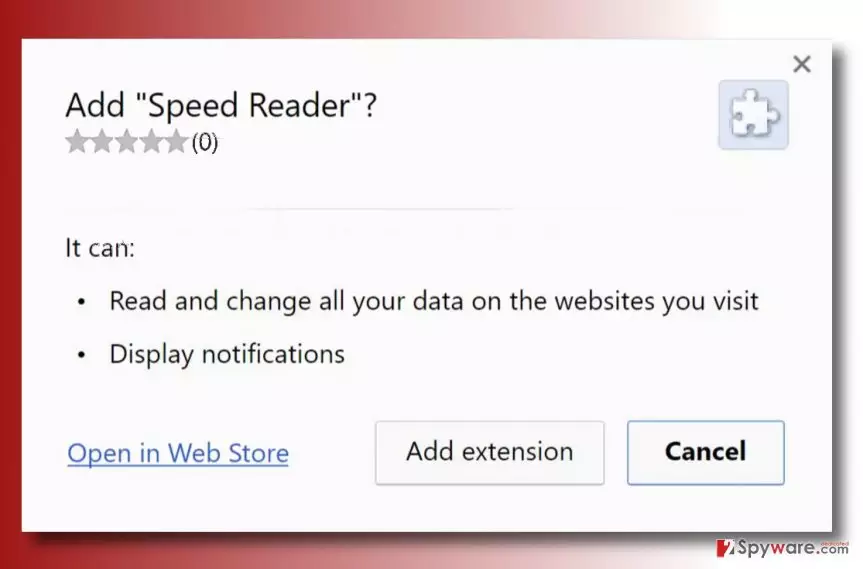
Sadly, many computer users do not notice these vague extensions like Speed Reader, but they definitely encounter dozens of pop-up ads that they generate, banners on websites they usually visit, links inserted into random text spots and generally ads provided in all possible formats. What is even worse, this potentially unwanted program (PUP) might replace your homepage address with some suspicious search engine providing a page that introduces itself as the best search provider in the world. Do not try to use such tools because they will only provide you with altered search results filled with purposely selected ads. Clicking on sponsored search results will take you to external third-party pages that might have some surprises for you. We bet that you do not want to come across a website that is filled with fake download buttons granting installation of spyware/malware and that you do not want to visit a phishing site accidentally. For such reason, we recommend you to start taking actions to complete Speed Reader removal as soon as possible. Not to even mention that this program might quickly install additional spyware/malware onto your computer.

However, if we had to name one feature of this questionable extension that bothers us the most, we would say redirection to tech support scam sites[2]. If you ever find yourself on a website that displays pop-ups and urges you to call “certified Microsoft technicians” due to error, they found on your computer, or because some kind of hacker has accessed your PC, quit such page immediately and run a scan with anti-malware program. If you carelessly follow obeys by such scammers, they will swindle money from you!
Distribution of suspicious browser extensions
Recently, scammers started creating dozens of infectious websites that suggest installing shady browser extensions before leaving the site. We would like to remind you that you should not believe everything you read on the Internet and question everything. Why would you have to add some suspicious extension while trying to quit some suspicious site? How did you enter it in the first place? Not every website pushes you to install extensions, so why would you have to agree now? These are the questions you should start asking yourself. Sadly, such aggressive pop-ups force many computer users into installing bogus add-ons that can initiate various arbitrary activities on the compromised PC. The developers of the extension might even have access to your private information, and you won’t be informed about it. For this reason, we suggest you never add suspicious add-ons from the websites that urge you to do it. What is more, we suggest you to choose Custom or Advanced settings whenever you decide to install a new program on your PC. If it suggests adding a couple of extra programs, deselect such suggestions ASAP.
Remove Speed Reader malware from your computer
Currently, it is unknown what is SpeedReader capable of doing; however, we know for sure that keeping this shady program on the system can cause serious issues to your PC’s security and your privacy. Before you remove Speed Reader virus, read instructions given below this post. You will need to check several PC’s directories in order to delete the infection entirely. After completing Speed Reader removal, run a system scan using proper anti-malware tools.
Uninstall from Windows
Uninstall from Windows 10/8:
- Type Control Panel into the Windows search box and open the result.
- Under Programs, select Uninstall a program.


Uninstall from Windows 7/XP:
- Click on Windows Start > Control Panel (Windows XP users should click on Add/Remove Programs).
- In Control Panel, select Programs > Uninstall a program.


Remove the unwanted program:
- In the Programs and Features window, look for any recently installed suspicious entries, select them, and click Uninstall.
- If User Account Control appears, click Yes to confirm, then complete the removal.


Delete from macOS
Remove the unwanted application:
- From the menu bar, select Go > Applications.
- In the Applications folder, look for any suspicious entries, then drag them to Trash (or right-click and pick Move to Trash).


Delete leftover files and folders:
- Select Go > Go to Folder.
- Enter /Library/Application Support and remove any suspicious folders related to the unwanted program.
- Repeat the same check in the /Library/LaunchAgents and /Library/LaunchDaemons folders, deleting any suspicious entries.

- Finally, empty the Trash to permanently remove the leftovers.

Reset Internet Explorer
Remove dangerous add-ons:
- Open Internet Explorer, click on the Gear icon (IE menu) on the top-right corner of the browser
- Pick Manage Add-ons.
- You will see a Manage Add-ons window. Here, look for suspicious plugins. Click on these entries and select Disable.


Change your homepage if it was altered:
- Open IE and click on the Gear icon.
- Select Internet Options.
- In the General tab, delete the Home page address and replace it by your preferred one (for example, Google.com).
- Click Apply and then select OK.


Delete temporary files:
- Press on the Gear icon and select Internet Options.
- Under Browsing history, click Delete...
- Select relevant fields and press Delete.


Reset Internet Explorer:
- Click on Gear icon > Internet options and select Advanced tab.
- Select Reset.
- In the new window, check Delete personal settings and select Reset.


Remove from Microsoft Edge
Delete unwanted extensions from MS Edge:
- Select Menu (three horizontal dots at the top-right of the browser window) and pick Extensions.
- From the list, pick the extension and click on the Gear icon.
- Click Remove.


Clear cookies and other browser data:
- Click on the Menu (three horizontal dots at the top-right of the browser window) and select Settings > Privacy, search, and services..
- Under Clear browsing data, pick Choose what to clear.
- Select Cookies and other site data and Cached images and files. (apart from passwords, although you might want to include Media licenses as well, if applicable) and click on Clear.


Restore new tab and homepage settings:
- Click the menu icon and choose Settings.
- Then find On startup section.
- Click Remove next to any suspicious startup page.
Reset MS Edge if the above steps did not work:
- Press on Ctrl + Shift + Esc to open Task Manager.
- Click on More details arrow at the bottom of the window.
- Select Details tab.
- Now scroll down and locate every entry with Microsoft Edge name in it. Right-click on each of them and select End Task to stop MS Edge from running.


Instructions for Chromium-based Edge
Delete extensions from MS Edge (Chromium):
- Open Edge and click select Settings > Extensions.
- Delete unwanted extensions by clicking Remove.


Clear cache and site data:
- Click on Menu and go to Settings.
- Select Privacy, search and services.
- Under Clear browsing data, pick Choose what to clear.
- Under Time range, pick All time.
- Select Clear now.


Reset Chromium-based MS Edge:
- Click on Menu and select Settings.
- On the left side, pick Reset settings.
- Select Restore settings to their default values.
- Confirm with Reset.
- This will disable extensions and reset startup pages but will not delete bookmarks, saved passwords, or browsing history.


Remove from Mozilla Firefox (FF)
Remove dangerous extensions:
- Open Mozilla Firefox browser and click on the Menu (three horizontal lines at the top-right of the window).
- Select Add-ons.
- In here, select the unwanted extension and click Remove.


Reset the homepage:
- Click three horizontal lines at the top right corner to open the menu.
- Choose Settings.
- Under Home, set your preferred homepage and new tab settings.
Clear cookies and site data:
- Click Menu and pick Settings.
- Go to Privacy & Security section.
- Scroll down to locate Cookies and Site Data.
- Click on Clear Data...
- Select Cookies and Site Data and Temporary cached files and pages, then click Clear.


Reset Mozilla Firefox
If clearing the browser as explained above did not help, reset Mozilla Firefox:
- Open Mozilla Firefox browser and click the Menu.
- Go to Help and then choose Troubleshooting Information.

- Under Give Firefox a tune up section, click on Refresh Firefox...
- Once the pop-up shows up, confirm the action by pressing on Refresh Firefox.



Remove from Google Chrome
Delete malicious extensions from Google Chrome:
- Open Google Chrome, click on the Menu (three vertical dots at the top-right corner) and select More tools > Extensions.
- In the newly opened window, you will see all the installed extensions. Uninstall all suspicious extensions related to the unwanted program by clicking Remove.


Clear cache and web data from Chrome:
- Click on Menu and pick Settings.
- Under Privacy and security, select Clear browsing data.
- Select Browsing history, Cookies and other site data, as well as Cached images and files.
- Click Clear data.


Change your homepage:
- Click menu and choose Settings.
- Look for a suspicious site in the On startup section.
- Click on Open a specific or set of pages and click on three dots to find the Remove option.
Reset Google Chrome:
If the previous methods did not help you, reset Google Chrome to eliminate all the unwanted components:
- Click on Menu and select Settings.
- In the Settings, scroll down and click Advanced.
- Scroll down and locate Reset and clean up section.
- Now click Restore settings to their original defaults.
- Confirm with Reset settings.


Delete from Safari
Remove dangerous extensions:
- Open Safari, click Safari in the menu at the top-left of the screen, and select Preferences.
- Go to the Extensions tab, look for any suspicious entries, and click Uninstall to remove them.


Clear history and website data:
- Click Safari in the menu and pick Clear History.
- Set Clear to all history and confirm with Clear History.


Reset Safari:
- Click Safari in the menu and select Preferences > Advanced.
- Enable Show Develop menu in menu bar.
- From the menu bar, click Develop and select Empty Caches.


Did this guide help?
Be the first to comment