

The mysterious Search.hideyoursearch.com search tool can redirect you to whatever website it wants to promote
Search.hideyoursearch.com virus is a standard browser hijacker that replaces browser search settings with new ones. The program typically arrives in the form of HideYourSearch extension[1], which infects Chrome browser. This potentially unwanted program also changes start page address and assigns a new value to new tab page setting. Once this is done, the hijacker starts redirecting the user to hxxp://Search.hideyoursearch.com/ page, which provides a web search engine. It looks entirely legitimate and safe to use at first sight; however, it is associated with a shady company known as Aztec Media which specializes in the development of browser hijackers and aims to serve users dozens of ads along regular search results. This potentially unwanted program pretends to be providing Yahoo search results[2], and that can trick some inexperienced computer users into thinking that the tool is entirely safe to use; however, some details reveal the real aims of this program. Be aware of its ability to track your searches and browsing and provide targeted advertisements later on. Sadly, it is unclear whether this program wants to serve targeted ads for your or its benefit. It might be trying to redirect you to highly dangerous sites to earn pay-per-click revenue. To avoid potential risks, we suggest you remove Search.hideyoursearch.com from your PC as soon as possible. FortectIntego or another reputable program can wipe this hijacker from the PC system securely, but if you wish, you can eliminate it manually as well.
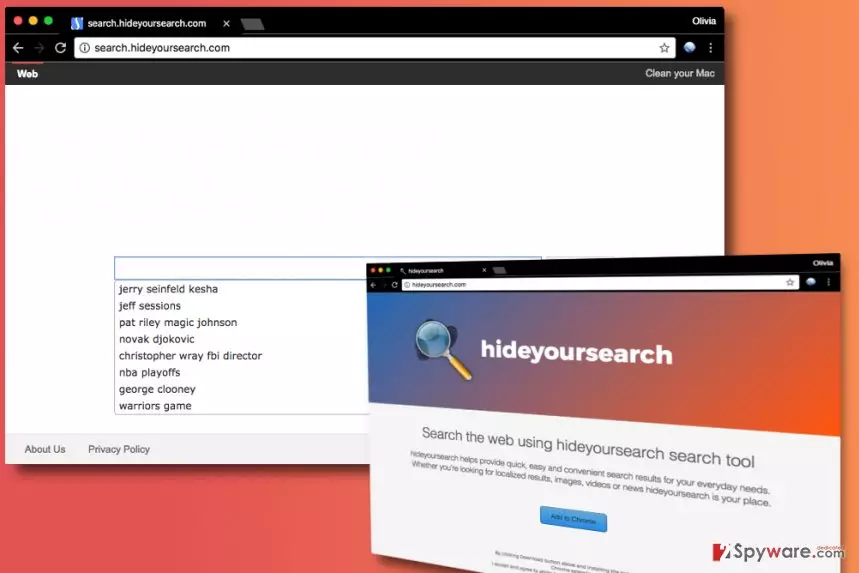
Browser redirects, system slowdowns, pop-up ads and similar problems occur as soon as Search.hideyoursearch.com hijacks the system. This program is distributed alongside various free programs and possibly via ads provided by other potentially unwanted programs (most possibly adware). We do not recommend ignoring this suspicious hijacker or its activities because it is not a safe program to keep on your PC, besides, it can track your search queries that can contain personally identifiable details. In general, this shady program doesn’t seem to be working for user’s benefit, and we believe that it is the main reason to start thinking about Search.hideyoursearch.com removal.

Distribution of browser hijackers explained
Browser hijackers mostly get into computer systems unnoticed and so does adware. Both of these shady programs, as well as rogue system optimizers and the rest of potentially unwanted programs, are distributed via software packing technique that is known as software bundling. Software bundling allows adding several additional programs to the installer of another program (mostly a popular one) and hiding permissions to install them in Default/Standard installation settings. It is no secret that users tend to trust these settings and install the majority of programs using them, so there is no surprise why adware and browser hijackers are so rampant nowadays. To avoid installation of unwanted software, we suggest choosing Custom or Advanced installation method and deselecting every additional option manually. Once you perform such small modification of setup’s settings, you can proceed with the installation.
Remove Search.hideyoursearch.com from Chrome
If your Chrome browser was infected with the described hijacker, implement Search.hideyoursearch.com removal right now. Using instructions given below this article will help you to delete the hijacker in less than 10 minutes; make sure you follow them carefully. If you do not want to waste your time looking at browser’s settings and the computer system to identify associated programs, files and browser extensions, remove Search.hideyoursearch.com virus automatically using one of the programs we listed below.
Uninstall from Windows
Uninstall from Windows 10/8:
- Type Control Panel into the Windows search box and open the result.
- Under Programs, select Uninstall a program.


Uninstall from Windows 7/XP:
- Click on Windows Start > Control Panel (Windows XP users should click on Add/Remove Programs).
- In Control Panel, select Programs > Uninstall a program.


Remove the unwanted program:
- In the Programs and Features window, look for any recently installed suspicious entries, select them, and click Uninstall.
- If User Account Control appears, click Yes to confirm, then complete the removal.


Delete from macOS
Remove the unwanted application:
- From the menu bar, select Go > Applications.
- In the Applications folder, look for any suspicious entries, then drag them to Trash (or right-click and pick Move to Trash).


Delete leftover files and folders:
- Select Go > Go to Folder.
- Enter /Library/Application Support and remove any suspicious folders related to the unwanted program.
- Repeat the same check in the /Library/LaunchAgents and /Library/LaunchDaemons folders, deleting any suspicious entries.

- Finally, empty the Trash to permanently remove the leftovers.

Remove from Microsoft Edge
Delete unwanted extensions from MS Edge:
- Select Menu (three horizontal dots at the top-right of the browser window) and pick Extensions.
- From the list, pick the extension and click on the Gear icon.
- Click Remove.


Clear cookies and other browser data:
- Click on the Menu (three horizontal dots at the top-right of the browser window) and select Settings > Privacy, search, and services..
- Under Clear browsing data, pick Choose what to clear.
- Select Cookies and other site data and Cached images and files. (apart from passwords, although you might want to include Media licenses as well, if applicable) and click on Clear.


Restore new tab and homepage settings:
- Click the menu icon and choose Settings.
- Then find On startup section.
- Click Remove next to any suspicious startup page.
Reset MS Edge if the above steps did not work:
- Press on Ctrl + Shift + Esc to open Task Manager.
- Click on More details arrow at the bottom of the window.
- Select Details tab.
- Now scroll down and locate every entry with Microsoft Edge name in it. Right-click on each of them and select End Task to stop MS Edge from running.


Instructions for Chromium-based Edge
Delete extensions from MS Edge (Chromium):
- Open Edge and click select Settings > Extensions.
- Delete unwanted extensions by clicking Remove.


Clear cache and site data:
- Click on Menu and go to Settings.
- Select Privacy, search and services.
- Under Clear browsing data, pick Choose what to clear.
- Under Time range, pick All time.
- Select Clear now.


Reset Chromium-based MS Edge:
- Click on Menu and select Settings.
- On the left side, pick Reset settings.
- Select Restore settings to their default values.
- Confirm with Reset.
- This will disable extensions and reset startup pages but will not delete bookmarks, saved passwords, or browsing history.


Remove from Google Chrome
Delete malicious extensions from Google Chrome:
- Open Google Chrome, click on the Menu (three vertical dots at the top-right corner) and select More tools > Extensions.
- In the newly opened window, you will see all the installed extensions. Uninstall all suspicious extensions related to the unwanted program by clicking Remove.


Clear cache and web data from Chrome:
- Click on Menu and pick Settings.
- Under Privacy and security, select Clear browsing data.
- Select Browsing history, Cookies and other site data, as well as Cached images and files.
- Click Clear data.


Change your homepage:
- Click menu and choose Settings.
- Look for a suspicious site in the On startup section.
- Click on Open a specific or set of pages and click on three dots to find the Remove option.
Reset Google Chrome:
If the previous methods did not help you, reset Google Chrome to eliminate all the unwanted components:
- Click on Menu and select Settings.
- In the Settings, scroll down and click Advanced.
- Scroll down and locate Reset and clean up section.
- Now click Restore settings to their original defaults.
- Confirm with Reset settings.


Did this guide help?
Be the first to comment