

Secure surf is a browser hijacker that pretends to care about users' privacy
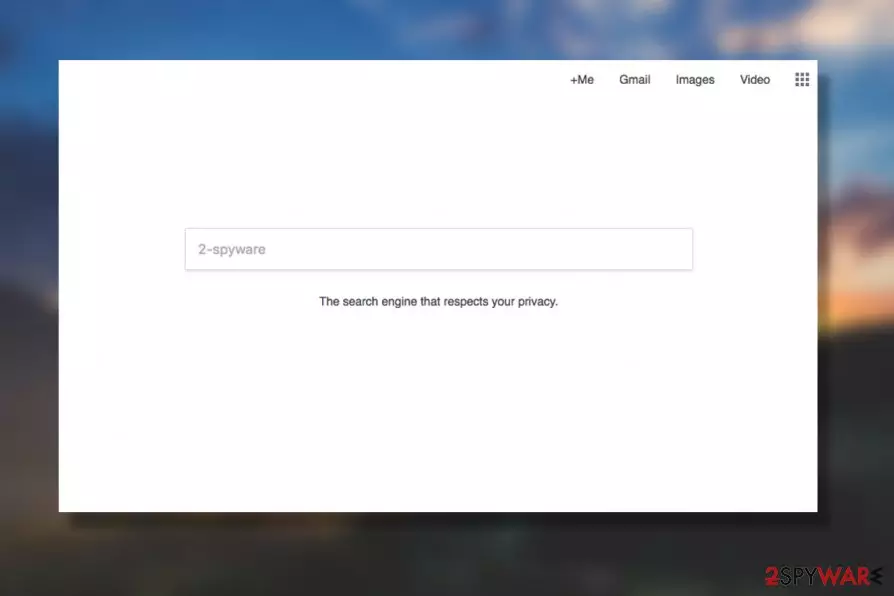
Secure surf is a browser hijacker that uses deception to make users believe that it is a great alternative to reputable search providers such as Google or Yahoo. However, the application is usually installed along with freeware and shareware hosted on the third-party sites, so users rarely install it intentionally.
Soon after the infiltration, Secure surf hijacker takes of Google Chrome, Safari, Mozilla Firefox, Internet Explorer or another installed browser, and sets its new tab address along with the homepage to hxxp://secure-surf.net. The plain-looking startup page is then used to present users with alternative search results that are filled with sponsored links.
Besides, users who are infected with Secure surf virus will also experience an increased amount of pop-up and other types of ads on all sites that they visit and sometimes might even get redirected to potentially dangerous ones. Finally, the PUP does not provide any type of documentation that relates to its usage or users' privacy, so the gathered information might be used for nefarious purposes. If you noticed Secure surf hijack, you should immediately get rid of it by using our instructions at the bottom of the article.
| Name | Secure surf |
| Type | Browser hijacker |
| Homepage set to | hxxp://secure-surf.net |
| Related hijacker | Secure-surf.com |
| Infiltration means | Software bundling, malicious ads, third-party sites, etc. |
| Potential risks | Installation of other potentially unwanted software, malware infiltration, sensitive information disclosure to cybercriminals, etc. |
| Symptoms | Hijacked search engine, new tab URL and homepage, redirects to suspicious sites, sponsored links at the top of the search results, etc. |
| Termination | To get rid of the hijack quickly, scan your computer with anti-malware software like FortectIntego; alternatively, you can use manual removal guide below |
Secure surf is a type of a potentially unwanted software focuses on ad-revenue,[1], so its main purpose is to expose users to various online advertisements to as many users as possible -for each click made, the PUP authors generate revenue (a scheme is called pay-per-click).
For that reason, Secure surf authors use software bundling technique to deploy the unwanted program to as many users as possible and hijack their browsers immediately after the infiltration. Unfortunately, many developers of deceptive programs also resort to obfuscation, preventing most of the users of performing an easy Secure surf removal.
Nevertheless, as soon as the victims open their browsers, they can see the difference right away: their preferred search engine is gone and replaced with a customized one which looks extremely poorly made, and that no effort was even put into it (even the search button is missing?!). What users are presented with, however, is a cheap slogan saying:
The search engine that respects your privacy
The statement is quite bold for a browser hijacking application that does not even provide a Privacy Policy for users to view – something that is mandatory to every legitimate program. Thus, it goes without saying that you should not trust Secure surf and all it is trying to represent, as it is fake. There are plenty of other search engines that focus on privacy and are legitimate, so we highly encourage you to avoid this one.
Here's what Secure surf virus might harvest while the program is installed on your device:
- IP address
- ISP
- Geolocation
- Technical details
- Links clicked
- Ads interacted with
- Bookmarks
- Cookies,[2] etc.
Besides, Secure surf might even steal personal information you enter when using the browser – so be warned and do not disclose your email, name, credit card details, etc., as it might get stolen by cybercriminals. What is more, the connection to the site is marked as not secure by Google, meaning that it uses the frail HTTP connection instead of the safe HTTPS.[3]
After being added to a web browser, Secure Surf net redirects you through a bunch of different domains until it finally lands on us.search.yahoo.com. This feature is becoming very popular and keeps affecting hundreds of users.[4]
In other words, every time the users try to look up something online, they are forced to briefly visit at least 4 different websites before they are presented with the search results. We can only speculate what nasty malware such redirects may lead your device to pick up.

To prevent unexpected viruses and similar issues related to the use of this malicious search engine, you should waste no time and get rid of it. To remove Secure surf virus from the infected device, jump to the end of this page to find its manual removal guide. Also, you can start its elimination immediately by running a full computer scan with FortectIntego.
Unfortunately, but the questionable activity of Secure Surf virus does not end just there. The hijack of the system is followed by corrupted search results that are displayed for the user with the intention to earn the money from advertising.
Browser hijackers,[5] adware-type programs and similar PUPs modify their search results to display sponsored links and advertisements in the top positions, while the information which may be relevant to you is left at the bottom or is omitted completely. That is basically the opposite of what the regular search engines typically do and presents us yet another reason why you need to get rid of Secure-Surf.net.
On top of it all, malware may inject advertisements and links on sites that aren’t even accessed through this search provider. There is virtually no way to escape the nasty symptoms of the hijack. Unless of course, you perform Secure surf removal and dispose of all the virus components. You may do that now or after you are done reading this article which we highly suggest you do if you want to learn how to prevent similar malware from breaking into your PC again.
Protecting your PC from unwanted search engines
One does not need to be especially tech-savvy to prevent computer threats from sneaking into the computer. Computer defense can be reinforced by following 3 simple rules:
- Running legal and updated antivirus software with advanced real-time protection while browsing the web;
- Regularly updating installed applications and enabling automatic system updates;
- Downloading software from legitimate and reliable sources and installing it via Advanced mode in order to disclose additionally attached components.
If you remember theses rules and apply them when browsing the web, you will be much less likely to get your PC infected with potentially unwanted programs.
Basics of Secure surf removal
If you have been suffering from unexpected redirects for a while, you should check your Mac or Windows OS for this hijacker. Browser hijackers and similar PUPs can show up on your computer when you don't expect that. Thus, it is useful to have at least a few Secure surf removal options prepared in advance.

One of the ways you can use to get rid of this redirect virus involves running an automatic system scan with some reliable anti-malware product. This method is recommended for everyone who doesn't want to waste time tailing after the viruses.
The second option you can use for eliminating unwanted redirects is manual virus elimination. Our experts developed professional instructions that are designed to help users remove Secure surf from the computers without employing additional software.
Uninstall from Windows
Uninstall from Windows 10/8:
- Type Control Panel into the Windows search box and open the result.
- Under Programs, select Uninstall a program.


Uninstall from Windows 7/XP:
- Click on Windows Start > Control Panel (Windows XP users should click on Add/Remove Programs).
- In Control Panel, select Programs > Uninstall a program.


Remove the unwanted program:
- In the Programs and Features window, look for any recently installed suspicious entries, select them, and click Uninstall.
- If User Account Control appears, click Yes to confirm, then complete the removal.


Delete from macOS
Remove the unwanted application:
- From the menu bar, select Go > Applications.
- In the Applications folder, look for any suspicious entries, then drag them to Trash (or right-click and pick Move to Trash).


Delete leftover files and folders:
- Select Go > Go to Folder.
- Enter /Library/Application Support and remove any suspicious folders related to the unwanted program.
- Repeat the same check in the /Library/LaunchAgents and /Library/LaunchDaemons folders, deleting any suspicious entries.

- Finally, empty the Trash to permanently remove the leftovers.

Reset Internet Explorer
Remove dangerous add-ons:
- Open Internet Explorer, click on the Gear icon (IE menu) on the top-right corner of the browser
- Pick Manage Add-ons.
- You will see a Manage Add-ons window. Here, look for suspicious plugins. Click on these entries and select Disable.


Change your homepage if it was altered:
- Open IE and click on the Gear icon.
- Select Internet Options.
- In the General tab, delete the Home page address and replace it by your preferred one (for example, Google.com).
- Click Apply and then select OK.


Delete temporary files:
- Press on the Gear icon and select Internet Options.
- Under Browsing history, click Delete...
- Select relevant fields and press Delete.


Reset Internet Explorer:
- Click on Gear icon > Internet options and select Advanced tab.
- Select Reset.
- In the new window, check Delete personal settings and select Reset.


Remove from Microsoft Edge
Delete unwanted extensions from MS Edge:
- Select Menu (three horizontal dots at the top-right of the browser window) and pick Extensions.
- From the list, pick the extension and click on the Gear icon.
- Click Remove.


Clear cookies and other browser data:
- Click on the Menu (three horizontal dots at the top-right of the browser window) and select Settings > Privacy, search, and services..
- Under Clear browsing data, pick Choose what to clear.
- Select Cookies and other site data and Cached images and files. (apart from passwords, although you might want to include Media licenses as well, if applicable) and click on Clear.


Restore new tab and homepage settings:
- Click the menu icon and choose Settings.
- Then find On startup section.
- Click Remove next to any suspicious startup page.
Reset MS Edge if the above steps did not work:
- Press on Ctrl + Shift + Esc to open Task Manager.
- Click on More details arrow at the bottom of the window.
- Select Details tab.
- Now scroll down and locate every entry with Microsoft Edge name in it. Right-click on each of them and select End Task to stop MS Edge from running.


Instructions for Chromium-based Edge
Delete extensions from MS Edge (Chromium):
- Open Edge and click select Settings > Extensions.
- Delete unwanted extensions by clicking Remove.


Clear cache and site data:
- Click on Menu and go to Settings.
- Select Privacy, search and services.
- Under Clear browsing data, pick Choose what to clear.
- Under Time range, pick All time.
- Select Clear now.


Reset Chromium-based MS Edge:
- Click on Menu and select Settings.
- On the left side, pick Reset settings.
- Select Restore settings to their default values.
- Confirm with Reset.
- This will disable extensions and reset startup pages but will not delete bookmarks, saved passwords, or browsing history.


Remove from Mozilla Firefox (FF)
Remove dangerous extensions:
- Open Mozilla Firefox browser and click on the Menu (three horizontal lines at the top-right of the window).
- Select Add-ons.
- In here, select the unwanted extension and click Remove.


Reset the homepage:
- Click three horizontal lines at the top right corner to open the menu.
- Choose Settings.
- Under Home, set your preferred homepage and new tab settings.
Clear cookies and site data:
- Click Menu and pick Settings.
- Go to Privacy & Security section.
- Scroll down to locate Cookies and Site Data.
- Click on Clear Data...
- Select Cookies and Site Data and Temporary cached files and pages, then click Clear.


Reset Mozilla Firefox
If clearing the browser as explained above did not help, reset Mozilla Firefox:
- Open Mozilla Firefox browser and click the Menu.
- Go to Help and then choose Troubleshooting Information.

- Under Give Firefox a tune up section, click on Refresh Firefox...
- Once the pop-up shows up, confirm the action by pressing on Refresh Firefox.



Remove from Google Chrome
Delete malicious extensions from Google Chrome:
- Open Google Chrome, click on the Menu (three vertical dots at the top-right corner) and select More tools > Extensions.
- In the newly opened window, you will see all the installed extensions. Uninstall all suspicious extensions related to the unwanted program by clicking Remove.


Clear cache and web data from Chrome:
- Click on Menu and pick Settings.
- Under Privacy and security, select Clear browsing data.
- Select Browsing history, Cookies and other site data, as well as Cached images and files.
- Click Clear data.


Change your homepage:
- Click menu and choose Settings.
- Look for a suspicious site in the On startup section.
- Click on Open a specific or set of pages and click on three dots to find the Remove option.
Reset Google Chrome:
If the previous methods did not help you, reset Google Chrome to eliminate all the unwanted components:
- Click on Menu and select Settings.
- In the Settings, scroll down and click Advanced.
- Scroll down and locate Reset and clean up section.
- Now click Restore settings to their original defaults.
- Confirm with Reset settings.


Delete from Safari
Remove dangerous extensions:
- Open Safari, click Safari in the menu at the top-left of the screen, and select Preferences.
- Go to the Extensions tab, look for any suspicious entries, and click Uninstall to remove them.


Clear history and website data:
- Click Safari in the menu and pick Clear History.
- Set Clear to all history and confirm with Clear History.


Reset Safari:
- Click Safari in the menu and select Preferences > Advanced.
- Enable Show Develop menu in menu bar.
- From the menu bar, click Develop and select Empty Caches.


Did this guide help?
Be the first to comment