

“Microsoft Error: Unknown System Failure” is a scam virus which forces people to believe that their personal data is in danger
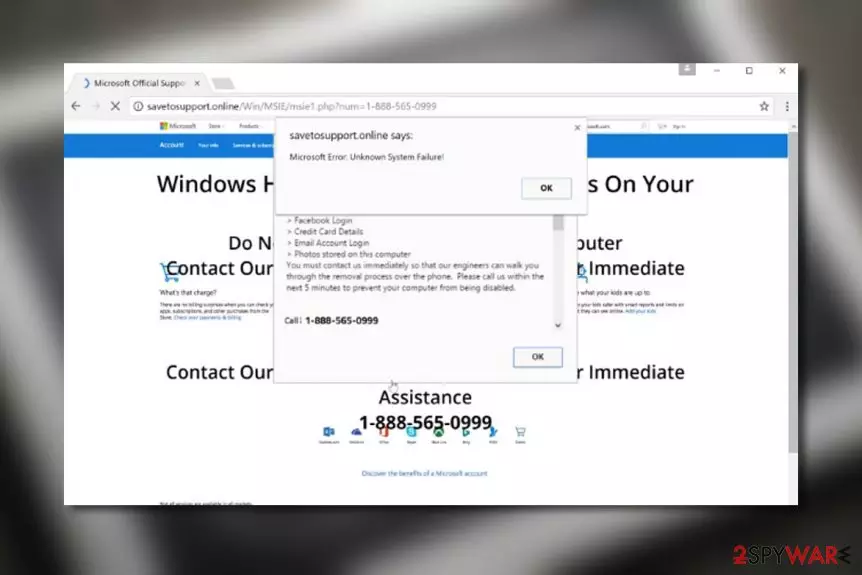
Microsoft Error: Unknown System Failure is a scam which bombards the screen with deceptive notifications that claim scary things. If you take a look at these messages, you should see that they are far from looking alike as original notifications. However, some people fall for believing that system failure has occurred and sensitive information is put at risk. Additionally, Error: Unknown System Failure might act not only as a technical support scam[1] but also have signs of adware as scamming content is often a sign of an ad-supported program[2] hiding in the system.
| Name | Microsoft Error: Unknown System Failure |
|---|---|
| Type | Scam/potentially unwanted program |
| Goal | To convince users to dial via the provided mobile phone number and reveal some details about his/her system or swindle money by offering purchase of fake security software |
| Caused by | Usually, adware is the main cause of such scamware but it can also be met on third-party networks or while using illegitimate services on the Internet sphere |
| Possible danger | Users can run into data theft after revealing important information, experience remote access to their computers which might lead to secret malware infiltration |
| Spreading | Bundles of original products often carry potentially unwanted content such as adware |
| Elimination | Use FortectIntego for the removal of this scam. Manual guidelines are also provided at the end of the page |
Content that comes from Microsoft Error: Unknown System Failure pop-up virus can never be trusted. Once you receive such message, you will be told that your computer system is severely damaged, that personal data of yours is at risk of exposure, and the only way to fix all problems is by contacting the fake Microsoft support.
Together with Error: Unknown System Failure you will see a suspicious number added. Note that calling it is not recommendable at all as you will find only scammers hiding there. Once you reach them, you will supposedly be urged to provide some sensitive information about yourself or give remote access for “fixing purposes”.
If hackers connect to your computer, they might monitor various malicious actions such as gathering sensitive information, injecting malware,[3] mining cryptocurrency, and running different types of malicious processes in the background. You should remove Microsoft Error: Unknown System Failure from the computer and avoid dialing the fake number.
Nevertheless, scammers who are supporting Error: Unknown System Failure might also promote fake security software and provoke users to download such false programs by convincing them that the tool will take care of all system error, no more threats will be lurking in the machine, and it will work at maximum speed.

Our suggestion would be not to postpone the Microsoft Error: Unknown System Failure removal and get rid of the adware program that is causing the scam message to bombard your computer screen. Using FortectIntego will automatically get rid of the cyber threat and all additional content that it might have brought to the machine.
For those who have no security software installed, we have prepared a brief guide on how to recognize fake messages such as Error: Unknown System Failure manually:
- When you see a security alert or notification informing about some supposed PC infection or error, pay attention where this alert is displayed. If you find it displayed on some random web page, there is no doubt that the notification is purely a scam. You should close such website immediately and scan your PC with antivirus software.
- Analyze the content of the message. This particular virus will usually threaten that the security of your device is at stake and you may lose some of your valuable information if you do not take action to fix it. Most TTS scams will indicate a phone number, urging the victims to call it and receive some help from Microsoft professionals. Here is an example illustrating contents of the fraudulent popup:
Microsoft Error: Unknown System Failure
Internal Configuration: Altered Your Windows Firewall Has Been Disabled
Possibly due to Internet Infection or Unauthorized Connection through your IP-Address It can cause the following things; 1) Possible Data Loss
2) Identity Theft
3) Loss of Email/Social Networking/ Personal Passwords
4) Credentials Stored or Used on the Computer Consule Microsoft Network Security Advisor
Immediately on the Toll Free Number:
- Run a test drive with a professional antivirus utility. Legitimate tools will provide you with a genuine report about your computer’s situation, and it will most likely indicate adware infection which you will have to get rid of. For more suggestions on how to remove Microsoft Error: Unknown System Failure virus from your PC skip to the end of the article.

Embedding adware on the computer
According to researchers from SenzaVirus.it,[4] potentially unwanted programs are one of the most common threats distributed throughout the wild. Unfortunately, not all users are aware of how adware enters computers. If you are one of those people, you should remember that the main vector of adware distribution is software packages.
Suspicious applications often get bundled with some popular freeware[5] or shareware application and install on the computer when Quick or Recommended settings are chosen for the software installation mode. That is why the main reason why users often complain about potentially unwanted programs appearing out of nowhere.
To avoid undesirable programs, you should always choose Advanced or Custom installation modes and deselect additional components manually. Furthermore, staying away from suspicious-looking websites is also a measure you should take to ensure your computer's safety. It would be even easier if you used antimalware with a safe browsing function.
Eliminate “Microsoft Error: Unknown System Failure” scam from your PC
In order to remove “Microsoft Error: Unknown System Failure” from your PC successfully, you should locate and delete the root of all problems — the adware program. It may be disguised as some small program or a browser helper object, thus it is useful to have some specialized software to determine the potentially unwanted components automatically.
Instructions that our experts have prepared below this article may also help you perform “Microsoft Error: Unknown System Failure” removal manually, but if you want to save time, you should definitely choose the automatic elimination option instead. You can install a program from our suggested list or any other similar tool of your likings.
If “Microsoft Error: Unknown System Failure” pop-up is not just a simple occurrence on a third-party website and the cause of its appearance is adware, you should check web browsers for adware-related content also. Furthermore, you might find your browser settings altered which also needs to be undone for further proper usage.
Uninstall from Windows
Uninstall from Windows 10/8:
- Type Control Panel into the Windows search box and open the result.
- Under Programs, select Uninstall a program.


Uninstall from Windows 7/XP:
- Click on Windows Start > Control Panel (Windows XP users should click on Add/Remove Programs).
- In Control Panel, select Programs > Uninstall a program.


Remove the unwanted program:
- In the Programs and Features window, look for any recently installed suspicious entries, select them, and click Uninstall.
- If User Account Control appears, click Yes to confirm, then complete the removal.


Delete from macOS
Remove the unwanted application:
- From the menu bar, select Go > Applications.
- In the Applications folder, look for any suspicious entries, then drag them to Trash (or right-click and pick Move to Trash).


Delete leftover files and folders:
- Select Go > Go to Folder.
- Enter /Library/Application Support and remove any suspicious folders related to the unwanted program.
- Repeat the same check in the /Library/LaunchAgents and /Library/LaunchDaemons folders, deleting any suspicious entries.

- Finally, empty the Trash to permanently remove the leftovers.

Reset Internet Explorer
Remove dangerous add-ons:
- Open Internet Explorer, click on the Gear icon (IE menu) on the top-right corner of the browser
- Pick Manage Add-ons.
- You will see a Manage Add-ons window. Here, look for suspicious plugins. Click on these entries and select Disable.


Change your homepage if it was altered:
- Open IE and click on the Gear icon.
- Select Internet Options.
- In the General tab, delete the Home page address and replace it by your preferred one (for example, Google.com).
- Click Apply and then select OK.


Delete temporary files:
- Press on the Gear icon and select Internet Options.
- Under Browsing history, click Delete...
- Select relevant fields and press Delete.


Reset Internet Explorer:
- Click on Gear icon > Internet options and select Advanced tab.
- Select Reset.
- In the new window, check Delete personal settings and select Reset.


Remove from Microsoft Edge
Delete unwanted extensions from MS Edge:
- Select Menu (three horizontal dots at the top-right of the browser window) and pick Extensions.
- From the list, pick the extension and click on the Gear icon.
- Click Remove.


Clear cookies and other browser data:
- Click on the Menu (three horizontal dots at the top-right of the browser window) and select Settings > Privacy, search, and services..
- Under Clear browsing data, pick Choose what to clear.
- Select Cookies and other site data and Cached images and files. (apart from passwords, although you might want to include Media licenses as well, if applicable) and click on Clear.


Restore new tab and homepage settings:
- Click the menu icon and choose Settings.
- Then find On startup section.
- Click Remove next to any suspicious startup page.
Reset MS Edge if the above steps did not work:
- Press on Ctrl + Shift + Esc to open Task Manager.
- Click on More details arrow at the bottom of the window.
- Select Details tab.
- Now scroll down and locate every entry with Microsoft Edge name in it. Right-click on each of them and select End Task to stop MS Edge from running.


Instructions for Chromium-based Edge
Delete extensions from MS Edge (Chromium):
- Open Edge and click select Settings > Extensions.
- Delete unwanted extensions by clicking Remove.


Clear cache and site data:
- Click on Menu and go to Settings.
- Select Privacy, search and services.
- Under Clear browsing data, pick Choose what to clear.
- Under Time range, pick All time.
- Select Clear now.


Reset Chromium-based MS Edge:
- Click on Menu and select Settings.
- On the left side, pick Reset settings.
- Select Restore settings to their default values.
- Confirm with Reset.
- This will disable extensions and reset startup pages but will not delete bookmarks, saved passwords, or browsing history.


Remove from Mozilla Firefox (FF)
Remove dangerous extensions:
- Open Mozilla Firefox browser and click on the Menu (three horizontal lines at the top-right of the window).
- Select Add-ons.
- In here, select the unwanted extension and click Remove.


Reset the homepage:
- Click three horizontal lines at the top right corner to open the menu.
- Choose Settings.
- Under Home, set your preferred homepage and new tab settings.
Clear cookies and site data:
- Click Menu and pick Settings.
- Go to Privacy & Security section.
- Scroll down to locate Cookies and Site Data.
- Click on Clear Data...
- Select Cookies and Site Data and Temporary cached files and pages, then click Clear.


Reset Mozilla Firefox
If clearing the browser as explained above did not help, reset Mozilla Firefox:
- Open Mozilla Firefox browser and click the Menu.
- Go to Help and then choose Troubleshooting Information.

- Under Give Firefox a tune up section, click on Refresh Firefox...
- Once the pop-up shows up, confirm the action by pressing on Refresh Firefox.



Remove from Google Chrome
Delete malicious extensions from Google Chrome:
- Open Google Chrome, click on the Menu (three vertical dots at the top-right corner) and select More tools > Extensions.
- In the newly opened window, you will see all the installed extensions. Uninstall all suspicious extensions related to the unwanted program by clicking Remove.


Clear cache and web data from Chrome:
- Click on Menu and pick Settings.
- Under Privacy and security, select Clear browsing data.
- Select Browsing history, Cookies and other site data, as well as Cached images and files.
- Click Clear data.


Change your homepage:
- Click menu and choose Settings.
- Look for a suspicious site in the On startup section.
- Click on Open a specific or set of pages and click on three dots to find the Remove option.
Reset Google Chrome:
If the previous methods did not help you, reset Google Chrome to eliminate all the unwanted components:
- Click on Menu and select Settings.
- In the Settings, scroll down and click Advanced.
- Scroll down and locate Reset and clean up section.
- Now click Restore settings to their original defaults.
- Confirm with Reset settings.


Delete from Safari
Remove dangerous extensions:
- Open Safari, click Safari in the menu at the top-left of the screen, and select Preferences.
- Go to the Extensions tab, look for any suspicious entries, and click Uninstall to remove them.


Clear history and website data:
- Click Safari in the menu and pick Clear History.
- Set Clear to all history and confirm with Clear History.


Reset Safari:
- Click Safari in the menu and select Preferences > Advanced.
- Enable Show Develop menu in menu bar.
- From the menu bar, click Develop and select Empty Caches.


Did this guide help?
Be the first to comment