

Handy Tab is a browser extension that seeks to gain revenue by displaying commercial content
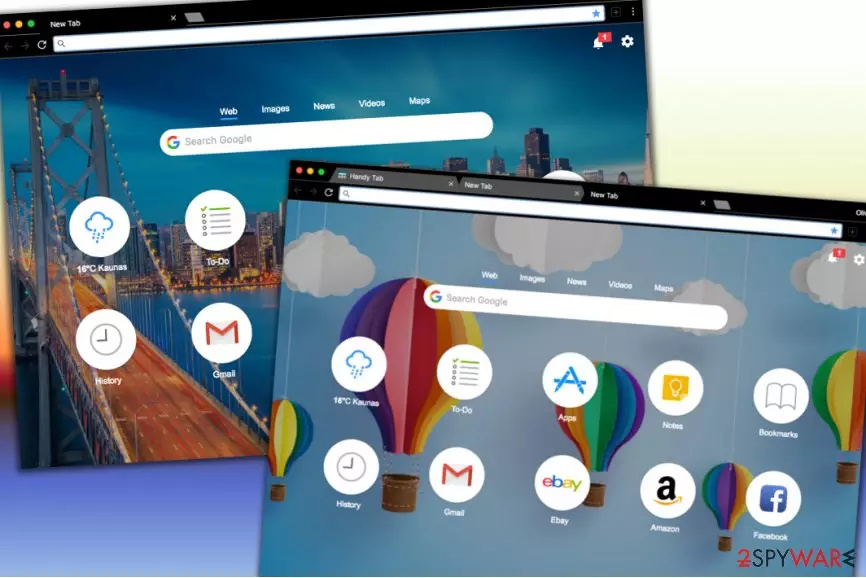
Handy Tab is an add-on that can be downloaded and installed from the Google Chrome store. However, this application usually attaches to the browser when users download third-party applications without paying much attention to the installation process. As soon as the potentially unwanted program gets into the PC, it alters browser settings[1] and sets the homepage, search engine, and new tab URL to search.handy-tab.com. Handy Tab tries to look as much useful as possible by providing a big variety of features that the users would be able to employ after downloading the extension to their browsers.
The bogus app offers to check the weather forecast, create to-do lists, write down notes, access bookmarks simply, and open various applications at a faster speed. You might get quickly attracted to Handy Tab extension, however, you should be aware that it can bring negative consequences such as altered search query results, redirects to affiliate domains filled with sponsored adverts, the constant delivery of commercial content, collecting your non-personal information and sharing it with other parties, installing additional potentially unwanted programs to the system, etc.
| SUMMARY | |
| Name | Handy-Tab.com |
| Type | Browser hijacker, PUP |
| Extension | When the browser hijacker infects web browsers such as Google Chrome, Mozilla Firefox, Internet Explorer, Microsoft Edge, or Safari, it adds the Handy Tab extension to them |
| Distribution | The bogus product can be downloaded from its official website and even the Google Chrome web store. However, it is more likely that you will receive the app together with bundled freeware or shareware |
| Symptoms | If you are infected with this browser hijacker, it will change the new tab page, homepage, and search engine of your hijacked web browser. Furthermore, you are likely to find the Handy Tab extension installed in your browser settings. Other signs might include frequent redirecting and advertising |
| Main dangers | Beware that the browser hijacker can bring other programs to the computer system, including malicious ones. This can happen if the PUP is used as an intermediary for malware distribution or if you have landed on a malware-laden location during a redirecting session |
| Elimination | Terminate the potentially unwanted program with the help of automatical antivirus software or use the manual instructions that have been included to the end of this article. If you have encountered any system damage, try repairing it with FortectIntego |
As soon as Handy Tab infiltrates the system and changes Windows Registry, as well as browser settings, it starts redirecting users' searches to sponsored domains. Most of the time, such locations will appear filled with questionable offers and deals. However, there also is a chance of landing on an infected website where malware is delivered.
Online advertising is also a common practice of browser hijackers such as Handy-Tab.com virus. However, aggressive ads and their redirects can not only disturb daily browsing sessions but also lead to malware infection. Additionally, fake surveys and tech support scams[2] can be encountered as well. Do not provide any sensitive information if you are unexpectedly asked by some type of fake reward claim or questionnaire.

Furthermore, Handy Tab virus might try to earn income from displaying targeted advertising posts. The developers deliver as many attractive-looking pop-ups as possible to collect clicks on the ads. Besides being very annoying and providing fake deals and offers, the incoming advertisements might increase into such a big number that can interrupt your browsing process. This can cause browser and system slowdowns[3].
Handy-Tab.com is also interested in tracking users' non-personal information. Browser hijacker authors use several data-gathering technologies (cookies, beacons, JavaScript, etc.) to harvest information, such as:
- Search queries
- IP address
- Geolocation
- Bookmarks added
- Sites visited
- Technical information, etc.
While this data is considered to be anonymous, certain personal details can be acquired by Handy Tab while asking users to fill in surveys and participating in various questionnaires. This type of information can also include contact details which you should avoid to reveal as you might not even notice how your email box or mobile phone will get spammed with rogue-looking offers.
Handy-Tab.com developers have made a statement in their Privacy Policy that personal information can be shared if it comes to investigation purposes or something else that is related to the law:
We may also share your personal information if we believe it is necessary in order to investigate, prevent, or take action regarding illegal activities, suspected fraud, situations involving potential threats to the physical safety of any person, violations of Handy Tab's or such Handy Tab Extension's terms of use, or as otherwise required by law.
Be careful while revealing certain information for questionable apps such as Handy-Tab.com as you cannot know where your data might end up. Some developers are interested in sharing collected details with other parties for monetary income.
Bypassing questionable search engines becomes a necessity if you are trying to keep your computer secure. To remove Handy-Tab.com from your web browsers such as Google Chrome, Mozilla Firefox, Internet Explorer, Microsoft Edge, and Safari, you need to follow instructions prepared by our security experts (you will find the guidelines below the article).

In case you find the Handy-Tab.com removal process confusing, you can always uninstall the hijacker automatically. We suggest that you use reputable security software that can detect hijackers and other PUPs, and then use FortectIntego to bring all altered system settings to normal. Even though there is no 100% guarantee that this software will work, it is still worth giving a try.
Another reason to hurry up with the Handy Tab elimination process is that the browser hijacker might let other potentially unwanted programs to get placed on your computer system. This includes various adware apps, other browser hijackers, etc. Nevertheless, some developers might find the browser hijacker as an intermediary for malware delivery and try to include virus installation in its operation module.
Beware of Recommended settings during freeware installation
The main trick that PUP developers use for the promotion of questionable software is software bundling,[4] which helps to distribute a couple of programs together. It is a must to install free software carefully; otherwise, you can end up with several unexpected programs on your computer. These tips were provided by UdenVirus.dk team[5] – we find them extremely useful when trying to keep your computer at its peak performance.
- To prevent the unexpected installation of potentially unwanted software, always read what every single line provided in the software installation wizard. Follow each step carefully and make a little stop on the installation settings stage.
- Here, you need to configure the installation settings in order to install ONLY the program that you want. We strongly recommend choosing Custom or Advanced mode to install your download.
- After selecting one or another option, you will get access to the list of “recommended” or “suggested” programs bundled with your download.
- Deselect the checkmarks next to statements stating that you agree with the installation of a specific additional program.
Additionally, you can also take other precautionary steps to be sure that no browser hijacker ever appears on your computer system. For this purpose, avoid visiting websites that are marked as unsafe to proceed with, do not click on unknown content that can appear in such places. Finally, make sure that you have installed reputable antivirus protection that will always protect and save you if something goes wrong.

Get rid of Handy Tab with only one click
A quick and efficient Handy-Tab.com removal procedure requires using anti-malware software. Besides, you should make sure that the program is updated to its latest version to show you the best result in virus elimination. However, it is not the only way of deleting the unwanted browser hijacker from your computer. You can also rely on instructions prepared by our experts that are included at the end of this informative article.
If you are willing to delete the virus manually, follow each step of the provided guide and you will completely remove Handy-Tab.com virus from your machine without using anti-spyware or a computer technician’s help. However, you should know that getting rid of the app from your operating system is not enough, you should also clean and refresh the infected web browser apps such as Google Chrome, Mozilla Firefox, Internet Explorer, Microsoft Edge, and Safari.
Uninstall from Windows
Uninstall from Windows 10/8:
- Type Control Panel into the Windows search box and open the result.
- Under Programs, select Uninstall a program.


Uninstall from Windows 7/XP:
- Click on Windows Start > Control Panel (Windows XP users should click on Add/Remove Programs).
- In Control Panel, select Programs > Uninstall a program.


Remove the unwanted program:
- In the Programs and Features window, look for any recently installed suspicious entries, select them, and click Uninstall.
- If User Account Control appears, click Yes to confirm, then complete the removal.


Delete from macOS
Remove the unwanted application:
- From the menu bar, select Go > Applications.
- In the Applications folder, look for any suspicious entries, then drag them to Trash (or right-click and pick Move to Trash).


Delete leftover files and folders:
- Select Go > Go to Folder.
- Enter /Library/Application Support and remove any suspicious folders related to the unwanted program.
- Repeat the same check in the /Library/LaunchAgents and /Library/LaunchDaemons folders, deleting any suspicious entries.

- Finally, empty the Trash to permanently remove the leftovers.

Reset Internet Explorer
Remove dangerous add-ons:
- Open Internet Explorer, click on the Gear icon (IE menu) on the top-right corner of the browser
- Pick Manage Add-ons.
- You will see a Manage Add-ons window. Here, look for suspicious plugins. Click on these entries and select Disable.


Change your homepage if it was altered:
- Open IE and click on the Gear icon.
- Select Internet Options.
- In the General tab, delete the Home page address and replace it by your preferred one (for example, Google.com).
- Click Apply and then select OK.


Delete temporary files:
- Press on the Gear icon and select Internet Options.
- Under Browsing history, click Delete...
- Select relevant fields and press Delete.


Reset Internet Explorer:
- Click on Gear icon > Internet options and select Advanced tab.
- Select Reset.
- In the new window, check Delete personal settings and select Reset.


Remove from Microsoft Edge
Delete unwanted extensions from MS Edge:
- Select Menu (three horizontal dots at the top-right of the browser window) and pick Extensions.
- From the list, pick the extension and click on the Gear icon.
- Click Remove.


Clear cookies and other browser data:
- Click on the Menu (three horizontal dots at the top-right of the browser window) and select Settings > Privacy, search, and services..
- Under Clear browsing data, pick Choose what to clear.
- Select Cookies and other site data and Cached images and files. (apart from passwords, although you might want to include Media licenses as well, if applicable) and click on Clear.


Restore new tab and homepage settings:
- Click the menu icon and choose Settings.
- Then find On startup section.
- Click Remove next to any suspicious startup page.
Reset MS Edge if the above steps did not work:
- Press on Ctrl + Shift + Esc to open Task Manager.
- Click on More details arrow at the bottom of the window.
- Select Details tab.
- Now scroll down and locate every entry with Microsoft Edge name in it. Right-click on each of them and select End Task to stop MS Edge from running.


Instructions for Chromium-based Edge
Delete extensions from MS Edge (Chromium):
- Open Edge and click select Settings > Extensions.
- Delete unwanted extensions by clicking Remove.


Clear cache and site data:
- Click on Menu and go to Settings.
- Select Privacy, search and services.
- Under Clear browsing data, pick Choose what to clear.
- Under Time range, pick All time.
- Select Clear now.


Reset Chromium-based MS Edge:
- Click on Menu and select Settings.
- On the left side, pick Reset settings.
- Select Restore settings to their default values.
- Confirm with Reset.
- This will disable extensions and reset startup pages but will not delete bookmarks, saved passwords, or browsing history.


Remove from Mozilla Firefox (FF)
Remove dangerous extensions:
- Open Mozilla Firefox browser and click on the Menu (three horizontal lines at the top-right of the window).
- Select Add-ons.
- In here, select the unwanted extension and click Remove.


Reset the homepage:
- Click three horizontal lines at the top right corner to open the menu.
- Choose Settings.
- Under Home, set your preferred homepage and new tab settings.
Clear cookies and site data:
- Click Menu and pick Settings.
- Go to Privacy & Security section.
- Scroll down to locate Cookies and Site Data.
- Click on Clear Data...
- Select Cookies and Site Data and Temporary cached files and pages, then click Clear.


Reset Mozilla Firefox
If clearing the browser as explained above did not help, reset Mozilla Firefox:
- Open Mozilla Firefox browser and click the Menu.
- Go to Help and then choose Troubleshooting Information.

- Under Give Firefox a tune up section, click on Refresh Firefox...
- Once the pop-up shows up, confirm the action by pressing on Refresh Firefox.



Remove from Google Chrome
Delete malicious extensions from Google Chrome:
- Open Google Chrome, click on the Menu (three vertical dots at the top-right corner) and select More tools > Extensions.
- In the newly opened window, you will see all the installed extensions. Uninstall all suspicious extensions related to the unwanted program by clicking Remove.


Clear cache and web data from Chrome:
- Click on Menu and pick Settings.
- Under Privacy and security, select Clear browsing data.
- Select Browsing history, Cookies and other site data, as well as Cached images and files.
- Click Clear data.


Change your homepage:
- Click menu and choose Settings.
- Look for a suspicious site in the On startup section.
- Click on Open a specific or set of pages and click on three dots to find the Remove option.
Reset Google Chrome:
If the previous methods did not help you, reset Google Chrome to eliminate all the unwanted components:
- Click on Menu and select Settings.
- In the Settings, scroll down and click Advanced.
- Scroll down and locate Reset and clean up section.
- Now click Restore settings to their original defaults.
- Confirm with Reset settings.


Delete from Safari
Remove dangerous extensions:
- Open Safari, click Safari in the menu at the top-left of the screen, and select Preferences.
- Go to the Extensions tab, look for any suspicious entries, and click Uninstall to remove them.


Clear history and website data:
- Click Safari in the menu and pick Clear History.
- Set Clear to all history and confirm with Clear History.


Reset Safari:
- Click Safari in the menu and select Preferences > Advanced.
- Enable Show Develop menu in menu bar.
- From the menu bar, click Develop and select Empty Caches.


Did this guide help?
Be the first to comment