

Directweblinks.com browser hijacker changes browser's settings and serves highly annoying ads
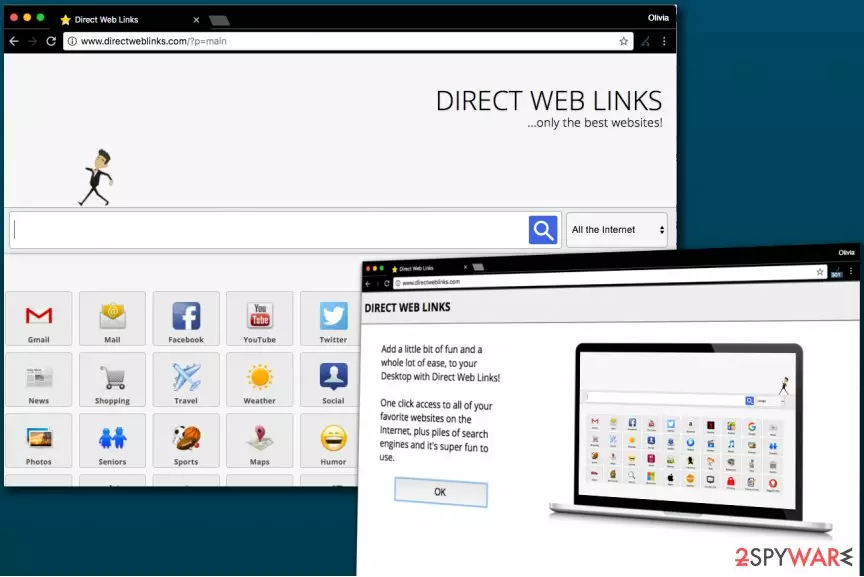
DirectWebLinks.com is a highly suspicious domain that suggests adding an update.exe program. Once executed, this program can modify browser's settings or add unwanted extensions in order to affect user's browsing experience. First of all, Direct Web Links virus changes homepage and search settings, adding directweblinks.com/?p=main value to them. Cyber security professionals recommend removing this potentially unwanted program (PUP) as quickly as possible.
The search engine provided by DirectWebLinks.com virus tries to catch users’ attention by offering ultimate search capabilities. In other words, the developers promise you that your search queries will retrieve most relevant information. However, the site instantly transfers user's search queries to Alltheinternet.com search engine which also presents the search results. This is where you will have to encounter annoying ads[1] presented as search findings.
Though the search engine offers you banner-free services, note that promoted sites might not be always secure. IT experts have labeled it as a browser hijacker, so Directweblinks.com removal might be a better decision.
Direct Web Links ads will be presented as “Sponsored links” in the results' pages. We strongly recommend you to avoid clicking on these results as they might unexpectedly reroute you to potentially insecure domains[2]. If you value your privacy and security, remove Direct Web Links redirect virus without any hesitations.
The main page of DirectWebLinks website presents multiple categories, which divide again into subcategories. For instance, if you enter movie section, additional choices of YouTube, Netflix, Rotten Tomatoes, CBS, and others, will appear.
Another suspicious fact is that the described search engine does not provide Privacy Policy, although the provider of the results, AlltheInternet.com, does. Not surprisingly, the search provider collects user's search queries and other browsing-related data and transmits it to its own servers. Collected data is later used to provide targeted ads for the users.
Considering the suspicious activity of Direct Web Links adware, we suggest removing it from your computer. If you installed the software without realizing its real function, do not hesitate and use the instructions provided below the article. You could also install the software unknowingly alongside another free program. Such distribution method simply is yet another reason to remove Directweblinks.com. FortectIntego or MalwarebytesMalwarebytes helps you in this process.

Identify and stop suspicious software before it lands on your computer system
In order to monitor the traffic of incoming apps, it is crucial that you would pay attention to the installation wizards. Before you download any application from any source, follow this advice:
- check whether the app is issued by the official and not “unknown” publisher
- opt for “Advanced” settings
- unmark all unnecessary optional programs
Note that even Skype and Java may contain irrelevant add-ons, so you should be wary of the PUPs. If you pay attention, you will likely to escape Directweblinks hijack and infiltration of similar programs. Note that the browser infection might be promoted in sponsored domains in the form of scripts. In order to get rid of them, check the below section.
Delete Direct Web Links and fix your computer
You can remove Directweblinks.com virus manually by resetting the browser and deleting the update.exe file. In addition, it would be wise to eliminate all other files and programs associated with the browser hijacker. Further removal instructions are provided below.
There is also a more optimal solution. You can perform Directweblinks.com removal with the assistance of malware elimination tool. Note that the hijacker might be promoted in Chinese or Japanese[3] sites as well.
Uninstall from Windows
Uninstall from Windows 10/8:
- Type Control Panel into the Windows search box and open the result.
- Under Programs, select Uninstall a program.


Uninstall from Windows 7/XP:
- Click on Windows Start > Control Panel (Windows XP users should click on Add/Remove Programs).
- In Control Panel, select Programs > Uninstall a program.


Remove the unwanted program:
- In the Programs and Features window, look for any recently installed suspicious entries, select them, and click Uninstall.
- If User Account Control appears, click Yes to confirm, then complete the removal.


Delete from macOS
Remove the unwanted application:
- From the menu bar, select Go > Applications.
- In the Applications folder, look for any suspicious entries, then drag them to Trash (or right-click and pick Move to Trash).


Delete leftover files and folders:
- Select Go > Go to Folder.
- Enter /Library/Application Support and remove any suspicious folders related to the unwanted program.
- Repeat the same check in the /Library/LaunchAgents and /Library/LaunchDaemons folders, deleting any suspicious entries.

- Finally, empty the Trash to permanently remove the leftovers.

Reset Internet Explorer
Remove dangerous add-ons:
- Open Internet Explorer, click on the Gear icon (IE menu) on the top-right corner of the browser
- Pick Manage Add-ons.
- You will see a Manage Add-ons window. Here, look for suspicious plugins. Click on these entries and select Disable.


Change your homepage if it was altered:
- Open IE and click on the Gear icon.
- Select Internet Options.
- In the General tab, delete the Home page address and replace it by your preferred one (for example, Google.com).
- Click Apply and then select OK.


Delete temporary files:
- Press on the Gear icon and select Internet Options.
- Under Browsing history, click Delete...
- Select relevant fields and press Delete.


Reset Internet Explorer:
- Click on Gear icon > Internet options and select Advanced tab.
- Select Reset.
- In the new window, check Delete personal settings and select Reset.


Remove from Microsoft Edge
Delete unwanted extensions from MS Edge:
- Select Menu (three horizontal dots at the top-right of the browser window) and pick Extensions.
- From the list, pick the extension and click on the Gear icon.
- Click Remove.


Clear cookies and other browser data:
- Click on the Menu (three horizontal dots at the top-right of the browser window) and select Settings > Privacy, search, and services..
- Under Clear browsing data, pick Choose what to clear.
- Select Cookies and other site data and Cached images and files. (apart from passwords, although you might want to include Media licenses as well, if applicable) and click on Clear.


Restore new tab and homepage settings:
- Click the menu icon and choose Settings.
- Then find On startup section.
- Click Remove next to any suspicious startup page.
Reset MS Edge if the above steps did not work:
- Press on Ctrl + Shift + Esc to open Task Manager.
- Click on More details arrow at the bottom of the window.
- Select Details tab.
- Now scroll down and locate every entry with Microsoft Edge name in it. Right-click on each of them and select End Task to stop MS Edge from running.


Instructions for Chromium-based Edge
Delete extensions from MS Edge (Chromium):
- Open Edge and click select Settings > Extensions.
- Delete unwanted extensions by clicking Remove.


Clear cache and site data:
- Click on Menu and go to Settings.
- Select Privacy, search and services.
- Under Clear browsing data, pick Choose what to clear.
- Under Time range, pick All time.
- Select Clear now.


Reset Chromium-based MS Edge:
- Click on Menu and select Settings.
- On the left side, pick Reset settings.
- Select Restore settings to their default values.
- Confirm with Reset.
- This will disable extensions and reset startup pages but will not delete bookmarks, saved passwords, or browsing history.


Remove from Mozilla Firefox (FF)
Remove dangerous extensions:
- Open Mozilla Firefox browser and click on the Menu (three horizontal lines at the top-right of the window).
- Select Add-ons.
- In here, select the unwanted extension and click Remove.


Reset the homepage:
- Click three horizontal lines at the top right corner to open the menu.
- Choose Settings.
- Under Home, set your preferred homepage and new tab settings.
Clear cookies and site data:
- Click Menu and pick Settings.
- Go to Privacy & Security section.
- Scroll down to locate Cookies and Site Data.
- Click on Clear Data...
- Select Cookies and Site Data and Temporary cached files and pages, then click Clear.


Reset Mozilla Firefox
If clearing the browser as explained above did not help, reset Mozilla Firefox:
- Open Mozilla Firefox browser and click the Menu.
- Go to Help and then choose Troubleshooting Information.

- Under Give Firefox a tune up section, click on Refresh Firefox...
- Once the pop-up shows up, confirm the action by pressing on Refresh Firefox.



Remove from Google Chrome
Delete malicious extensions from Google Chrome:
- Open Google Chrome, click on the Menu (three vertical dots at the top-right corner) and select More tools > Extensions.
- In the newly opened window, you will see all the installed extensions. Uninstall all suspicious extensions related to the unwanted program by clicking Remove.


Clear cache and web data from Chrome:
- Click on Menu and pick Settings.
- Under Privacy and security, select Clear browsing data.
- Select Browsing history, Cookies and other site data, as well as Cached images and files.
- Click Clear data.


Change your homepage:
- Click menu and choose Settings.
- Look for a suspicious site in the On startup section.
- Click on Open a specific or set of pages and click on three dots to find the Remove option.
Reset Google Chrome:
If the previous methods did not help you, reset Google Chrome to eliminate all the unwanted components:
- Click on Menu and select Settings.
- In the Settings, scroll down and click Advanced.
- Scroll down and locate Reset and clean up section.
- Now click Restore settings to their original defaults.
- Confirm with Reset settings.


Delete from Safari
Remove dangerous extensions:
- Open Safari, click Safari in the menu at the top-left of the screen, and select Preferences.
- Go to the Extensions tab, look for any suspicious entries, and click Uninstall to remove them.


Clear history and website data:
- Click Safari in the menu and pick Clear History.
- Set Clear to all history and confirm with Clear History.


Reset Safari:
- Click Safari in the menu and select Preferences > Advanced.
- Enable Show Develop menu in menu bar.
- From the menu bar, click Develop and select Empty Caches.


Did this guide help?
Be the first to comment