

Search.htextfrompc.co – a search tool that you should definitely not use
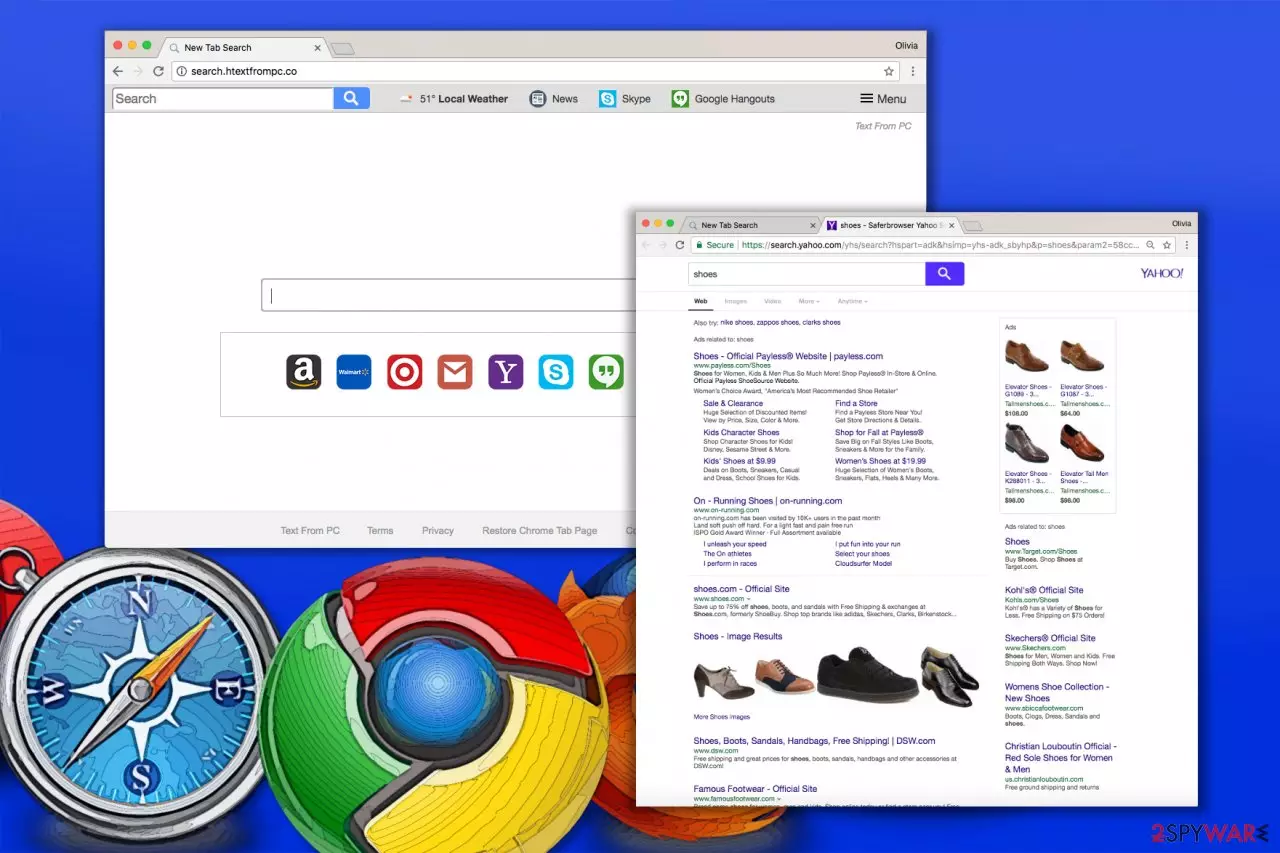
Search.htextfrompc.co is yet another untrustworthy and hardly useless piece of software by Polarity Technologies, Ltd. It is a small computer program that affects web browsers and makes them launch the article's culprit's domain on startup. This web page provides a search engine that delivers many sponsored search results, which might redirect the user to hazardous domains.
Text From PC is a dubious extension[1] compatible with Google Chrome and possibly other web browsers. Once added to the system, it prevents the user from modifying default start page settings until it gets detected and deleted by the user or anti-spyware software[2]. Many security programs identify this piece of software as a potentially unwanted program (PUP) and suggest removing it..
| name | Search.htextfrompc.co |
|---|---|
| Type | Browser hijacker, PUP, redirect virus |
| Symptoms of infection | Search results are provided from a different source than before and contain numerous ads; altered browser settings; redirects to suspicious domains |
| Risks | Monetary losses, privacy issues |
| Distribution | Software bundles, deceptive ads |
| Elimination | Scan your device with reputable security software to remove the browser hijacker |
| System health | Check for any system inconsistencies and fix them automatically by using the FortectIntego repair software |
The main reason why we recommend you to remove Search.htextfrompc.co is that it serves sponsored search results without testing their reliability or security. In other words, placing ads in search results might generate revenue for Polarity Technologies; however, it hardly endorses content shared by these websites.
As a result, the victim might unexpectedly enter suspicious Internet sites providing troublesome ads or bad download links. The developer, however, suggests users review the privacy policies of those external sites before using them. It goes without saying that users hardly spend time analyzing such lengthy documents at all.
If the fake search site appeared in your browser without your knowledge and you can’t find peace until it gets removed, please carefully read the instructions we provided below this article. The given directions will guide you through the removal procedure.
In case you are looking for a quicker way to remove Search.htextfrompc.co, consider using reliable anti-malware programs like MalwarebytesMalwarebytes or SpyHunterCombo Cleaner. You can also check security programs recommended by French cybersecurity experts on the LesVirus.fr site.[3]
When you get rid of the browser intruder, you must check on the overall system health as the PUP might have also altered key system directories. Launch the time-proven FortectIntego software which will automatically detect and fix all system-related irregularities.

Keep your PC safe by avoiding PUPs
Keeping your computer spyware and malware-free might be easier than it seems. You just have to follow several basic safe browsing rules. These are provided below. Before clicking on a link online, think about whether it will lead you to a site that you want to visit.
A good way to check whether the link is reliable is to hover your cursor over it and look at the bottom left corner of your browser window. The link that’s hidden behind the underlined phrase or word should appear there. If it looks suspicious, do not click!
- Avoid opening questionable email messages sent by complete strangers or companies that you haven’t been in touch with for a while.
- Install computer programs using Custom or Default options only as these will allow you to decompose software packs that are extremely common today. Software bundles usually suggest installing unwanted software alongside a popular free program that the user downloads. Typically, the user only needs to deselect unwanted items and proceed with the installation.
- Consider protecting your computer with anti-malware software.
- Besides, keep all your programs up-to-date.
Simple steps to remove Search.htextfrompc.co hijacker
You probably have understood that Search.htextfrompc.co removal is required in order to regain control of your browser’s settings. As long as it stays on the system, you will have to deal with continuous redirects and browser slowdowns caused by this low-level computer threat.
We can’t find a single reason not to cope with this virtual annoyance longer the moment you notice it in your browser, so if you are interested in ways to uninstall it today, continue reading below. You can easily delete the hijacker manually, although the automatic removal option guarantees even easier and faster removal. Both elimination options are described in detail below.
Uninstall from Windows
Uninstall from Windows 10/8:
- Type Control Panel into the Windows search box and open the result.
- Under Programs, select Uninstall a program.


Uninstall from Windows 7/XP:
- Click on Windows Start > Control Panel (Windows XP users should click on Add/Remove Programs).
- In Control Panel, select Programs > Uninstall a program.


Remove the unwanted program:
- In the Programs and Features window, look for any recently installed suspicious entries, select them, and click Uninstall.
- If User Account Control appears, click Yes to confirm, then complete the removal.


Delete from macOS
Remove the unwanted application:
- From the menu bar, select Go > Applications.
- In the Applications folder, look for any suspicious entries, then drag them to Trash (or right-click and pick Move to Trash).


Delete leftover files and folders:
- Select Go > Go to Folder.
- Enter /Library/Application Support and remove any suspicious folders related to the unwanted program.
- Repeat the same check in the /Library/LaunchAgents and /Library/LaunchDaemons folders, deleting any suspicious entries.

- Finally, empty the Trash to permanently remove the leftovers.

Remove from Microsoft Edge
Delete unwanted extensions from MS Edge:
- Select Menu (three horizontal dots at the top-right of the browser window) and pick Extensions.
- From the list, pick the extension and click on the Gear icon.
- Click Remove.


Clear cookies and other browser data:
- Click on the Menu (three horizontal dots at the top-right of the browser window) and select Settings > Privacy, search, and services..
- Under Clear browsing data, pick Choose what to clear.
- Select Cookies and other site data and Cached images and files. (apart from passwords, although you might want to include Media licenses as well, if applicable) and click on Clear.


Restore new tab and homepage settings:
- Click the menu icon and choose Settings.
- Then find On startup section.
- Click Remove next to any suspicious startup page.
Reset MS Edge if the above steps did not work:
- Press on Ctrl + Shift + Esc to open Task Manager.
- Click on More details arrow at the bottom of the window.
- Select Details tab.
- Now scroll down and locate every entry with Microsoft Edge name in it. Right-click on each of them and select End Task to stop MS Edge from running.


Instructions for Chromium-based Edge
Delete extensions from MS Edge (Chromium):
- Open Edge and click select Settings > Extensions.
- Delete unwanted extensions by clicking Remove.


Clear cache and site data:
- Click on Menu and go to Settings.
- Select Privacy, search and services.
- Under Clear browsing data, pick Choose what to clear.
- Under Time range, pick All time.
- Select Clear now.


Reset Chromium-based MS Edge:
- Click on Menu and select Settings.
- On the left side, pick Reset settings.
- Select Restore settings to their default values.
- Confirm with Reset.
- This will disable extensions and reset startup pages but will not delete bookmarks, saved passwords, or browsing history.


Remove from Mozilla Firefox (FF)
Remove dangerous extensions:
- Open Mozilla Firefox browser and click on the Menu (three horizontal lines at the top-right of the window).
- Select Add-ons.
- In here, select the unwanted extension and click Remove.


Reset the homepage:
- Click three horizontal lines at the top right corner to open the menu.
- Choose Settings.
- Under Home, set your preferred homepage and new tab settings.
Clear cookies and site data:
- Click Menu and pick Settings.
- Go to Privacy & Security section.
- Scroll down to locate Cookies and Site Data.
- Click on Clear Data...
- Select Cookies and Site Data and Temporary cached files and pages, then click Clear.


Reset Mozilla Firefox
If clearing the browser as explained above did not help, reset Mozilla Firefox:
- Open Mozilla Firefox browser and click the Menu.
- Go to Help and then choose Troubleshooting Information.

- Under Give Firefox a tune up section, click on Refresh Firefox...
- Once the pop-up shows up, confirm the action by pressing on Refresh Firefox.



Remove from Google Chrome
Delete malicious extensions from Google Chrome:
- Open Google Chrome, click on the Menu (three vertical dots at the top-right corner) and select More tools > Extensions.
- In the newly opened window, you will see all the installed extensions. Uninstall all suspicious extensions related to the unwanted program by clicking Remove.


Clear cache and web data from Chrome:
- Click on Menu and pick Settings.
- Under Privacy and security, select Clear browsing data.
- Select Browsing history, Cookies and other site data, as well as Cached images and files.
- Click Clear data.


Change your homepage:
- Click menu and choose Settings.
- Look for a suspicious site in the On startup section.
- Click on Open a specific or set of pages and click on three dots to find the Remove option.
Reset Google Chrome:
If the previous methods did not help you, reset Google Chrome to eliminate all the unwanted components:
- Click on Menu and select Settings.
- In the Settings, scroll down and click Advanced.
- Scroll down and locate Reset and clean up section.
- Now click Restore settings to their original defaults.
- Confirm with Reset settings.


Delete from Safari
Remove dangerous extensions:
- Open Safari, click Safari in the menu at the top-left of the screen, and select Preferences.
- Go to the Extensions tab, look for any suspicious entries, and click Uninstall to remove them.


Clear history and website data:
- Click Safari in the menu and pick Clear History.
- Set Clear to all history and confirm with Clear History.


Reset Safari:
- Click Safari in the menu and select Preferences > Advanced.
- Enable Show Develop menu in menu bar.
- From the menu bar, click Develop and select Empty Caches.


Did this guide help?
Be the first to comment