

“Your Apple Device Has a Virus” scam targets the “invincible” Mac OS
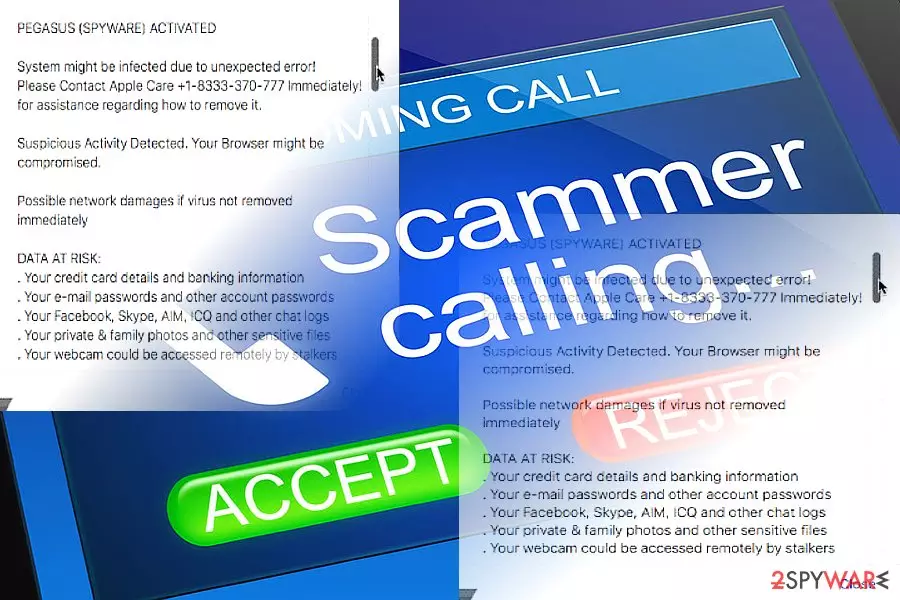
“Your Apple Device Has a Virus” virus spreads as a tech support scam targeting Mac and iOS community. This browser-based scam frightens users with Pegasus spyware. In order to save the data from theft, the message urges users to call +1-8333-370-777. Here is an extract from the message:
*YOUR APPLE DEVICE HAS A VIRUS*
Apple iOS Alert!!
PEGASUS (SPYWARE) ACTIVATED
System might be infected due to unexpected error!
Please Contact Apple Care +1-8333-370-777 Immediately!
for assistance regarding how to remove it.
According to the message, the following data is under risk:
- credit card details and banking credentials
- email account passwords
- Facebook, Skype, AIM, ICQ and other social network accounts
- private photos
“Your Apple Device Has a Virus” tech support scam: fake or genuine?
The scam developers indeed did a good job. They tied in legitimate information which might persuade Apple and iPhone users that indeed their computers might have been corrupted. They mention two things: Pegasus spyware and Apple Care, which is the genuine Apple support center.
But first things first, let us assure that this notification is fake. Whether you see such notification on Windows or Mac, note that such alerts do not pop up in random pages. Secondly, genuine notifications do not include a phone number.
Thus, what you have to do is exit the page or force shut down via Activity Monitor. However, it is recommended to remove “Your Apple Device Has a Virus” scam elements by clearing the browsing data or scanning the system with the Mac version of MalwarebytesMalwarebytes.
What is this Pegasus spyware?
If you have been familiar with Pegasus spyware, you might indeed get paranoid about the security of your Apple device.
As a matter of fact, Pegasus malware, which feeds on three zero-day vulnerabilities, was devised specifically for MacOS and iOS, though it has its Android counterpart as well[1].
In 2016, United Arab Emirates citizen Ahmed Mansoor discovered an exquisite malware campaign targeting iOS. He got a couple of SMS messages with shady links.[2] They were the harbingers of the main malware payload.
Clicking on the link would download Pegasus malware which would, later on, download remaining necessary files which would allow the malware to fully monitor’s users private messages. Keylogging features enable the malware to read encrypted content as well.
Another problem is that Pegasus enables to hide its tracks professionally. It is able to self-destruct if it is deprived of connection to Command and Control server within 60 days. Interestingly, the malware only targets specific users as it was designed by an Israeli company to belong to NSO group.
If you are wondering whether you have been infected with Pegasus via “Your Apple Device Has a Virus” scam, let us assure that there is no relation between these two. As discussed below, only selected users have been affected by the original malware.
Tech support scams wander on the cyber space
“Your Apple Device Has a Virus” hijack is carried with the assistance of web scripts. In other words, if you have been browsing movie streaming sites or torrent sharing domains, you were likely to encounter “Your Apple Device Has a Virus” alerts. On the other hand, legitimate apps might also divert you to such fake sites.[3]
You only need to cancel the window to exit the web page. If you cannot do so, close the browser via the Activity Monitor. Let us move on “Your Apple Device Has a Virus” scam removal methods.
Delete “Your Apple Device Has a Virus” tech support scam scripts
If you noticed these alerts on iPhone, all you can do is exit the page, as IOS does not support security applications.
Though Apple products are hostile towards security utilities, in fact, you can install certain malware elimination tools on MacOS. Above-mentioned sample functions on the Mac as well. Thus, it will help you remove “Your Apple Device Has a Virus” web scripts.
Alternatively, below you will find guidelines which instruct how to eliminate the scripts on major browsers. If you use other than Safari browser, you will find them useful. Resetting the browser contributes to “Your Apple Device Has a Virus” removal as well.
On the final note, a widely-spread opinion that MacOS is fully immune to malware might turn out to be perilous as felons find ways to penetrate even most unbreakable systems. Other than English, Russian, French, Turkish[3] users should be vigilant of the scam.
Delete from macOS
Remove the unwanted application:
- From the menu bar, select Go > Applications.
- In the Applications folder, look for any suspicious entries, then drag them to Trash (or right-click and pick Move to Trash).


Delete leftover files and folders:
- Select Go > Go to Folder.
- Enter /Library/Application Support and remove any suspicious folders related to the unwanted program.
- Repeat the same check in the /Library/LaunchAgents and /Library/LaunchDaemons folders, deleting any suspicious entries.

- Finally, empty the Trash to permanently remove the leftovers.

Reset Internet Explorer
Remove dangerous add-ons:
- Open Internet Explorer, click on the Gear icon (IE menu) on the top-right corner of the browser
- Pick Manage Add-ons.
- You will see a Manage Add-ons window. Here, look for suspicious plugins. Click on these entries and select Disable.


Change your homepage if it was altered:
- Open IE and click on the Gear icon.
- Select Internet Options.
- In the General tab, delete the Home page address and replace it by your preferred one (for example, Google.com).
- Click Apply and then select OK.


Delete temporary files:
- Press on the Gear icon and select Internet Options.
- Under Browsing history, click Delete...
- Select relevant fields and press Delete.


Reset Internet Explorer:
- Click on Gear icon > Internet options and select Advanced tab.
- Select Reset.
- In the new window, check Delete personal settings and select Reset.


Remove from Microsoft Edge
Delete unwanted extensions from MS Edge:
- Select Menu (three horizontal dots at the top-right of the browser window) and pick Extensions.
- From the list, pick the extension and click on the Gear icon.
- Click Remove.


Clear cookies and other browser data:
- Click on the Menu (three horizontal dots at the top-right of the browser window) and select Settings > Privacy, search, and services..
- Under Clear browsing data, pick Choose what to clear.
- Select Cookies and other site data and Cached images and files. (apart from passwords, although you might want to include Media licenses as well, if applicable) and click on Clear.


Restore new tab and homepage settings:
- Click the menu icon and choose Settings.
- Then find On startup section.
- Click Remove next to any suspicious startup page.
Reset MS Edge if the above steps did not work:
- Press on Ctrl + Shift + Esc to open Task Manager.
- Click on More details arrow at the bottom of the window.
- Select Details tab.
- Now scroll down and locate every entry with Microsoft Edge name in it. Right-click on each of them and select End Task to stop MS Edge from running.


Instructions for Chromium-based Edge
Delete extensions from MS Edge (Chromium):
- Open Edge and click select Settings > Extensions.
- Delete unwanted extensions by clicking Remove.


Clear cache and site data:
- Click on Menu and go to Settings.
- Select Privacy, search and services.
- Under Clear browsing data, pick Choose what to clear.
- Under Time range, pick All time.
- Select Clear now.


Reset Chromium-based MS Edge:
- Click on Menu and select Settings.
- On the left side, pick Reset settings.
- Select Restore settings to their default values.
- Confirm with Reset.
- This will disable extensions and reset startup pages but will not delete bookmarks, saved passwords, or browsing history.


Remove from Mozilla Firefox (FF)
Remove dangerous extensions:
- Open Mozilla Firefox browser and click on the Menu (three horizontal lines at the top-right of the window).
- Select Add-ons.
- In here, select the unwanted extension and click Remove.


Reset the homepage:
- Click three horizontal lines at the top right corner to open the menu.
- Choose Settings.
- Under Home, set your preferred homepage and new tab settings.
Clear cookies and site data:
- Click Menu and pick Settings.
- Go to Privacy & Security section.
- Scroll down to locate Cookies and Site Data.
- Click on Clear Data...
- Select Cookies and Site Data and Temporary cached files and pages, then click Clear.


Reset Mozilla Firefox
If clearing the browser as explained above did not help, reset Mozilla Firefox:
- Open Mozilla Firefox browser and click the Menu.
- Go to Help and then choose Troubleshooting Information.

- Under Give Firefox a tune up section, click on Refresh Firefox...
- Once the pop-up shows up, confirm the action by pressing on Refresh Firefox.



Remove from Google Chrome
Delete malicious extensions from Google Chrome:
- Open Google Chrome, click on the Menu (three vertical dots at the top-right corner) and select More tools > Extensions.
- In the newly opened window, you will see all the installed extensions. Uninstall all suspicious extensions related to the unwanted program by clicking Remove.


Clear cache and web data from Chrome:
- Click on Menu and pick Settings.
- Under Privacy and security, select Clear browsing data.
- Select Browsing history, Cookies and other site data, as well as Cached images and files.
- Click Clear data.


Change your homepage:
- Click menu and choose Settings.
- Look for a suspicious site in the On startup section.
- Click on Open a specific or set of pages and click on three dots to find the Remove option.
Reset Google Chrome:
If the previous methods did not help you, reset Google Chrome to eliminate all the unwanted components:
- Click on Menu and select Settings.
- In the Settings, scroll down and click Advanced.
- Scroll down and locate Reset and clean up section.
- Now click Restore settings to their original defaults.
- Confirm with Reset settings.


Delete from Safari
Remove dangerous extensions:
- Open Safari, click Safari in the menu at the top-left of the screen, and select Preferences.
- Go to the Extensions tab, look for any suspicious entries, and click Uninstall to remove them.


Clear history and website data:
- Click Safari in the menu and pick Clear History.
- Set Clear to all history and confirm with Clear History.


Reset Safari:
- Click Safari in the menu and select Preferences > Advanced.
- Enable Show Develop menu in menu bar.
- From the menu bar, click Develop and select Empty Caches.


Did this guide help?
Be the first to comment