

DriverDoc is a potentially unwanted application that might appear on your computer unexpectedly
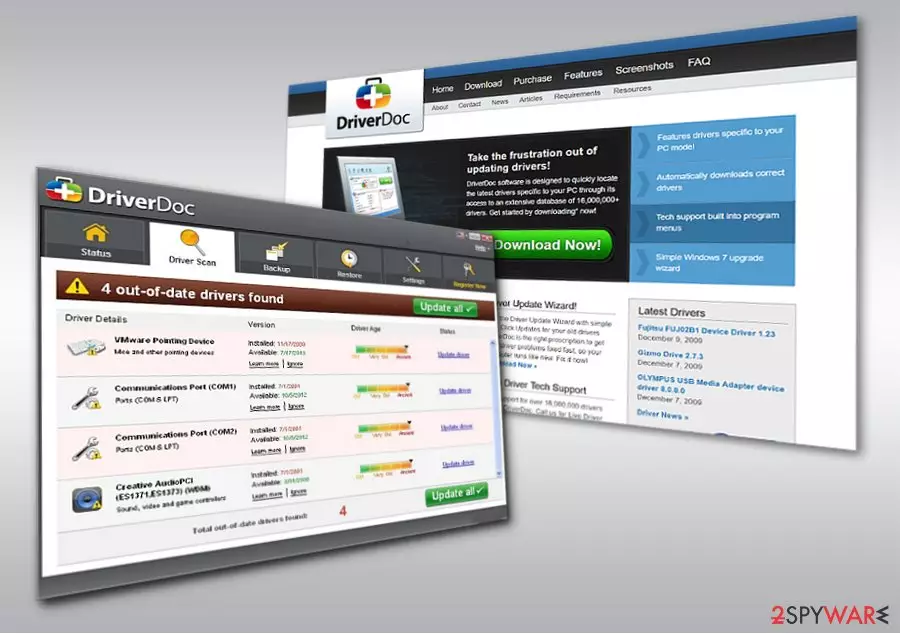
DriverDoc is presented as a useful application that can download and install missing outdated drivers automatically in just one click. However, this program is considered to be deceptive and is often categorized by security researchers as a PUP (potentially unwanted program), and there are several reasons for that.
First of all, DriverDoc is most commonly spread via software bundle packages that can be found on third-party freeware websites. This method often results in unintentional installation of software, usually despised by users and the info-security community. Secondly, the “free version” of the app does not provide any functionality whatsoever, tricking users into buying its full licence in order to make their machines run seemingly faster.
DriverDoc is a typical application that seeks to mislead users by presenting false claims during the marketing campaigns. Drivers, while essential to computers, do not need to be updated regularly, and they for sure cannot increase the speed of the machine.
| Name | DriverDoc |
| Type | Potentially unwanted program |
| Developer | Solvusoft |
| Distribution | While the application can be downloaded on its official website, although it can also be spread via deceptive advertisements and software bundles, which can often result in unintentional installation |
| Symptoms | A full system scan shows that multiple drivers are outdated and need to be updated. As soon as users click on the “Update” button, they are redirected to the payment page |
| Suspicious behavior | Deliberately exaggerates the important of driver updating process, integrity of scan results and the installed drivers is questionable |
| Elimination | To uninstall potentially unwanted apps, follow our manual guide below |
| System fix | Updating drivers will rarely result in improved system perform ace as DriverDoc developers claim. Instead, if you want to eliminate Windows crashes, registry problems, and speed up your machine, use repair software such as FortectIntego |
Driver Doc operates as a PC optimization tool, which supposedly boosts up the PC speed. It looks identical to hundreds of similar tools, such as DriverXYZ, DriverFix, Quick Driver Updater, and many others. Unfortunately, the surplus of unwanted applications disguising under this label significantly outnumbers professional tools. Unfortunately, DriverDoc is classified to the category[1] as well. Here are the key arguments:
- is flagged as PUP by several security tools;
- notifies fake issues and threats;
- suggests installing the paid version to solve the counterfeited system alerts.
Another factor encouraging you to consider DriverDoc removal is the software developer. It has been created by Solvusoft. Its another product, for instance, WinThruster, has been labeled as a potentially unwanted program as well. You can get rid of the program quickly with the assistance of out instructions provided below.
Note that Driver Doc will not improve your computer speed and will fail to fix Windows problems that are not related to drivers. Instead, we recommend using FortectIntego for the purpose – its unique, patented technology can replace damaged system files and repair the OS in just a few minutes.

It is recommended to remove Driver Doc since having a fake optimization tool might cause more trouble rather than a benefit. Let alone they fail to really optimize the PC, their presence might affect the immunity of the operating system to virtual attacks. Furthermore, cryptocurrency miners have exploited dubious applications for disguising miners[2]. Considering the popularity of such malware, optimization tools may become a tool as well.
Furthermore, since the Driver Doc application is classified as a potentially unwanted application, there is also a probability that it might install corrupted drivers. Regarding the case of CCleaner 5.33, such a scenario is fairly possible.
Promoting driver optimization utilities
The software is promoted on its official site. Considering the fact that it is a PUP, it might be advertised in sponsored domains. The ads might be presented in a manner that is not fair (for example, the popup might claim that you need to update drivers without having any evidence for that). However, most users encounter potentially unwanted programs during the installation of freeware downloaded from third-party websites.
Even if the app you are about to download is not malicious in any way bu provides free functionality, you should be aware that it will attempt to monetize in some ways. One of such monetization practices is software bundling – when several programs are compiled into a single software package and users are not adequately informed about that.

Thus, never pick the “Express” or “Recommended” settings and rather opt for Advanced/Custom ones. It will allow you to unmask unwanted programs and proceed with the installation of the primary software.
Uninstall Driver Doc
Fortunately, you can remove DriverDoc virus by eliminating from the Control panel. Below you will find detailed instructions. You may also opt for a faster DriverDoc removal option. Install a security tool and scan the system.
Check the Registry Editor for any Driver Doc entries.
Launch Registry editor with clicking on Windows key+R and type regedit. Once the program launches, go to Edit section and choose Find Next. Enter the name of the app and check whether there are no files associated with this PC optimization tool. This program might be promoted not only in English but in Russian or French[3] sites.
Uninstall from Windows
Uninstall from Windows 10/8:
- Type Control Panel into the Windows search box and open the result.
- Under Programs, select Uninstall a program.


Uninstall from Windows 7/XP:
- Click on Windows Start > Control Panel (Windows XP users should click on Add/Remove Programs).
- In Control Panel, select Programs > Uninstall a program.


Remove the unwanted program:
- In the Programs and Features window, look for any recently installed suspicious entries, select them, and click Uninstall.
- If User Account Control appears, click Yes to confirm, then complete the removal.


Did this guide help?
Be the first to comment