

“Apple Security Alert” virus aims to infect Mac devices
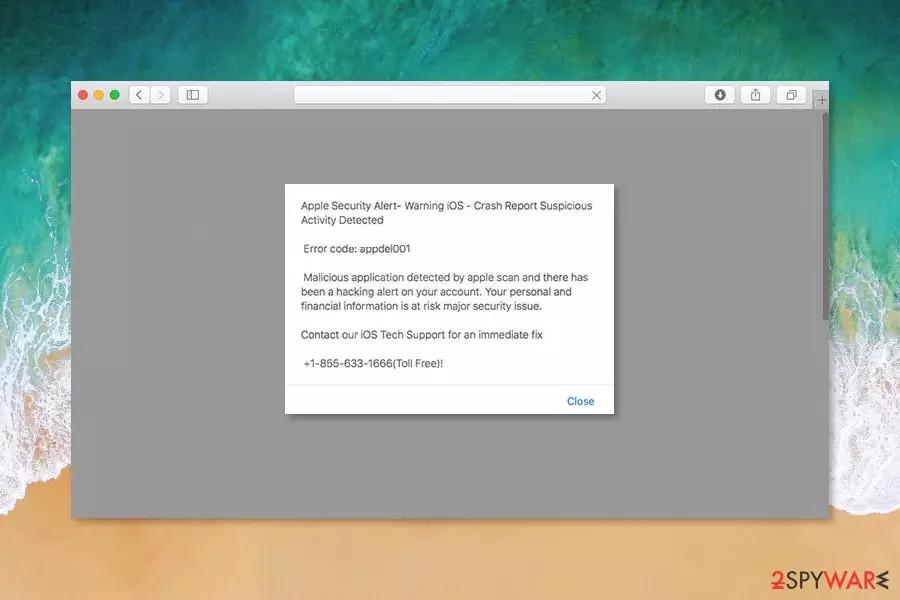
“Apple Security Alert” virus is a fake pop-up message, which tries to deceive Mac OS[1] users that their system is corrupted by a dangerous malware. Those who encounter such a fake alert should note that their system is not infected with a malicious program and they shouldn't follow the instructions Apple security alert provides. It is merely an attempt to swindle money from gullible people.
Experts say that usually, computer users are not aware of the adware[2] program which is infiltrated on their system. Therefore, once the error code appdel001 appears on their screen, many people panic and make reckless decisions that lead not only to financial losses, but permanent computer damage as well.
Redirects to Apple security scam site often starts when users download third-party programs from unknown download sources and do not pay proper attention to the installation process. Potentially unwanted program (PUP) that triggers this activity on the affected device often is included in freeware packages.
When Apple alert virus infiltrates the system, it might affect each web browsers that are installed on the targeted device. Apart from redirecting to scam site, adware might also display misleading or suspicious ads that offer to download various security software or updates.

However, the biggest concerns are related to the Apple security alert scam website that informs about a non-existent error and Mac infection. The pop up asks to call fake iOS Tech Support specialists via 1-855-633-1666 in order to protect personal and financial information. The full message says:
Apple Security Alert- Warning iOS – Crash Report Suspicious Activity Detected
Error code appdel001
Malicious application detected by apple scan and there has been a hacking alert on your account. our personal and financial information is at risk major security issue.
Contact our iOS Tech Support for an immediate fix
1-855-633-1666(Toll Free)!
iPhone users should be aware of a similar cyber threat as well. Users report that they receive a pop-up warning about a detected virus on their devices too. The pop-up looks legit and resembles Apple’s notifications. You can recognize Apple security warning iPhone pop-ups from similar messages:
Apple Security. (6) virus detected detected on your iPhone. IP address: …………. One of the last sites you've visited contained a Trojan, loading via the vulnerabilities of the browser. Click ok to start the cleaning process. After clean up, make sure to upgrade your system to the latest software version. Apple firewall ver. 6.2.7
We want to stress out that such alerts that pop up while you browse the web or use particular apps are not real. Neither your computer or iPhone nor personal information is in danger. The only problem you might have is adware residing on the system. However, FortectIntego or another anti-malware can quickly remove Apple security alert virus from the device.
Therefore, instead of calling a provided phone number, close this threatening website and focus on “Apple Security Alert” removal. As we have mentioned, you can do it by using updated security software. However, if you prefer manual elimination, the instruction is given down below.
Tech support scams are delivered by the PUPs
The presence of Apple security virus is a result of carelessly installed third-party applications. Note that Apple security pop up on iPhone might appear due to the ad-supported application, while computer software often is bundled with potentially unwanted programs (PUPs) which help to spread such scam alerts. For example, if you download a video converter tool without monitoring the installation process attentively, there is a high possibility that it will additionally infiltrate other components such as an adware program.
Therefore, we have collaborated with cybersecurity analysts from Die Viren[3] and prepared a simple 4-step guide to protect your PC from Apple security warning virus and similar unwanted applications:
- Install apps from reliable sources and trusted developers;
- Read app permission, EULA, Privacy Policy and other provided documents;
- Install programs using Advanced/Custom settings instead of Quick/Recommended;
- Remove ticks from pre-selected apps that are offered to download with the primary program.
Learn how to remove “Apple Security Alert” virus from Mac
Remember that Apple spyware alert won't disappear without you putting at least minimal efforts to eliminate it from the PC. If you wonder how you can clean your Mac device, there are two options: manual and automatic termination. It is important to understand that the best result can be reached by combining both removal procedures.
Be aware that as quickly and secretly the adware program has infiltrated on your system, it can let inside other high-risk computer infections the same way. Besides, experts report that to remove “Apple Security Alert” virus, you have to uninstall all its components as well.
It might get tricky and those who are not experienced enough may struggle with Apple virus alert elimination process. Thus, we suggest downloading a professional security software and let it scan your system. Afterward, reset your web browsers to enjoy undisrupted browsing routine.
You can find a briefly explained “Apple Security Alert” removal guide just below. We want to once again remind you that you should attentively follow it in order to obtain best results.
Uninstall from Windows
Uninstall from Windows 10/8:
- Type Control Panel into the Windows search box and open the result.
- Under Programs, select Uninstall a program.


Uninstall from Windows 7/XP:
- Click on Windows Start > Control Panel (Windows XP users should click on Add/Remove Programs).
- In Control Panel, select Programs > Uninstall a program.


Remove the unwanted program:
- In the Programs and Features window, look for any recently installed suspicious entries, select them, and click Uninstall.
- If User Account Control appears, click Yes to confirm, then complete the removal.


Delete from macOS
Remove the unwanted application:
- From the menu bar, select Go > Applications.
- In the Applications folder, look for any suspicious entries, then drag them to Trash (or right-click and pick Move to Trash).


Delete leftover files and folders:
- Select Go > Go to Folder.
- Enter /Library/Application Support and remove any suspicious folders related to the unwanted program.
- Repeat the same check in the /Library/LaunchAgents and /Library/LaunchDaemons folders, deleting any suspicious entries.

- Finally, empty the Trash to permanently remove the leftovers.

Reset Internet Explorer
Remove dangerous add-ons:
- Open Internet Explorer, click on the Gear icon (IE menu) on the top-right corner of the browser
- Pick Manage Add-ons.
- You will see a Manage Add-ons window. Here, look for suspicious plugins. Click on these entries and select Disable.


Change your homepage if it was altered:
- Open IE and click on the Gear icon.
- Select Internet Options.
- In the General tab, delete the Home page address and replace it by your preferred one (for example, Google.com).
- Click Apply and then select OK.


Delete temporary files:
- Press on the Gear icon and select Internet Options.
- Under Browsing history, click Delete...
- Select relevant fields and press Delete.


Reset Internet Explorer:
- Click on Gear icon > Internet options and select Advanced tab.
- Select Reset.
- In the new window, check Delete personal settings and select Reset.


Remove from Microsoft Edge
Delete unwanted extensions from MS Edge:
- Select Menu (three horizontal dots at the top-right of the browser window) and pick Extensions.
- From the list, pick the extension and click on the Gear icon.
- Click Remove.


Clear cookies and other browser data:
- Click on the Menu (three horizontal dots at the top-right of the browser window) and select Settings > Privacy, search, and services..
- Under Clear browsing data, pick Choose what to clear.
- Select Cookies and other site data and Cached images and files. (apart from passwords, although you might want to include Media licenses as well, if applicable) and click on Clear.


Restore new tab and homepage settings:
- Click the menu icon and choose Settings.
- Then find On startup section.
- Click Remove next to any suspicious startup page.
Reset MS Edge if the above steps did not work:
- Press on Ctrl + Shift + Esc to open Task Manager.
- Click on More details arrow at the bottom of the window.
- Select Details tab.
- Now scroll down and locate every entry with Microsoft Edge name in it. Right-click on each of them and select End Task to stop MS Edge from running.


Instructions for Chromium-based Edge
Delete extensions from MS Edge (Chromium):
- Open Edge and click select Settings > Extensions.
- Delete unwanted extensions by clicking Remove.


Clear cache and site data:
- Click on Menu and go to Settings.
- Select Privacy, search and services.
- Under Clear browsing data, pick Choose what to clear.
- Under Time range, pick All time.
- Select Clear now.


Reset Chromium-based MS Edge:
- Click on Menu and select Settings.
- On the left side, pick Reset settings.
- Select Restore settings to their default values.
- Confirm with Reset.
- This will disable extensions and reset startup pages but will not delete bookmarks, saved passwords, or browsing history.


Remove from Mozilla Firefox (FF)
Remove dangerous extensions:
- Open Mozilla Firefox browser and click on the Menu (three horizontal lines at the top-right of the window).
- Select Add-ons.
- In here, select the unwanted extension and click Remove.


Reset the homepage:
- Click three horizontal lines at the top right corner to open the menu.
- Choose Settings.
- Under Home, set your preferred homepage and new tab settings.
Clear cookies and site data:
- Click Menu and pick Settings.
- Go to Privacy & Security section.
- Scroll down to locate Cookies and Site Data.
- Click on Clear Data...
- Select Cookies and Site Data and Temporary cached files and pages, then click Clear.


Reset Mozilla Firefox
If clearing the browser as explained above did not help, reset Mozilla Firefox:
- Open Mozilla Firefox browser and click the Menu.
- Go to Help and then choose Troubleshooting Information.

- Under Give Firefox a tune up section, click on Refresh Firefox...
- Once the pop-up shows up, confirm the action by pressing on Refresh Firefox.



Remove from Google Chrome
Delete malicious extensions from Google Chrome:
- Open Google Chrome, click on the Menu (three vertical dots at the top-right corner) and select More tools > Extensions.
- In the newly opened window, you will see all the installed extensions. Uninstall all suspicious extensions related to the unwanted program by clicking Remove.


Clear cache and web data from Chrome:
- Click on Menu and pick Settings.
- Under Privacy and security, select Clear browsing data.
- Select Browsing history, Cookies and other site data, as well as Cached images and files.
- Click Clear data.


Change your homepage:
- Click menu and choose Settings.
- Look for a suspicious site in the On startup section.
- Click on Open a specific or set of pages and click on three dots to find the Remove option.
Reset Google Chrome:
If the previous methods did not help you, reset Google Chrome to eliminate all the unwanted components:
- Click on Menu and select Settings.
- In the Settings, scroll down and click Advanced.
- Scroll down and locate Reset and clean up section.
- Now click Restore settings to their original defaults.
- Confirm with Reset settings.


Delete from Safari
Remove dangerous extensions:
- Open Safari, click Safari in the menu at the top-left of the screen, and select Preferences.
- Go to the Extensions tab, look for any suspicious entries, and click Uninstall to remove them.


Clear history and website data:
- Click Safari in the menu and pick Clear History.
- Set Clear to all history and confirm with Clear History.


Reset Safari:
- Click Safari in the menu and select Preferences > Advanced.
- Enable Show Develop menu in menu bar.
- From the menu bar, click Develop and select Empty Caches.


Did this guide help?
Be the first to comment