

Quick Converter is a browser plugin that claims useful functionality, but also hijacks the homepage, search engine and the new tab URL
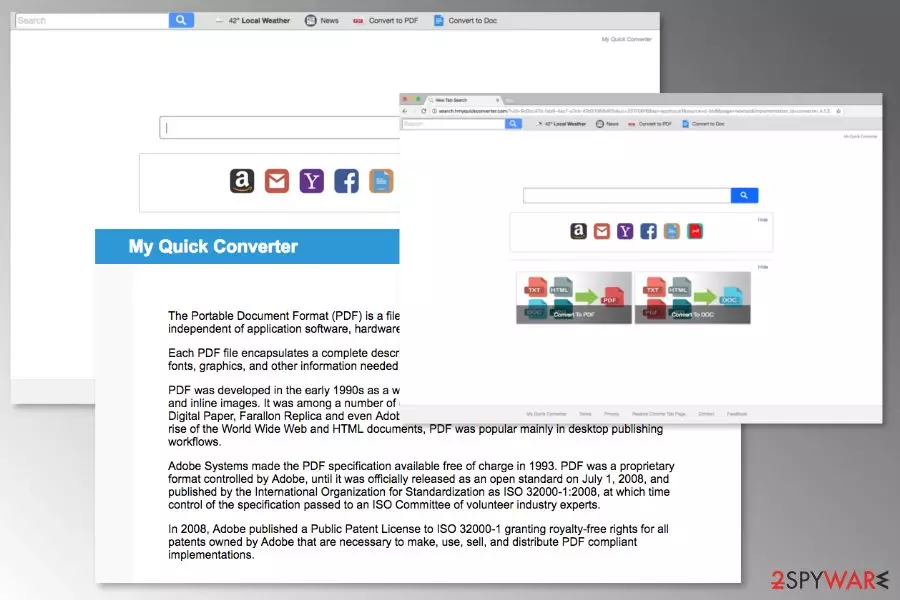
Quick Converter is a potentially unwanted program that travels in software bundles and infects Windows and Mac machines without users noticing. Nevertheless, users can also download My Quick Converter V4.10 from Google Chrome web store, where users complained about its functionality and deletion problems, which scored the app a 2/5 rating.[1]
The developer of the PUP, Eightpoint Technologies Ltd, which is an affiliate of the notorious Polarity Technologies, claim that Quick Converter is a “convenient” application that provides users access to PDF converting sites. However, such functionality can be employ by simply adding shortcuts to the web browser, avoiding the unwanted app entirely.
Once installed, Quick Converter changes the new tab functionality, search engine, and the homepage. This allows developers to redirect users to questionable sites, induce pop-up ads, banners, in-text links, deals for pay-per-click revenue generation, and spy on their web browsing activities for targeted advertising purposes.
Due to that reason, My Quick Converter might result in money loss due to the installation of bogus programs, sensitive details exposure to unknown parties, and even malware infections if not being careful.
| Name | My Quick Converter |
| Type | Browser hijacker, potentially unwanted program |
| Developer | Eightpoint Technologies Ltd |
| Installation means | Official stores, third-party sites, software bundles |
| Symptoms | Altered web browser settings, redirects to suspicious sites, intrusive ads, slow browser, etc. |
| Risk factors | Installation of useless software, malware infections, loss of money, sensitive data exposure to unknown parties, etc. |
| Termination | Uninstall the plugin manually or employ security software that detects PUPs |
| Optimization | To ensure your system is running smoothly after the infection, scan it with FortectIntego |
So, if wondering is My Quick Converter safe, the short answer is no. Precisely because this extension operates as a browser hijacker[2] which initiates these activities on user's computer:
- sets search.myquickconverter.com, search.hmyquickconverter.com or feed.quick-converter.com as default search engine, homepage or new tab URL address;
- redirects its victim to promotional websites;
- displays an excessive amount of ads;
- collects browsing-related information about users;
- blocks user’s attempts to remove My Quick Converter from Mac and other operating systems.
So-called My Quick Converter virus replaces affected browser’s startup page with Yahoo-based search engines that offer quick access to popular websites or file converting services. However, using a new search engine is not recommended due to suspicious redirect tendencies.

Those who are already interested in Quick Converter removal from Chrome or other widely used browser can head straight to the end of this article. Our experts have attached brief PUP's elimination instructions which will help you not only uninstall the bogus extension, but also reset your browser to the primary state.
However, if still have doubts about Quick Converter, security experts warn about potentially dangerous redirect issues when the hijacker force users to visit unknown or even high-risk sites once they click on a search result link. Therefore, even if you are redirected to Yahoo search, you can never be sure that the link you click is safe.
Thus, you should perform My Quick Converter removal as soon as this PUP appears on the browser. The quickest method to clean the hijacker is to scan the system with anti-malware software that specializes in PUPs. For the best results, we also recommend using FortectIntego for system optimization and web browser reset. You can also terminate Quick Converter manually with the help of our instructions below.
Although, we kindly ask you to uninstall My Quick Converter with extreme care. This is a tricky computer threat which might confuse you during the elimination procedure. This is the reason why we would suggest you to rely either on the help of a robust antivirus or step-by-step guidelines which are provided below which trying to get rid of this PUP.
Inexperienced computer users ask how to get rid of this converter
Even though My Quick Converter initially targeted Windows users, now Mac fans should also take precautionary measures since this browser hijacker targets both OS. It is wise to know that even if you find positive My Quick Converter review online, it is definitely fake.
IT specialists across the world have received numerous complaints and questions about how to get rid of Quick Converter. This complex PUP requires patience and attentiveness during the elimination or it will start reappearing after some time.
Therefore, if you are one of those people who is wondering how to delete this PUP, we are here to help you:
- Check the list of installed applications and move to Trash all suspicious entries that might be related to this nasty hijacker.
- Check ALL web browsers that are installed on your PC. It doesn’t matter that you use Google Chrome only, some hijacker-related entries might be installed in other browsers. Thus, they might re-install the hijacker on Chrome again and again.
- Reset each of the browsers.
Besides, you can find an illustrated removal guide on how to get rid of My Quick Converter on Mac and Windows operating systems at the end of this article.

My Quick Converter has several versions of the original software
Search.myquickconverter.com virus. This is another type of browser hijacker which might appear on your computer after the installation of MyQuickConverter. However, it is just merely a deceptive tool which aims to trick gullible people into believing that it is trustworthy.
This browser hijacker might enter the system unnoticed, alter browser’s settings, display commercial content and redirect to questionable websites. The main purpose of this tool is to generate revenue for the developers from online advertising. However, commercial content displayed by the hijacker might be malicious. Thus, Search.myquickconverter.com removal is needed.
Search.hmyquickconverter.com virus. The browser hijacker mostly spreads in software bundles. Once it manages to get inside the system, it acts similarly to the previous version of the PUP. However, this search tool is closely related to SaferBrowser – another shady search engine.
The Search.hmyquickconverter.com hijacker might also display an increased amount of ads and redirect to affiliate websites in order to generate pay-per-click revenue. However, the same redirect problem still exists. Users might be forced to visit phishing, scam or infected sites. Thus, hijacker’s elimination is needed.
Feed.quick-converter.com was found in the latest variants of Quick Converter virus. As soon as users install the browser plugin, whether intentionally or not, the new tab, homepage, and the search engine is altered. Consequently, every single search query redirects all the search results to Yahoo – a legitimate search engine.
Nevertheless, all the searches performed while My Quick Converter is installed on the system will not result in genuine Yahoo results but rather in altered versions, littered with ads and sponsored links. For that reason, you are better off using the original Yahoo search engine and remove Feed.quick-converter.com from your browser, as it does not benefit you at all.

Bundling: the best way to stealthily install browser hijackers
While some users might already know, others may not — browser hijackers and other potentially unwanted programs spread with the help of software-bundles[3]. This is a great way to trick people into unconsciously installing PUPs by hiding them as optional components.
The easiest way to hijack systems is to add these PUPs to the software bundle. Beware that you can easily install this hijacker with freeware or shareware, especially if you opt for Quick/Standard settings. This installation wizard does not openly disclose about additional third-party components that might be included in the same software package. To avoid installation of undesired apps in the future, security experts from No Virus[4] suggest following these tips:
- Read EULA, Terms of Use, Privacy Policy or other official documents before installing a program. If some of the statements seem shady, do not install the app to protect your computer and privacy from damage.
- Use Advanced/Custom setup in order to “unpack” the program. Quick/Standard settings do not have this feature and install all additional components by default.
- If you see the list of pre-selected entries or statements asking to make unknown search engine as default one, unmark them.
Multiple ways to get rid My Quick Converter virus
Possible, yet not so convenient way to remove My Quick Converter is manual elimination. It is not the easiest method to uninstall the potentially unwanted program. Thus, it is important that you have the necessary IT skills to success in the termination.
Scroll down to find detailed and illustrated instructions on how to remove My Quick Converter from Mac and Windows OS. Follow them carefully and attentively. Otherwise, you might experience another hijack.
Additionally, you can speed up My Quick Converter removal with reputable anti-spyware. All you have to do is to choose a reliable tool, install it using Advanced settings, update it and run a full system scan.
Uninstall from Windows
Uninstall from Windows 10/8:
- Type Control Panel into the Windows search box and open the result.
- Under Programs, select Uninstall a program.


Uninstall from Windows 7/XP:
- Click on Windows Start > Control Panel (Windows XP users should click on Add/Remove Programs).
- In Control Panel, select Programs > Uninstall a program.


Remove the unwanted program:
- In the Programs and Features window, look for any recently installed suspicious entries, select them, and click Uninstall.
- If User Account Control appears, click Yes to confirm, then complete the removal.


Delete from macOS
Remove the unwanted application:
- From the menu bar, select Go > Applications.
- In the Applications folder, look for any suspicious entries, then drag them to Trash (or right-click and pick Move to Trash).


Delete leftover files and folders:
- Select Go > Go to Folder.
- Enter /Library/Application Support and remove any suspicious folders related to the unwanted program.
- Repeat the same check in the /Library/LaunchAgents and /Library/LaunchDaemons folders, deleting any suspicious entries.

- Finally, empty the Trash to permanently remove the leftovers.

Reset Internet Explorer
Remove dangerous add-ons:
- Open Internet Explorer, click on the Gear icon (IE menu) on the top-right corner of the browser
- Pick Manage Add-ons.
- You will see a Manage Add-ons window. Here, look for suspicious plugins. Click on these entries and select Disable.


Change your homepage if it was altered:
- Open IE and click on the Gear icon.
- Select Internet Options.
- In the General tab, delete the Home page address and replace it by your preferred one (for example, Google.com).
- Click Apply and then select OK.


Delete temporary files:
- Press on the Gear icon and select Internet Options.
- Under Browsing history, click Delete...
- Select relevant fields and press Delete.


Reset Internet Explorer:
- Click on Gear icon > Internet options and select Advanced tab.
- Select Reset.
- In the new window, check Delete personal settings and select Reset.


Remove from Microsoft Edge
Delete unwanted extensions from MS Edge:
- Select Menu (three horizontal dots at the top-right of the browser window) and pick Extensions.
- From the list, pick the extension and click on the Gear icon.
- Click Remove.


Clear cookies and other browser data:
- Click on the Menu (three horizontal dots at the top-right of the browser window) and select Settings > Privacy, search, and services..
- Under Clear browsing data, pick Choose what to clear.
- Select Cookies and other site data and Cached images and files. (apart from passwords, although you might want to include Media licenses as well, if applicable) and click on Clear.


Restore new tab and homepage settings:
- Click the menu icon and choose Settings.
- Then find On startup section.
- Click Remove next to any suspicious startup page.
Reset MS Edge if the above steps did not work:
- Press on Ctrl + Shift + Esc to open Task Manager.
- Click on More details arrow at the bottom of the window.
- Select Details tab.
- Now scroll down and locate every entry with Microsoft Edge name in it. Right-click on each of them and select End Task to stop MS Edge from running.


Instructions for Chromium-based Edge
Delete extensions from MS Edge (Chromium):
- Open Edge and click select Settings > Extensions.
- Delete unwanted extensions by clicking Remove.


Clear cache and site data:
- Click on Menu and go to Settings.
- Select Privacy, search and services.
- Under Clear browsing data, pick Choose what to clear.
- Under Time range, pick All time.
- Select Clear now.


Reset Chromium-based MS Edge:
- Click on Menu and select Settings.
- On the left side, pick Reset settings.
- Select Restore settings to their default values.
- Confirm with Reset.
- This will disable extensions and reset startup pages but will not delete bookmarks, saved passwords, or browsing history.


Remove from Mozilla Firefox (FF)
Remove dangerous extensions:
- Open Mozilla Firefox browser and click on the Menu (three horizontal lines at the top-right of the window).
- Select Add-ons.
- In here, select the unwanted extension and click Remove.


Reset the homepage:
- Click three horizontal lines at the top right corner to open the menu.
- Choose Settings.
- Under Home, set your preferred homepage and new tab settings.
Clear cookies and site data:
- Click Menu and pick Settings.
- Go to Privacy & Security section.
- Scroll down to locate Cookies and Site Data.
- Click on Clear Data...
- Select Cookies and Site Data and Temporary cached files and pages, then click Clear.


Reset Mozilla Firefox
If clearing the browser as explained above did not help, reset Mozilla Firefox:
- Open Mozilla Firefox browser and click the Menu.
- Go to Help and then choose Troubleshooting Information.

- Under Give Firefox a tune up section, click on Refresh Firefox...
- Once the pop-up shows up, confirm the action by pressing on Refresh Firefox.



Remove from Google Chrome
Delete malicious extensions from Google Chrome:
- Open Google Chrome, click on the Menu (three vertical dots at the top-right corner) and select More tools > Extensions.
- In the newly opened window, you will see all the installed extensions. Uninstall all suspicious extensions related to the unwanted program by clicking Remove.


Clear cache and web data from Chrome:
- Click on Menu and pick Settings.
- Under Privacy and security, select Clear browsing data.
- Select Browsing history, Cookies and other site data, as well as Cached images and files.
- Click Clear data.


Change your homepage:
- Click menu and choose Settings.
- Look for a suspicious site in the On startup section.
- Click on Open a specific or set of pages and click on three dots to find the Remove option.
Reset Google Chrome:
If the previous methods did not help you, reset Google Chrome to eliminate all the unwanted components:
- Click on Menu and select Settings.
- In the Settings, scroll down and click Advanced.
- Scroll down and locate Reset and clean up section.
- Now click Restore settings to their original defaults.
- Confirm with Reset settings.


Delete from Safari
Remove dangerous extensions:
- Open Safari, click Safari in the menu at the top-left of the screen, and select Preferences.
- Go to the Extensions tab, look for any suspicious entries, and click Uninstall to remove them.


Clear history and website data:
- Click Safari in the menu and pick Clear History.
- Set Clear to all history and confirm with Clear History.


Reset Safari:
- Click Safari in the menu and select Preferences > Advanced.
- Enable Show Develop menu in menu bar.
- From the menu bar, click Develop and select Empty Caches.


Did this guide help?
Be the first to comment