

Nilla Weather – weather forecast app with several unwanted side effects
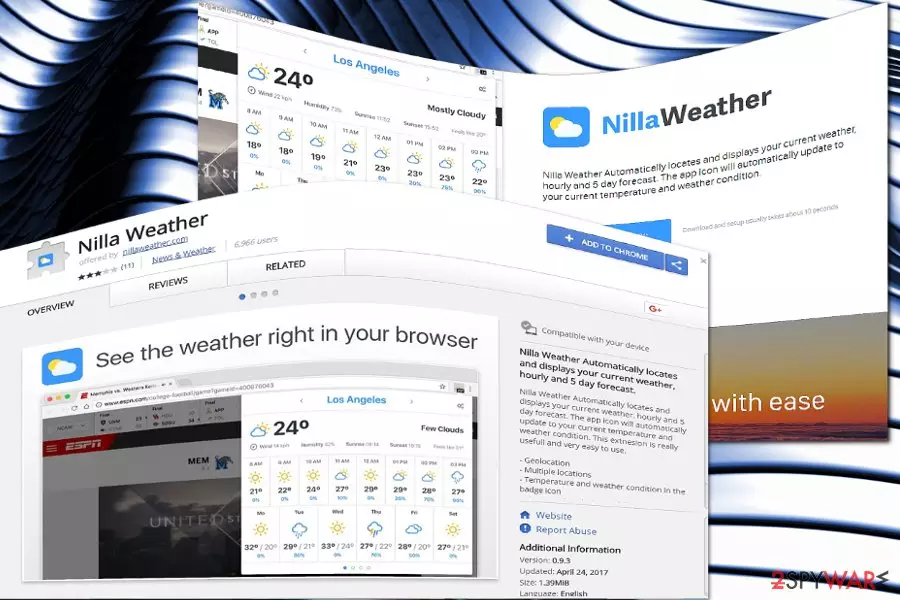
Nilla Weather operates as a browser extension that keeps you updated about weather changes wherever you may be. It can do so since it is aware of your geographical location. The extension is also promoted on its nillaweather.com website.
While browser hijackers are typically not malicious, this app has plenty of negative traits. For example, it modifies Windows Group Policy, which makes it rather difficult to uninstall, although it is not likely that newer versions act like this. Nonetheless, we strongly recommend you delete this app, especially if you have not installed it intentionally.
| Name | Nilla Weather |
| Type | Browser hijacker |
| Distribution | Software bundling, official website, Chrome Web Store |
| Operation | Changes the settings of the web browsers; in some cases, modifies Windows Group Policy to prevent easy elimination |
| Removal | You can get rid of the browser hijacker by either scanning the device with antivirus software or following manual instructions |
| System fix | After the elimination of adware or malware, we highly recommend running a scan with FortectIntego repair software |
Though neither the site nor the extension is malicious, it is not recommended to use this application due to the following reasons:
- no HTTPs protocol
- no terms of use, privacy policy, or contact information
If you are cautious about online privacy[1], the absence of the above-mentioned documents indeed sparks doubts about the reliability of the plug-in. Therefore, the extension may serve as the tool to spy on users’ browsing habits and then trade it with advertising companies[2].
Though such a pay-per-click[3] advertising technique is useful for the two parties of the contract, users are the only party that receives no benefit at all. They might get bothered by regular pop-ups. In addition, this extension might direct to potentially insecure domains.
Such a scenario is quite possible since it is unknown what parties and companies the developers of this extension cooperate with. Occasional redirect phenomenon might not only become a bothersome but menacing phenomenon as well. Finally, no contact information only reinforces the assumptions about the initial purpose of the website.
Since the extension asks for your email address, your Inbox might get crammed not only with ads but other unwanted content. Spam emails remain a popular tool among ransomware developers.
Due to these aspects, you might want to remove Nilla Weather. If you encounter any difficulties, you can entrust the procedure to an anti-spyware tool, such as SpyHunterCombo Cleaner or MalwarebytesMalwarebytes. We also recommend using FortectIntego after all the PUPs or malware are deleted from your system.
Ordinary and crafty PUP distribution methods
This browser extension is found on the Chrome Web Site. It is promoted on the official site. Regarding the fact that the plug-in does not present key information about privacy policy and terms of use, it might be promoted in other domains or as an optional program pinned down to free media players or audio editors.
Likewise, be vigilant while installing new applications. Regardless of whether you install the very Skype or Java, pay attention to the “Custom” or “Recommended” installation mode. It might conceal optional and questionable programs. Make sure no additional programs will be installed so you escape potentially unwanted programs.

Eliminate Nilla Weather app
You can delete the extension by clicking on the trash bin icon in the Chrome settings under Extensions. Alternatively, you might entrust this procedure to a malware removal program. It will save your time and remove Nilla Weather faster.
On the other hand, you may combine manual and automatic elimination methods to uninstall l the extension and its web scripts. After removal, examine your browser to make sure no unnecessary tools remain.
Keep in mind that this app modifies Windows Group Policy. You can undo those settings by following these steps:
- Type in cmd in Windows search
- Right-click on Command Prompt and select Run as administrator
- Copy and paste the following commands, pressing Enter after each:
rd /S /Q “%WinDir%\System32\GroupPolicyUsers”
rd /S /Q “%WinDir%\System32\GroupPolicy”
gpupdate /force
Uninstall from Windows
Uninstall from Windows 10/8:
- Type Control Panel into the Windows search box and open the result.
- Under Programs, select Uninstall a program.


Uninstall from Windows 7/XP:
- Click on Windows Start > Control Panel (Windows XP users should click on Add/Remove Programs).
- In Control Panel, select Programs > Uninstall a program.


Remove the unwanted program:
- In the Programs and Features window, look for any recently installed suspicious entries, select them, and click Uninstall.
- If User Account Control appears, click Yes to confirm, then complete the removal.


Delete from macOS
Remove the unwanted application:
- From the menu bar, select Go > Applications.
- In the Applications folder, look for any suspicious entries, then drag them to Trash (or right-click and pick Move to Trash).


Delete leftover files and folders:
- Select Go > Go to Folder.
- Enter /Library/Application Support and remove any suspicious folders related to the unwanted program.
- Repeat the same check in the /Library/LaunchAgents and /Library/LaunchDaemons folders, deleting any suspicious entries.

- Finally, empty the Trash to permanently remove the leftovers.

Remove from Microsoft Edge
Delete unwanted extensions from MS Edge:
- Select Menu (three horizontal dots at the top-right of the browser window) and pick Extensions.
- From the list, pick the extension and click on the Gear icon.
- Click Remove.


Clear cookies and other browser data:
- Click on the Menu (three horizontal dots at the top-right of the browser window) and select Settings > Privacy, search, and services..
- Under Clear browsing data, pick Choose what to clear.
- Select Cookies and other site data and Cached images and files. (apart from passwords, although you might want to include Media licenses as well, if applicable) and click on Clear.


Restore new tab and homepage settings:
- Click the menu icon and choose Settings.
- Then find On startup section.
- Click Remove next to any suspicious startup page.
Reset MS Edge if the above steps did not work:
- Press on Ctrl + Shift + Esc to open Task Manager.
- Click on More details arrow at the bottom of the window.
- Select Details tab.
- Now scroll down and locate every entry with Microsoft Edge name in it. Right-click on each of them and select End Task to stop MS Edge from running.


Instructions for Chromium-based Edge
Delete extensions from MS Edge (Chromium):
- Open Edge and click select Settings > Extensions.
- Delete unwanted extensions by clicking Remove.


Clear cache and site data:
- Click on Menu and go to Settings.
- Select Privacy, search and services.
- Under Clear browsing data, pick Choose what to clear.
- Under Time range, pick All time.
- Select Clear now.


Reset Chromium-based MS Edge:
- Click on Menu and select Settings.
- On the left side, pick Reset settings.
- Select Restore settings to their default values.
- Confirm with Reset.
- This will disable extensions and reset startup pages but will not delete bookmarks, saved passwords, or browsing history.


Remove from Mozilla Firefox (FF)
Remove dangerous extensions:
- Open Mozilla Firefox browser and click on the Menu (three horizontal lines at the top-right of the window).
- Select Add-ons.
- In here, select the unwanted extension and click Remove.


Reset the homepage:
- Click three horizontal lines at the top right corner to open the menu.
- Choose Settings.
- Under Home, set your preferred homepage and new tab settings.
Clear cookies and site data:
- Click Menu and pick Settings.
- Go to Privacy & Security section.
- Scroll down to locate Cookies and Site Data.
- Click on Clear Data...
- Select Cookies and Site Data and Temporary cached files and pages, then click Clear.


Reset Mozilla Firefox
If clearing the browser as explained above did not help, reset Mozilla Firefox:
- Open Mozilla Firefox browser and click the Menu.
- Go to Help and then choose Troubleshooting Information.

- Under Give Firefox a tune up section, click on Refresh Firefox...
- Once the pop-up shows up, confirm the action by pressing on Refresh Firefox.



Remove from Google Chrome
Delete malicious extensions from Google Chrome:
- Open Google Chrome, click on the Menu (three vertical dots at the top-right corner) and select More tools > Extensions.
- In the newly opened window, you will see all the installed extensions. Uninstall all suspicious extensions related to the unwanted program by clicking Remove.


Clear cache and web data from Chrome:
- Click on Menu and pick Settings.
- Under Privacy and security, select Clear browsing data.
- Select Browsing history, Cookies and other site data, as well as Cached images and files.
- Click Clear data.


Change your homepage:
- Click menu and choose Settings.
- Look for a suspicious site in the On startup section.
- Click on Open a specific or set of pages and click on three dots to find the Remove option.
Reset Google Chrome:
If the previous methods did not help you, reset Google Chrome to eliminate all the unwanted components:
- Click on Menu and select Settings.
- In the Settings, scroll down and click Advanced.
- Scroll down and locate Reset and clean up section.
- Now click Restore settings to their original defaults.
- Confirm with Reset settings.


Delete from Safari
Remove dangerous extensions:
- Open Safari, click Safari in the menu at the top-left of the screen, and select Preferences.
- Go to the Extensions tab, look for any suspicious entries, and click Uninstall to remove them.


Clear history and website data:
- Click Safari in the menu and pick Clear History.
- Set Clear to all history and confirm with Clear History.


Reset Safari:
- Click Safari in the menu and select Preferences > Advanced.
- Enable Show Develop menu in menu bar.
- From the menu bar, click Develop and select Empty Caches.


Did this guide help?
Be the first to comment