

Jav123 – a browser hijacker that can make you watch porn even if you don't have such intention
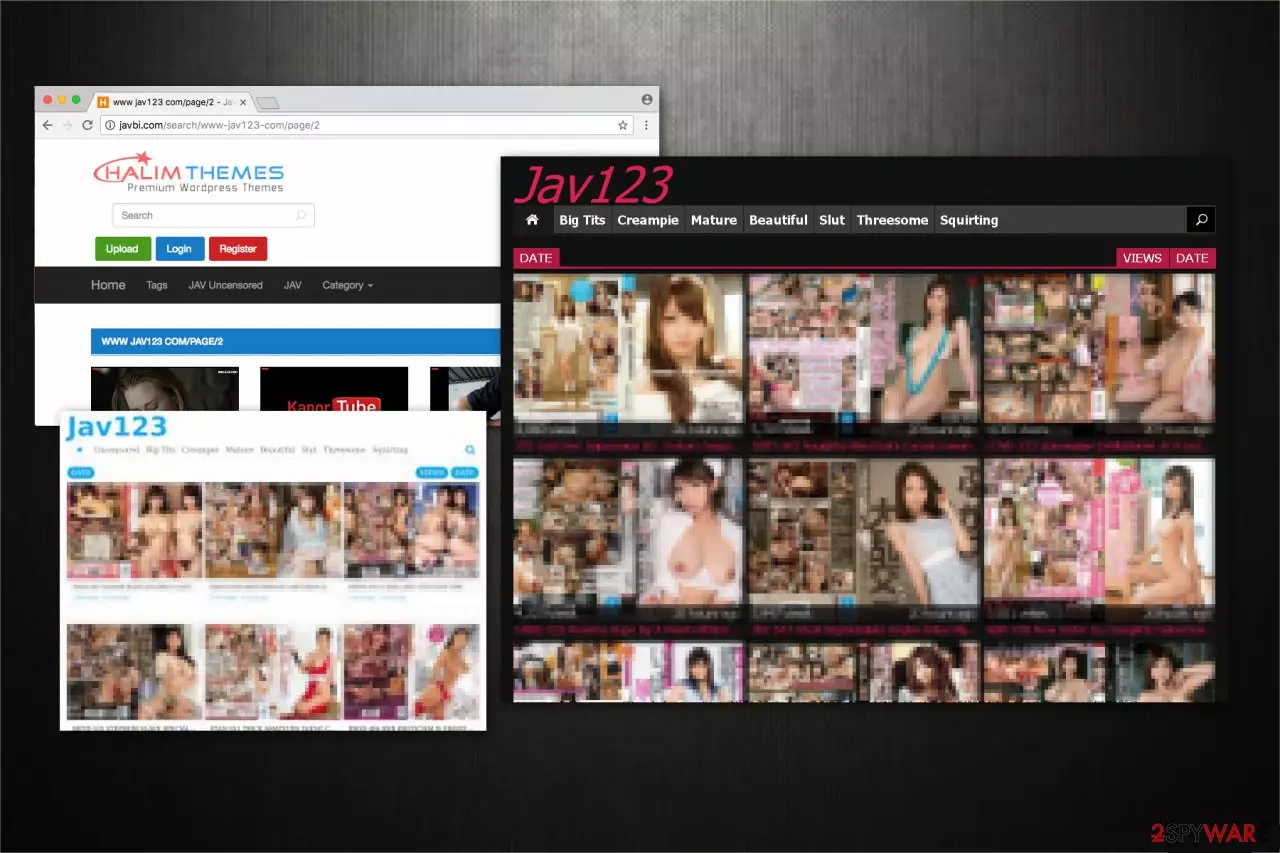
Jav123 is a potentially dangerous website that might hijack your web browser. Cybersecurity experts warn that it's not an ordinary potentially unwanted program (PUP) seeking to promote third-party services or expensive products. The Jav123 virus has been designed to promote adult content only regardless of your age, gender or religion.
This tool is promoted via suspicious third-party apps offered on infamous third-party download sources. It may be represented as a useful Chrome extension or reliable Firefox add-on. Anyway, it will be marked as a default component and will be automatically installed unless you select the Advanced installation option and unmark a tick marked alongside it.
| Name | Jav123 |
| Type | Rogue website, browser hijacker |
| Distribution | Third-party websites, redirects, ads |
| Dangers | Might lead of infiltration of potentially unwanted programs and malware, disclosure of personal data and financial losses |
| Uninstall | To get rid of PUPs and malware automatically, scan your system with SpyHunterCombo Cleaner antivirus |
| System fix | Is your system was infected with malware, you should use FortectIntego to fix virus damage |
As soon as the Jav123 extension is injected into a web browser, it initiates specific modifications on your computer to force using it daily[1]. By “force to use it daily” we mean that you may get the following ads:
- Adult-only videos and pictures;
- Violent games for grown-ups;
- Fake products or discounts;
- Dating sites, etc.
These ads are highly suspicious since there is no reliable information to identify their origins. As we have already pointed out, the content of that the PUP delivers is exceptionally for adults, but clicking on them does not ask to confirm the age. What these intrusive ads does is redirect to misleading websites full of half-naked women. While some people might find such content attractive, we do not recommend clicking on those ads or clicking or staying on websites they redirect you to. Don't forget that some third-party websites may be illegal[2] and used for malware distribution of malspam.
Privacy Policy or Terms of Use links on the start page of this search engine should not be clicked as well. Instead of getting acquainted with the terms, you may be exposed to another website filled with adult content. That's yet another reason why Jav123 removal should not be postponed.

According to cyber security experts, this potentially unwanted program can use tracking cookies and pixels for a straightforward reason – to collect some pieces of information about you. While browsing history and your search queries are the primary targets, your surname, address, location, and even credentials can also be violated.
For many, non-personal information related to browsing habits does not seem important and they don't mind sharing it with third parties. However, we recommend keeping it for yourself. Beware that PUP developers may sell those details for criminals on the black market who may later initiate misleading advertising campaigns.
If you have noticed an excessive amount of intrusive ads on your web browser, check the system for malware and remove unwanted programs if needed. FortectIntego is a perfect tool to deal with browser hijackers since it will eliminate them automatically. Besides, Reimage will also check for corrupted registry entries or system files, which may cause system's slowdowns or crashes.
If you prefer manual Jav123 removal, you can find a comprehensive guide at the end of this article. Draw your attention to the fact that PUP removal consists of two parts – removal of PUP from Control Panel and elimination of browser's extensions from within the affected web browser.
Browser hijackers can sneak onto your computer without notice
While the contrivers are aware of the arbitrary activity their products perform, they bundle them with freeware to increase the number of people using it. Note that installers often advise to choose Quick or Recommended settings and they do not inform people about PUPs that are going to be installed alongside.
Therefore, avoid quick installation. If you don't have enough time to read the terms and Privacy Policy, then you'd better postpone the installation of a freeware for later. You should always pick Advanced or Custom installation settings and carefully look for boxes which are already pre-selected. Such offers might say something like “By clicking I agree to install XXX.” Make sure to opt out of all similar proposals.
Additionally, it is wise to stay away from ads and other suspicious content promoted online. If you keep visiting unreliable websites, one of them might be programmed to start an automatic installation of high-risk computer threats. Thus, remember to use a powerful security software to protect not only your PC but valuable information as well.
Remove Jav123 virus easily
Experts from Odstranitvirus.cz[3] always recommend opting for automatic Jav123 removal. Get help from an antivirus program to safely perform the elimination procedure:
- Download an anti-malware tool from verified developers;
- Let it examine your computer files thoroughly;
- Proceed to the guide below to remove unwanted apps from your system.
Do not try to get rid of the browser hijacker without any assistance since you might fail to uninstall additional extensions which are related to it or harm your PC in other ways.
Uninstall from Windows
Uninstall from Windows 10/8:
- Type Control Panel into the Windows search box and open the result.
- Under Programs, select Uninstall a program.


Uninstall from Windows 7/XP:
- Click on Windows Start > Control Panel (Windows XP users should click on Add/Remove Programs).
- In Control Panel, select Programs > Uninstall a program.


Remove the unwanted program:
- In the Programs and Features window, look for any recently installed suspicious entries, select them, and click Uninstall.
- If User Account Control appears, click Yes to confirm, then complete the removal.


Delete from macOS
Remove the unwanted application:
- From the menu bar, select Go > Applications.
- In the Applications folder, look for any suspicious entries, then drag them to Trash (or right-click and pick Move to Trash).


Delete leftover files and folders:
- Select Go > Go to Folder.
- Enter /Library/Application Support and remove any suspicious folders related to the unwanted program.
- Repeat the same check in the /Library/LaunchAgents and /Library/LaunchDaemons folders, deleting any suspicious entries.

- Finally, empty the Trash to permanently remove the leftovers.

Remove from Microsoft Edge
Delete unwanted extensions from MS Edge:
- Select Menu (three horizontal dots at the top-right of the browser window) and pick Extensions.
- From the list, pick the extension and click on the Gear icon.
- Click Remove.


Clear cookies and other browser data:
- Click on the Menu (three horizontal dots at the top-right of the browser window) and select Settings > Privacy, search, and services..
- Under Clear browsing data, pick Choose what to clear.
- Select Cookies and other site data and Cached images and files. (apart from passwords, although you might want to include Media licenses as well, if applicable) and click on Clear.


Restore new tab and homepage settings:
- Click the menu icon and choose Settings.
- Then find On startup section.
- Click Remove next to any suspicious startup page.
Reset MS Edge if the above steps did not work:
- Press on Ctrl + Shift + Esc to open Task Manager.
- Click on More details arrow at the bottom of the window.
- Select Details tab.
- Now scroll down and locate every entry with Microsoft Edge name in it. Right-click on each of them and select End Task to stop MS Edge from running.


Instructions for Chromium-based Edge
Delete extensions from MS Edge (Chromium):
- Open Edge and click select Settings > Extensions.
- Delete unwanted extensions by clicking Remove.


Clear cache and site data:
- Click on Menu and go to Settings.
- Select Privacy, search and services.
- Under Clear browsing data, pick Choose what to clear.
- Under Time range, pick All time.
- Select Clear now.


Reset Chromium-based MS Edge:
- Click on Menu and select Settings.
- On the left side, pick Reset settings.
- Select Restore settings to their default values.
- Confirm with Reset.
- This will disable extensions and reset startup pages but will not delete bookmarks, saved passwords, or browsing history.


Remove from Mozilla Firefox (FF)
Remove dangerous extensions:
- Open Mozilla Firefox browser and click on the Menu (three horizontal lines at the top-right of the window).
- Select Add-ons.
- In here, select the unwanted extension and click Remove.


Reset the homepage:
- Click three horizontal lines at the top right corner to open the menu.
- Choose Settings.
- Under Home, set your preferred homepage and new tab settings.
Clear cookies and site data:
- Click Menu and pick Settings.
- Go to Privacy & Security section.
- Scroll down to locate Cookies and Site Data.
- Click on Clear Data...
- Select Cookies and Site Data and Temporary cached files and pages, then click Clear.


Reset Mozilla Firefox
If clearing the browser as explained above did not help, reset Mozilla Firefox:
- Open Mozilla Firefox browser and click the Menu.
- Go to Help and then choose Troubleshooting Information.

- Under Give Firefox a tune up section, click on Refresh Firefox...
- Once the pop-up shows up, confirm the action by pressing on Refresh Firefox.



Remove from Google Chrome
Delete malicious extensions from Google Chrome:
- Open Google Chrome, click on the Menu (three vertical dots at the top-right corner) and select More tools > Extensions.
- In the newly opened window, you will see all the installed extensions. Uninstall all suspicious extensions related to the unwanted program by clicking Remove.


Clear cache and web data from Chrome:
- Click on Menu and pick Settings.
- Under Privacy and security, select Clear browsing data.
- Select Browsing history, Cookies and other site data, as well as Cached images and files.
- Click Clear data.


Change your homepage:
- Click menu and choose Settings.
- Look for a suspicious site in the On startup section.
- Click on Open a specific or set of pages and click on three dots to find the Remove option.
Reset Google Chrome:
If the previous methods did not help you, reset Google Chrome to eliminate all the unwanted components:
- Click on Menu and select Settings.
- In the Settings, scroll down and click Advanced.
- Scroll down and locate Reset and clean up section.
- Now click Restore settings to their original defaults.
- Confirm with Reset settings.


Delete from Safari
Remove dangerous extensions:
- Open Safari, click Safari in the menu at the top-left of the screen, and select Preferences.
- Go to the Extensions tab, look for any suspicious entries, and click Uninstall to remove them.


Clear history and website data:
- Click Safari in the menu and pick Clear History.
- Set Clear to all history and confirm with Clear History.


Reset Safari:
- Click Safari in the menu and select Preferences > Advanced.
- Enable Show Develop menu in menu bar.
- From the menu bar, click Develop and select Empty Caches.


Did this guide help?
Be the first to comment