

Immediately Call Apple Support virus causes adverse effects on your computer
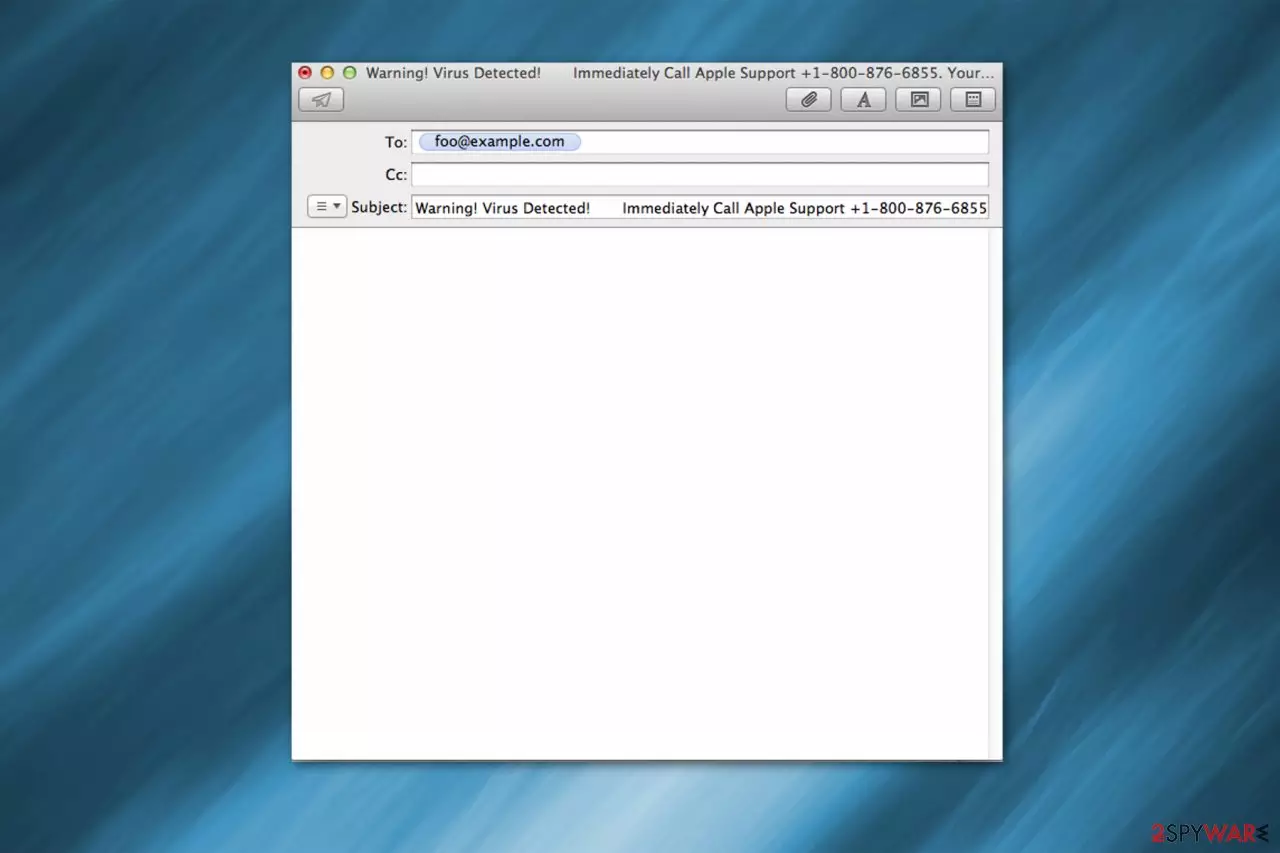
Immediately Call Apple Support scam appears as a fake alert on Mac computers. Due to the extensive amount of launched commands, your system freezes, and the message claims that your computer is infected. This potentially unwanted program tries to intimidate its victims by saying that their private data is at risk and urges them to call via toll-free 1-800-876-6855 number. Unfortunately, this is just another Apple Support scam that has nothing to do with the real company.
| Name | Immediately Call Apple Support |
| Type | Scam, adware |
| Delivery | The scam can be encountered after accessing a random website or after being redirected by adware |
| Dangers | Monetary losses, personal data disclosure to unknown parties, installation of other unwanted or malicious programs |
| Elimination | To get rid of adware, scan your system with SpyHunterCombo Cleaner or use manual guide below |
| System fix | Once you get rid of all PUPs, we recommend using FortectIntego for best results |
Currently, there are two versions of the Immediately Call Apple pop-up. The first one targets devices with Yosemite operating system and opens numerous mail messages on Mac to freeze the computer. Afterward, the victim sees the following alert:
Warning Virus Detected! Immediately Call Apple Support +1-800-876-6855.
Your credit card details and banking information.Your e-mail passwords and other account passwords.Your Facebook, Skype, AIM, ICQ and other. Call Apple Support +1-800-876-6855. Your private photos, family photos and other sensitive files.Your webcam could be accessed remotely by stalkers with a VPN virus.
The second version of the scam is designed for El Capitan and Sierra OS, which opens the iTunes application and repeatedly clicks its link to freeze the computer as well. It might convince inexperienced PC users that their systems are infected.

However, we can assure you that Immediately Call Apple Support is a scam, and your Mac is not corrupted by a malicious virus. Our experts not only suggest you not to call the fake tech support but also stay away from the following sites which might host this pop-up:
- safari-get(.)net;
- safari-serverhost(.)net;
- safari-get(.)com;
- safari-serverhost(.)com.
We suggest you remove the Apple Support virus right away. Note that if you get tricked into contacting the fake apple support, the scammers hiding behind the false alert might suggest you eliminate the non-existent virus remotely. It means that you might be lured into allowing the hackers to access your computer and infiltrating dangerous malware for real[1].
Additionally, they might offer to purchase supposedly efficient security software, which is usually expensive. We want to warn you that any suggestions from these fake apple technicians who are working behind the “Warning! Virus detected! Immediately call Apple Support” alert are merely an attempt to swindle money from intimidated people.
Therefore, you should never call criminals if you want to protect your system and avoid financial losses. Instead, head straight to perform adware removal. Pick FortectIntego or another robust antivirus tool and get rid of the potentially unwanted programs along with other Mac threats.
Adware programs sneak onto your Mac and display fake alerts
You can unconsciously infiltrate the potentially unwanted program when you install freeware recklessly[2]. The developers of adware programs put them inside the installers of free applications and do not disclose information about it. In other terms, it is called the bundling technique, which allows increasing the rate of distribution.
You can prevent stealth PUP installation if you choose Advanced/Custom settings instead of Recommended/Quick ones. Afterward, attentively monitor the procedure and search for pre-marked selections to install the adware program. It is necessary to un-tick them and scan your computer with professional security software.
Remove Immediately Call Apple Support virus with a few clicks
Since adware programs tend to bring additional extensions together during the installation, it might be tricky to remove the Apple Support virus without any assistance. Therefore, we have prepared not only detailed instructions on how to safely get rid of PUP but also picked several best antivirus systems to help you clean your Mac.
We want to remind you not to try to perform virus removal alone. According to the experts from BedyNet.ru[3], you can either fail to succeed or harm your OS since adware-related components might be confused with legitimate processes. If you uninstall files that are vital for your Mac, it might be damaged permanently. Thus, attentively follow the instructions below.
Uninstall from Windows
Uninstall from Windows 10/8:
- Type Control Panel into the Windows search box and open the result.
- Under Programs, select Uninstall a program.


Uninstall from Windows 7/XP:
- Click on Windows Start > Control Panel (Windows XP users should click on Add/Remove Programs).
- In Control Panel, select Programs > Uninstall a program.


Remove the unwanted program:
- In the Programs and Features window, look for any recently installed suspicious entries, select them, and click Uninstall.
- If User Account Control appears, click Yes to confirm, then complete the removal.


Delete from macOS
Remove the unwanted application:
- From the menu bar, select Go > Applications.
- In the Applications folder, look for any suspicious entries, then drag them to Trash (or right-click and pick Move to Trash).


Delete leftover files and folders:
- Select Go > Go to Folder.
- Enter /Library/Application Support and remove any suspicious folders related to the unwanted program.
- Repeat the same check in the /Library/LaunchAgents and /Library/LaunchDaemons folders, deleting any suspicious entries.

- Finally, empty the Trash to permanently remove the leftovers.

Remove from Microsoft Edge
Delete unwanted extensions from MS Edge:
- Select Menu (three horizontal dots at the top-right of the browser window) and pick Extensions.
- From the list, pick the extension and click on the Gear icon.
- Click Remove.


Clear cookies and other browser data:
- Click on the Menu (three horizontal dots at the top-right of the browser window) and select Settings > Privacy, search, and services..
- Under Clear browsing data, pick Choose what to clear.
- Select Cookies and other site data and Cached images and files. (apart from passwords, although you might want to include Media licenses as well, if applicable) and click on Clear.


Restore new tab and homepage settings:
- Click the menu icon and choose Settings.
- Then find On startup section.
- Click Remove next to any suspicious startup page.
Reset MS Edge if the above steps did not work:
- Press on Ctrl + Shift + Esc to open Task Manager.
- Click on More details arrow at the bottom of the window.
- Select Details tab.
- Now scroll down and locate every entry with Microsoft Edge name in it. Right-click on each of them and select End Task to stop MS Edge from running.


Instructions for Chromium-based Edge
Delete extensions from MS Edge (Chromium):
- Open Edge and click select Settings > Extensions.
- Delete unwanted extensions by clicking Remove.


Clear cache and site data:
- Click on Menu and go to Settings.
- Select Privacy, search and services.
- Under Clear browsing data, pick Choose what to clear.
- Under Time range, pick All time.
- Select Clear now.


Reset Chromium-based MS Edge:
- Click on Menu and select Settings.
- On the left side, pick Reset settings.
- Select Restore settings to their default values.
- Confirm with Reset.
- This will disable extensions and reset startup pages but will not delete bookmarks, saved passwords, or browsing history.


Remove from Mozilla Firefox (FF)
Remove dangerous extensions:
- Open Mozilla Firefox browser and click on the Menu (three horizontal lines at the top-right of the window).
- Select Add-ons.
- In here, select the unwanted extension and click Remove.


Reset the homepage:
- Click three horizontal lines at the top right corner to open the menu.
- Choose Settings.
- Under Home, set your preferred homepage and new tab settings.
Clear cookies and site data:
- Click Menu and pick Settings.
- Go to Privacy & Security section.
- Scroll down to locate Cookies and Site Data.
- Click on Clear Data...
- Select Cookies and Site Data and Temporary cached files and pages, then click Clear.


Reset Mozilla Firefox
If clearing the browser as explained above did not help, reset Mozilla Firefox:
- Open Mozilla Firefox browser and click the Menu.
- Go to Help and then choose Troubleshooting Information.

- Under Give Firefox a tune up section, click on Refresh Firefox...
- Once the pop-up shows up, confirm the action by pressing on Refresh Firefox.



Remove from Google Chrome
Delete malicious extensions from Google Chrome:
- Open Google Chrome, click on the Menu (three vertical dots at the top-right corner) and select More tools > Extensions.
- In the newly opened window, you will see all the installed extensions. Uninstall all suspicious extensions related to the unwanted program by clicking Remove.


Clear cache and web data from Chrome:
- Click on Menu and pick Settings.
- Under Privacy and security, select Clear browsing data.
- Select Browsing history, Cookies and other site data, as well as Cached images and files.
- Click Clear data.


Change your homepage:
- Click menu and choose Settings.
- Look for a suspicious site in the On startup section.
- Click on Open a specific or set of pages and click on three dots to find the Remove option.
Reset Google Chrome:
If the previous methods did not help you, reset Google Chrome to eliminate all the unwanted components:
- Click on Menu and select Settings.
- In the Settings, scroll down and click Advanced.
- Scroll down and locate Reset and clean up section.
- Now click Restore settings to their original defaults.
- Confirm with Reset settings.


Delete from Safari
Remove dangerous extensions:
- Open Safari, click Safari in the menu at the top-left of the screen, and select Preferences.
- Go to the Extensions tab, look for any suspicious entries, and click Uninstall to remove them.


Clear history and website data:
- Click Safari in the menu and pick Clear History.
- Set Clear to all history and confirm with Clear History.


Reset Safari:
- Click Safari in the menu and select Preferences > Advanced.
- Enable Show Develop menu in menu bar.
- From the menu bar, click Develop and select Empty Caches.


Did this guide help?
Be the first to comment