

Easy Speed Test is a potentially unwanted application that hijacks Google Chrome, or any other browser
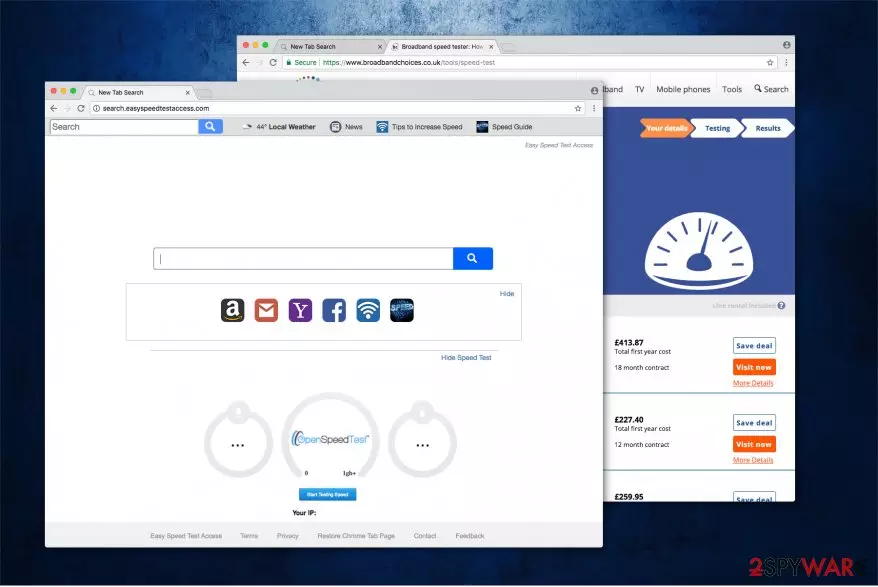
Easy Speed Test Access by is a browser hijacker[1] that is usually installed together with shareware or freeware users download from the internet. According to Safer Browser, the developer of this questionable software, this application is capable of helping users to test their internet speed, and also improve search result. However, Easy Speed Test is primarily designed to actively generate ad-revenue for its authors, disregarding users' needs. This means that each time Google Chrome, Internet Explorer, Mozilla Firefox, or Safari is launched, users will see hxxps://search.easyspeedtestaccess.com or hxxps://query.easyspeedtestaccess.com as their homepage and the search results will be littered with sponsored links, preventing them from finding relevant information. Due to browser modifications and its persistence techniques Search.easyspeedtestaccess.com removal might be a complicated task. However, we will explain how to deal with this unwanted app and how to eliminate it from the computer once and for all.
| Name | Search.easyspeedtestaccess.com |
| Developers | Polarity, Safer Browser |
| Also known as | Easy Speed Test Access, Easy Speed Test |
| Type | Browser hijacker/PUP |
| Infiltration | Software bundling, third-party websites |
| Symptoms | Altered web browser settings, modified search results that lead to sponsored sites, redirects, pop-up ads, etc. |
| Main dangers | Malware infection, data leak, money loss |
| Elimination | You can use security software or opt for manual removal with the help of your guide – you can find it below |
| Recovery | To restore all Windows settings and recover from virus damage, scan your device with FortectIntego |
Easy Speed Test Access is one of many browser hijackers released by the same developer – SaferBrowser. It is responsible for publishing Easy Email Access, Your Radio Now, Your Social Hub Now, and many other extensions that claim to provide a great value to Internet users. However, none of these apps can actually be called useful as their only aim is to make some money through the pay-per-click[2] scheme.
After changing your Internet browser settings, Search.easyspeedtestaccess.com starts tracking its victims' browsing activity. Information, which is collected by this PUP, includes computer location, its IP address, your email address and similar details[3]. This information is also used to design eye-catching ads and redirect you to predetermined websites that are affiliated with Easy Speed Test Access developers.

So, instead of improving your browsing experience, Easy Speed Test Access can severely decrease it. If you happen to deal with constant redirects on your web browser, note that they can be caused by a suspicious extension that was added to your system without your approval. In this case, Easy Speed Test removal is highly recommended to prevent redirects to doubtful websites that can lead you to further infections[4].
Finally, we decided to test the functionality of Easy Speed Test promoted service. It did measure our internet speed, and the provided speeds were accurate. However, as soon as we completed the process, we ended up on another site that prompted us to disable AdBlock. Additionally, links to Privacy Policy, FAQ, “About Us” and “Contact us” brought us to an
error page, which stated:
404 – Page Not Found.
Go to our home page and test your internet speed!
Of course, who would want to know anything about how the service collects, stores and shares the data users provide?! An immediate red flag. Do not trust any type of services or applications that do not offer essential documents like ToS or Privacy Policy. Thus, skip Easy Speed Test Access and use reliable speed testing services instead.

To sum up, the presence of the application can lead to serious privacy issues, such as identity theft and the loss of your financial information. Besides, your web browser may start working slower than ever. Finally, you cannot be sure that you won't find yourself on a malicious website filled with another virus waiting for you.
Thus, you are strongly advised to remove search.easyspeedtestaccess.com without any delay. You can either use security software that focuses on PUPs or make use of our manual instructions below. As soon as you are done with Easy Speed Test Access termination process, we recommend you scan your device with FortectIntego to recover from the damage done.
Ways to install freeware without infecting your device with PUPs
Many users have installed this potentially unwanted program willingly due to a misleading marketing. However, the most of people have been tricked by a method called bundling. It is a marketing strategy which joins different products in order to pass them into the system as a single program. In that manner, deceptive programs are downloaded without realizing that they will be added to the system.
One of the most effective ways to prevent potentially unwanted programs from infiltrating on your computer is paying enough attention to software installation process and analyzing each step. Make sure you read the Privacy policy and similar conditions before installing the software. Then, opt for the “Custom” or “Advanced” settings and uncheck pre-selected checkmarks that allow installation of optional components.
Easy Speed Test Access removal tutorial
To remove Easy Speed Test Access and Search.easyspeedtestaccess.com from your computer, you must uninstall every component that could be related to these two browser hijackers. Besides, to fix your homepage settings, the default search engine, and a new tab, you should reset the affected web browsers (Internet Explorer, Google Chrome, Safari, Mozilla Firefox, etc.) It will complete the elimination procedure on your computer.
According to BedyNet.ru[5] specialists, Easy Speed Test removal can be done either automatically or manually. Programs that we used when tested elimination of this browser hijacker are listed below. They will help you uninstall all problematic browser extensions and apps. However, if you are not willing to install other programs to get rid of the virus, use a guide given below.
Uninstall from Windows
Uninstall from Windows 10/8:
- Type Control Panel into the Windows search box and open the result.
- Under Programs, select Uninstall a program.


Uninstall from Windows 7/XP:
- Click on Windows Start > Control Panel (Windows XP users should click on Add/Remove Programs).
- In Control Panel, select Programs > Uninstall a program.


Remove the unwanted program:
- In the Programs and Features window, look for any recently installed suspicious entries, select them, and click Uninstall.
- If User Account Control appears, click Yes to confirm, then complete the removal.


Delete from macOS
Remove the unwanted application:
- From the menu bar, select Go > Applications.
- In the Applications folder, look for any suspicious entries, then drag them to Trash (or right-click and pick Move to Trash).


Delete leftover files and folders:
- Select Go > Go to Folder.
- Enter /Library/Application Support and remove any suspicious folders related to the unwanted program.
- Repeat the same check in the /Library/LaunchAgents and /Library/LaunchDaemons folders, deleting any suspicious entries.

- Finally, empty the Trash to permanently remove the leftovers.

Reset Internet Explorer
Remove dangerous add-ons:
- Open Internet Explorer, click on the Gear icon (IE menu) on the top-right corner of the browser
- Pick Manage Add-ons.
- You will see a Manage Add-ons window. Here, look for suspicious plugins. Click on these entries and select Disable.


Change your homepage if it was altered:
- Open IE and click on the Gear icon.
- Select Internet Options.
- In the General tab, delete the Home page address and replace it by your preferred one (for example, Google.com).
- Click Apply and then select OK.


Delete temporary files:
- Press on the Gear icon and select Internet Options.
- Under Browsing history, click Delete...
- Select relevant fields and press Delete.


Reset Internet Explorer:
- Click on Gear icon > Internet options and select Advanced tab.
- Select Reset.
- In the new window, check Delete personal settings and select Reset.


Remove from Microsoft Edge
Delete unwanted extensions from MS Edge:
- Select Menu (three horizontal dots at the top-right of the browser window) and pick Extensions.
- From the list, pick the extension and click on the Gear icon.
- Click Remove.


Clear cookies and other browser data:
- Click on the Menu (three horizontal dots at the top-right of the browser window) and select Settings > Privacy, search, and services..
- Under Clear browsing data, pick Choose what to clear.
- Select Cookies and other site data and Cached images and files. (apart from passwords, although you might want to include Media licenses as well, if applicable) and click on Clear.


Restore new tab and homepage settings:
- Click the menu icon and choose Settings.
- Then find On startup section.
- Click Remove next to any suspicious startup page.
Reset MS Edge if the above steps did not work:
- Press on Ctrl + Shift + Esc to open Task Manager.
- Click on More details arrow at the bottom of the window.
- Select Details tab.
- Now scroll down and locate every entry with Microsoft Edge name in it. Right-click on each of them and select End Task to stop MS Edge from running.


Instructions for Chromium-based Edge
Delete extensions from MS Edge (Chromium):
- Open Edge and click select Settings > Extensions.
- Delete unwanted extensions by clicking Remove.


Clear cache and site data:
- Click on Menu and go to Settings.
- Select Privacy, search and services.
- Under Clear browsing data, pick Choose what to clear.
- Under Time range, pick All time.
- Select Clear now.


Reset Chromium-based MS Edge:
- Click on Menu and select Settings.
- On the left side, pick Reset settings.
- Select Restore settings to their default values.
- Confirm with Reset.
- This will disable extensions and reset startup pages but will not delete bookmarks, saved passwords, or browsing history.


Remove from Mozilla Firefox (FF)
Remove dangerous extensions:
- Open Mozilla Firefox browser and click on the Menu (three horizontal lines at the top-right of the window).
- Select Add-ons.
- In here, select the unwanted extension and click Remove.


Reset the homepage:
- Click three horizontal lines at the top right corner to open the menu.
- Choose Settings.
- Under Home, set your preferred homepage and new tab settings.
Clear cookies and site data:
- Click Menu and pick Settings.
- Go to Privacy & Security section.
- Scroll down to locate Cookies and Site Data.
- Click on Clear Data...
- Select Cookies and Site Data and Temporary cached files and pages, then click Clear.


Reset Mozilla Firefox
If clearing the browser as explained above did not help, reset Mozilla Firefox:
- Open Mozilla Firefox browser and click the Menu.
- Go to Help and then choose Troubleshooting Information.

- Under Give Firefox a tune up section, click on Refresh Firefox...
- Once the pop-up shows up, confirm the action by pressing on Refresh Firefox.



Remove from Google Chrome
Delete malicious extensions from Google Chrome:
- Open Google Chrome, click on the Menu (three vertical dots at the top-right corner) and select More tools > Extensions.
- In the newly opened window, you will see all the installed extensions. Uninstall all suspicious extensions related to the unwanted program by clicking Remove.


Clear cache and web data from Chrome:
- Click on Menu and pick Settings.
- Under Privacy and security, select Clear browsing data.
- Select Browsing history, Cookies and other site data, as well as Cached images and files.
- Click Clear data.


Change your homepage:
- Click menu and choose Settings.
- Look for a suspicious site in the On startup section.
- Click on Open a specific or set of pages and click on three dots to find the Remove option.
Reset Google Chrome:
If the previous methods did not help you, reset Google Chrome to eliminate all the unwanted components:
- Click on Menu and select Settings.
- In the Settings, scroll down and click Advanced.
- Scroll down and locate Reset and clean up section.
- Now click Restore settings to their original defaults.
- Confirm with Reset settings.


Delete from Safari
Remove dangerous extensions:
- Open Safari, click Safari in the menu at the top-left of the screen, and select Preferences.
- Go to the Extensions tab, look for any suspicious entries, and click Uninstall to remove them.


Clear history and website data:
- Click Safari in the menu and pick Clear History.
- Set Clear to all history and confirm with Clear History.


Reset Safari:
- Click Safari in the menu and select Preferences > Advanced.
- Enable Show Develop menu in menu bar.
- From the menu bar, click Develop and select Empty Caches.


Did this guide help?
Be the first to comment