Error Code – 022-100-006 scam tries to trick users into calling fake tech support service
Error Code – 022-100-006 is a fake pop-up which is displayed when adware[1] program affects users’ machines. This type of potentially unwanted program (PUP) can sneak into victims’ computers without their permission. After the hijack, it starts displaying undesirable ads and redirecting to a tech support scam website.
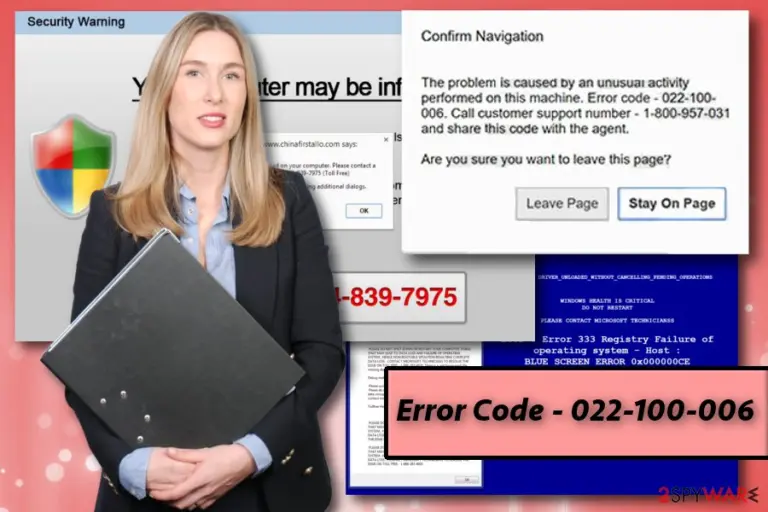
As soon as The Error Code – 022-100-006 pops up, it notifies the user that the system is under massive threat as “unusual activity” has been detected on the machine:
The problem is caused by an unusual activity performed on this machine. Error code -022-100-006. Call customer support number – 1-800-957-031 and share this code with an agent.
Furthermore, it states that emails, bank, other personal passwords and credit card information are all at risk. Therefore, only “Windows Certified Tech Support” can help to fix this problem. However, this Error code -022-100-006 is non-existent.
Crooks are using psychological pressure to make sure some victims panic and call the displayed number. Most often, inexperienced computer users fall for this trick as they never encountered something similar. We can assure you that this popup is fake and has nothing to do with Windows technical support.
If “Certified Technicians” are contacted they often start taking their time while explaining to the user how badly their system is infected, usually using technical terms most people do not understand. It is all done to make the scam look more believable.
Crooks might ask for remote access to your PC. If it is granted, they usually change system settings and install additional software which is completely useless. The fake tech support then asks to pay up for the provided programs too. However, you do not need them as all the claims that your PC is damaged are fake. Your personal information is safe, as long as you do not disclose it yourself.
Additionally, creators of Error Code – 022-100-006 tech support scam might install malware (like keyloggers) while remotely controlling your PC. This can lead to stolen credentials and even identity theft. Therefore, never even try to contact these cybercriminals as all they want is to do you harm.
If this fake security alert shows up on Chrome, Firefox, Explorer or other web browsers, you should check the system for adware and proceed with Error Code – 022-100-006 virus removal if needed. Note that Microsoft popups would never display a phone number to be called when a problem with the system arises. You should simply close your browser[2] and do not click any other buttons or links provided in the PUP.
To remove Error Code – 022-100-006 adware entirely, we suggest using FortectIntego. This anti-malware software can quickly emilminate all components related to this suspicious application. However, if you prefer manual removal guide, you can find instructions below.
Crooks use bundling to distribute adware which links users to scam web pages
Adware falls into unwanted program category for a reason. Primarily because users do not wish to obtain them; however, they get tricked into installing them. This technique is called bundling and is regularly used by free software developers.
Therefore, to avoid infections of adware and other PUPs, we recommend being extremely vigilant while installing free software. Make sure you opt for Advanced installation mode instead of Recommended one as the latter might not thoroughly disclose the full list of programs that might be installed together with the desired software.
Additionally, the safe internet browsing practice will save you from further troubles with a computer. You should avoid websites of dubious content, such as gambling, free online gaming or pornographic as these high-risk domains might run malicious JavaScripts which can redirect you to tech support scam website or download malware on your PC.
Eliminate Error Code – 022-100-006 scam from your machine and never contact cybercriminals
As we already mentioned the unexpected pop-up might scare you quite a bit. However, you should not panic and remove Error Code – 022-100-006 virus from your computer instead. To do that, you can employ a robust security tool or eliminate it by using our guide below.
Error Code – 022-100-006 removal is straightforward if you decide to utilize an anti-malware program. These applications are designed to find even the most tenacious adware and malware and eliminate all associated files.
If you decide to use our tutorial and remove adware manually instead, make sure you follow each step scrupulously. IT specialists from Viirused.ee[3] warn that incorrect procedure might lead to reinfection of the virus as soon as the browser is restarted.
Uninstall from Windows
Uninstall from Windows 10/8:
Type Control Panel into the Windows search box and open the result.
Under Programs, select Uninstall a program.
Uninstall from Windows 7/XP:
Click on Windows Start > Control Panel (Windows XP users should click on Add/Remove Programs).
In Control Panel, select Programs > Uninstall a program.
Remove the unwanted program:
In the Programs and Features window, look for any recently installed suspicious entries, select them, and click Uninstall.
If User Account Control appears, click Yes to confirm, then complete the removal.
Delete from macOS
Remove the unwanted application:
From the menu bar, select Go > Applications.
In the Applications folder, look for any suspicious entries, then drag them to Trash (or right-click and pick Move to Trash).
Delete leftover files and folders:
Select Go > Go to Folder.
Enter /Library/Application Support and remove any suspicious folders related to the unwanted program.
Repeat the same check in the /Library/LaunchAgents and /Library/LaunchDaemons folders, deleting any suspicious entries.
Finally, empty the Trash to permanently remove the leftovers.
Reset Internet Explorer
Remove dangerous add-ons:
Open Internet Explorer, click on the Gear icon (IE menu) on the top-right corner of the browser
Pick Manage Add-ons.
You will see a Manage Add-ons window. Here, look for suspicious plugins. Click on these entries and select Disable.
Change your homepage if it was altered:
Open IE and click on the Gear icon.
Select Internet Options.
In the General tab, delete the Home page address and replace it by your preferred one (for example, Google.com).
Click Apply and then select OK.
Delete temporary files:
Press on the Gear icon and select Internet Options.
Under Browsing history, click Delete...
Select relevant fields and press Delete.
Reset Internet Explorer:
Click on Gear icon > Internet options and select Advanced tab.
Select Reset.
In the new window, check Delete personal settings and select Reset.
Remove from Microsoft Edge
Delete unwanted extensions from MS Edge:
Select Menu (three horizontal dots at the top-right of the browser window) and pick Extensions.
From the list, pick the extension and click on the Gear icon.
Click Remove.
Clear cookies and other browser data:
Click on the Menu (three horizontal dots at the top-right of the browser window) and select Settings > Privacy, search, and services..
Under Clear browsing data, pick Choose what to clear.
Select Cookies and other site data and Cached images and files. (apart from passwords, although you might want to include Media licenses as well, if applicable) and click on Clear.
Restore new tab and homepage settings:
Click the menu icon and choose Settings.
Then find On startup section.
Click Remove next to any suspicious startup page.
Reset MS Edge if the above steps did not work:
Press on Ctrl + Shift + Esc to open Task Manager.
Click on More details arrow at the bottom of the window.
Select Details tab.
Now scroll down and locate every entry with Microsoft Edge name in it. Right-click on each of them and select End Task to stop MS Edge from running.
Instructions for Chromium-based Edge
Delete extensions from MS Edge (Chromium):
Open Edge and click select Settings > Extensions.
Delete unwanted extensions by clicking Remove.
Clear cache and site data:
Click on Menu and go to Settings.
Select Privacy, search and services.
Under Clear browsing data, pick Choose what to clear.
Under Time range, pick All time.
Select Clear now.
Reset Chromium-based MS Edge:
Click on Menu and select Settings.
On the left side, pick Reset settings.
Select Restore settings to their default values.
Confirm with Reset.
This will disable extensions and reset startup pages but will not delete bookmarks, saved passwords, or browsing history.
Remove from Mozilla Firefox (FF)
Remove dangerous extensions:
Open Mozilla Firefox browser and click on the Menu (three horizontal lines at the top-right of the window).
Select Add-ons.
In here, select the unwanted extension and click Remove.
Reset the homepage:
Click three horizontal lines at the top right corner to open the menu.
Choose Settings.
Under Home, set your preferred homepage and new tab settings.
Clear cookies and site data:
Click Menu and pick Settings.
Go to Privacy & Security section.
Scroll down to locate Cookies and Site Data.
Click on Clear Data...
Select Cookies and Site Data and Temporary cached files and pages, then click Clear.
Reset Mozilla Firefox
If clearing the browser as explained above did not help, reset Mozilla Firefox:
Open Mozilla Firefox browser and click the Menu.
Go to Help and then choose Troubleshooting Information.
Under Give Firefox a tune up section, click on Refresh Firefox...
Once the pop-up shows up, confirm the action by pressing on Refresh Firefox.
Remove from Google Chrome
Delete malicious extensions from Google Chrome:
Open Google Chrome, click on the Menu (three vertical dots at the top-right corner) and select More tools > Extensions.
In the newly opened window, you will see all the installed extensions. Uninstall all suspicious extensions related to the unwanted program by clicking Remove.
Clear cache and web data from Chrome:
Click on Menu and pick Settings.
Under Privacy and security, select Clear browsing data.
Select Browsing history, Cookies and other site data, as well as Cached images and files.
Click Clear data.
Change your homepage:
Click menu and choose Settings.
Look for a suspicious site in the On startup section.
Click on Open a specific or set of pages and click on three dots to find the Remove option.
Reset Google Chrome:
If the previous methods did not help you, reset Google Chrome to eliminate all the unwanted components:
Click on Menu and select Settings.
In the Settings, scroll down and click Advanced.
Scroll down and locate Reset and clean up section.
Now click Restore settings to their original defaults.
Confirm with Reset settings.
Delete from Safari
Remove dangerous extensions:
Open Safari, click Safari in the menu at the top-left of the screen, and select Preferences.
Go to the Extensions tab, look for any suspicious entries, and click Uninstall to remove them.
Clear history and website data:
Click Safari in the menu and pick Clear History.
Set Clear to all history and confirm with Clear History.
Reset Safari:
Click Safari in the menu and select Preferences > Advanced.
Enable Show Develop menu in menu bar.
From the menu bar, click Develop and select Empty Caches.






















































Be the first to comment