

Search.searchcfpdf.com – yet another PUP from Polarity Technologies Ltd.
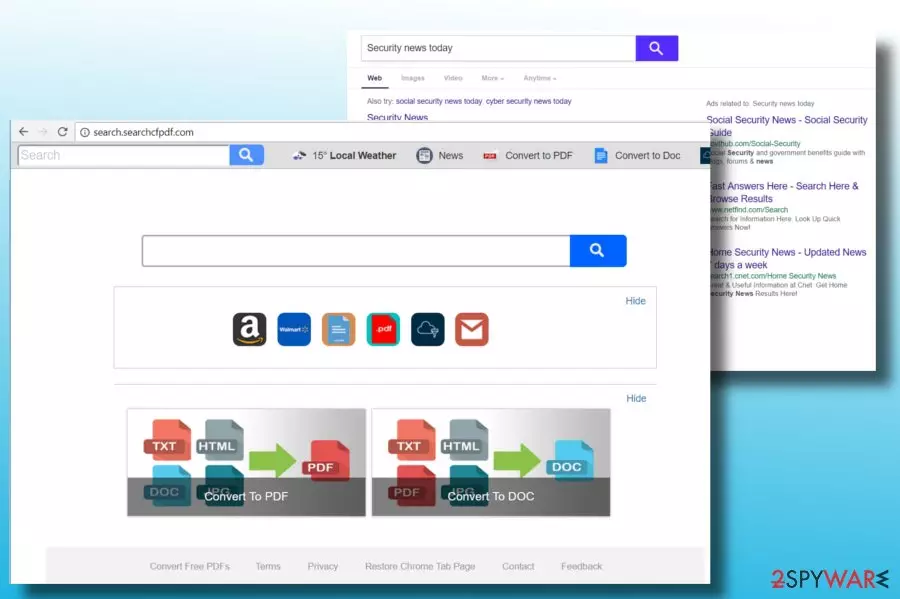
Search.searchcfpdf.com is a search site developed and maintained by Polarity Technologies Ltd. Those who are not acquainted with this company can quickly fall for believing that this search engine is a useful tool that provides not only “reliable” search results, but also allows converting DOCs, TXTs, JPGs, and HTML to PDFs and vice versa.
However, the cons of the browser hijacker outweigh its pros. Cybersecurity experts from Dieviren.de[1] warn that this search belongs to the group of browser hijackers and potentially unwanted programs (PUP) just like any other “masterpiece” developed by Polarity.
| name | Search.searchcfpdf.com |
|---|---|
| Type | Browser hijacker, redirect virus, PUP |
| Symptoms of infection | Altered browser settings (new tab, homepage, default search engine); lots of adverts in search results provider from a different source than usually; diminished PC performance |
| Risks | Privacy issues, malware infections, financial losses |
| Distribution | Fake Flash Player updates, deceptive ads, software bundling |
| Elimination | You can remove any PUP from your device by scanning it with a reliable security tool |
| System health | Check if the browser hijacker didn't modify the registry and other core system settings by using the FortectIntego PC repair tool |
The Search.searchcfpdf.com URL can directly be accessed by typing it in the address bar, but accessing it directly does not mean that Google Chrome, Mozilla Firefox, or another search engine that you are using has already been hijacked. In case of the hijack, the default start page, search engine, new tab URL, and other customized settings become related to the infection and cannot be changed easily.
Apart from unwanted search, you may see suspicious toolbars, like MultiConverter, Convert to PDF, Online Converter, etc. injected. The purpose of this hijacker is simple – to increase affiliate marketing[2] by redirecting people to the websites of its affiliates. Redirects may happen with the help of links injected into search results or commercial advertisements that may show up while browsing.
The problem is that Search.searchcfpdf.com virus does not take responsibility for the content that is displayed in its search results. As Polarity points out in the License Terms, the “User understands that Company is not responsible for this third-party functionality.”
This raises suspicions, and you should better be careful when clicking on links revealed by this potentially unwanted program. Some of them may redirect to suspicious, infamous, or even dangerous web domains[3] used for malware distribution.
The developer also points out that the “Addition of alternative error page functionality, such as “Page Not Found” may be applied. It means that the software may block certain domains due to unspecified reasons and the only way to unblock them is to remove Search.searchcfpdf.com virus.

If these reasons are not enough for you to convince yourself how essential its removal is, you should also beware that this search engine allows the first-party publisher or Partner Cookies to be installed in your browser. Cookies cannot spy on your keystrokes or steal credit card details, but they should not be tolerated due to a continuous leak of non-personal information, including search queries, frequently visited sites, IP address, and so on.
If you are not acquainted with Search.searchcfpdf.com removal possibilities, you may need a guide to help you. The fastest and easiest way to get rid of it is to run a full system scan with SpyHunterCombo Cleaner or MalwarebytesMalwarebytes and then restore the web browser's settings.
The other option is to eliminate the hijacker manually. For that, feel free to use a guide that is included at the end of this post. Whichever method you use, afterward, perform a system diagnostics with the FortectIntego PC repair tool to fix all system irregularities so your device wouldn't exhibit abnormal behavior, such as overheating, crashing, etc.
Avoid PUPs by staying attentive when installing new software
Potentially unwanted programs, including adware and browser hijackers, are usually distributed by “bundling.” It means they are appended to other free apps as optional downloads and hidden under Quick or Basic installation to evade rejection.
Although this method is legitimate, it is often used for the dissemination of intrusive ad-supported programs, which may cause significant browser malfunctions and push people into a risk of privacy violation or malware infection. Therefore it's vital to:
- Select freeware download sources carefully;
- Opt for Advanced or Custom installation option;
- Read the terms carefully;
- Deselect pre-marked components, such as extensions or add-ons.
These steps should be sufficient to keep your PC PUP-free. Keeping a reputable anti-malware is yet another precautionary measure that you should take into account.
Easy steps to remove Search.searchcfpdf.com virus
There are two ways to remove Search.searchcfpdf.com from the system – manual and automatic. The latter method does not require a tutorial because all you have to do is to install a professional security tool and run a full system scan with it.
Manual removal is a little bit more intricate. The name of the PUP hiding in your PC may not be related to the name of the hijacker, so you may find it difficult to detect. You should draw your attention to the date when programs were installed. If the date coincides with the browser's hijack, most probably that's the PUP you need to remove.
Last, but not least, it's important to eliminate Search.searchcfpdf.com malware from the web browser. Currently, it's compatible with Google Chrome, Mozilla Firefox, and Internet Explorer, so after PUP removal from Control Panel, don't forget to reset these web browsers manually:
Uninstall from Windows
Uninstall from Windows 10/8:
- Type Control Panel into the Windows search box and open the result.
- Under Programs, select Uninstall a program.


Uninstall from Windows 7/XP:
- Click on Windows Start > Control Panel (Windows XP users should click on Add/Remove Programs).
- In Control Panel, select Programs > Uninstall a program.


Remove the unwanted program:
- In the Programs and Features window, look for any recently installed suspicious entries, select them, and click Uninstall.
- If User Account Control appears, click Yes to confirm, then complete the removal.


Delete from macOS
Remove the unwanted application:
- From the menu bar, select Go > Applications.
- In the Applications folder, look for any suspicious entries, then drag them to Trash (or right-click and pick Move to Trash).


Delete leftover files and folders:
- Select Go > Go to Folder.
- Enter /Library/Application Support and remove any suspicious folders related to the unwanted program.
- Repeat the same check in the /Library/LaunchAgents and /Library/LaunchDaemons folders, deleting any suspicious entries.

- Finally, empty the Trash to permanently remove the leftovers.

Remove from Microsoft Edge
Delete unwanted extensions from MS Edge:
- Select Menu (three horizontal dots at the top-right of the browser window) and pick Extensions.
- From the list, pick the extension and click on the Gear icon.
- Click Remove.


Clear cookies and other browser data:
- Click on the Menu (three horizontal dots at the top-right of the browser window) and select Settings > Privacy, search, and services..
- Under Clear browsing data, pick Choose what to clear.
- Select Cookies and other site data and Cached images and files. (apart from passwords, although you might want to include Media licenses as well, if applicable) and click on Clear.


Restore new tab and homepage settings:
- Click the menu icon and choose Settings.
- Then find On startup section.
- Click Remove next to any suspicious startup page.
Reset MS Edge if the above steps did not work:
- Press on Ctrl + Shift + Esc to open Task Manager.
- Click on More details arrow at the bottom of the window.
- Select Details tab.
- Now scroll down and locate every entry with Microsoft Edge name in it. Right-click on each of them and select End Task to stop MS Edge from running.


Instructions for Chromium-based Edge
Delete extensions from MS Edge (Chromium):
- Open Edge and click select Settings > Extensions.
- Delete unwanted extensions by clicking Remove.


Clear cache and site data:
- Click on Menu and go to Settings.
- Select Privacy, search and services.
- Under Clear browsing data, pick Choose what to clear.
- Under Time range, pick All time.
- Select Clear now.


Reset Chromium-based MS Edge:
- Click on Menu and select Settings.
- On the left side, pick Reset settings.
- Select Restore settings to their default values.
- Confirm with Reset.
- This will disable extensions and reset startup pages but will not delete bookmarks, saved passwords, or browsing history.


Remove from Mozilla Firefox (FF)
Remove dangerous extensions:
- Open Mozilla Firefox browser and click on the Menu (three horizontal lines at the top-right of the window).
- Select Add-ons.
- In here, select the unwanted extension and click Remove.


Reset the homepage:
- Click three horizontal lines at the top right corner to open the menu.
- Choose Settings.
- Under Home, set your preferred homepage and new tab settings.
Clear cookies and site data:
- Click Menu and pick Settings.
- Go to Privacy & Security section.
- Scroll down to locate Cookies and Site Data.
- Click on Clear Data...
- Select Cookies and Site Data and Temporary cached files and pages, then click Clear.


Reset Mozilla Firefox
If clearing the browser as explained above did not help, reset Mozilla Firefox:
- Open Mozilla Firefox browser and click the Menu.
- Go to Help and then choose Troubleshooting Information.

- Under Give Firefox a tune up section, click on Refresh Firefox...
- Once the pop-up shows up, confirm the action by pressing on Refresh Firefox.



Remove from Google Chrome
Delete malicious extensions from Google Chrome:
- Open Google Chrome, click on the Menu (three vertical dots at the top-right corner) and select More tools > Extensions.
- In the newly opened window, you will see all the installed extensions. Uninstall all suspicious extensions related to the unwanted program by clicking Remove.


Clear cache and web data from Chrome:
- Click on Menu and pick Settings.
- Under Privacy and security, select Clear browsing data.
- Select Browsing history, Cookies and other site data, as well as Cached images and files.
- Click Clear data.


Change your homepage:
- Click menu and choose Settings.
- Look for a suspicious site in the On startup section.
- Click on Open a specific or set of pages and click on three dots to find the Remove option.
Reset Google Chrome:
If the previous methods did not help you, reset Google Chrome to eliminate all the unwanted components:
- Click on Menu and select Settings.
- In the Settings, scroll down and click Advanced.
- Scroll down and locate Reset and clean up section.
- Now click Restore settings to their original defaults.
- Confirm with Reset settings.


Delete from Safari
Remove dangerous extensions:
- Open Safari, click Safari in the menu at the top-left of the screen, and select Preferences.
- Go to the Extensions tab, look for any suspicious entries, and click Uninstall to remove them.


Clear history and website data:
- Click Safari in the menu and pick Clear History.
- Set Clear to all history and confirm with Clear History.


Reset Safari:
- Click Safari in the menu and select Preferences > Advanced.
- Enable Show Develop menu in menu bar.
- From the menu bar, click Develop and select Empty Caches.


Did this guide help?
Be the first to comment