

Dear Facebook user, congratulations! scam tries to deceive users by offering a gift
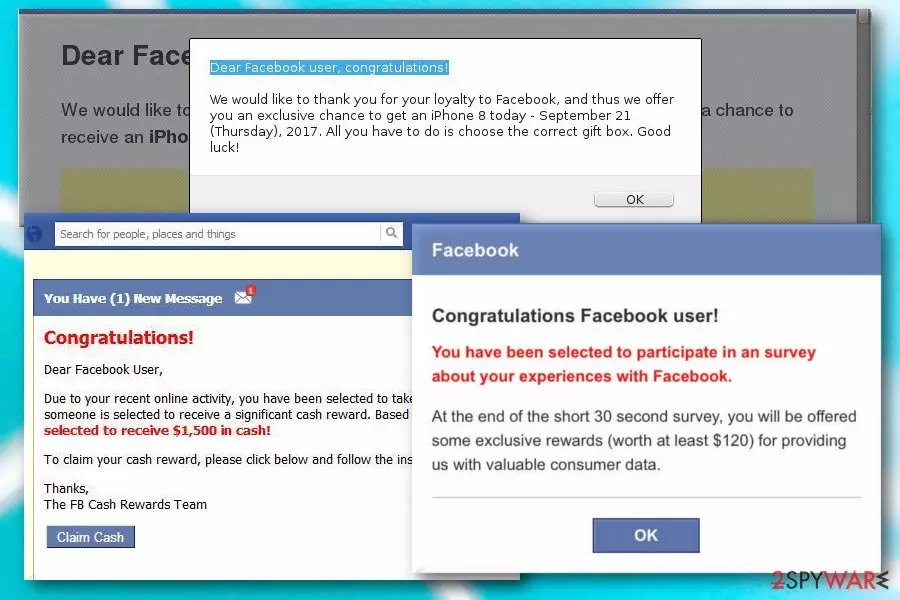
Dear Facebook user, congratulations! is another fake alert which falls into survey scam category. There are two reasons why users might encounter this questionable offer: they either get redirected from a suspicious website or have an adware[1] program installed on their computers. In most cases, the latter is true.
| Name | Dear Facebook user, congratulations! |
| Type | Survey scam (caused by adware) |
| Danger Level | Low. Cannot damage system files directly |
| Distribution | Bundling, suspicious websites |
| Symptoms | Ads in form of pop-ups, banners, deals, fake alerts, offers, etc. ; redirecting |
| Removal | To uninstall the adware, employ FortectIntego. Manual elimination instructions also available |
Dear Facebook user, congratulations! scam is created by crooks who want to extort money out of unsuspecting users while abusing their trust. For that, they employ clever social engineering skills. They primarily target inexperienced individuals who never encountered such scams. Thus, if you saw this message, close down your browser and remove Dear Facebook user, congratulations! pop-up from your computer.
The pop-up which displays the message, states the following:
Dear Facebook user, congratulations!
We would like to thank you for your loyalty to Facebook, and thus we offer you an exclusive chance to get an iPhone 8 today – (date). All you have to do is choose the correct gift box. Good luck!
The prize seems overly tempting, as iPhone 8 is an expensive item. So, what’s the catch? As soon as you proceed with picking a “correct” gift box, you are prompted to complete a short survey (the guessed gift box is always the “correct” one). The questions are utterly easy – such as “Who found Apple?”, “Who created Facebook.” It can also range to “Are you male or female?”.
As soon as Dear Facebook user, congratulations! is completed, user is persuaded to enter personal details, like bank account information, e-mail, home address, name and similar. From this point in time, several outcomes are available:
- While entering your details, you agreed to subscribe to an expensive service you do not need. Your card will be charged automatically monthly or weekly. You need to cancel the service to stop these automatic payments.
- Your email is used to promote various sponsors’ products and services. Thus, your mailbox is spammed with unwanted emails.
- Your credit card details can be used to take your money form the bank.
- Information provided might end up in the hands of criminals and even result in identity theft.[2]
Where is the iPhone 8 that you were promised? You are never going to get it because Dear Facebook user, congratulations! is a scam. Therefore, listen to your gut when it seems that something is fishy – nobody is trying to gift iPhones (or any other expensive items) on the internet for free.
Even if you decline the offer and never participate in the survey, your Google Chrome, Internet Explorer, Mozilla Firefox or another browser might continually redirect you to the same scam, or other pop-ups, ads, deals, banners, offers or similar. The extensive amount of advertisement will not go away unless you proceed with Dear Facebook user, congratulations! removal.
To achieve that, we suggest you download and install FortectIntego – it can easily find adware causing these redirects. On the other hand, you can also try manual removal of the virus; however, it might not be as successful as the adware might be tricky to detect (sometimes it is hiding under legitimate names, such as “Media Player”).

The way adware is distributed
To avoid unpleasant pop-ups and ads covering your whole screen, make sure you do not install it in the first place. Research shows,[3] that users often think that PUPs simply enter their machines out of nowhere – that is not true. Users typically rush freeware installation and skip steps by pressing “Next” button quickly. Do not make this mistake.
When installing free software from the internet, take your time reading installation instructions and EULA. This information is valuable as it can disclose a lot of details about the program you are about to install. Additionally, when you are prompted to pick Recommended or Advanced settings – always choose the latter. Only then you will be able to decline additional components, presented together with desired software.
You have to remove Dear Facebook user, congratulations! adware and it will stop bothering you
You can avoid terrible consequences by simply not participating in the survey and closing down your browser. However, to make sure that ads, pop-ups, and redirects caused by adware go away, you need to remove Dear Facebook user, congratulations! virus from your computer.
There are two different elimination methods available – manual or automatic. As we already mentioned, sometimes it might be challenging to detect adware and get rid of it. Therefore, we suggest you download and install a robust security tool. Just bring it to the newest version and carry out a full system scan.
However, if you dislike the idea of additional software on your computer, you can always pick manual Dear Facebook user, congratulations! removal. Even if it is not that efficient, this method still can be performed successfully. We have prepared an illustrated guide – follow it and it will help you with the process
Uninstall from Windows
Uninstall from Windows 10/8:
- Type Control Panel into the Windows search box and open the result.
- Under Programs, select Uninstall a program.


Uninstall from Windows 7/XP:
- Click on Windows Start > Control Panel (Windows XP users should click on Add/Remove Programs).
- In Control Panel, select Programs > Uninstall a program.


Remove the unwanted program:
- In the Programs and Features window, look for any recently installed suspicious entries, select them, and click Uninstall.
- If User Account Control appears, click Yes to confirm, then complete the removal.


Delete from macOS
Remove the unwanted application:
- From the menu bar, select Go > Applications.
- In the Applications folder, look for any suspicious entries, then drag them to Trash (or right-click and pick Move to Trash).


Delete leftover files and folders:
- Select Go > Go to Folder.
- Enter /Library/Application Support and remove any suspicious folders related to the unwanted program.
- Repeat the same check in the /Library/LaunchAgents and /Library/LaunchDaemons folders, deleting any suspicious entries.

- Finally, empty the Trash to permanently remove the leftovers.

Reset Internet Explorer
Remove dangerous add-ons:
- Open Internet Explorer, click on the Gear icon (IE menu) on the top-right corner of the browser
- Pick Manage Add-ons.
- You will see a Manage Add-ons window. Here, look for suspicious plugins. Click on these entries and select Disable.


Change your homepage if it was altered:
- Open IE and click on the Gear icon.
- Select Internet Options.
- In the General tab, delete the Home page address and replace it by your preferred one (for example, Google.com).
- Click Apply and then select OK.


Delete temporary files:
- Press on the Gear icon and select Internet Options.
- Under Browsing history, click Delete...
- Select relevant fields and press Delete.


Reset Internet Explorer:
- Click on Gear icon > Internet options and select Advanced tab.
- Select Reset.
- In the new window, check Delete personal settings and select Reset.


Remove from Microsoft Edge
Delete unwanted extensions from MS Edge:
- Select Menu (three horizontal dots at the top-right of the browser window) and pick Extensions.
- From the list, pick the extension and click on the Gear icon.
- Click Remove.


Clear cookies and other browser data:
- Click on the Menu (three horizontal dots at the top-right of the browser window) and select Settings > Privacy, search, and services..
- Under Clear browsing data, pick Choose what to clear.
- Select Cookies and other site data and Cached images and files. (apart from passwords, although you might want to include Media licenses as well, if applicable) and click on Clear.


Restore new tab and homepage settings:
- Click the menu icon and choose Settings.
- Then find On startup section.
- Click Remove next to any suspicious startup page.
Reset MS Edge if the above steps did not work:
- Press on Ctrl + Shift + Esc to open Task Manager.
- Click on More details arrow at the bottom of the window.
- Select Details tab.
- Now scroll down and locate every entry with Microsoft Edge name in it. Right-click on each of them and select End Task to stop MS Edge from running.


Instructions for Chromium-based Edge
Delete extensions from MS Edge (Chromium):
- Open Edge and click select Settings > Extensions.
- Delete unwanted extensions by clicking Remove.


Clear cache and site data:
- Click on Menu and go to Settings.
- Select Privacy, search and services.
- Under Clear browsing data, pick Choose what to clear.
- Under Time range, pick All time.
- Select Clear now.


Reset Chromium-based MS Edge:
- Click on Menu and select Settings.
- On the left side, pick Reset settings.
- Select Restore settings to their default values.
- Confirm with Reset.
- This will disable extensions and reset startup pages but will not delete bookmarks, saved passwords, or browsing history.


Remove from Mozilla Firefox (FF)
Remove dangerous extensions:
- Open Mozilla Firefox browser and click on the Menu (three horizontal lines at the top-right of the window).
- Select Add-ons.
- In here, select the unwanted extension and click Remove.


Reset the homepage:
- Click three horizontal lines at the top right corner to open the menu.
- Choose Settings.
- Under Home, set your preferred homepage and new tab settings.
Clear cookies and site data:
- Click Menu and pick Settings.
- Go to Privacy & Security section.
- Scroll down to locate Cookies and Site Data.
- Click on Clear Data...
- Select Cookies and Site Data and Temporary cached files and pages, then click Clear.


Reset Mozilla Firefox
If clearing the browser as explained above did not help, reset Mozilla Firefox:
- Open Mozilla Firefox browser and click the Menu.
- Go to Help and then choose Troubleshooting Information.

- Under Give Firefox a tune up section, click on Refresh Firefox...
- Once the pop-up shows up, confirm the action by pressing on Refresh Firefox.



Remove from Google Chrome
Delete malicious extensions from Google Chrome:
- Open Google Chrome, click on the Menu (three vertical dots at the top-right corner) and select More tools > Extensions.
- In the newly opened window, you will see all the installed extensions. Uninstall all suspicious extensions related to the unwanted program by clicking Remove.


Clear cache and web data from Chrome:
- Click on Menu and pick Settings.
- Under Privacy and security, select Clear browsing data.
- Select Browsing history, Cookies and other site data, as well as Cached images and files.
- Click Clear data.


Change your homepage:
- Click menu and choose Settings.
- Look for a suspicious site in the On startup section.
- Click on Open a specific or set of pages and click on three dots to find the Remove option.
Reset Google Chrome:
If the previous methods did not help you, reset Google Chrome to eliminate all the unwanted components:
- Click on Menu and select Settings.
- In the Settings, scroll down and click Advanced.
- Scroll down and locate Reset and clean up section.
- Now click Restore settings to their original defaults.
- Confirm with Reset settings.


Delete from Safari
Remove dangerous extensions:
- Open Safari, click Safari in the menu at the top-left of the screen, and select Preferences.
- Go to the Extensions tab, look for any suspicious entries, and click Uninstall to remove them.


Clear history and website data:
- Click Safari in the menu and pick Clear History.
- Set Clear to all history and confirm with Clear History.


Reset Safari:
- Click Safari in the menu and select Preferences > Advanced.
- Enable Show Develop menu in menu bar.
- From the menu bar, click Develop and select Empty Caches.


Did this guide help?
Be the first to comment