

Mac Mechanic is a questionable system optimization tool designed for Mac users
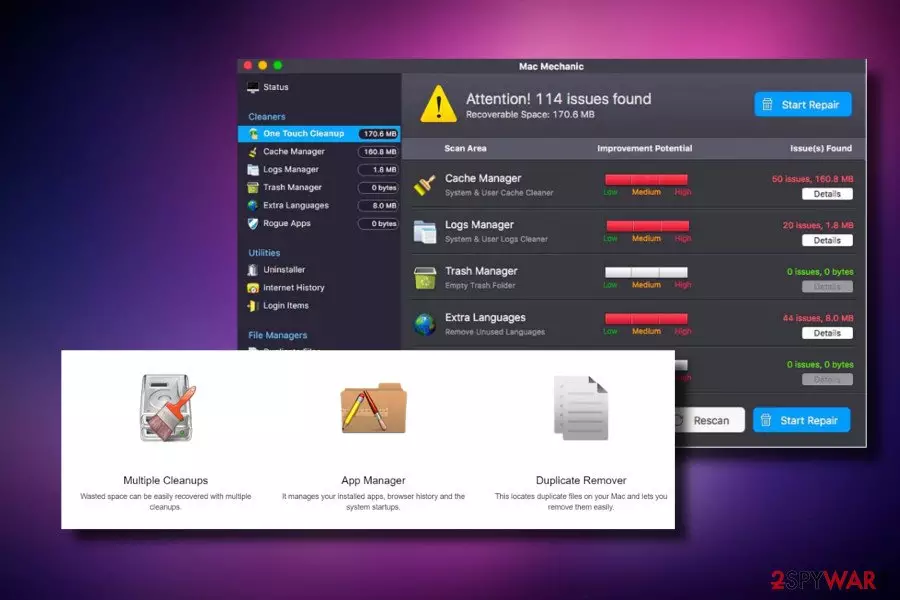
Mac Mechanic is a potentially unwanted program[1] that is advertised as a system optimizing tool for Mac OS X. The business model of such applications is relatively simple: several thousand users install it via software bundling and a full system scan is automatically performed. Victims are then caught in the panic moment when their screen starts flashing several warnings, as hundred of issues are detected by Mac Mechanic. Users are then prompted to buy its licensed version in order to fix the alleged system errors. However, this is merely a scam and there is nothing wrong with the device. Additionally, users complained[2] about unending amount of pop-up ads appearing out of no were and immensely reduce web browsing experience.
| Name | Mac Mechanic |
| Type | PUP, malware |
| Danger level | Medium (can recognize random system's files as problematic or malicious. Removal of such files can result in abnormal system's behavior) |
| Distribution | Freeware and shareware |
| Symptomps | Regular system scans, pop-ups reporting system's condition, slowdowns |
| OS affected | Mac |
| Elimination procedure | Manual by using an inbuilt uninstaller. RECOMMENDED: use a professional anti-malware tool, such as FortectIntego to eliminate all PUPs and related files |
Just like many other similar tools (Advanced Mac Cleaner, Mac Tweaker, etc.) Mac Mechanic promises users that it can fix, clean, and improve the performance of the device. Developers also promise that users can enhance their Mac performance by using such tools as System Cleaner, App Manager, Duplicate Remover, and similar functions. However, Mac Mechanic is merely an adware application that is also actively trying to scam users and providing no actual benefit.
Mac Mechanic has an official website and can be either downloaded or purchased directly. However, to maximize the number of its users, the developers monetize freeware developers for the chance to spread it alongside popular free apps. Additionally, Mac Mechanic virus can also be downloaded and installed when redirected from dubious advertisement banners and pop-ups.
Free apps contain a free trial version of the Mac Mechanic, which once installed loads a fake scanner and initiates a long lasting system scanning. Not only it diminished system's performance, but also generates predetermined scan results, which reports a multitude of Mac problems regarding cache libraries, the excessive amount of junk or even existence of malware.

However, the scan results of the Mac Mechanic are bogus. The tool contains a pre-installed list of scan results,[3] meaning that most of the issues reported are either non-existent or random Mac system's file names.
No, Mac Mechanic is not going to speed up your Mac or otherwise influence its performance positively. In contrary, keeping this tool on your system can result in the following side-effects:
- You can continuously experience irritating system's scans;
- Mac Mechanic virus may generate pop-ups urging to scan the system or reporting serious system's violations;
- Your Mac may get sluggish, especially during Mac Mechanic scans;
- It may download and install other PUPs to the system;
- You may be tricked to pay 39,95 €/$ for a useless license key.
- Random system's files indicated as problematic and, therefore, removed can cause even more serious performance problems.
Users also complained that one of the most irritating traits of Mac Mechanic is that it creates an incredible amount of advertisement, which plagues Google Chrome, Mozilla Firefox or Safari browsers. According to victims, Mac Mechanic also initiated ads when browsers were not in operation at all. All the attempts to remove Mac Mechanic were also in fain, as ads merely returned after deleting its original folder. Nevertheless, please read on to find out how to delete Mac Mechanic ads.
Even though Mac Mechanic app does not feature malicious traits, it's a misleading software that deceives its users by empty and leads inexperienced PC users to money loss. Our partners from senzavirus.it[4] warn that removal of random system files or supposed duplicate files using this misleading app can cause serious outcomes.
The only way to stop this tool from displaying unrealistic and exaggerated scan results is to initiate a complete Mac Mechanic removal from Mac. Since it's considered to be a legitimate Mac assistant, it should have an automatic uninstaller. Therefore, you can try to remove Mac Mechanic virus in a primitive way, i.e., drag and drop it to the Trash bin and then eliminate related files from the libraries.
If, however, you cannot do that because uninstaller is not provided or because the tool keeps reinstalling itself, you should scan the system with a reputable security tool, such as FortectIntego or SpyHunterCombo Cleaner to eliminate Mac Mechanic malware along with its components.

Random system scans can start right after downloading a freeware program
This rogue Mac optimization utility is distributed using two methods – officially and stealthy. It has an official website that provides a direct download of a free trial version and allows purchasing a full version a couple of limited time special offers, including Sticky Password.
However, direct downloads are very rare. This tool is already infamous and classified as a PUP by most of the security vendors. Nevertheless, it's developer practice a stealthy distribution strategy, which is incoherent from freeware and shareware.
The PUP is attached by various free apps and included into the free offer's list across multiple download sources. Consequently, it can easily enter the system's of home users is they select Quick or Recommended freeware download method.
To prevent stealthy infiltration of PUPs, you should opt for Advanced or Custom installation method and monitor each installation step. Opt out of propositions to install useful web browser's add-ons or extensions, as well as reject unknown optimization tool.
Eliminate Mac Mechanic virus from Mac OS X
Mac Mechanic is oriented to Mac OS users. Therefore, it might be spreading along Mac-supported free apps, but not necessarily. Its developers seek to generate income by selling bogus service.

If you've been tricked to install this app, we would highly recommend you to set up FortectIntego or another reliable anti-malware tool and scan the system with it. To treat Mac Mechanic removal complete, you have to be sure that all its components that it might have been bundled with have also been removed. Therefore, a reputable anti-malware is a great option to clean PC from PUPs.
Nonetheless, you can remove Mac Mechanic app manually with the help of instructions provided down below this article. Make sure to perform each step carefully not to leave malware remnants.
Delete from macOS
Remove the unwanted application:
- From the menu bar, select Go > Applications.
- In the Applications folder, look for any suspicious entries, then drag them to Trash (or right-click and pick Move to Trash).


Delete leftover files and folders:
- Select Go > Go to Folder.
- Enter /Library/Application Support and remove any suspicious folders related to the unwanted program.
- Repeat the same check in the /Library/LaunchAgents and /Library/LaunchDaemons folders, deleting any suspicious entries.

- Finally, empty the Trash to permanently remove the leftovers.

Reset Internet Explorer
Remove dangerous add-ons:
- Open Internet Explorer, click on the Gear icon (IE menu) on the top-right corner of the browser
- Pick Manage Add-ons.
- You will see a Manage Add-ons window. Here, look for suspicious plugins. Click on these entries and select Disable.


Change your homepage if it was altered:
- Open IE and click on the Gear icon.
- Select Internet Options.
- In the General tab, delete the Home page address and replace it by your preferred one (for example, Google.com).
- Click Apply and then select OK.


Delete temporary files:
- Press on the Gear icon and select Internet Options.
- Under Browsing history, click Delete...
- Select relevant fields and press Delete.


Reset Internet Explorer:
- Click on Gear icon > Internet options and select Advanced tab.
- Select Reset.
- In the new window, check Delete personal settings and select Reset.


Remove from Microsoft Edge
Delete unwanted extensions from MS Edge:
- Select Menu (three horizontal dots at the top-right of the browser window) and pick Extensions.
- From the list, pick the extension and click on the Gear icon.
- Click Remove.


Clear cookies and other browser data:
- Click on the Menu (three horizontal dots at the top-right of the browser window) and select Settings > Privacy, search, and services..
- Under Clear browsing data, pick Choose what to clear.
- Select Cookies and other site data and Cached images and files. (apart from passwords, although you might want to include Media licenses as well, if applicable) and click on Clear.


Restore new tab and homepage settings:
- Click the menu icon and choose Settings.
- Then find On startup section.
- Click Remove next to any suspicious startup page.
Reset MS Edge if the above steps did not work:
- Press on Ctrl + Shift + Esc to open Task Manager.
- Click on More details arrow at the bottom of the window.
- Select Details tab.
- Now scroll down and locate every entry with Microsoft Edge name in it. Right-click on each of them and select End Task to stop MS Edge from running.


Instructions for Chromium-based Edge
Delete extensions from MS Edge (Chromium):
- Open Edge and click select Settings > Extensions.
- Delete unwanted extensions by clicking Remove.


Clear cache and site data:
- Click on Menu and go to Settings.
- Select Privacy, search and services.
- Under Clear browsing data, pick Choose what to clear.
- Under Time range, pick All time.
- Select Clear now.


Reset Chromium-based MS Edge:
- Click on Menu and select Settings.
- On the left side, pick Reset settings.
- Select Restore settings to their default values.
- Confirm with Reset.
- This will disable extensions and reset startup pages but will not delete bookmarks, saved passwords, or browsing history.


Remove from Mozilla Firefox (FF)
Remove dangerous extensions:
- Open Mozilla Firefox browser and click on the Menu (three horizontal lines at the top-right of the window).
- Select Add-ons.
- In here, select the unwanted extension and click Remove.


Reset the homepage:
- Click three horizontal lines at the top right corner to open the menu.
- Choose Settings.
- Under Home, set your preferred homepage and new tab settings.
Clear cookies and site data:
- Click Menu and pick Settings.
- Go to Privacy & Security section.
- Scroll down to locate Cookies and Site Data.
- Click on Clear Data...
- Select Cookies and Site Data and Temporary cached files and pages, then click Clear.


Reset Mozilla Firefox
If clearing the browser as explained above did not help, reset Mozilla Firefox:
- Open Mozilla Firefox browser and click the Menu.
- Go to Help and then choose Troubleshooting Information.

- Under Give Firefox a tune up section, click on Refresh Firefox...
- Once the pop-up shows up, confirm the action by pressing on Refresh Firefox.



Remove from Google Chrome
Delete malicious extensions from Google Chrome:
- Open Google Chrome, click on the Menu (three vertical dots at the top-right corner) and select More tools > Extensions.
- In the newly opened window, you will see all the installed extensions. Uninstall all suspicious extensions related to the unwanted program by clicking Remove.


Clear cache and web data from Chrome:
- Click on Menu and pick Settings.
- Under Privacy and security, select Clear browsing data.
- Select Browsing history, Cookies and other site data, as well as Cached images and files.
- Click Clear data.


Change your homepage:
- Click menu and choose Settings.
- Look for a suspicious site in the On startup section.
- Click on Open a specific or set of pages and click on three dots to find the Remove option.
Reset Google Chrome:
If the previous methods did not help you, reset Google Chrome to eliminate all the unwanted components:
- Click on Menu and select Settings.
- In the Settings, scroll down and click Advanced.
- Scroll down and locate Reset and clean up section.
- Now click Restore settings to their original defaults.
- Confirm with Reset settings.


Delete from Safari
Remove dangerous extensions:
- Open Safari, click Safari in the menu at the top-left of the screen, and select Preferences.
- Go to the Extensions tab, look for any suspicious entries, and click Uninstall to remove them.


Clear history and website data:
- Click Safari in the menu and pick Clear History.
- Set Clear to all history and confirm with Clear History.


Reset Safari:
- Click Safari in the menu and select Preferences > Advanced.
- Enable Show Develop menu in menu bar.
- From the menu bar, click Develop and select Empty Caches.


This PUP might spread in one pack with browser hijackers. In case your web browser's settings have already been compromised and you are currently forced to use a bogus search engine, remove all PUPs from the system and reset the affected website.
Did this guide help?
Be the first to comment