

Click-now-on.me is a potentially dangerous site that Android and computer users see when their devices are infected with adware

Click-now-on.me is a browser redirect virus that might ask users to enable notifications on Google Chrome, Safari, Mozilla Firefox, Internet Explorer, Opera, and other browsers. Those who agree will be spammed with pop-ups, banners, coupons, in-text links, and other intrusive content that will be displayed directly on the desktop.
While initially Click-now-on.me virus was most prevalent on Android devices displaying intrusive ads, users of other platforms, such as PCs and Macs, started receiving redirects to the rogue site. Nevertheless, regardless of the device used, those who regularly see intrusive ads and redirects to unknown sites, are most likely infected with adware.[1]
Adware is a type of a potentially unwanted program that is usually installed together with freeware and shareware. Due to the deceptive installation method, users rarely notice the point of entry, making them believe that unwanted activity started unexpectedly. To stop redirects to Click-now-on.me and other unwanted sites, users should terminate the PUP that was secretly installed on their computers.
| SUMMARY | |
| Name | Click-now-on.me |
|---|---|
| Type | Adware |
| Active on | Android devices, although Chromium notebook, computer, Mac and other users reported redirects to the suspicious site |
| Symptoms | Intrusive advertisement, redirects, slow device response |
| Distribution | Questionable app sites, software bundling |
| Elimination | Manual removal instructions below this article. Use FortectIntego for general system cleaning |
Adware is ad-supported software and is typically not harmful on its own. Its primary goal is to display advertising in various forms and generate revenue for its developers in diverse ways – such as pay-per-click scheme.
However, partners of adware authors do not bring high quality content, diminishing users' web browsing experience. To increase traffic to less-popular realms, Click-now-on.me is acting as an intermediary between users' browser and other third-party websites that might not be secure at all.
Therefore, it is essential to protect yourself from malicious redirects by using reputable security software, such as FortectIntego. Also, do not forget to perform Click-now-on.me removal before you reset all your browsers installed on the device.
Malware infections are not the only threat that Click-now-on.me virus poses. As it is typical to adware, it gathers a significant amount of non-personally identifiable information. This data might include, but is not limited to:
- IP address;[2]
- Internet service provider;
- Geo-location;
- Device used;
- Browser used;
- Software and hardware information;
- Search queries;
- Sites visited and much more.

This data is gathered to better understand the browsing habits of the victim in order to generate targeted advertising. Thus, if you enjoy fishing, you might see pop-ups that direct you to sites connected to your hobby. However, you might end up on a site that charges a substantial amount of money for the product or, even worse – scam you to pay for nothing. Likewise, Click-now-on.me will try to do the same.
What is more, if you enter any personal information after being redirected, it might end up in cybercrooks hands. Such data as name, email address, bank details, etc. can be used to steal money directly from your account. Additionally, your other information might be used to steal your identity. Be aware that Click-now-on.me is not valuable for the system and you need to get rid of it completely to end intrusive behavior once and for all.
It goes without saying that your best bet is to remove Click-now-on.me as soon as possible. If you leave it on your system long enough, not only your virtual safety will be at risk, but it will also make your browsing experience a total nightmare, as excessive advertising significantly slows down your device.
Adware distribution techniques are deceptive – don't fall a victim
While in some cases users might install a potentially unwanted program intentionally when being deceived by its allegedly useful functionality, it is not the case for the vast majority whose devices start showing ads all of a sudden. The deceptive marketing tactic called software bundling is often used to infect users with potentially unwanted programs, later blaming them for not paying attention to the installation process.

Quite often, users skip through the installation steps and don't read the instructions and pick Recommended/Quick settings. By doing that, they often miss important parts within the process, such as pre-ticked boxes, misleading button placements, hidden optional components, and other tricks used by developers.
While it seems like a nasty way of distributing software, as it is literally tricking people, the scheme is not going away any time soon. Therefore, you should always pay attention when establishing applications from third-party sources and always opt for Advanced/Custom mode to terminate the unwanted apps before they manage to break into your device.
Additionally, security experts[3] recommend following these tips for your own safety:
- Download applications from trusted sources only;
- Double-check if the app is useful and does not have any negative reviews online before installing it;
- Stop visiting high-risk websites, such as porn, gambling, online dating, etc.;
- Avoid file-sharing sites;
- Never click on suspicious ads;
- Equip your device with a robust security tool.
The ways you can eliminate intrusive Click-now-on.me ads
Click-now-on.me removal can be done in a few different ways, as it all depends on the level of infection, the time you want to spend on the process, and your IT knowledge. The easiest way to terminate potentially unwanted programs from any type of device you are using is by scanning it with reputable anti-malware software. A full scan will typically delete not only the unwanted app but also all its traces, such as registry entries or any settings that were changed on the operating system.
You can also remove Click-now-on.me ads by deleting the unwanted app manually – we provide the instructions below. Nevertheless, if you cannot find any indication that adware infiltrated your device, but you keep seeing the intrusive pop-ups, deals, offers and other content from Click-now-on.me, you can simply stop notifications from being shown from the site instead of resetting all your browsers; here's how to do it:
Google Chrome
- Go to Chrome and click on Menu > Settings
- Scroll down and select Advanced
- Find Privacy and security section and go to Site Settings > Notifications.
- Under Allow, you should see Click-now-on.me
- Click on More Actions and then pick Block
Mozilla Firefox:
- Start up Firefox and go to Menu > Options
- Select Privacy & Security section and then click on Notifications
- You will find Click-now-on.me entry after clicking on Settings
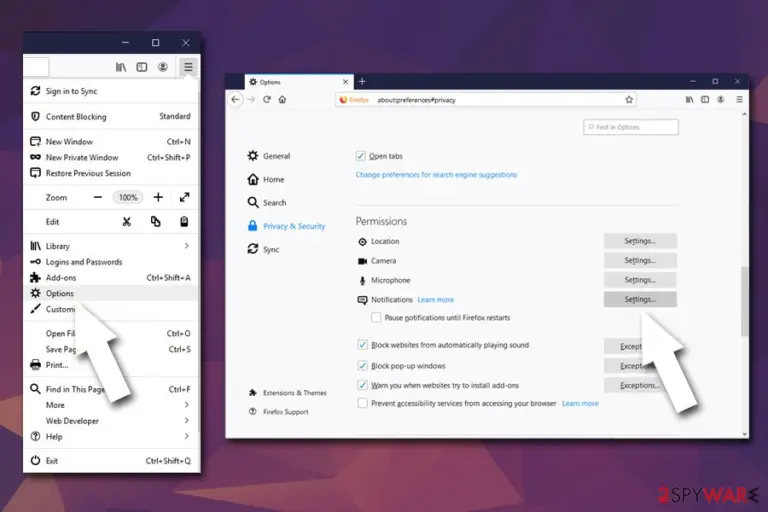
- Click on the the drop-down menu and pick Block
- Save Changes

Safari:
- Select Safari > Preferences…
- Under Websites tab, pick Notifications
- Select Click-now-on.me an pick Deny
MS Edge:
- Open Microsoft Edge and pick More > Settings
- Choose View advanced settings
- Go to Advanced
- Select Manage permissions (under Website permissions)
- Locate Click-now-on.me and turn off notifications by toggling the switch to the left
Uninstall from Windows
Uninstall from Windows 10/8:
- Type Control Panel into the Windows search box and open the result.
- Under Programs, select Uninstall a program.


Uninstall from Windows 7/XP:
- Click on Windows Start > Control Panel (Windows XP users should click on Add/Remove Programs).
- In Control Panel, select Programs > Uninstall a program.


Remove the unwanted program:
- In the Programs and Features window, look for any recently installed suspicious entries, select them, and click Uninstall.
- If User Account Control appears, click Yes to confirm, then complete the removal.


Delete from macOS
Remove the unwanted application:
- From the menu bar, select Go > Applications.
- In the Applications folder, look for any suspicious entries, then drag them to Trash (or right-click and pick Move to Trash).


Delete leftover files and folders:
- Select Go > Go to Folder.
- Enter /Library/Application Support and remove any suspicious folders related to the unwanted program.
- Repeat the same check in the /Library/LaunchAgents and /Library/LaunchDaemons folders, deleting any suspicious entries.

- Finally, empty the Trash to permanently remove the leftovers.

Reset Internet Explorer
Remove dangerous add-ons:
- Open Internet Explorer, click on the Gear icon (IE menu) on the top-right corner of the browser
- Pick Manage Add-ons.
- You will see a Manage Add-ons window. Here, look for suspicious plugins. Click on these entries and select Disable.


Change your homepage if it was altered:
- Open IE and click on the Gear icon.
- Select Internet Options.
- In the General tab, delete the Home page address and replace it by your preferred one (for example, Google.com).
- Click Apply and then select OK.


Delete temporary files:
- Press on the Gear icon and select Internet Options.
- Under Browsing history, click Delete...
- Select relevant fields and press Delete.


Reset Internet Explorer:
- Click on Gear icon > Internet options and select Advanced tab.
- Select Reset.
- In the new window, check Delete personal settings and select Reset.


Remove from Microsoft Edge
Delete unwanted extensions from MS Edge:
- Select Menu (three horizontal dots at the top-right of the browser window) and pick Extensions.
- From the list, pick the extension and click on the Gear icon.
- Click Remove.


Clear cookies and other browser data:
- Click on the Menu (three horizontal dots at the top-right of the browser window) and select Settings > Privacy, search, and services..
- Under Clear browsing data, pick Choose what to clear.
- Select Cookies and other site data and Cached images and files. (apart from passwords, although you might want to include Media licenses as well, if applicable) and click on Clear.


Restore new tab and homepage settings:
- Click the menu icon and choose Settings.
- Then find On startup section.
- Click Remove next to any suspicious startup page.
Reset MS Edge if the above steps did not work:
- Press on Ctrl + Shift + Esc to open Task Manager.
- Click on More details arrow at the bottom of the window.
- Select Details tab.
- Now scroll down and locate every entry with Microsoft Edge name in it. Right-click on each of them and select End Task to stop MS Edge from running.


Instructions for Chromium-based Edge
Delete extensions from MS Edge (Chromium):
- Open Edge and click select Settings > Extensions.
- Delete unwanted extensions by clicking Remove.


Clear cache and site data:
- Click on Menu and go to Settings.
- Select Privacy, search and services.
- Under Clear browsing data, pick Choose what to clear.
- Under Time range, pick All time.
- Select Clear now.


Reset Chromium-based MS Edge:
- Click on Menu and select Settings.
- On the left side, pick Reset settings.
- Select Restore settings to their default values.
- Confirm with Reset.
- This will disable extensions and reset startup pages but will not delete bookmarks, saved passwords, or browsing history.


Remove from Mozilla Firefox (FF)
Remove dangerous extensions:
- Open Mozilla Firefox browser and click on the Menu (three horizontal lines at the top-right of the window).
- Select Add-ons.
- In here, select the unwanted extension and click Remove.


Reset the homepage:
- Click three horizontal lines at the top right corner to open the menu.
- Choose Settings.
- Under Home, set your preferred homepage and new tab settings.
Clear cookies and site data:
- Click Menu and pick Settings.
- Go to Privacy & Security section.
- Scroll down to locate Cookies and Site Data.
- Click on Clear Data...
- Select Cookies and Site Data and Temporary cached files and pages, then click Clear.


Reset Mozilla Firefox
If clearing the browser as explained above did not help, reset Mozilla Firefox:
- Open Mozilla Firefox browser and click the Menu.
- Go to Help and then choose Troubleshooting Information.

- Under Give Firefox a tune up section, click on Refresh Firefox...
- Once the pop-up shows up, confirm the action by pressing on Refresh Firefox.



Remove from Google Chrome
Delete malicious extensions from Google Chrome:
- Open Google Chrome, click on the Menu (three vertical dots at the top-right corner) and select More tools > Extensions.
- In the newly opened window, you will see all the installed extensions. Uninstall all suspicious extensions related to the unwanted program by clicking Remove.


Clear cache and web data from Chrome:
- Click on Menu and pick Settings.
- Under Privacy and security, select Clear browsing data.
- Select Browsing history, Cookies and other site data, as well as Cached images and files.
- Click Clear data.


Change your homepage:
- Click menu and choose Settings.
- Look for a suspicious site in the On startup section.
- Click on Open a specific or set of pages and click on three dots to find the Remove option.
Reset Google Chrome:
If the previous methods did not help you, reset Google Chrome to eliminate all the unwanted components:
- Click on Menu and select Settings.
- In the Settings, scroll down and click Advanced.
- Scroll down and locate Reset and clean up section.
- Now click Restore settings to their original defaults.
- Confirm with Reset settings.


Delete from Safari
Remove dangerous extensions:
- Open Safari, click Safari in the menu at the top-left of the screen, and select Preferences.
- Go to the Extensions tab, look for any suspicious entries, and click Uninstall to remove them.


Clear history and website data:
- Click Safari in the menu and pick Clear History.
- Set Clear to all history and confirm with Clear History.


Reset Safari:
- Click Safari in the menu and select Preferences > Advanced.
- Enable Show Develop menu in menu bar.
- From the menu bar, click Develop and select Empty Caches.


Did this guide help?
Be the first to comment