

Schooldozer – a browser hijacker that tries to use the professional image to mislead its victims
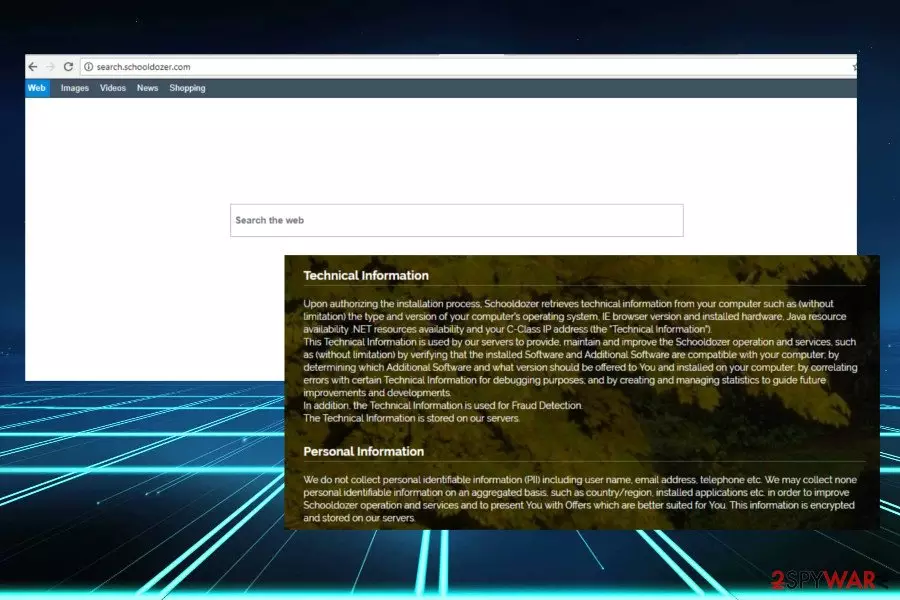
Search.schooldozer.com is a search engine developed and maintained by Schooldozer. It is oriented to Mac users, though can also be installed on Windows OS. Although developers claim that the tool is “offering a better way for you to reach the Mac software community,” NoVirus.uk[1] and other security researchers do not recommend using due to doubtful search results that it displays unauthorized usage of tracking cookies and an excessive amount of commercial ads. Regarding the behaviour, Schooldozer virus falls for the browser hijacker and potentially unwanted program (PUP) categories.
| Name | Search.schooldozer.com |
|---|---|
| Classification | Browser hijacker |
| Distibution | Bundling |
| Danger level | Low. Displays suspicious content, but can't harm PC or Mac directly |
| Symptoms | Corrupted web browser's settings: replaced search engine, start page, and new tab URL. Doubtful search results and loads of ads |
| Elimination | The easiest way to get rid of a browser hijacker is to download FortectIntego and run a full system scan with it |
The tag PUP is given to programs and browser extensions that practice stealthy installation methods. No, that doesn’t mean that PUPs like Schooldozer spread via exploit kits, spam, drive-by-download and similar techniques used by spyware, ransomware, worm, and similar. PUPs rely on bundling.[2] They are often attached as default components, which enter PC without asking user’s permission properly.
That explains the fact why so many Mac OS X users found their web browsers (Chrome, Firefox, IE, Edge, etc.) hijacked. In most of the cases, it settles down on a default web browser in the form of extension and replaces the start page, search engine, and new tab URL. Consequently, PCs owner is continuously redirected to Schooldozer URL.
Third-party search engines like this one are not malicious if compared to other cyber infections.[3] Nevertheless, they pose a risk of visiting suspicious or even dangerous websites. Third-party affiliates that render Search.schooldozer.com redirect virus to promote their products, programs or services. The problem is that no one monitors the promoted content, which is why there’s a risk to end up with another PUP or even virus by clicking on Search.schooldozer.com search results.
Besides, it may deliver an excessive amount of misleading ads promoting dubious services, questionable online survey or even tech-support scam. Thus, we would not recommend you to click on any ads or links that are displayed to you before Search.schooldozer.com removal.
Not to mention, it may also try to promote dubious download managers and other software. As the developer claims on the official website, the service Search.schooldozer.com provides numerous services for its users:
Install applications the easy way and without the hassle, using the Schooldozer downloader. The Schooldozer platform stems from years of experience with installing applications, resulting in a highly optimized process, yielding faster downloads, better user experience, and more successful installations.
To revert the changes initiated on your web browser, you should remove Schooldozer ASAP. The quickest way to do that is to run a full system scan with your anti-virus or follow our detailed removal guide which is explained further. Additionally, use FortectIntego to see if there are no malware leftover files on your computer.

Browser hijackers to not ask for permission to install properly
Indeed, it’s more than annoying to find web browser’s customized settings modified without your consent. Such situation is quite common since people keep installing freeware and shareware carelessly.
Unwanted programs often spread as additional components of various download managers, converters, etc. promoted on legitimate download sources. Thus, if the user opts for Quick or Basic installation, he or she inadvertently permits the installation of add-ons, toolbars, extensions, and similar tools.
To prevent this from happening, it’s a must to install freeware using Advanced or Custom installation method. Carefully verify each installation setup window and unmark offers to install “recommended apps.”
Learn how to remove Search.schooldozer.com virus easily
If you’ve been tricked into installing a browser hijacker, to do wait long and eliminate it. To remove Schooldozer virus from Mac or Windows, run a full system scan with a professional security tool. PUP removal is also possible manually, though it requires more time and extreme accuracy.
Upon Search.schooldozer.com removal don’t forget to reset web browser’s settings. Otherwise, the unwanted extension will remain active in keeping this URL as a default start page and search provider.
Delete from macOS
Remove the unwanted application:
- From the menu bar, select Go > Applications.
- In the Applications folder, look for any suspicious entries, then drag them to Trash (or right-click and pick Move to Trash).


Delete leftover files and folders:
- Select Go > Go to Folder.
- Enter /Library/Application Support and remove any suspicious folders related to the unwanted program.
- Repeat the same check in the /Library/LaunchAgents and /Library/LaunchDaemons folders, deleting any suspicious entries.

- Finally, empty the Trash to permanently remove the leftovers.

Reset Internet Explorer
Remove dangerous add-ons:
- Open Internet Explorer, click on the Gear icon (IE menu) on the top-right corner of the browser
- Pick Manage Add-ons.
- You will see a Manage Add-ons window. Here, look for suspicious plugins. Click on these entries and select Disable.


Change your homepage if it was altered:
- Open IE and click on the Gear icon.
- Select Internet Options.
- In the General tab, delete the Home page address and replace it by your preferred one (for example, Google.com).
- Click Apply and then select OK.


Delete temporary files:
- Press on the Gear icon and select Internet Options.
- Under Browsing history, click Delete...
- Select relevant fields and press Delete.


Reset Internet Explorer:
- Click on Gear icon > Internet options and select Advanced tab.
- Select Reset.
- In the new window, check Delete personal settings and select Reset.


Remove from Microsoft Edge
Delete unwanted extensions from MS Edge:
- Select Menu (three horizontal dots at the top-right of the browser window) and pick Extensions.
- From the list, pick the extension and click on the Gear icon.
- Click Remove.


Clear cookies and other browser data:
- Click on the Menu (three horizontal dots at the top-right of the browser window) and select Settings > Privacy, search, and services..
- Under Clear browsing data, pick Choose what to clear.
- Select Cookies and other site data and Cached images and files. (apart from passwords, although you might want to include Media licenses as well, if applicable) and click on Clear.


Restore new tab and homepage settings:
- Click the menu icon and choose Settings.
- Then find On startup section.
- Click Remove next to any suspicious startup page.
Reset MS Edge if the above steps did not work:
- Press on Ctrl + Shift + Esc to open Task Manager.
- Click on More details arrow at the bottom of the window.
- Select Details tab.
- Now scroll down and locate every entry with Microsoft Edge name in it. Right-click on each of them and select End Task to stop MS Edge from running.


Instructions for Chromium-based Edge
Delete extensions from MS Edge (Chromium):
- Open Edge and click select Settings > Extensions.
- Delete unwanted extensions by clicking Remove.


Clear cache and site data:
- Click on Menu and go to Settings.
- Select Privacy, search and services.
- Under Clear browsing data, pick Choose what to clear.
- Under Time range, pick All time.
- Select Clear now.


Reset Chromium-based MS Edge:
- Click on Menu and select Settings.
- On the left side, pick Reset settings.
- Select Restore settings to their default values.
- Confirm with Reset.
- This will disable extensions and reset startup pages but will not delete bookmarks, saved passwords, or browsing history.


Remove from Mozilla Firefox (FF)
Remove dangerous extensions:
- Open Mozilla Firefox browser and click on the Menu (three horizontal lines at the top-right of the window).
- Select Add-ons.
- In here, select the unwanted extension and click Remove.


Reset the homepage:
- Click three horizontal lines at the top right corner to open the menu.
- Choose Settings.
- Under Home, set your preferred homepage and new tab settings.
Clear cookies and site data:
- Click Menu and pick Settings.
- Go to Privacy & Security section.
- Scroll down to locate Cookies and Site Data.
- Click on Clear Data...
- Select Cookies and Site Data and Temporary cached files and pages, then click Clear.


Reset Mozilla Firefox
If clearing the browser as explained above did not help, reset Mozilla Firefox:
- Open Mozilla Firefox browser and click the Menu.
- Go to Help and then choose Troubleshooting Information.

- Under Give Firefox a tune up section, click on Refresh Firefox...
- Once the pop-up shows up, confirm the action by pressing on Refresh Firefox.



Remove from Google Chrome
Delete malicious extensions from Google Chrome:
- Open Google Chrome, click on the Menu (three vertical dots at the top-right corner) and select More tools > Extensions.
- In the newly opened window, you will see all the installed extensions. Uninstall all suspicious extensions related to the unwanted program by clicking Remove.


Clear cache and web data from Chrome:
- Click on Menu and pick Settings.
- Under Privacy and security, select Clear browsing data.
- Select Browsing history, Cookies and other site data, as well as Cached images and files.
- Click Clear data.


Change your homepage:
- Click menu and choose Settings.
- Look for a suspicious site in the On startup section.
- Click on Open a specific or set of pages and click on three dots to find the Remove option.
Reset Google Chrome:
If the previous methods did not help you, reset Google Chrome to eliminate all the unwanted components:
- Click on Menu and select Settings.
- In the Settings, scroll down and click Advanced.
- Scroll down and locate Reset and clean up section.
- Now click Restore settings to their original defaults.
- Confirm with Reset settings.


Delete from Safari
Remove dangerous extensions:
- Open Safari, click Safari in the menu at the top-left of the screen, and select Preferences.
- Go to the Extensions tab, look for any suspicious entries, and click Uninstall to remove them.


Clear history and website data:
- Click Safari in the menu and pick Clear History.
- Set Clear to all history and confirm with Clear History.


Reset Safari:
- Click Safari in the menu and select Preferences > Advanced.
- Enable Show Develop menu in menu bar.
- From the menu bar, click Develop and select Empty Caches.


Did this guide help?
Be the first to comment