

SearchInspired.com – a fake search engine used to collect people’s non-identifiable information
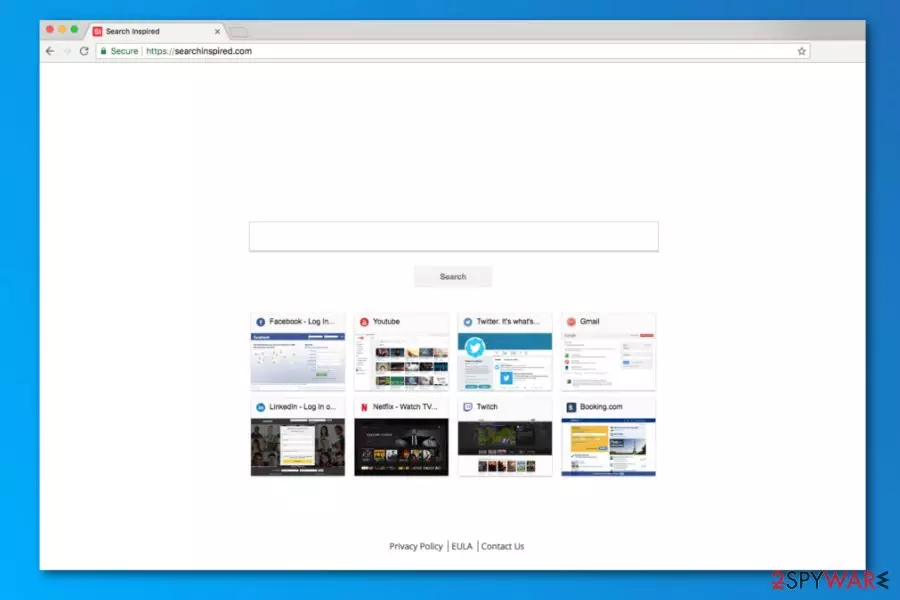
Searchinspired.com virus is a browser hijacker which belongs to Cro-Bit Ltd. This potentially unwanted program (PUP)[1] claims to increase users’ browsing experience by providing them links to the most popular websites, for example, Facebook, Twitter, YouTube, Instagram, and others.
No matter that it may seem like the faster way to reach domains that you need, beware that it can also collect non-personal information which is supposedly used to return advanced search results. Sharing such data with strangers is dangerous, so we do not recommend using this browser add-on.
Whatsmore, this PUP changes your default browser settings, including the search engine, new tab, and homepage, to redirect all search inquiries through its portal and show altered search results from Yahoo. Although it could appoint a different search engine, the end result is to alter the search results by injecting ads into them.
| Summary of the cyber threat | |
|---|---|
| Name | Searchinspired.com |
| Type | Browser hijacker |
| Danger level | Medium. Takes control over the browser and redirects to possibly dangerous websites |
| Symptoms | Default homepage, search engine and new tab URL replaced with an unknown domain, redirects to questionable sites, possible installation of third-party browser extensions or plugins |
| Affected browsers | Google Chrome, Mozilla Firefox, Internet Explorer, and other popular browsers |
| Distribution | Software bundles, fake Flash Player updates, deceptive ads |
| Elimination | This threat can be easily removed with trustworthy anti-malware software |
| System healh check | To ensure that your device runs smoothly scan it with the FortectIntego software that cleans tracking cookies and takes care of all system-related issues |
Even if this site seems very promising and legitimate to use, you should note that it can easily infiltrate your computer without your knowledge. Typically, it affects careless users because its developers have been actively using a method called bundling. After finding itself on the system, this invader hijacks all popular web browsers (Chrome, Mozilla, IE, Safari, etc.) by changing the homepage, the default search engine, and the new tab URL to the preferred one.
As a result, victims start noticing redirects to Searchinspired.com and other sites that seem unfamiliar. In this case, you should be very careful because this site can return forged search results that are filled with various ads. After clicking such a link without thinking, you can be redirected to a dangerous site seeking to infect you with malware.
Additionally, you can find yourself on a fake survey site and similar domains that are typically used to swindle people’s personal information. To sum up, this site poses a serious danger to your computer, so there is no need to keep it on the system.
Do not get tricked by the harmless looks of this browser hijacker! The easiest way to go back to Google Search or whichever search provider you're used to is to remove Search Inspired from your computer by using SpyHunterCombo Cleaner, MalwarebytesMalwarebytes, or another reliable anti-spyware program.
Furthermore, we should warn you about the program’s ability to record personal and anonymous data about its users. It has become a serious problem that has already involved Facebook and other huge companies. According to the Privacy Policy of the article's culprit, its developers are collecting such kind of information:
Search Inspired may collect two types of information: 1) Personal Information, and 2(Anonymous Information. Personal Information means information that may directly or indirectly identify you, such as your name, address, email address, and telephone number. Anonymous Information means information that does not directly or indirectly identify you, such as the number of page views, link clicks, and login times. We may use both Personal and Anonymous Information to create Aggregate Information. Aggregate Information, is the grouping of Personal and Anonymous Information into groups and/or categories, which does not identify you directly or indirectly. Through you use of the Site we may collect the following Personal Information: you name; email address; information you provided in public forums and/or social networks; information you provided us including your device identifier or IP address when you use the Site.
While the personal data which is mentioned in the privacy policy includes only one’s email address and PC’s IP address, its loss can cause lots of additional problems and inconveniences, including an increased amount of spam, suspicious personalized ads that interrupt you while browsing on the web and similar problems. However, security specialists from NoVirus.uk[2] do not recommend ignoring this activity.
To sum up, you should stay away from this highly questionable search engine. If you ever come across a redirect to this site, please, make sure you initiate its removal. To get rid of the browser hijacker, you need to perform the steps that we provided below in this article. There, you will find a manual removal guide and programs that can be used for automatic virus removal such as FortectIntego.

Main distribution methods used to spread this browser hijacker
The browser hijacker can be downloaded from its official website. However, before installing programs from unknown sources, you should always read users’ reviews to see how good or bad they work. In addition, you can add this PUP to your web browsers yourself because of poor knowledge and a lack of cautiousness while downloading third-party software from the web. That’s because this hijacker has been actively spread via bundling.[3]
This marketing method is mostly supported by developers of suspicious apps that are trying to increase the popularity of their apps. After hiding them inside legitimate and well-known programs, they simply get a chance to get inside users’ systems without being noticed. “Bundled” programs are often related to unwanted system changes, so make sure you decline all offers suggesting you add them to your computer.
If you want to stay safe from browser hijackers, you should:
- Be very cautious while downloading/installing software;
- Avoid using programs that come from third parties;
- Download/install all programs just from official and trusted sites;
- Always opt for Custom or Advanced installation mode and then deselect all check marks that allow system changes and installation of third-party apps.
To get rid of Searchinspired.com from your PC, you need to reset your web browser
To remove Searchinspired.com virus from the system, you have to eliminate dubious browser extensions and other PUPs. Additionally, we highly recommend resetting web browsers to change them back to their previous state. If you are not tech-savvy, you should use the guides given below.
However, make sure you follow every step in exact order just to ensure a full virus removal and also a proper functionality of your device in the future. If you need a quick solution to fix your computer from redirects, you can choose the automatic removal option. In this case, you will have to decide on what anti-malware program do you want to use, update it and let it do all the work for you.
All components that belong to this threat must be safely removed. Programs that are recommended below have been selected due to their simple usage, and ability to clean every harmful program from the system and recover it from damage.
Uninstall from Windows
Uninstall from Windows 10/8:
- Type Control Panel into the Windows search box and open the result.
- Under Programs, select Uninstall a program.


Uninstall from Windows 7/XP:
- Click on Windows Start > Control Panel (Windows XP users should click on Add/Remove Programs).
- In Control Panel, select Programs > Uninstall a program.


Remove the unwanted program:
- In the Programs and Features window, look for any recently installed suspicious entries, select them, and click Uninstall.
- If User Account Control appears, click Yes to confirm, then complete the removal.


Delete from macOS
Remove the unwanted application:
- From the menu bar, select Go > Applications.
- In the Applications folder, look for any suspicious entries, then drag them to Trash (or right-click and pick Move to Trash).


Delete leftover files and folders:
- Select Go > Go to Folder.
- Enter /Library/Application Support and remove any suspicious folders related to the unwanted program.
- Repeat the same check in the /Library/LaunchAgents and /Library/LaunchDaemons folders, deleting any suspicious entries.

- Finally, empty the Trash to permanently remove the leftovers.

Remove from Microsoft Edge
Delete unwanted extensions from MS Edge:
- Select Menu (three horizontal dots at the top-right of the browser window) and pick Extensions.
- From the list, pick the extension and click on the Gear icon.
- Click Remove.


Clear cookies and other browser data:
- Click on the Menu (three horizontal dots at the top-right of the browser window) and select Settings > Privacy, search, and services..
- Under Clear browsing data, pick Choose what to clear.
- Select Cookies and other site data and Cached images and files. (apart from passwords, although you might want to include Media licenses as well, if applicable) and click on Clear.


Restore new tab and homepage settings:
- Click the menu icon and choose Settings.
- Then find On startup section.
- Click Remove next to any suspicious startup page.
Reset MS Edge if the above steps did not work:
- Press on Ctrl + Shift + Esc to open Task Manager.
- Click on More details arrow at the bottom of the window.
- Select Details tab.
- Now scroll down and locate every entry with Microsoft Edge name in it. Right-click on each of them and select End Task to stop MS Edge from running.


Instructions for Chromium-based Edge
Delete extensions from MS Edge (Chromium):
- Open Edge and click select Settings > Extensions.
- Delete unwanted extensions by clicking Remove.


Clear cache and site data:
- Click on Menu and go to Settings.
- Select Privacy, search and services.
- Under Clear browsing data, pick Choose what to clear.
- Under Time range, pick All time.
- Select Clear now.


Reset Chromium-based MS Edge:
- Click on Menu and select Settings.
- On the left side, pick Reset settings.
- Select Restore settings to their default values.
- Confirm with Reset.
- This will disable extensions and reset startup pages but will not delete bookmarks, saved passwords, or browsing history.


Remove from Mozilla Firefox (FF)
Remove dangerous extensions:
- Open Mozilla Firefox browser and click on the Menu (three horizontal lines at the top-right of the window).
- Select Add-ons.
- In here, select the unwanted extension and click Remove.


Reset the homepage:
- Click three horizontal lines at the top right corner to open the menu.
- Choose Settings.
- Under Home, set your preferred homepage and new tab settings.
Clear cookies and site data:
- Click Menu and pick Settings.
- Go to Privacy & Security section.
- Scroll down to locate Cookies and Site Data.
- Click on Clear Data...
- Select Cookies and Site Data and Temporary cached files and pages, then click Clear.


Reset Mozilla Firefox
If clearing the browser as explained above did not help, reset Mozilla Firefox:
- Open Mozilla Firefox browser and click the Menu.
- Go to Help and then choose Troubleshooting Information.

- Under Give Firefox a tune up section, click on Refresh Firefox...
- Once the pop-up shows up, confirm the action by pressing on Refresh Firefox.



Remove from Google Chrome
Delete malicious extensions from Google Chrome:
- Open Google Chrome, click on the Menu (three vertical dots at the top-right corner) and select More tools > Extensions.
- In the newly opened window, you will see all the installed extensions. Uninstall all suspicious extensions related to the unwanted program by clicking Remove.


Clear cache and web data from Chrome:
- Click on Menu and pick Settings.
- Under Privacy and security, select Clear browsing data.
- Select Browsing history, Cookies and other site data, as well as Cached images and files.
- Click Clear data.


Change your homepage:
- Click menu and choose Settings.
- Look for a suspicious site in the On startup section.
- Click on Open a specific or set of pages and click on three dots to find the Remove option.
Reset Google Chrome:
If the previous methods did not help you, reset Google Chrome to eliminate all the unwanted components:
- Click on Menu and select Settings.
- In the Settings, scroll down and click Advanced.
- Scroll down and locate Reset and clean up section.
- Now click Restore settings to their original defaults.
- Confirm with Reset settings.


Delete from Safari
Remove dangerous extensions:
- Open Safari, click Safari in the menu at the top-left of the screen, and select Preferences.
- Go to the Extensions tab, look for any suspicious entries, and click Uninstall to remove them.


Clear history and website data:
- Click Safari in the menu and pick Clear History.
- Set Clear to all history and confirm with Clear History.


Reset Safari:
- Click Safari in the menu and select Preferences > Advanced.
- Enable Show Develop menu in menu bar.
- From the menu bar, click Develop and select Empty Caches.


Did this guide help?
Be the first to comment