

Orbit – a download manager with an ulterior motive
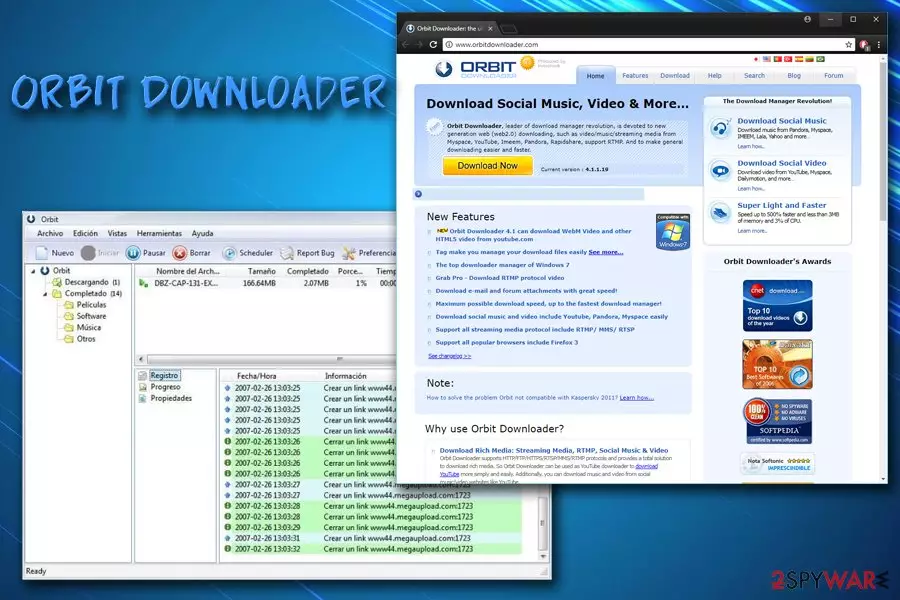
Orbit Downloader by Innoshock is a potentially unwanted program[1] that is presented as a download manager for Windows operating systems. Its primary function is to download embedded video files from such websites as YouTube or Vimeo. Only Internet Explorer, Mozilla Firefox, Opera and Maxthon web browser users can utilize this tool. Despite it being remarkably popular due to its functionality and improved download speeds, the application turned out to be spreading malware since version 4.1.1.15.
| SUMMARY | |
| Name | Orbit Downloader |
| Type | Adware/malware |
| Developer | Innoshock |
| Compatible browsers | Internet Explorer, Mozilla Firefox, Opera and Maxthon |
| Active since | 2006 |
| Symptoms | Intrusive ads, redirects and changed system settings, slow internet speed etc. |
| Distribution | Software bundling, official website |
| Elimination | Scan your device with FortectIntego |
Originally, Orbit belongs to adware[2] category, meaning that it uses pop-up ads, offers, deals, coupons, discounts, in-text links and auto-play video to display sponsored content. The developers get revenue for every click made by users (pay-per-click-scheme), and it does not matter if clicks were accidental or not. However, users often are left frustrated due to the immense amount of adverts flooding their browsers, and they rush to find Orbit removal instructions online.
Typically, free programs like Orbit Downloader come in a package with other software users obtain on the internet. Unfortunately, developers of adware do not disclose how their products are installed, and users often get tricked. This is called bundling – a marketing campaign used by freeware and PUP developers. Although this distribution strategy is legal, users should be aware of it to avoid unwanted applications being installed on their computers by picking Advanced or Custom installation modes.
Another bad trait of adware is its ability to track their users' online behavior. Spying can range from mild to severe, and typically gathered data includes:
- IP address
- ISP
- Search queries
- Links clicked
- Websites visted
- Bookmarks
- System information
- Hardware information, etc.
In some cases, PUPs can even gather personal data, like email address or full name. Security experts at viruset.no[3] recommend users not to disclose sensitive information online, especially when it comes to less-known websites. In the unfortunate turn of events, data leak might cause money theft or even identity fraud. Thus, do not hesitate whether or not you need to remove Orbit Downloader virus from your computer – do it immediately. For that, you can use FortectIntego or any other security software you trust.

Security researchers found that Orbit was used for DDoS attacks
Orbit Downloader was around since 2006, and, considering the amount of potentially unwanted programs nowadays, it was nothing out of the ordinary – until August 2013.
Although download managers are popular tools and used by many, they can also be utilized by cybercriminals just as efficiently. Security researchers at ESET found[4] that, because the program is generating a significant amount of traffic, it can be used by hackers as a tool for Distributed Denial of Service[5] (DDoS) attacks. Cybersecurity experts identify Orbit malware as Win32/DDoS.Orbiter.A.
The DDoS Functionality was present within the program for some time, but it was used for malicious purposes only since version 4.1.1.15.
Soon after the discovery of the DDoS capability of the program, many popular software downloading websites started removing Orbit Downloader from their sites, which included:
- Download.com[6]
- BetaNews
- DownloadCrew
- Softpedia
- Softsonic
- MajorGeeks
It is unclear whether the developer made any statements about the malware component present in their product, but as of now, security experts urge users to remove Win32/DDoS.Orbiter.A from their machines and use a different file downloading program.
Potentially unwanted programs come bundled with freeware and shareware
Unwanted program developers count on the fact that users may like the product they are offering. However, the fact that they introduce their software in a deceptive manner sparks concerns. It is not surprising, as PUP developers are well aware of the fact that most users are typically rushing through installation steps as they want to be done with the installation process as soon as possible.
That's why they employ freeware and shareware developers to inject adware into their installers. Unfortunately, it does not only come from shady installers of unknown software – major brands like Adobe or Flash are known to distribute additional components within their software or its updates. Therefore, it is vital to stay vigilant to avoid various junk on your machine.
We urge users never to rush installation process and read instructions very carefully. When prompted, always pick Advanced or Custom installation settings, and avoid Recommended/Quick ones. This way, you will be able to get rid of the ticks next to add-ons, PDF creators, file converters, download managers, etc.

Remove Orbit malware from your computer
The fact that the program is a PUP should warrant the Orbit removal. Nevertheless, in this case, it is an absolute must, as it is being identified as malware which enables hackers to perform DDoS attacks. Even though you can get rid of Orbit Downloader manually, we also recommend scanning your computer for any traces of malware.
If you want to remove Orbit Downloader virus manually, please check our instructions below this text. Make sure you execute each step attentively and in the correct order. Do not forget that you will have to reset all of your browsers manually to make sure that to settings are left off.
Because Orbit is considered to be malware, we highly recommend scanning your machine with reputable anti-virus software if you decided to remove Orbit manually. Otherwise, the security program will take care of everything automatically.
Uninstall from Windows
Uninstall from Windows 10/8:
- Type Control Panel into the Windows search box and open the result.
- Under Programs, select Uninstall a program.


Uninstall from Windows 7/XP:
- Click on Windows Start > Control Panel (Windows XP users should click on Add/Remove Programs).
- In Control Panel, select Programs > Uninstall a program.


Remove the unwanted program:
- In the Programs and Features window, look for any recently installed suspicious entries, select them, and click Uninstall.
- If User Account Control appears, click Yes to confirm, then complete the removal.


Delete from macOS
Remove the unwanted application:
- From the menu bar, select Go > Applications.
- In the Applications folder, look for any suspicious entries, then drag them to Trash (or right-click and pick Move to Trash).


Delete leftover files and folders:
- Select Go > Go to Folder.
- Enter /Library/Application Support and remove any suspicious folders related to the unwanted program.
- Repeat the same check in the /Library/LaunchAgents and /Library/LaunchDaemons folders, deleting any suspicious entries.

- Finally, empty the Trash to permanently remove the leftovers.

Reset Internet Explorer
Remove dangerous add-ons:
- Open Internet Explorer, click on the Gear icon (IE menu) on the top-right corner of the browser
- Pick Manage Add-ons.
- You will see a Manage Add-ons window. Here, look for suspicious plugins. Click on these entries and select Disable.


Change your homepage if it was altered:
- Open IE and click on the Gear icon.
- Select Internet Options.
- In the General tab, delete the Home page address and replace it by your preferred one (for example, Google.com).
- Click Apply and then select OK.


Delete temporary files:
- Press on the Gear icon and select Internet Options.
- Under Browsing history, click Delete...
- Select relevant fields and press Delete.


Reset Internet Explorer:
- Click on Gear icon > Internet options and select Advanced tab.
- Select Reset.
- In the new window, check Delete personal settings and select Reset.


Remove from Microsoft Edge
Delete unwanted extensions from MS Edge:
- Select Menu (three horizontal dots at the top-right of the browser window) and pick Extensions.
- From the list, pick the extension and click on the Gear icon.
- Click Remove.


Clear cookies and other browser data:
- Click on the Menu (three horizontal dots at the top-right of the browser window) and select Settings > Privacy, search, and services..
- Under Clear browsing data, pick Choose what to clear.
- Select Cookies and other site data and Cached images and files. (apart from passwords, although you might want to include Media licenses as well, if applicable) and click on Clear.


Restore new tab and homepage settings:
- Click the menu icon and choose Settings.
- Then find On startup section.
- Click Remove next to any suspicious startup page.
Reset MS Edge if the above steps did not work:
- Press on Ctrl + Shift + Esc to open Task Manager.
- Click on More details arrow at the bottom of the window.
- Select Details tab.
- Now scroll down and locate every entry with Microsoft Edge name in it. Right-click on each of them and select End Task to stop MS Edge from running.


Instructions for Chromium-based Edge
Delete extensions from MS Edge (Chromium):
- Open Edge and click select Settings > Extensions.
- Delete unwanted extensions by clicking Remove.


Clear cache and site data:
- Click on Menu and go to Settings.
- Select Privacy, search and services.
- Under Clear browsing data, pick Choose what to clear.
- Under Time range, pick All time.
- Select Clear now.


Reset Chromium-based MS Edge:
- Click on Menu and select Settings.
- On the left side, pick Reset settings.
- Select Restore settings to their default values.
- Confirm with Reset.
- This will disable extensions and reset startup pages but will not delete bookmarks, saved passwords, or browsing history.


Remove from Mozilla Firefox (FF)
Remove dangerous extensions:
- Open Mozilla Firefox browser and click on the Menu (three horizontal lines at the top-right of the window).
- Select Add-ons.
- In here, select the unwanted extension and click Remove.


Reset the homepage:
- Click three horizontal lines at the top right corner to open the menu.
- Choose Settings.
- Under Home, set your preferred homepage and new tab settings.
Clear cookies and site data:
- Click Menu and pick Settings.
- Go to Privacy & Security section.
- Scroll down to locate Cookies and Site Data.
- Click on Clear Data...
- Select Cookies and Site Data and Temporary cached files and pages, then click Clear.


Reset Mozilla Firefox
If clearing the browser as explained above did not help, reset Mozilla Firefox:
- Open Mozilla Firefox browser and click the Menu.
- Go to Help and then choose Troubleshooting Information.

- Under Give Firefox a tune up section, click on Refresh Firefox...
- Once the pop-up shows up, confirm the action by pressing on Refresh Firefox.



Remove from Google Chrome
Delete malicious extensions from Google Chrome:
- Open Google Chrome, click on the Menu (three vertical dots at the top-right corner) and select More tools > Extensions.
- In the newly opened window, you will see all the installed extensions. Uninstall all suspicious extensions related to the unwanted program by clicking Remove.


Clear cache and web data from Chrome:
- Click on Menu and pick Settings.
- Under Privacy and security, select Clear browsing data.
- Select Browsing history, Cookies and other site data, as well as Cached images and files.
- Click Clear data.


Change your homepage:
- Click menu and choose Settings.
- Look for a suspicious site in the On startup section.
- Click on Open a specific or set of pages and click on three dots to find the Remove option.
Reset Google Chrome:
If the previous methods did not help you, reset Google Chrome to eliminate all the unwanted components:
- Click on Menu and select Settings.
- In the Settings, scroll down and click Advanced.
- Scroll down and locate Reset and clean up section.
- Now click Restore settings to their original defaults.
- Confirm with Reset settings.


Delete from Safari
Remove dangerous extensions:
- Open Safari, click Safari in the menu at the top-left of the screen, and select Preferences.
- Go to the Extensions tab, look for any suspicious entries, and click Uninstall to remove them.


Clear history and website data:
- Click Safari in the menu and pick Clear History.
- Set Clear to all history and confirm with Clear History.


Reset Safari:
- Click Safari in the menu and select Preferences > Advanced.
- Enable Show Develop menu in menu bar.
- From the menu bar, click Develop and select Empty Caches.


Did this guide help?
Be the first to comment