

Secure File Shredder is a rogue optimization tool which generates fake virus scan results
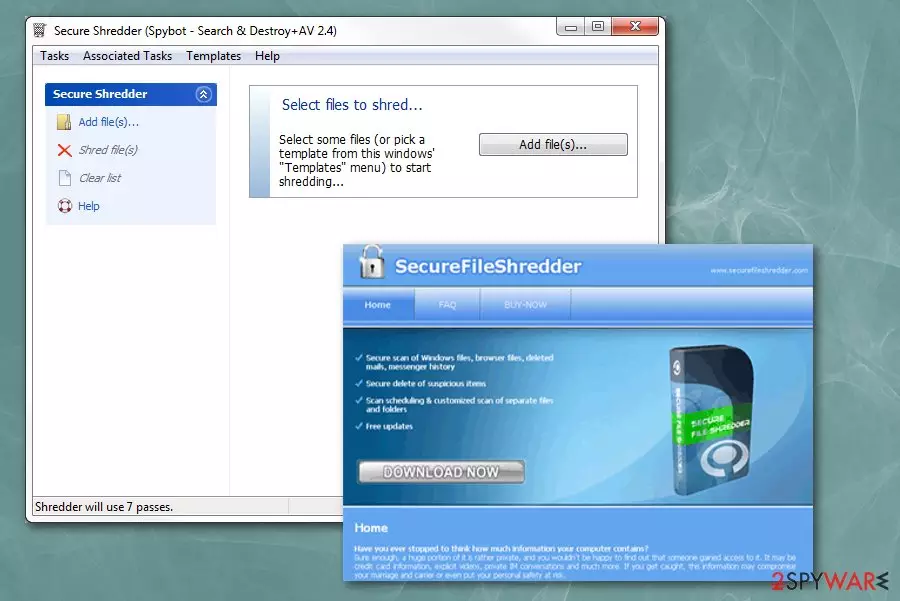
Secure File Shredder is a fake anti-spyware tool which is designed to display unreliable scan results and trick people into believing that their computers are infected with numerous potentially unwanted programs (PUPs). However, this is only a popular marketing trick to lure people into purchasing the full version of this fraudulent system optimization tool. We can assure you that your PC is safe and you should NOT buy anything related to this program.
| Name | Secure File Shredder |
|---|---|
| Type | System tool |
| Symptoms | Displays deceptive system scan results to promote full-version of the software |
| Distribution | Spreads via bundling or deceptive ads |
| Main dangers | It can promote various other potentially unwanted tools which might significantly deteriorate your PC's performance |
| Elimination | Use FortectIntego for Secure File Shredder removal |
After Secure File Shredder download, this software starts to fake error messages about an excessive amount of threats and viruses present on your system. Although, the list of malware which has supposedly settled on your system is nothing more than a deceptive trick to increase revenue for the developers of this potentially unwanted program (PUP)[1].
If you agree to pay for the full system scan by Secure File Shredder, it won't clean your computer from various cyber threats rather than stop intrusive virus alerts. Likewise, users are advised to use a reliable antivirus and double-check their system if they have any doubts about their PCs' security.
Besides, a program brings tons of pop-ups, but that’s not the worst part of this infection. So-called Secure File Shredder virus disturbs loading other applications, it slows down a computer, and it may limit internet connection. This program displays various commercial content and makes users' time online unpleasant.

Keep in mind that in case your system is infected with real and dangerous cyber threats, this fake system optimization software won't protect your computer. Thus, we recommend you to remove Secure File Shredder right now and use a verified security program instead.
Furthermore, advertisements create redirects to affiliated sites or websites with questionable or even malicious content. Often advertisements are developed by the same provider. So, you might see other optimization tools, anti-spyware program promotions similar to Secure File Shredder.
If you are annoyed by the fake virus alerts, you must proceed with Secure File Shredder removal to get rid of them. Use FortectIntego for this job.
Software-bundles carry fraudulent antispyware tools
This PC optimization tool has its supposedly official site and partners' websites where this program is promoted as useful and safe. Although, the most common way how this PUP entered your system is called bundling[2]. Researchers[3] want you to know that cybercriminals make arrangements with freeware providers and do not disclose full details about additional software components.
This means that when you are downloading and installing software or updates, you might get other unwanted programs with potentially hazardous intentions. This is happening because you are not paying enough attention to the process and not choosing the right installation options. Advanced or Custom modes are the ones you should use. This is the method that allows you to de-select programs you do not want to get.
Get rid of Secure File Shredder and use a reliable antivirus instead
To remove Secure File Shredder from your browser you need to rely on professional tools. Anti-malware or anti-spyware programs work best as they save your time and additionally uninstall other potentially unwanted programs. Also, there is an option to remove them securely.
You can perform manual Secure File Shredder removal, but you need to delete all related pieces from every browser and check system files for additional PUPs. Bundling spreads a vast of infections, and you might have more of them working in the background. Double-check everything after the elimination to make sure that your PC is safe.
Uninstall from Windows
Uninstall from Windows 10/8:
- Type Control Panel into the Windows search box and open the result.
- Under Programs, select Uninstall a program.


Uninstall from Windows 7/XP:
- Click on Windows Start > Control Panel (Windows XP users should click on Add/Remove Programs).
- In Control Panel, select Programs > Uninstall a program.


Remove the unwanted program:
- In the Programs and Features window, look for any recently installed suspicious entries, select them, and click Uninstall.
- If User Account Control appears, click Yes to confirm, then complete the removal.


Delete from macOS
Remove the unwanted application:
- From the menu bar, select Go > Applications.
- In the Applications folder, look for any suspicious entries, then drag them to Trash (or right-click and pick Move to Trash).


Delete leftover files and folders:
- Select Go > Go to Folder.
- Enter /Library/Application Support and remove any suspicious folders related to the unwanted program.
- Repeat the same check in the /Library/LaunchAgents and /Library/LaunchDaemons folders, deleting any suspicious entries.

- Finally, empty the Trash to permanently remove the leftovers.

Did this guide help?
Be the first to comment