

iProtectYou is a malicious program capable of spying on users
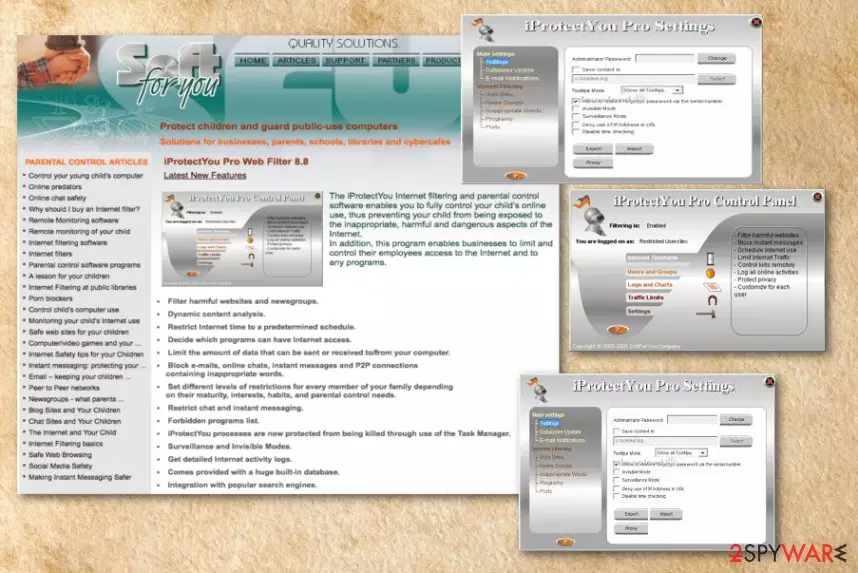
iProtectYou is a program that was initially created for the filtering and parental control service. Nevertheless, cybercrooks managed to utilize this application for spying on users by logging keystrokes, filtering web content and monitoring their internet and program use. The application tracks user activity monitors Internet using habits, filters web content and logs all user keystrokes. It sends gathered data to a predefined e-mail address. The threat automatically runs on every Windows startup.
| Name | iProtectYou |
|---|---|
| Type | System tools |
| Symptoms | Display fake system error messages, slows down the PC, displays intrusive ads |
| Danger | Can attract malware |
| Distribution | Insecure downloads, infected email attachments |
| Elimination | Use FortectIntego for iProtectYou removal |
The application was developed by SoftForYou for all versions of the Windows operating system. Authors of this software have an official website, where iProtectYou and other programs can be downloaded. However, the app typically spreads via software bundling and in other dubious ways. That is why security researchers call it a PUP – potentially unwanted program.[1]
iProtectYou virus creates fake messages of fake malware infections that look legitimate. Fake error messages about issues with the OS force users to restart the computer. iProtectYou can also install other unwanted programs which can slow down the PC.
You should remove iProtectYou from your PC if you want to get rid the intrusive advertisements and pop-up windows. Also, this program can collect information about the user, like IP addresses, location, browsing history, search queries, etc. This data is later shared with third-parties and used for marketing purposes.
iProtectYou removal is important because the app can be potentially dangerous, especially if it is controlled by cybercriminals. Also, the program can access Windows Registry and modify it. You should use the anti-malware tools like FortectIntego for iProtectYou virus elimination.

Downloads from questionable websites can lead to infections
The most common way of spreading PUPs is insecure websites and downloading freeware[2] or updates. That is why it is important to set all your software updates to automatic setting – you can then be sure that the update is legitimate.
Software bundling is a standard marketing technique that is used by many worldwide. Nevertheless, it is not entirely fair, as the crucial bits of information are often hidden in small text or Advanced/Custom settings. Note that developers of software will always prompt you to use Recommended/Quick mode. This is done on purpose so that that critical installation steps would be skipped.
Therefore, do not get trick by this questionable distribution technique. Make sure you download software from reputable sites only. Even then, look out for optional components within the installation managers: select Advanced/Custom settings and eliminate all the tick marks by add-ons, toolbars, system optimizers, and other offered bloatware.
iProtectYou termination steps
To remove iProtectYou, you should rely on certified and reliable tools. Anti-malware programs can perform a full system scan on your computer and detect all possible threats. FortectIntego or MalwarebytesMalwarebytes are professional tools that researchers[3] recommend. Install one of these programs and clean tour system immediately.
iProtectYou removal is important if you want to use your device normally again. Do not forget that there is a possibility that this app accessed Windows Registry. Cleaning your PC more often can be beneficial in general. So keep your anti-malware tool up to date and run it from time to time.
Uninstall from Windows
Uninstall from Windows 10/8:
- Type Control Panel into the Windows search box and open the result.
- Under Programs, select Uninstall a program.


Uninstall from Windows 7/XP:
- Click on Windows Start > Control Panel (Windows XP users should click on Add/Remove Programs).
- In Control Panel, select Programs > Uninstall a program.


Remove the unwanted program:
- In the Programs and Features window, look for any recently installed suspicious entries, select them, and click Uninstall.
- If User Account Control appears, click Yes to confirm, then complete the removal.


Did this guide help?
Be the first to comment