

PC SpeedCat is a questionable system optimization tool which should help you optimize PC settings
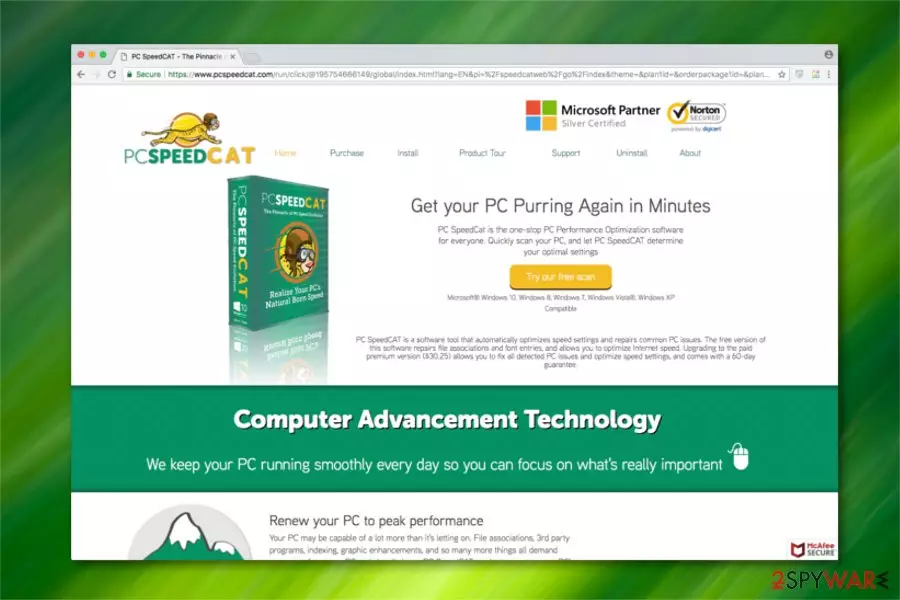
PC SpeedCat is an application which is advertised as one-stop PC performance optimization software on its official website. However, experts have discovered that it spreads bundled together with freeware and might appear on the computer without user's consent. Likewise, it is categorized as a potentially unwanted program (PUP)[1] which might not meet the standards of a useful system optimization tool.
| Name | PC SpeedCat |
|---|---|
| Type | System tools |
| Sub-type | Potentially Unwanted Program (PUP) |
| Danger level | Medium. Can lead to financial losses |
| Compatible OS | Windows 10/8/7/Vista/XP |
| Distribution | Spreads via bundling technique |
| Potential dangers | This program can detect some PC-related issues, but are asked to pay in order to fix them |
| Removal | Scan your computer with FortectIntego to not only protect your system but also uninstall PC SpeedCat |
Even though PC SpeedCat is a legitimate software which can be downloaded from its official page, some users report about cases where it sneaked inside their system without notice. As a result, experts believe that it is not fair from the standpoint of the user to distribute this software in such way.
In spite of the distribution technique mentioned above, some people use the term PC SpeedCat virus to describe this program. Although, researchers note that this application is not malicious itself rather than can be classified as a potentially unwanted program (PUP).
Once PC SpeedCat is installed, it starts scanning the computer for corruptions in the following items:
- Fonts;
- Shared DLLs[2];
- Application paths;
- COM and ActiveX controls;
- Help files;
- Etc.
After the scan, PC SpeedCat displays the detected issues in the former areas and suggests you fix them immediately. However, system optimization comes for a certain price — users are asked to pay $30.25 for PC SpeedCat key. Note, that if you refuse, you might encounter never-ending scan result notifications which become more than annoying.
Furthermore, our researchers believe that PC SpeedCat may be capable of detecting system issues. Although, there is a strong risk that the scan results are manipulated to trick people into thinking that their computers need immediate help and agree to pay for full PC SpeedCat license.

In order to protect you from financial losses, we suggest you pick a more reliable software and start considering PC SpeedCat removal. If you still have doubts, try scanning your computer with a reliable system optimization software and compare the results.
You can check your system and remove PC SpeedCat if necessary with FortectIntego. Additionally, there are instructions on how to get rid of this potentially unwanted program manually. You can find them at the end of this article.
Explaining how freeware is used to distribute PUPs
As it was mentioned before, potentially unwanted programs are distributed with the help of the bundling technique. This popular method helps developers infiltrate the systems with PUPs without users' consents. In other terms, they bundle two applications and offer them as one during the installation.
If you want to avoid potentially unwanted programs (PUPs), you should follow these steps each time you decide to install freeware:
- Read Privacy Policy, EULA and Terms of Use;
- Change Quick/Recommended settings to Custom/Advanced ones;
- Do not skip steps and follow the installation procedure attentively;
- De-select checkboxes which have been pre-selected for you.
Easy PC SpeedCat uninstall guide
If you have decided that you want to remove PC SpeedCat and use a more reliable system optimization tool, you can uninstall this application in two simple ways — either follow the instructions at the end of this article and get rid of PC SpeedCat manually or get a malware removal software.
Automatic PC SpeedCat removal requires you to download and install a professional antivirus program. For that, you can choose any from the list below and run an entire system scan to uninstall PUPs. Researchers[3] say that automatic elimination is the safest option to ensure that the application wouldn't reappear in the future.
Uninstall from Windows
Uninstall from Windows 10/8:
- Type Control Panel into the Windows search box and open the result.
- Under Programs, select Uninstall a program.


Uninstall from Windows 7/XP:
- Click on Windows Start > Control Panel (Windows XP users should click on Add/Remove Programs).
- In Control Panel, select Programs > Uninstall a program.


Remove the unwanted program:
- In the Programs and Features window, look for any recently installed suspicious entries, select them, and click Uninstall.
- If User Account Control appears, click Yes to confirm, then complete the removal.


Did this guide help?
Be the first to comment