

BoostPC is a rogue application that stealthily installs additional programs
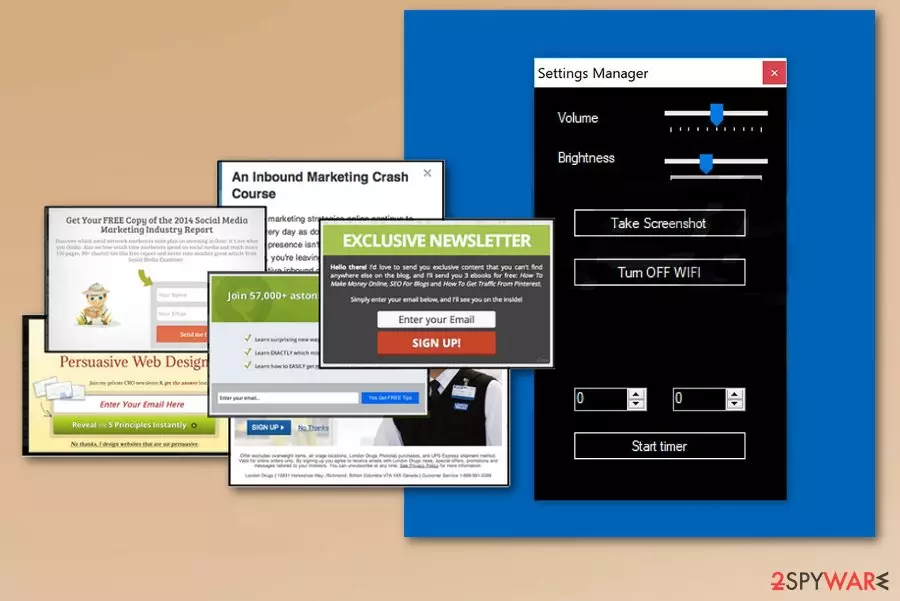
| Name | BoostPC |
|---|---|
| Type | Potentially unwanted application |
| Category | Adware |
| Symptoms | Installs additional tools, delivers intrusive ads |
| Distribution | Software bundles |
| Elimination | Use FortectIntego for damage caused by BoostPC |
BoostPC has been included in the Potentially unwanted program category because of the silent infiltration it uses to get into the target PC system. Additionally, after changing numerous system settings, the program starts causing ads on your favorite sites. While it is not a malicious program, this program collects various data related to the victim's browsing preferences or search history and more personal details, like IP address or geolocation[2].
It is possible that this information that adware gathers is later shared with third-party advertisers. Data about your most visited sites or searched items, sales, deals is helpful when trying to develop more personal, commercial content. Because of being personalized, BoostPC ads become more attractive. The main adware goal is to create traffic to affiliated sites via clicks on pop-up ads or banners.
However, the program's ability to gather NPII should make you eager to remove BoostPC as soon as possible. Make sure to get rid of this adware program as soon as you notice any content like this:
- pop-up ads, banners with various commercial content;
- ads promoting other optimization tools and software;
- ads redirecting you to commercial sites;
- random text turning into hyperlinks;
- commonly visited sites filled up with ads.
The best tip any researcher[3] can give is to make sure that you have reputable anti-malware and antivirus programs on your device to avoid these silent infections. Also, if you already got adware or other PUP, you can use anti-malware tools like FortectIntego to get rid of the damage caused by this threat. We have a few suggestions for these tools and other system cleaning methods below the article. Feel free to check them out.

Deceptive ads and insecure installs cause installation of unwanted applications
Stealthily installed applications, tools or programs indicates the adware existence on the system. The most common way to spread potentially unwanted programs is using software bundling technique when freeware is packed up with PUPs and other programs. This way when you download software or applications from p2p networks or other free sharing services you get additional programs.
This is happening if you skip through various installation steps and not pay enough attention during the process. Choosing Advanced or Custom options instead of Default or Quick is crucial since this step allows you to see everything that supposed to be installed on your system and choose which programs are not needed or wanted. Using reputable sources for your software and applications can also be crucial if you want to avoid any unwanted programs.
Eliminate BoostPC and forget about constant redirects
The best solution for unwanted programs is to clean your system thoroughly and get rid of all additional tools, files, and similar components and ensure a full BoostPC removal on your computer. Anti-malware tools cannot only indicate every little threat on your system but can also fix errors and damaged entries that need fixing.
If you want to remove BoostPC manually, use methods provided by our team. You can find them below. Make sure you follow them carefully to prevent virus reappearance in the future. If you cannot find BoostPC in your Task Manager, rank your programs according to their installation date at first and check what unknown entries are hiding there.
Uninstall from Windows
Uninstall from Windows 10/8:
- Type Control Panel into the Windows search box and open the result.
- Under Programs, select Uninstall a program.


Uninstall from Windows 7/XP:
- Click on Windows Start > Control Panel (Windows XP users should click on Add/Remove Programs).
- In Control Panel, select Programs > Uninstall a program.


Remove the unwanted program:
- In the Programs and Features window, look for any recently installed suspicious entries, select them, and click Uninstall.
- If User Account Control appears, click Yes to confirm, then complete the removal.


Delete from macOS
Remove the unwanted application:
- From the menu bar, select Go > Applications.
- In the Applications folder, look for any suspicious entries, then drag them to Trash (or right-click and pick Move to Trash).


Delete leftover files and folders:
- Select Go > Go to Folder.
- Enter /Library/Application Support and remove any suspicious folders related to the unwanted program.
- Repeat the same check in the /Library/LaunchAgents and /Library/LaunchDaemons folders, deleting any suspicious entries.

- Finally, empty the Trash to permanently remove the leftovers.

Reset Internet Explorer
Remove dangerous add-ons:
- Open Internet Explorer, click on the Gear icon (IE menu) on the top-right corner of the browser
- Pick Manage Add-ons.
- You will see a Manage Add-ons window. Here, look for suspicious plugins. Click on these entries and select Disable.


Change your homepage if it was altered:
- Open IE and click on the Gear icon.
- Select Internet Options.
- In the General tab, delete the Home page address and replace it by your preferred one (for example, Google.com).
- Click Apply and then select OK.


Delete temporary files:
- Press on the Gear icon and select Internet Options.
- Under Browsing history, click Delete...
- Select relevant fields and press Delete.


Reset Internet Explorer:
- Click on Gear icon > Internet options and select Advanced tab.
- Select Reset.
- In the new window, check Delete personal settings and select Reset.


Remove from Microsoft Edge
Delete unwanted extensions from MS Edge:
- Select Menu (three horizontal dots at the top-right of the browser window) and pick Extensions.
- From the list, pick the extension and click on the Gear icon.
- Click Remove.


Clear cookies and other browser data:
- Click on the Menu (three horizontal dots at the top-right of the browser window) and select Settings > Privacy, search, and services..
- Under Clear browsing data, pick Choose what to clear.
- Select Cookies and other site data and Cached images and files. (apart from passwords, although you might want to include Media licenses as well, if applicable) and click on Clear.


Restore new tab and homepage settings:
- Click the menu icon and choose Settings.
- Then find On startup section.
- Click Remove next to any suspicious startup page.
Reset MS Edge if the above steps did not work:
- Press on Ctrl + Shift + Esc to open Task Manager.
- Click on More details arrow at the bottom of the window.
- Select Details tab.
- Now scroll down and locate every entry with Microsoft Edge name in it. Right-click on each of them and select End Task to stop MS Edge from running.


Instructions for Chromium-based Edge
Delete extensions from MS Edge (Chromium):
- Open Edge and click select Settings > Extensions.
- Delete unwanted extensions by clicking Remove.


Clear cache and site data:
- Click on Menu and go to Settings.
- Select Privacy, search and services.
- Under Clear browsing data, pick Choose what to clear.
- Under Time range, pick All time.
- Select Clear now.


Reset Chromium-based MS Edge:
- Click on Menu and select Settings.
- On the left side, pick Reset settings.
- Select Restore settings to their default values.
- Confirm with Reset.
- This will disable extensions and reset startup pages but will not delete bookmarks, saved passwords, or browsing history.


Remove from Mozilla Firefox (FF)
Remove dangerous extensions:
- Open Mozilla Firefox browser and click on the Menu (three horizontal lines at the top-right of the window).
- Select Add-ons.
- In here, select the unwanted extension and click Remove.


Reset the homepage:
- Click three horizontal lines at the top right corner to open the menu.
- Choose Settings.
- Under Home, set your preferred homepage and new tab settings.
Clear cookies and site data:
- Click Menu and pick Settings.
- Go to Privacy & Security section.
- Scroll down to locate Cookies and Site Data.
- Click on Clear Data...
- Select Cookies and Site Data and Temporary cached files and pages, then click Clear.


Reset Mozilla Firefox
If clearing the browser as explained above did not help, reset Mozilla Firefox:
- Open Mozilla Firefox browser and click the Menu.
- Go to Help and then choose Troubleshooting Information.

- Under Give Firefox a tune up section, click on Refresh Firefox...
- Once the pop-up shows up, confirm the action by pressing on Refresh Firefox.



Remove from Google Chrome
Delete malicious extensions from Google Chrome:
- Open Google Chrome, click on the Menu (three vertical dots at the top-right corner) and select More tools > Extensions.
- In the newly opened window, you will see all the installed extensions. Uninstall all suspicious extensions related to the unwanted program by clicking Remove.


Clear cache and web data from Chrome:
- Click on Menu and pick Settings.
- Under Privacy and security, select Clear browsing data.
- Select Browsing history, Cookies and other site data, as well as Cached images and files.
- Click Clear data.


Change your homepage:
- Click menu and choose Settings.
- Look for a suspicious site in the On startup section.
- Click on Open a specific or set of pages and click on three dots to find the Remove option.
Reset Google Chrome:
If the previous methods did not help you, reset Google Chrome to eliminate all the unwanted components:
- Click on Menu and select Settings.
- In the Settings, scroll down and click Advanced.
- Scroll down and locate Reset and clean up section.
- Now click Restore settings to their original defaults.
- Confirm with Reset settings.


Delete from Safari
Remove dangerous extensions:
- Open Safari, click Safari in the menu at the top-left of the screen, and select Preferences.
- Go to the Extensions tab, look for any suspicious entries, and click Uninstall to remove them.


Clear history and website data:
- Click Safari in the menu and pick Clear History.
- Set Clear to all history and confirm with Clear History.


Reset Safari:
- Click Safari in the menu and select Preferences > Advanced.
- Enable Show Develop menu in menu bar.
- From the menu bar, click Develop and select Empty Caches.


Did this guide help?
Be the first to comment