

Veirregnant club is yet another Push Notifications virus which causes numerous pop-ups after clicking the “Allow” button
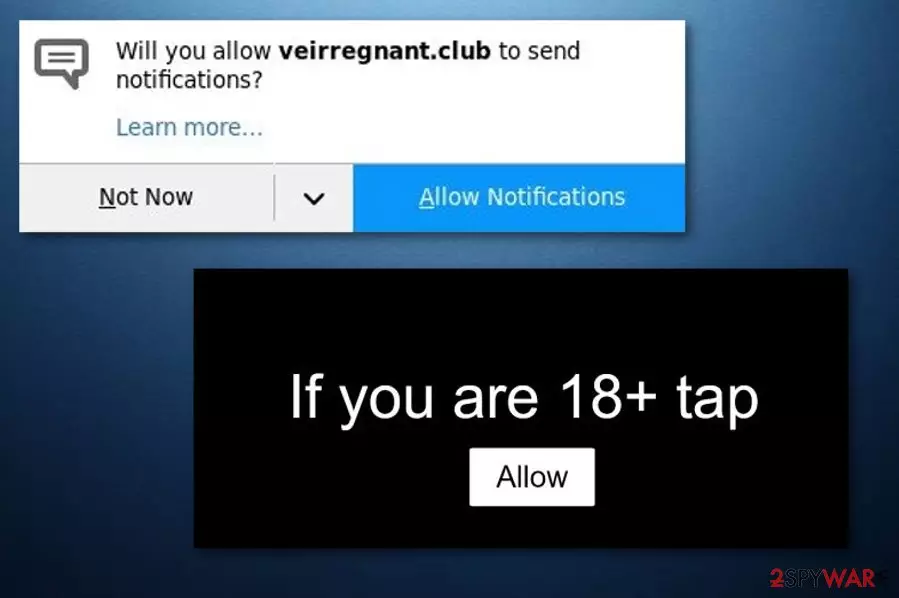
Veirregnant club is a browser hijacker used to fill users' web browsers (Google Chrome and Mozilla Firefox mainly) with numerous ads. The most of these ads are annoying as they are used to promote oleobet gambling services, tinder's alternatives, and other services presenting themselves with the help of inappropriate images. However, some of these Push Allow notifications can be filled with malicious links leading users to malware's infiltration. As a result, this virus has also been added to adware[1] category. It has also been noticed that the virus travels around together with a similar infection called Tuniaf.com. To get rid of Veirregnant.club ads and similar PUPs, you need to disable notifications on your affected web browser. Next, you should look for suspicious programs that could be responsible for these ads causing your web browser to malfunction and sometimes even crash.
| Name | Veirregnant.club |
|---|---|
| Category | Adware |
| Sub-category | PUP |
| Browsers affected | Chrome, Firefox, Edge, Explorer |
| Symptoms | Dubious redirects, annoying ads, browser modifications, browser slowdowns |
| Elimination | Download and install FortectIntego to complete the deletion |
One of the most annoying and even potentially dangerous features of Veirregnant club is its redirects to dubious-looking or sometimes even unsafe websites. Such a hijacker takes its victim to questionable pages which are related to its developers seeking to earn the money. However, while trying to reach their goals, these developers can be tricked into promoting sites filled with hazardous content. As a result, your system can be infected with a dangerous malware form, e.g. ransomware or Trojan[2].
You can recognize Veirregnant.club Push Notifications virus from such symptoms:
- Browser settings such as the homepage have been changed without your permission;
- You are facing unwanted redirects to questionable pages;
- A big amount of ads overloads your computer screen when you try to browse the web via the infected browser;
- Browsers are working slower than before and sometimes even freeze during the activity;
If you see such beforementioned signs, you can be sure that adware has occupied your browser and all annoying ads are the result. You need to remove Veirregnant.club virus from your computer system and clean infected web browsers to avoid further unwanted consequences. We suggest using FortectIntego for fixing issues caused by infiltration of this malware. Keep in mind that such PUPs can easily alter the Registry, drop needed system components, etc.
Finally, there is yet another important reason to perform the Veirregnant.club removal on the system. Beware that the virus has ability to collect various details that are related to the user's browsing habits. Such information includes various pages and sites visited, bookmarks, IPs, and other similar data. Developers generate beneficial ads that are related to the users' browsing experience as they look more attractive and suitable.

Distribution techniques used by the virus to infiltrate the system
According to IT experts from Virusai.lt,[3] adware-type programs are very likely to be spread all over the Internet. However, the most common PUP distribution way is via bundles. When you download a free program from the web, it might come with additional components which might also include adware-related content. Avoid such unwanted software by visiting the Custom or Advanced section. Once you are there, opt-out all suspicious-looking downloads.
Moreover, you can get infected with adware by visiting rogue sites. Some pages are promoted by third-parties and come improperly disclosed. This leads to a possibility of including malicious content. Stay away from questionable websites as far as possible. However, if you ever manage to enter one – eliminate the site immediately and scan your computer with a reliable antivirus to make sure that no hazardous content has slipped in.
Get rid of Veirregnant.club Push Notifications virus without wasting your time on useless ads
If you happen to overcome adware, browser hijacker or similar PUP on your computer system, you should get rid of it without wasting your time because it will cause a serious havoc on your machine. To remove Veirregnant.club virus permanently, you can choose from two elimination options: manual or automatic. If you pick the manual way to get rid of the PUP, you will have to find and get rid of all suspicious browser extensions, plug-ins, and add-ons hiding on your system. Beware that they can use tricky names to prevent their elimination.
If you want to perform Veirregnant.club removal in a faster way, use anti-malware software. Removing viruses automatically is also more efficient as the program picks all malicious components on your computer for you without a need to find them manually. If you follow the program's wizard carefully, the entire process will take no longer than a few minutes. After the elimination is finished, make sure you refresh web browsers that were affected by the ad-supported application.
Before you start a scan, block notifications on your web browser:
Google Chrome:
- Launch the browser and click Customize and Control Google Chrome in the top right corner of the browser (three dots);
- Select Settings and scroll down till you see the Advanced option. Click it and select Content Settings;
- Click Notifications and scroll down till you see hxxps://Veirregnant.club:443 and related/unknown entries;
- Click three dots and select Block under each of these entries.
Mozilla Firefox:
- Launch the browser and click three lines in the top right corner of the browser;
- Select Options and go to Privacy and Security;
- Go to Permissions and select Settings under Notifications;
- When in Settings – Notification Permissions window, find hxxps://Veirregnant.club:443 and related/unknown entries and click Block;
- Select Save Changes.
Uninstall from Windows
Uninstall from Windows 10/8:
- Type Control Panel into the Windows search box and open the result.
- Under Programs, select Uninstall a program.


Uninstall from Windows 7/XP:
- Click on Windows Start > Control Panel (Windows XP users should click on Add/Remove Programs).
- In Control Panel, select Programs > Uninstall a program.


Remove the unwanted program:
- In the Programs and Features window, look for any recently installed suspicious entries, select them, and click Uninstall.
- If User Account Control appears, click Yes to confirm, then complete the removal.


Reset Internet Explorer
Remove dangerous add-ons:
- Open Internet Explorer, click on the Gear icon (IE menu) on the top-right corner of the browser
- Pick Manage Add-ons.
- You will see a Manage Add-ons window. Here, look for suspicious plugins. Click on these entries and select Disable.


Change your homepage if it was altered:
- Open IE and click on the Gear icon.
- Select Internet Options.
- In the General tab, delete the Home page address and replace it by your preferred one (for example, Google.com).
- Click Apply and then select OK.


Delete temporary files:
- Press on the Gear icon and select Internet Options.
- Under Browsing history, click Delete...
- Select relevant fields and press Delete.


Reset Internet Explorer:
- Click on Gear icon > Internet options and select Advanced tab.
- Select Reset.
- In the new window, check Delete personal settings and select Reset.


Remove from Microsoft Edge
Delete unwanted extensions from MS Edge:
- Select Menu (three horizontal dots at the top-right of the browser window) and pick Extensions.
- From the list, pick the extension and click on the Gear icon.
- Click Remove.


Clear cookies and other browser data:
- Click on the Menu (three horizontal dots at the top-right of the browser window) and select Settings > Privacy, search, and services..
- Under Clear browsing data, pick Choose what to clear.
- Select Cookies and other site data and Cached images and files. (apart from passwords, although you might want to include Media licenses as well, if applicable) and click on Clear.


Restore new tab and homepage settings:
- Click the menu icon and choose Settings.
- Then find On startup section.
- Click Remove next to any suspicious startup page.
Reset MS Edge if the above steps did not work:
- Press on Ctrl + Shift + Esc to open Task Manager.
- Click on More details arrow at the bottom of the window.
- Select Details tab.
- Now scroll down and locate every entry with Microsoft Edge name in it. Right-click on each of them and select End Task to stop MS Edge from running.


Instructions for Chromium-based Edge
Delete extensions from MS Edge (Chromium):
- Open Edge and click select Settings > Extensions.
- Delete unwanted extensions by clicking Remove.


Clear cache and site data:
- Click on Menu and go to Settings.
- Select Privacy, search and services.
- Under Clear browsing data, pick Choose what to clear.
- Under Time range, pick All time.
- Select Clear now.


Reset Chromium-based MS Edge:
- Click on Menu and select Settings.
- On the left side, pick Reset settings.
- Select Restore settings to their default values.
- Confirm with Reset.
- This will disable extensions and reset startup pages but will not delete bookmarks, saved passwords, or browsing history.


Remove from Mozilla Firefox (FF)
Remove dangerous extensions:
- Open Mozilla Firefox browser and click on the Menu (three horizontal lines at the top-right of the window).
- Select Add-ons.
- In here, select the unwanted extension and click Remove.


Reset the homepage:
- Click three horizontal lines at the top right corner to open the menu.
- Choose Settings.
- Under Home, set your preferred homepage and new tab settings.
Clear cookies and site data:
- Click Menu and pick Settings.
- Go to Privacy & Security section.
- Scroll down to locate Cookies and Site Data.
- Click on Clear Data...
- Select Cookies and Site Data and Temporary cached files and pages, then click Clear.


Reset Mozilla Firefox
If clearing the browser as explained above did not help, reset Mozilla Firefox:
- Open Mozilla Firefox browser and click the Menu.
- Go to Help and then choose Troubleshooting Information.

- Under Give Firefox a tune up section, click on Refresh Firefox...
- Once the pop-up shows up, confirm the action by pressing on Refresh Firefox.



Remove from Google Chrome
Delete malicious extensions from Google Chrome:
- Open Google Chrome, click on the Menu (three vertical dots at the top-right corner) and select More tools > Extensions.
- In the newly opened window, you will see all the installed extensions. Uninstall all suspicious extensions related to the unwanted program by clicking Remove.


Clear cache and web data from Chrome:
- Click on Menu and pick Settings.
- Under Privacy and security, select Clear browsing data.
- Select Browsing history, Cookies and other site data, as well as Cached images and files.
- Click Clear data.


Change your homepage:
- Click menu and choose Settings.
- Look for a suspicious site in the On startup section.
- Click on Open a specific or set of pages and click on three dots to find the Remove option.
Reset Google Chrome:
If the previous methods did not help you, reset Google Chrome to eliminate all the unwanted components:
- Click on Menu and select Settings.
- In the Settings, scroll down and click Advanced.
- Scroll down and locate Reset and clean up section.
- Now click Restore settings to their original defaults.
- Confirm with Reset settings.


Did this guide help?
Be the first to comment