

Perfect PC Cleanup is a fake system optimization tool seeking to lure people into purchasing the full version
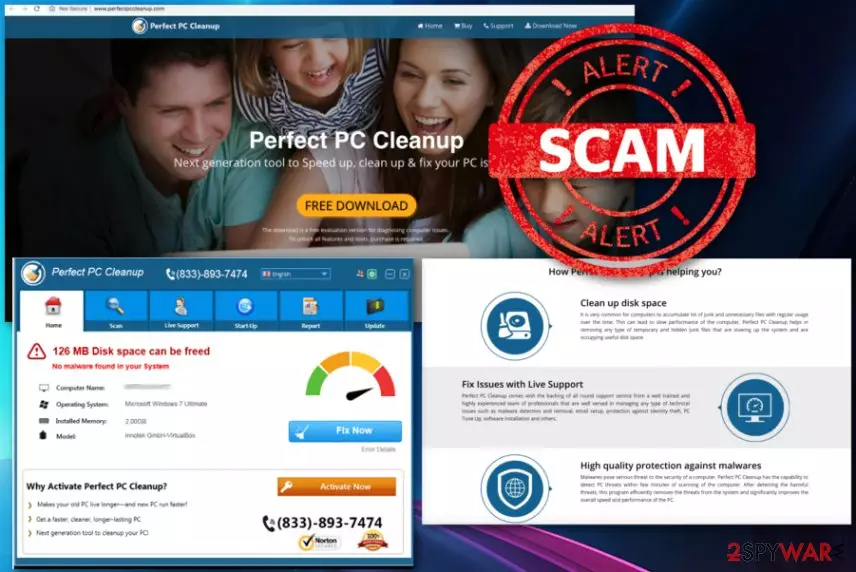
Perfect PC Cleanup is a potentially unwanted application trying to convince users that their devices are having malware issues. However, these issues are fake as well as promoted functionalities promised after buying program's full version. On the official website, this fake system optimization tool is promoted as the app having the ability to clean up disk space, fix various malware issues, enhance PC's performance and remove registry keys or junk files. However, you shouldn't invest in such tools because they cannot improve your Windows operating system. Besides, the presence of this fake system optimizer affects your device in a bad way because it starts displaying intrusive commercial content once becomes active. Keep in mind that there are tons of similar programs on the Internet. Unfortunately, people tend to fall for these apps and even spend their money on their full versions.
| Name | Perfect PC Cleanup |
|---|---|
| Type | Rogue tool |
| Category | Potentially unwanted application |
| Symptoms | Delivers fake information about computer-related issues, redirects to suspicious websites, fills up the screen with intrusive ads |
| Promoted as | System Optimizer |
| Distribution | Software bundles, deceptive ads, an official website |
| Elimination | Use FortectIntego for general system check and repair |
Perfect PC Cleanup virus is a program that many people have already installed consciously because it has been actively promoted as a useful addition to the system. You can download this tool for free after clicking on a deceptive advertisement or from the official PUP's website as a great way to increase your Windows PC's speed and improve it in another way.
However, once becomes active, Perfect PC Cleanup initiates numerous unwanted activities, including the following ones:
- performs numerous system scans;
- delivers false scan results reporting about malware[1] issues;
- suggests buying its full version;
- redirects to its purchase page;
- delivers intrusive ads promoting its paid version.
As a result, Perfect PC Cleanup scares its victims into thinking that they are in serious trouble and that they need to get its full version. Next, such programs typically stop showing their fake reports and stay still for some time. However, they can start the same routine each time you reboot your computer. This technique is a common way of functionality used by numerous fake system optimizers. No matter that they cannot be treated as malware, we still recommend avoiding them.
Intrusive activities caused by Perfect PC Cleanup are initiated immediately after the infiltration. The first thing this rogue program does is delivering you results of a full system scan. These results do not involve positive results in most of the cases as their aim is to convince people into buying the suggested fixing tool.
Unfortunately, all those promises are fake, and the main, if not only, feature this tool has is the registry cleaning[2]. This activity can be dangerous because clearing wrong entries on Windows Registry can damage the whole system or disable some vital system processes.
Perfect PC Cleanup removal is essential not only because of the intrusive content. Adware programs and other PUPs are also known for tracking various users' data such as IP addresses, geographical location, browsing habits, search queries, and preferences.
It is even stated on the EULA:
You acknowledge that Perfect PC Cleanup collects certain information regarding the users of the Software, including certain personally identifiable information. You hereby consent to Perfect PC Cleanup for collection and use of such information.
You need to remove Perfect PC Cleanup if you want to avoid any further damage to the device. It can be done by using your antivirus program or an alternative anti-malware tool. Researchers[3] advise using reputable sources and repeating the scan to make sure that the device is clean. You can use FortectIntego to scan the system and see if there is any malware.

Common methods of PUP distribution
When it comes to cyber infections, there is no doubt that the infiltration is silent and intrusive. However, PUPs have also been relying on unfair distribution techniques. The most common way to distribute potentially unwanted programs is software bundles which are typically spread via insecure download pages.
If you are new to bundling, note that the term is typically used to describe a technique when, during the installation of one program, you get additional applications. However, this can be avoided by going through installation steps of the freeware. You can choose Advanced or Custom options during the process and then de-select bundled programs from the list. This way, you will get the full control over what you add to your computer system.
Uninstall Perfect Pc Cleanup manually or use reputable AV
If you want to remove Perfect PC Cleanup safely, you should choose anti-malware tool wisely. This means that a reliable software provider and a trustworthy program is a must in this case.. Feel free to use program of your choice or employ one of the tools suggested below to see if you are infected.
Also, remember that Perfect PC Cleanup removal should be done as soon as possible because of the potential damage to Windows Registry. Scan your device with system repair tools and restore settings to default ones after the termination. You can also uninstall this app manually by performing steps given below:
Uninstall from Windows
Uninstall from Windows 10/8:
- Type Control Panel into the Windows search box and open the result.
- Under Programs, select Uninstall a program.


Uninstall from Windows 7/XP:
- Click on Windows Start > Control Panel (Windows XP users should click on Add/Remove Programs).
- In Control Panel, select Programs > Uninstall a program.


Remove the unwanted program:
- In the Programs and Features window, look for any recently installed suspicious entries, select them, and click Uninstall.
- If User Account Control appears, click Yes to confirm, then complete the removal.


Did this guide help?
Be the first to comment