

Smart Mac Cleaner is a potentially unwanted application that is promoted as a useful system optimizer
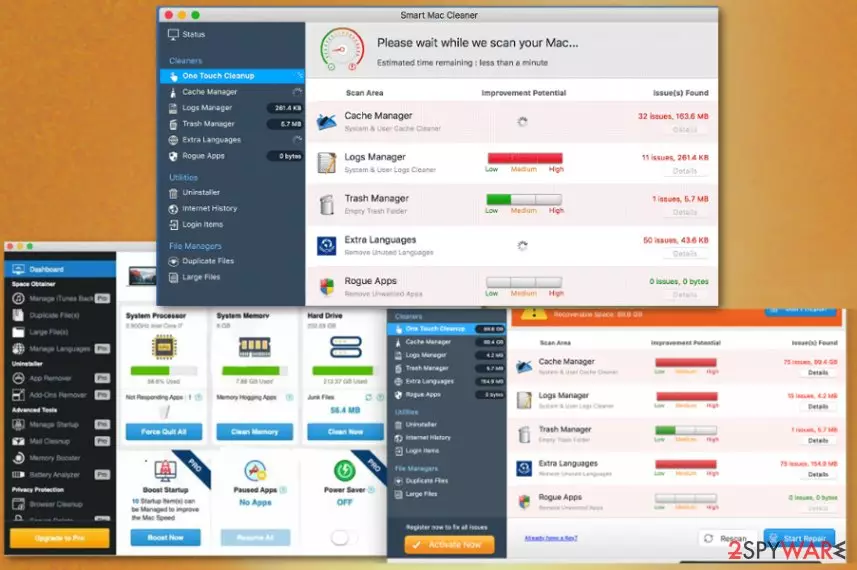
Smart Mac Cleaner is a fake system tool that gives no value for your Mac because it delivers intrusive content instead of improving the performance. Promotional advertisements claim that this tool fixes issues on your device, detects corrupted files or even malicious programs. However, instead of cleaning the system and improving the performance, this tool delivers fake scan results and suggests installing a full version of this system tool. Unfortunately, neither the free version or a full Smart Mac Cleaner is not giving you promised features. Instead of usefulness, this program delivers intrusive commercial content and causes additional redirects to questionable sites.
| Name | Smart Mac Cleaner |
|---|---|
| Type | System tools |
| Category | Potentially unwanted program[1] |
| Symptoms | Scans the system and delivers fake results about PC issues and malware infections |
| Promoted as | System optimization tool that boosts the performance of your Mac by cleaning memory, hard drive and improving the life of battery and processor |
| Distribution | Installed unwillingly via software bundling or on purpose from deceptive advertisements |
| Elimination | Use a reputable system tool like FortectIntego to get rid of Smart Mac Cleaner and other intruders |
Smart Mac Cleaner virus is the program that you can download willingly from the internet because it is promoted on various websites, advertisements as a system tool for Mac OS. However, this PUA infiltrates the system without users' knowledge, in most cases.
Although Smart Mac Cleaner claims that it can improve memory, battery, and processor of your device it runs a questionable system scan. Results after this scan might be altered or automatically generated to show issues with your applications, files or even malicious programs.
It claims to clean your system from intruders and fix other system issues, but for that, you need to purchase a license that also does nothing besides cleaning the list. All those features might be fake and used to lure people into paying for the full Smart Mac Cleaner tool.
Smart Mac Cleaner PUA includes alleged features:
- Cache manager;
- Logs manager;
- Trash manager;
- Uninstaller;
- etc.
You need to remove Smart Mac Cleaner using a reputable and trustworthy anti-malware tool like FortectIntego. Since the main distribution technique for adware, browser hijackers and PUPs is software bundling[2] you need to find all related files and programs to eliminate this suspicious system tool.
For the best results of Smart Mac Cleaner removal get the anti-malware program from a reputable provider or directly from the official website and scan the system entirely. You can avoid additional installations this way and clear the system from all possible threats.

Bundling method helps to distribute unwanted programs
Installing freeware from the internet is a risky move because you can install an additional program without even noticing. PUP developers and freeware providers pack their products in bundles and distribute them online. When you opt for a Default installation, you agree to all programs on the list.
Choosing Advanced or Custom options during these installations allows you to de-select unwanted programs. However, the best tip from experts[3] is to choose official software providers and trustworthy antivirus tools, so you can be sure that your system is secure.
Eliminate Smart Mac Cleaner from the system during a full system scan
To remove Smart Mac Cleaner completely from the system, you should employ an application that can indicate all possible threats and remove them from the device alongside corrupted or infected files. This way your computer can run smoothly as before.
Although the Mac operating system is called more secure than Windows you need to perform Smart Mac Cleaner removal using professional tools. You cannot locate all related programs or files yourself, and it takes time. We suggest a few tools compatible with MacOS for this job.
Delete from macOS
Remove the unwanted application:
- From the menu bar, select Go > Applications.
- In the Applications folder, look for any suspicious entries, then drag them to Trash (or right-click and pick Move to Trash).


Delete leftover files and folders:
- Select Go > Go to Folder.
- Enter /Library/Application Support and remove any suspicious folders related to the unwanted program.
- Repeat the same check in the /Library/LaunchAgents and /Library/LaunchDaemons folders, deleting any suspicious entries.

- Finally, empty the Trash to permanently remove the leftovers.

Did this guide help?
Be the first to comment