

MacEntizer is the rogue tool claiming to be file maintenance and optimizing utility designed to improve MacOS performance
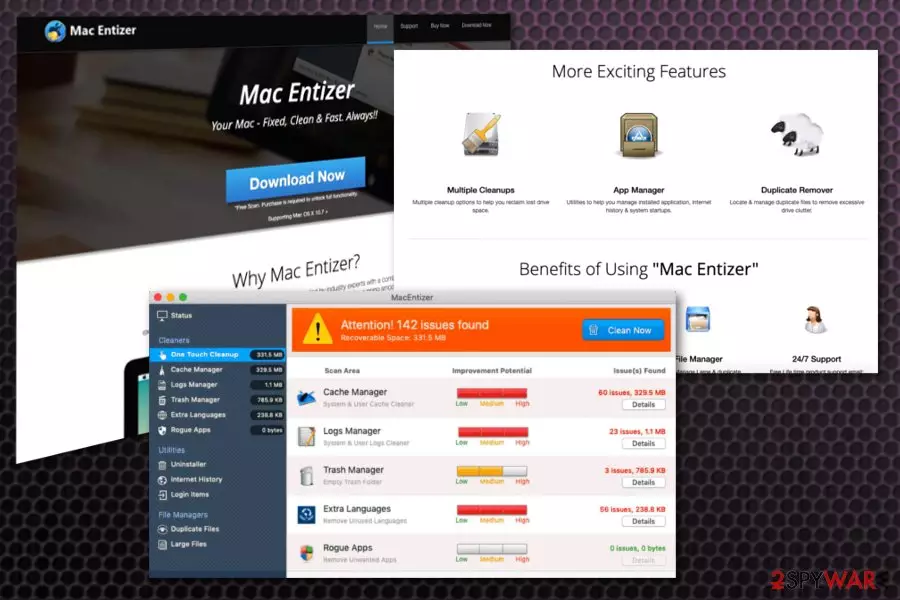
MacEntizer is the software that should help manage duplicate files, uninstall applications and clean the system by managing drive space. All those features included in the full licensed version that cost less than 15$. Unfortunately, the free version of the software has only the function of scanning the device. This tool should fix errors, manage cache and remove unwanted apps. However, this is a potentially unwanted program and even the system scan which is performed by the tool seems questionable.
The program claims to check the system by running a full scan. However, after this alleged check, Mac Entizer displays questionable results with a predetermined list of malware and system issues. To fix them, you get offered to purchase the full version of this program that, sadly, also does nothing. This is a cyber intruder, and you shouldn't trust the tool nor the results it delivers.
| Name | MacEntizer |
|---|---|
| Type | Rogue tool |
| Category | Potentially unwanted program[1] |
| Tactics | Scaring users into purchasing fake tools by delivering pre-determined malware scan results |
| Claims | To help fix and clean the system, improve the speed of your Mac |
| Main danger | Installs questionable programs, can access sensitive information |
| Distribution | Freeware installations, software cracks |
| Elimination | Clean the machine with the reputable anti-malware tool and fix issues with FortectIntego |
MacEntizer virus is one of many system optimizers that target Macintosh devices. Developers claim to offer various features that allow to fix system errors, uninstall useless apps, manage cache and improve the speed of the device. Once it gets installed the program scans the system and quickly shows a list of detected issues and malicious programs.[2]
However, those issues cannot be fixed with the free MacEntizer tool, you need to purchase the full version for all the advanced features. Unfortunately, when you get the tool that supposed to perform better than the free version, it does nothing except cleaning the list of detected problems.
Developers promote this tool using various deceptive sites and questionable sources, download sites. MacEntizer shouldn't be trusted for that reason alone, but there is another technique used to spread this rogue system utility – software bundling. This is a method used to spread various PUPs around during insecure installations by including and hiding unwanted programs on installation setups.
The official claims of Mac Entizer developer state that the program can:
- offer multiple cleanup options to free drive space;
- manage installed applications and system startups;
- remove duplicate files, excessive clutter;
- handle large files.

In most cases, Mac Entizer gets bundled with other software, but it also can be installed on purpose because people believe the usefulness of those features and download or even purchase the program from providers' site. From the information stated on this website, we can determine that this tool is collecting various information about the user, like any other PUA.
MacEntizer providers' site Privacy Policy states about cookies:
Cookies are small pieces of data sent from a website and stored in a user's web browser while the user is browsing a particular website. Every time the user loads a website, the browser sends the cookie related to that website back to the website server to notify the website of the user's previous activity on that website. They are often used as a mechanism by websites to remember activities that a website browser has done there in the past, for example, clicking on particular buttons, logging in, or having read pages on that site months or years ago.
You need to remove MacEntizer even though it may seem harmless because this PUA is not useful for any Mac device. The software besides the tool itself may get installed without your permission. Different adware programs or even more severe cyberthreats get automatically loaded on your computer.
When you go for the automatic MacEntizer removal, you can eliminate all those programs and tools with one tool. Using the anti-malware program allows checking the system thoroughly. Once the system scan is done, the program delivers a full list of issues, PUPs and even malware that needs to be fixed.
If you choose the reputable program, these results are not fake or designed to trick you into anything else. Get FortectIntego and clean the machine entirely. MacEntizer can also affect your browser settings, so make sure to check the guide below the article and reset your Google Chrome or Safari to default.
Deceptive advertisements and freeware promotions lead to the installation of questionable PUAs
Experts[3] always note how important it is to choose freeware providers wisely and pay attention to various other processes. The internet is not a safe place, especially, when you browse on questionable sites and use services like p2p sharing sites or torrents and free download pages.
Constant visiting on insecure sites and clicking on deceptive pop-up ads lead to automatic downloads of suspicious apps or even malware. Also, when you download freeware on purpose but skip through installation steps, you risk getting unwanted programs installed without your permission.
To avoid any installation of unwanted or useless programs, always select Advanced or Custom options during the process and pay attention to the list of programs. You can easily de-select applications you don't want to install and avoid cyber infections.
Eliminate MacEntizer from the system with reliable programs
For any program that comes to the system bundled with other freeware, we recommend malware termination using anti-malware tools. MacEntizer virus is not an exception because this app comes as an additional program when you install other software on your PC.
Remember that the Mac operating system is relatively secure and there is no need to install additional optimization tools. However, for proper MacEntizer removal, you need to install an additional security tool – antivirus program.
Any anti-malware program that is compatible with MacOS can help remove MacEntizer. We offer a few that we can trust but feel free to choose on your own. Get the program from a reliable source and keep it running on the machine to avoid such infections in the future.
Delete from macOS
Remove the unwanted application:
- From the menu bar, select Go > Applications.
- In the Applications folder, look for any suspicious entries, then drag them to Trash (or right-click and pick Move to Trash).


Delete leftover files and folders:
- Select Go > Go to Folder.
- Enter /Library/Application Support and remove any suspicious folders related to the unwanted program.
- Repeat the same check in the /Library/LaunchAgents and /Library/LaunchDaemons folders, deleting any suspicious entries.

- Finally, empty the Trash to permanently remove the leftovers.

Remove from Mozilla Firefox (FF)
Remove dangerous extensions:
- Open Mozilla Firefox browser and click on the Menu (three horizontal lines at the top-right of the window).
- Select Add-ons.
- In here, select the unwanted extension and click Remove.


Reset the homepage:
- Click three horizontal lines at the top right corner to open the menu.
- Choose Settings.
- Under Home, set your preferred homepage and new tab settings.
Clear cookies and site data:
- Click Menu and pick Settings.
- Go to Privacy & Security section.
- Scroll down to locate Cookies and Site Data.
- Click on Clear Data...
- Select Cookies and Site Data and Temporary cached files and pages, then click Clear.


Reset Mozilla Firefox
If clearing the browser as explained above did not help, reset Mozilla Firefox:
- Open Mozilla Firefox browser and click the Menu.
- Go to Help and then choose Troubleshooting Information.

- Under Give Firefox a tune up section, click on Refresh Firefox...
- Once the pop-up shows up, confirm the action by pressing on Refresh Firefox.



Remove from Google Chrome
Delete malicious extensions from Google Chrome:
- Open Google Chrome, click on the Menu (three vertical dots at the top-right corner) and select More tools > Extensions.
- In the newly opened window, you will see all the installed extensions. Uninstall all suspicious extensions related to the unwanted program by clicking Remove.


Clear cache and web data from Chrome:
- Click on Menu and pick Settings.
- Under Privacy and security, select Clear browsing data.
- Select Browsing history, Cookies and other site data, as well as Cached images and files.
- Click Clear data.


Change your homepage:
- Click menu and choose Settings.
- Look for a suspicious site in the On startup section.
- Click on Open a specific or set of pages and click on three dots to find the Remove option.
Reset Google Chrome:
If the previous methods did not help you, reset Google Chrome to eliminate all the unwanted components:
- Click on Menu and select Settings.
- In the Settings, scroll down and click Advanced.
- Scroll down and locate Reset and clean up section.
- Now click Restore settings to their original defaults.
- Confirm with Reset settings.


Delete from Safari
Remove dangerous extensions:
- Open Safari, click Safari in the menu at the top-left of the screen, and select Preferences.
- Go to the Extensions tab, look for any suspicious entries, and click Uninstall to remove them.


Clear history and website data:
- Click Safari in the menu and pick Clear History.
- Set Clear to all history and confirm with Clear History.


Reset Safari:
- Click Safari in the menu and select Preferences > Advanced.
- Enable Show Develop menu in menu bar.
- From the menu bar, click Develop and select Empty Caches.


Did this guide help?
Be the first to comment