

MatchKnowledge – a PUP that might install tracking cookies on Macs
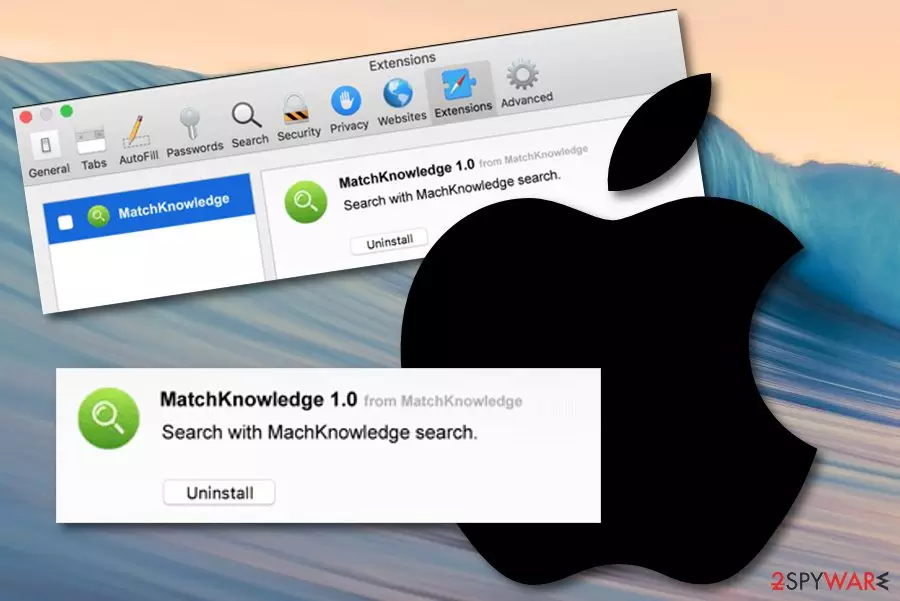
MatchKnowledge is an adware program that is created to perform suspicious activities on Mac computers only. Due to the common usage of Windows OS, adware developers create programs that mostly interfere with Windows systems, however, Mac computers and laptops are also becoming very popular nowadays, so spotting adware and similar suspicious software on OS X is not a surprise anymore. MatchKnowledge Mac might appear after a visit to a suspicious website or while downloading software from a free source. Once this happens, expect to receive a big number of ads and redirects. Additionally, you might even encounter various tracking cookies on your browser apps which are injected to spy on your browsing activities.
| Name | MatchKnowledge |
|---|---|
| Type | Adware |
| Sub-type | Potentially unwanted program |
| Target | Mac OS X |
| Signs | Browser changes on the homepage, a frequent flow of ads, redirects during browsing activities, the appearance of unexpected tracking cookies |
| Revenue from | The adware collects monetary benefits from each click on its ads |
| Distribution source(s) | Free software often brings adware and other potentially suspicious components straight to the computer |
| Prevention tips | Using the Custom configuration will allow you to prevent secret adware infiltration |
| Get rid of it | Get software such as FortectIntego on your PC and remove the PUP within a few clicks |
MatchKnowledge virus does not bring any positive things to the user. All of its purposes are just income-related. One revenue-gaining scheme is called pay-per-click[1] and the other one is based on collecting non-personal data that is shared with third-parties later on or used to create beneficial ads and provide attractive deals that somehow appear to suit the user's needs.
For example, if you have been recently searching for a reliable computer security tool, MatchKnowledge might spy on such activity and take notice that some offers of reputable software might attract you to clicking on the developer-sponsored advertisements. This way some people are tricked into purchasing useless anti-malware products that relate only to unexpected money losses.
However, that is not all MatchKnowledge is capable of. Adware programs are also known for their redirecting capabilities that might relate to potential danger in some cases. For example, if you start experiencing redirects from this PUP, they can take you to third-party networks which lack required security. Later on, this might relate to the secret installation of malicious objects and infections such as Trojan horse[2] or ransomware virus.

Moreover, you might spot that MatchKnowledge has changed some of your web browser settings. Modifications can be spotted in the homepage and new tab sections of your infected browser application. Furthermore, you might also find questionable-looking add-ons, extensions, and plug-ins. These components might be forcing the ad flow. You can get rid of suspicious content by following these guidelines:
- Open your infected browser and click on the three dots that you will appear at the upper right corner of the window.
- Locate Settings and continue with the Advanced section.
- Under the Privacy & Security option, you will see Site settings, click on them and then continue with Notifications.
- Find anything that is related to MatchKnowledge and remove it from the list.
Opting for MatchKnowledge removal is the right choice to make while dealing with this potentially unwanted program. Eliminating the suspicious application might be very easy if you decide to use reliable software such as FortectIntego for the process. However, you can also try manual removal guidelines if you are likely to. Locate them at the end of this article.

There are plenty of reasons to remove MatchKnowledge from your Mac computer and not postpone the process. The increasing notification flow will start bothering you even more and relating to system crashes and struggles that will approach due to the overuse of system resources such as The Central Processing Unit,[3] and similar.
Bundled software – adware hiding place
Adware is one of the most common PUPs distributed throughout the Internet. Have you ever been wondering how do these sneaky applications end up on the targeted system so that their popularity increases each month? Well, if this is the question that you want to ask, we are going to reveal some strategy details that are used for the infiltration of such threats.
Technology experts from Virusai.lt[4] believe that developers who are interested in distributing potentially unwanted applications always use stealth strategies, otherwise, a big number of users will supposedly never download and install such apps to their computers after reading about all the advertising, redirecting, and data-tracking activities they perform.
The avoiding principle of adware is simple. It is cautiousness. You need to be careful whenever you browse the web and carry out actions online. Avoid visiting various unprotected sources and use the Custom configuration mode so that potentially unwanted content does not reach the system without your notice.
Main removal techniques for MatchKnowledge virus
If MatchKnowledge virus has been interrupting your browsing work recently and installing AdBlock[5] did not help to stop the incoming notifications, you supposedly have an adware application installed on your computer system which is responsible for all of these activities. Getting rid of this cyberthreat is what you should do.
MatchKnowledge removal can be carried out with the help of an anti-malware tool. We always recommend using this automatical method for removing potentially unwanted programs and other viruses from the system. Reputable security software is always a better decision when you are looking forward to terminating the PUP safely and effectively.
However, you can try to remove MatchKnowledge from Mac OS X and infected web browsers with the help of the below-provided guidelines that will lead you through the entire web browser cleaning process. This involves all infected apps such as Google Chrome, Mozilla Firefox, Safari, and similar.
Delete from macOS
Remove the unwanted application:
- From the menu bar, select Go > Applications.
- In the Applications folder, look for any suspicious entries, then drag them to Trash (or right-click and pick Move to Trash).


Delete leftover files and folders:
- Select Go > Go to Folder.
- Enter /Library/Application Support and remove any suspicious folders related to the unwanted program.
- Repeat the same check in the /Library/LaunchAgents and /Library/LaunchDaemons folders, deleting any suspicious entries.

- Finally, empty the Trash to permanently remove the leftovers.

Reset Internet Explorer
Remove dangerous add-ons:
- Open Internet Explorer, click on the Gear icon (IE menu) on the top-right corner of the browser
- Pick Manage Add-ons.
- You will see a Manage Add-ons window. Here, look for suspicious plugins. Click on these entries and select Disable.


Change your homepage if it was altered:
- Open IE and click on the Gear icon.
- Select Internet Options.
- In the General tab, delete the Home page address and replace it by your preferred one (for example, Google.com).
- Click Apply and then select OK.


Delete temporary files:
- Press on the Gear icon and select Internet Options.
- Under Browsing history, click Delete...
- Select relevant fields and press Delete.


Reset Internet Explorer:
- Click on Gear icon > Internet options and select Advanced tab.
- Select Reset.
- In the new window, check Delete personal settings and select Reset.


Remove from Mozilla Firefox (FF)
Remove dangerous extensions:
- Open Mozilla Firefox browser and click on the Menu (three horizontal lines at the top-right of the window).
- Select Add-ons.
- In here, select the unwanted extension and click Remove.


Reset the homepage:
- Click three horizontal lines at the top right corner to open the menu.
- Choose Settings.
- Under Home, set your preferred homepage and new tab settings.
Clear cookies and site data:
- Click Menu and pick Settings.
- Go to Privacy & Security section.
- Scroll down to locate Cookies and Site Data.
- Click on Clear Data...
- Select Cookies and Site Data and Temporary cached files and pages, then click Clear.


Reset Mozilla Firefox
If clearing the browser as explained above did not help, reset Mozilla Firefox:
- Open Mozilla Firefox browser and click the Menu.
- Go to Help and then choose Troubleshooting Information.

- Under Give Firefox a tune up section, click on Refresh Firefox...
- Once the pop-up shows up, confirm the action by pressing on Refresh Firefox.



Remove from Google Chrome
Delete malicious extensions from Google Chrome:
- Open Google Chrome, click on the Menu (three vertical dots at the top-right corner) and select More tools > Extensions.
- In the newly opened window, you will see all the installed extensions. Uninstall all suspicious extensions related to the unwanted program by clicking Remove.


Clear cache and web data from Chrome:
- Click on Menu and pick Settings.
- Under Privacy and security, select Clear browsing data.
- Select Browsing history, Cookies and other site data, as well as Cached images and files.
- Click Clear data.


Change your homepage:
- Click menu and choose Settings.
- Look for a suspicious site in the On startup section.
- Click on Open a specific or set of pages and click on three dots to find the Remove option.
Reset Google Chrome:
If the previous methods did not help you, reset Google Chrome to eliminate all the unwanted components:
- Click on Menu and select Settings.
- In the Settings, scroll down and click Advanced.
- Scroll down and locate Reset and clean up section.
- Now click Restore settings to their original defaults.
- Confirm with Reset settings.


Delete from Safari
Remove dangerous extensions:
- Open Safari, click Safari in the menu at the top-left of the screen, and select Preferences.
- Go to the Extensions tab, look for any suspicious entries, and click Uninstall to remove them.


Clear history and website data:
- Click Safari in the menu and pick Clear History.
- Set Clear to all history and confirm with Clear History.


Reset Safari:
- Click Safari in the menu and select Preferences > Advanced.
- Enable Show Develop menu in menu bar.
- From the menu bar, click Develop and select Empty Caches.


Did this guide help?
Be the first to comment