

Guce.Advertising.com is a website that users get redirected to if they have ad-blocking app installed on their browsers
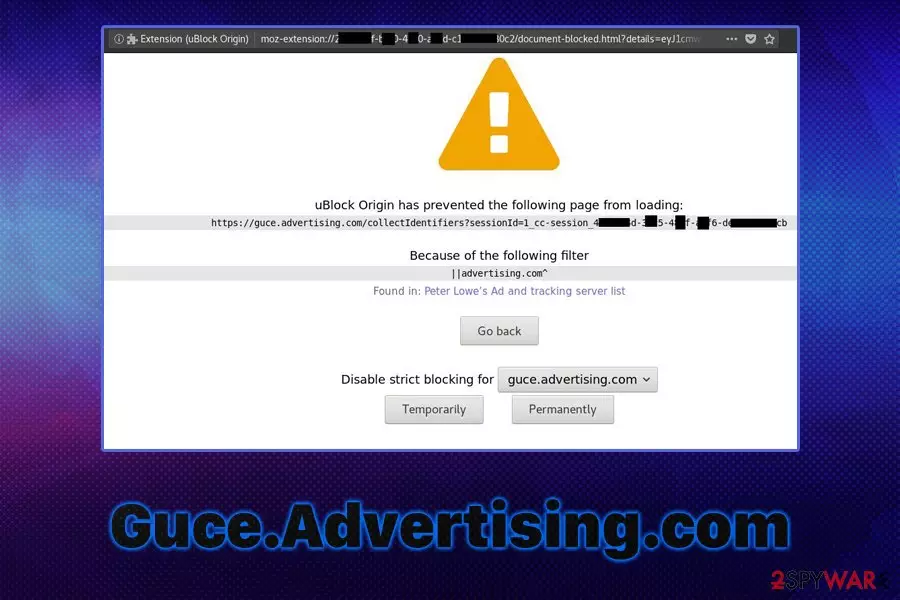
Guce.Advertising.com is a domain that users are redirected to while trying to reach their inbox of webmail accounts – typically, AOL email. As evident, many users who use ad-blocking apps like Ublock or AdBlock experienced the issue. Due to suspicious redirects occurring when trying to reach their email on Google Chrome, Safari, Mozilla Firefox, or Internet Explorer, users presumed that the activity must have something to do with Guce Advertising virus and browser hijacking. So, what is Guce Advertising error and how to fix it?
| Name | Guce.Advertising.com |
|---|---|
| Type | Browser redirect |
| Related error | INTERNAL_SERVER_ERROR |
| Related | Guce.aol.com |
| Causes issues with | Aol.com, AOL Mail |
| Elimination | Disable ad-block, enable a cookie related to AOL Guce Advertising, or add Guce.Advertising.com to trusted sites list |
The truth is, Guce Advertising is a part of a large advertising network called Oath, a combined company of AOL and Yahoo, which is a part of Verizon, an American telecommunications company.[1] Users are experiencing issues with AOL email because of the ad-blocker enabled,[2] as, due to changes within the companies, a unified ToS and Privacy Policies were created. In order to comply with the law, users need to accept these terms before using the site, i.e., AOL email. Nevertheless, there are also other ways to remove Guce Advertising – check the bottom section of the article for more details.
As evident, many users treat Guce.Advertising.com as malicious, as it redirects their browsers and prevents them from accessing their emails. In some cases, users also reported to receive an error which reads:
This site can’t be reached / guce.advertising.com took too long to respond.
While Guce.Advertising.com is not malicious and has nothing to do with computer or browser infections, those who experience the following symptoms might, in fact, have a potentially unwanted program[3] installed on their machines:
- Redirects lead to suspicious websites
- Advertising banners, pop-ups, in-text links, flashing windows and other ads appear on all visited sites
- Homepage, new tab address and the search engine altered
- Search results are filled with sponsored links
- Suspicious extensions and add-ons installed on the browser without permission, etc.

Thus, if you are constantly experiencing suspicious browser behavior, we highly advise you scan your machine with anti-malware software just to be sure there are no computer threats that hijacked your browser. Additionally, experts recommend scanning the computer with PC repair tools such as FortectIntego and also reset the installed browsers. Note that Guce Advertising removal consists of completely different actions – you can find them below.
There are several methods to fix AOL Guce Advertising error and Guce.Advertising.com redirects
If you have no adware or malware installed on your system, anti-virus will not remove Guce.Advertising.com from your browsers. However, you will still won't be able to access your AOL email, which is a huge problem for a lot of users.
Below you will find methods that helped users to perform Guce advertising removal.
Disable ad-block
Many users are employing ad-block to stop unwanted pop-ups, deals, banners, offers, coupons, and other annoying content that can be found on many websites. However, ad-block sometimes also breaks certain elements of the web page or results in unexpected browser behavior (such as Guce.Advertising.com redirects). Thus, disable/pause your ad-blocker extension or add Guce Advertising into exceptions list.
Note that ad-blocker is a great security measure and is recommended to use at all times, so do not forget to re-enable it once the problem with Guce Advertising is fixed.
Load the missing cookie to your web browser
Since AOL Guce Advertising cannot load because of a missing cookie, you might try to load it yourself to bypass the error. Thus, visit the following webpage (wait for the page to load completely), and then pick the Check Mail option. This should solve the problem, and you should be able to access your AOL email once again.
Add Guce.Advertising.com to trusted sites list
This option helped many users to get rid of Guce.aol.com and Guce.advertising.com redirects. Follow these steps on Windows machines:
- Type in Internet options into Windows search and hit Enter
- Pick Security tab at the top of the Properties window
- Press on the first zone – Internet – once
- At the bottom, click on Reset all zones to default level
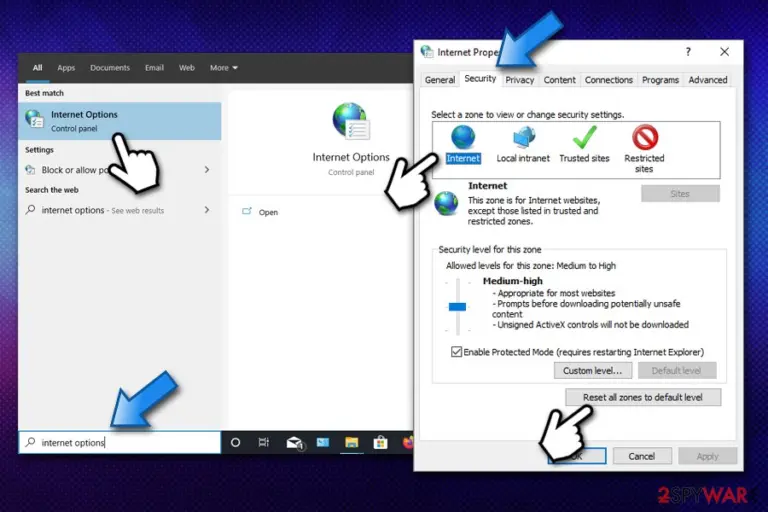
- Now select Trusted sites option in the zone area
- Click on Sites
- Add Guce.advertising.com or/and Guce.aol.com and press Add
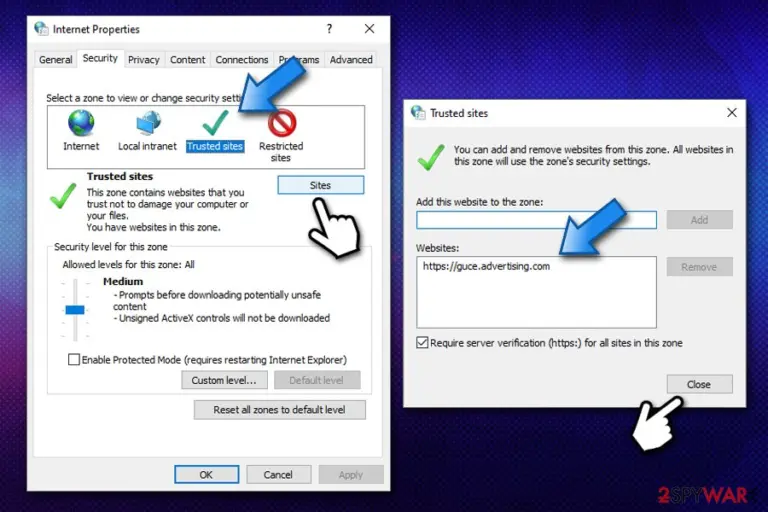
- Close everything, and restart your browser


Uninstall from Windows
Uninstall from Windows 10/8:
- Type Control Panel into the Windows search box and open the result.
- Under Programs, select Uninstall a program.


Uninstall from Windows 7/XP:
- Click on Windows Start > Control Panel (Windows XP users should click on Add/Remove Programs).
- In Control Panel, select Programs > Uninstall a program.


Remove the unwanted program:
- In the Programs and Features window, look for any recently installed suspicious entries, select them, and click Uninstall.
- If User Account Control appears, click Yes to confirm, then complete the removal.


Delete from macOS
Remove the unwanted application:
- From the menu bar, select Go > Applications.
- In the Applications folder, look for any suspicious entries, then drag them to Trash (or right-click and pick Move to Trash).


Delete leftover files and folders:
- Select Go > Go to Folder.
- Enter /Library/Application Support and remove any suspicious folders related to the unwanted program.
- Repeat the same check in the /Library/LaunchAgents and /Library/LaunchDaemons folders, deleting any suspicious entries.

- Finally, empty the Trash to permanently remove the leftovers.

Remove from Microsoft Edge
Delete unwanted extensions from MS Edge:
- Select Menu (three horizontal dots at the top-right of the browser window) and pick Extensions.
- From the list, pick the extension and click on the Gear icon.
- Click Remove.


Clear cookies and other browser data:
- Click on the Menu (three horizontal dots at the top-right of the browser window) and select Settings > Privacy, search, and services..
- Under Clear browsing data, pick Choose what to clear.
- Select Cookies and other site data and Cached images and files. (apart from passwords, although you might want to include Media licenses as well, if applicable) and click on Clear.


Restore new tab and homepage settings:
- Click the menu icon and choose Settings.
- Then find On startup section.
- Click Remove next to any suspicious startup page.
Reset MS Edge if the above steps did not work:
- Press on Ctrl + Shift + Esc to open Task Manager.
- Click on More details arrow at the bottom of the window.
- Select Details tab.
- Now scroll down and locate every entry with Microsoft Edge name in it. Right-click on each of them and select End Task to stop MS Edge from running.


Instructions for Chromium-based Edge
Delete extensions from MS Edge (Chromium):
- Open Edge and click select Settings > Extensions.
- Delete unwanted extensions by clicking Remove.


Clear cache and site data:
- Click on Menu and go to Settings.
- Select Privacy, search and services.
- Under Clear browsing data, pick Choose what to clear.
- Under Time range, pick All time.
- Select Clear now.


Reset Chromium-based MS Edge:
- Click on Menu and select Settings.
- On the left side, pick Reset settings.
- Select Restore settings to their default values.
- Confirm with Reset.
- This will disable extensions and reset startup pages but will not delete bookmarks, saved passwords, or browsing history.


Remove from Mozilla Firefox (FF)
Remove dangerous extensions:
- Open Mozilla Firefox browser and click on the Menu (three horizontal lines at the top-right of the window).
- Select Add-ons.
- In here, select the unwanted extension and click Remove.


Reset the homepage:
- Click three horizontal lines at the top right corner to open the menu.
- Choose Settings.
- Under Home, set your preferred homepage and new tab settings.
Clear cookies and site data:
- Click Menu and pick Settings.
- Go to Privacy & Security section.
- Scroll down to locate Cookies and Site Data.
- Click on Clear Data...
- Select Cookies and Site Data and Temporary cached files and pages, then click Clear.


Reset Mozilla Firefox
If clearing the browser as explained above did not help, reset Mozilla Firefox:
- Open Mozilla Firefox browser and click the Menu.
- Go to Help and then choose Troubleshooting Information.

- Under Give Firefox a tune up section, click on Refresh Firefox...
- Once the pop-up shows up, confirm the action by pressing on Refresh Firefox.



Remove from Google Chrome
Delete malicious extensions from Google Chrome:
- Open Google Chrome, click on the Menu (three vertical dots at the top-right corner) and select More tools > Extensions.
- In the newly opened window, you will see all the installed extensions. Uninstall all suspicious extensions related to the unwanted program by clicking Remove.


Clear cache and web data from Chrome:
- Click on Menu and pick Settings.
- Under Privacy and security, select Clear browsing data.
- Select Browsing history, Cookies and other site data, as well as Cached images and files.
- Click Clear data.


Change your homepage:
- Click menu and choose Settings.
- Look for a suspicious site in the On startup section.
- Click on Open a specific or set of pages and click on three dots to find the Remove option.
Reset Google Chrome:
If the previous methods did not help you, reset Google Chrome to eliminate all the unwanted components:
- Click on Menu and select Settings.
- In the Settings, scroll down and click Advanced.
- Scroll down and locate Reset and clean up section.
- Now click Restore settings to their original defaults.
- Confirm with Reset settings.


Delete from Safari
Remove dangerous extensions:
- Open Safari, click Safari in the menu at the top-left of the screen, and select Preferences.
- Go to the Extensions tab, look for any suspicious entries, and click Uninstall to remove them.


Clear history and website data:
- Click Safari in the menu and pick Clear History.
- Set Clear to all history and confirm with Clear History.


Reset Safari:
- Click Safari in the menu and select Preferences > Advanced.
- Enable Show Develop menu in menu bar.
- From the menu bar, click Develop and select Empty Caches.


Did this guide help?
Be the first to comment