

Uptobox.com – a service that offers to upload local files which can be filled with cracked products
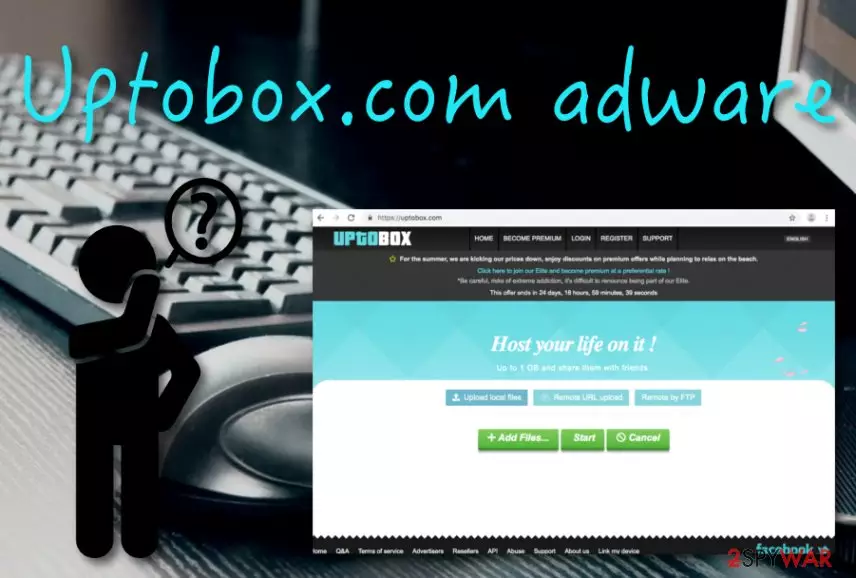
Uptobox.com is a service that suggests uploading certain files some of which might accidentally be infectious components. Some user might find this file-loading feature very comfortable to use, however, the risk of encountering rogue products on this domain is not worth it. Users have reported this program as Uptobox.com virus because it has the capability of disabling ad-blocking tools and pushing its own notifications on the targeted computer.[1] Other reports claim that this suspicious app aims to promote a product called Download Manager once its domain is accessed.[2]
| Name | Uptobox.com |
|---|---|
| Type | Adware |
| Sub-type | PUP |
| Delivery | Bundled software, unsecured sources |
| Promoted product | Download Manager |
| Danger level | Low. Does not affect any software or damage machines |
| Removal | Use FortectIntego for PUP investigation and discover all suspicious components on your computer |
Uptobox.com developers even offer to get their services in some type of “premium” version. Of course, a specific cost is urged for that. If you take a visit to the domain, you will find four different pages for becoming a premium. They are valid for 30 days (cost of $3.356), 365 days (cost of $22), 730 days (cost of $45), and 1825 days (cost of $111).
According to Uptobox.com, you can receive much more benefits if ordering the premium variant of the service. Your max file-uploading space is rased to 200 GB, you get unlimited storage space, direct downloading, maximum downloading speed, and other features. However, note that this is just a way to encourage people to spend money on the product when truly it is signed as adware and might not even bring these exciting features.
Uptobox.com pop-up is not the most pleasant thing to see as suspicious advertisements might bring you to face numerous potentially dangerous or just simply annoying activities. To start with, pop-up notifications can end up promoting suspicious security product or other services for which you are encouraged to pay money.
This is a very easy way to waste money on completely useless products so Uptobox.com and all of its ads need to be avoided immediately after their appearance. Developers promote adverts to collect cost-per-click[3] income. Sometimes, the ads might try to convince you to fill in various surveys or claim a prize by typing in some personal details.

DO NOT do that! Uptobox.com might lure you into something dangerous and you might end up with private information exposed. Besides, the adverts can promote various scams and try to scare you by throwing alerts about non-existing computer infections or potential danger. A way to prevent the repeated appearance of the ads is to complete the following:
- Open the web browser which you have been receiving adverts from.
- Locate the Menu which can be found by pressing on the three dots on the upper right corner of the browser window.
- Afterward, locate Settings and go for the Advanced option.
- Continuously, find Uptobox.com in the Notifications section (this one can be found under Site Settings).
- Disable or remove the domain from the list.
Furthermore, Uptobox.com redirects might also be a problem for you. This activity is promoted in order to throw users to other affiliate domains. However, not always this type of activity ends well. Sometimes users land on infected websites and get malware such as a Trojan virus or ransomware delivered on their computer systems.
What else could Uptobox.com do is collect non-personal information about your browsing habits and history. For example, the adware might track what kind of websites you have been visiting lately, what bookmarks you have saved, etc. However, in some cases, potentially unwanted programs might also capture your email address or mobile phone number.

As you already know what kind of negative sides adware has, it is about time to take actions towards Uptobox.com removal process. This type of goal can be easily achieved by scanning the entire system with antimalware such as FortectIntego or by using step-by-step guidelines such as the ones that are provided at the end of this article.
Additionally, one more important reason why you should remove Uptobox.com from your machine system and web browsers permanently is that the adware might overuse some of your system resources in order to support its own activities. Note that if the CPU power rises above 90% you might have big trouble while trying to maintain normal computing work.
The delivery process of adware programs
According to specialists from LosVirus.es,[4] adware programs are very sneaky threats and are delivered even sneakier. Developers usually find unsecured packages of software and leave the product there. Later on, the user who has been using the “Quick” or “Recommended” downloading/installing option ends up with the PUP on his/her system.
A way to prevent such unwanted downloads is to opt for the right configuration. This is valid for settings that are named “Advanced” or “Custom”. If you opt for one of these modes, you will be allowed to manage all incoming downloads. This also includes removing suspicious products that you do not want to see on your computer.
In addition, automatical protection is also a great option here. You should purchase an advance package of antivirus software and make sure that it includes as many security-based features as possible.
Removal guidelines for Uptobox.com adware
If you have been dealing with the annoying advertising and redirecting activities coming from this domain, you should remove Uptobox.com from the computer system and infected browser before any potential danger occurs. The process can be carried out with the help of reputable anti-malware or manual instructions.
Below you will find the manual guidelines for Uptobox.com removal. These instructions will help you to optimize and clean web browsers such as Google Chrome, Mozilla Firefox, Internet Explorer, Microsoft Edge, and Safari. Also, those steps include different guidelines for both Windows and Mac users.
Uninstall from Windows
Uninstall from Windows 10/8:
- Type Control Panel into the Windows search box and open the result.
- Under Programs, select Uninstall a program.


Uninstall from Windows 7/XP:
- Click on Windows Start > Control Panel (Windows XP users should click on Add/Remove Programs).
- In Control Panel, select Programs > Uninstall a program.


Remove the unwanted program:
- In the Programs and Features window, look for any recently installed suspicious entries, select them, and click Uninstall.
- If User Account Control appears, click Yes to confirm, then complete the removal.


Delete from macOS
Remove the unwanted application:
- From the menu bar, select Go > Applications.
- In the Applications folder, look for any suspicious entries, then drag them to Trash (or right-click and pick Move to Trash).


Delete leftover files and folders:
- Select Go > Go to Folder.
- Enter /Library/Application Support and remove any suspicious folders related to the unwanted program.
- Repeat the same check in the /Library/LaunchAgents and /Library/LaunchDaemons folders, deleting any suspicious entries.

- Finally, empty the Trash to permanently remove the leftovers.

Reset Internet Explorer
Remove dangerous add-ons:
- Open Internet Explorer, click on the Gear icon (IE menu) on the top-right corner of the browser
- Pick Manage Add-ons.
- You will see a Manage Add-ons window. Here, look for suspicious plugins. Click on these entries and select Disable.


Change your homepage if it was altered:
- Open IE and click on the Gear icon.
- Select Internet Options.
- In the General tab, delete the Home page address and replace it by your preferred one (for example, Google.com).
- Click Apply and then select OK.


Delete temporary files:
- Press on the Gear icon and select Internet Options.
- Under Browsing history, click Delete...
- Select relevant fields and press Delete.


Reset Internet Explorer:
- Click on Gear icon > Internet options and select Advanced tab.
- Select Reset.
- In the new window, check Delete personal settings and select Reset.


Remove from Microsoft Edge
Delete unwanted extensions from MS Edge:
- Select Menu (three horizontal dots at the top-right of the browser window) and pick Extensions.
- From the list, pick the extension and click on the Gear icon.
- Click Remove.


Clear cookies and other browser data:
- Click on the Menu (three horizontal dots at the top-right of the browser window) and select Settings > Privacy, search, and services..
- Under Clear browsing data, pick Choose what to clear.
- Select Cookies and other site data and Cached images and files. (apart from passwords, although you might want to include Media licenses as well, if applicable) and click on Clear.


Restore new tab and homepage settings:
- Click the menu icon and choose Settings.
- Then find On startup section.
- Click Remove next to any suspicious startup page.
Reset MS Edge if the above steps did not work:
- Press on Ctrl + Shift + Esc to open Task Manager.
- Click on More details arrow at the bottom of the window.
- Select Details tab.
- Now scroll down and locate every entry with Microsoft Edge name in it. Right-click on each of them and select End Task to stop MS Edge from running.


Instructions for Chromium-based Edge
Delete extensions from MS Edge (Chromium):
- Open Edge and click select Settings > Extensions.
- Delete unwanted extensions by clicking Remove.


Clear cache and site data:
- Click on Menu and go to Settings.
- Select Privacy, search and services.
- Under Clear browsing data, pick Choose what to clear.
- Under Time range, pick All time.
- Select Clear now.


Reset Chromium-based MS Edge:
- Click on Menu and select Settings.
- On the left side, pick Reset settings.
- Select Restore settings to their default values.
- Confirm with Reset.
- This will disable extensions and reset startup pages but will not delete bookmarks, saved passwords, or browsing history.


Remove from Mozilla Firefox (FF)
Remove dangerous extensions:
- Open Mozilla Firefox browser and click on the Menu (three horizontal lines at the top-right of the window).
- Select Add-ons.
- In here, select the unwanted extension and click Remove.


Reset the homepage:
- Click three horizontal lines at the top right corner to open the menu.
- Choose Settings.
- Under Home, set your preferred homepage and new tab settings.
Clear cookies and site data:
- Click Menu and pick Settings.
- Go to Privacy & Security section.
- Scroll down to locate Cookies and Site Data.
- Click on Clear Data...
- Select Cookies and Site Data and Temporary cached files and pages, then click Clear.


Reset Mozilla Firefox
If clearing the browser as explained above did not help, reset Mozilla Firefox:
- Open Mozilla Firefox browser and click the Menu.
- Go to Help and then choose Troubleshooting Information.

- Under Give Firefox a tune up section, click on Refresh Firefox...
- Once the pop-up shows up, confirm the action by pressing on Refresh Firefox.



Remove from Google Chrome
Delete malicious extensions from Google Chrome:
- Open Google Chrome, click on the Menu (three vertical dots at the top-right corner) and select More tools > Extensions.
- In the newly opened window, you will see all the installed extensions. Uninstall all suspicious extensions related to the unwanted program by clicking Remove.


Clear cache and web data from Chrome:
- Click on Menu and pick Settings.
- Under Privacy and security, select Clear browsing data.
- Select Browsing history, Cookies and other site data, as well as Cached images and files.
- Click Clear data.


Change your homepage:
- Click menu and choose Settings.
- Look for a suspicious site in the On startup section.
- Click on Open a specific or set of pages and click on three dots to find the Remove option.
Reset Google Chrome:
If the previous methods did not help you, reset Google Chrome to eliminate all the unwanted components:
- Click on Menu and select Settings.
- In the Settings, scroll down and click Advanced.
- Scroll down and locate Reset and clean up section.
- Now click Restore settings to their original defaults.
- Confirm with Reset settings.


Delete from Safari
Remove dangerous extensions:
- Open Safari, click Safari in the menu at the top-left of the screen, and select Preferences.
- Go to the Extensions tab, look for any suspicious entries, and click Uninstall to remove them.


Clear history and website data:
- Click Safari in the menu and pick Clear History.
- Set Clear to all history and confirm with Clear History.


Reset Safari:
- Click Safari in the menu and select Preferences > Advanced.
- Enable Show Develop menu in menu bar.
- From the menu bar, click Develop and select Empty Caches.


Did this guide help?
Be the first to comment