

Search.mysecurify.com is an app that might change the preferences of your browser
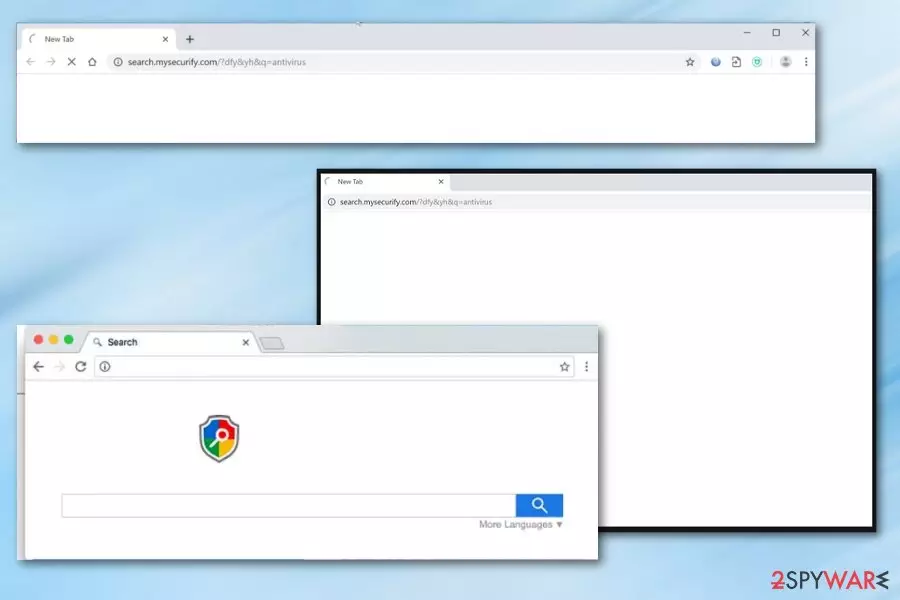
Search.mysecurify.com is a web address you might encounter after installing an extension on your Google Chrome or another browser. Alternatively, you might see redirects to this website during your searches. Upon installation, Securify alters the homepage, new tab page, and search engine preferences.
Upon installation and these browser changes, you might notice that your searches are redirected to Yahoo or some other legitimate search provider. Besides, the search results might include sponsored links and ads at the top. This is typical behavior of many extensions that are designed to change your search preferences upon installation.
In order to avoid unexpected changes to your web browser settings, you should always check the “It can” list, which reveals all the functions of the plugin. In other words, when you agree to install a particular extension, you agree for these changes to be made.
| Name | Search.mysecurify.com |
|---|---|
| Type | Browser plugin |
| Related extension | Securify |
| Distribution | Google Chrome web store and third-party websites |
| Symptoms | Homepage and new tab address is set to Search.mysecurify.com or search.withsecurify.com; search results may include promotional links and sponsored ads |
| Elimination | You can uninstall extensions by accessing web browser settings menu |
| Further steps | If you want to clean your web browsers from cookies and other web data quickly, you can use FortectIntego for the job |
Securify is a browser extension that focuses on user protection from scams, phishing, and similar malicious websites. According to the official website of the app, the extension warns users about the incoming danger, allowing them to decide to avoid the dangerous website.
Overall, the extension is met relatively positively, according to many reviews on Google Web Store. What most users do not like is the changes to their homepages, however, as they complained that they are constantly redirected to Yahoo. Most users prefer to use Google for their searches. Hence this particular trait of the app might not be desirable.
However, some user reviews reported that they were lead to install the extension after they were asked to check their “gift card balance” on some websites, which resulted in them being redirected to the extension's Google Web Store page. Consequently, they noticed that their homepage was changed to Search.mysecurify.com or another web address.
Here's the commend provided by one Google user:[1]
This was required for me to download for checking a gift card balance and it changed my default search engine.
While it is not proof that malicious websites are being used for advertising this extension, you should always be careful.
If you encounter a website that asks you to download some extension or program in order to receive a prize, or it claims that your device is infected and you need to remove it with some removal tool, never give in to these requests. While some of the offered apps are completely safe and legitimate, others might not be that.

Scam websites are particularly dangerous and could lead to the installation of malware in some cases. If you are in doubt, always use security software, such as SpyHunterCombo Cleaner or MalwarebytesMalwarebytes, and scan the files or extensions you are unfamiliar with.
In any case, if you are not happy with this extension due to unwanted web browser settings changes, extra ads in the search results, you can easily remove it via the web browser settings. If you are not sure how to do that, refer to the instructions provided below.
Securify extension, among others, was detected as malicious by Awake Security researchers
Browser redirects to Yahoo and additional links at the top of the search results might be minor nuisances that users might have to live with if they want to keep the extension functionality. However, some add-ons, after careful analysis by security researchers, are pulled out of Chrome store.
According to a report published by Aware Security in mid-2020, it was discovered that over 60% of domains hosted by GalComm were hosting malicious tools. These tools were allegedly used by at least 111 extensions, Securify being among them.[2] According to researchers, the operator engaged in excessive spying operations via the affected extensions.
The report states:[3]
Furthermore – the malicious activity has been able to stay hidden by bypassing multiple layers of security controls, even in sophisticated organizations with significant investments in cybersecurity.
However, it is likely that the malicious campaign has been shut down over time and that the extensions are now safe to use. That being said, the extension remains on Google Web Store; it is likely safe to assume no longer engages in spying operations.

You can easily delete browser extensions
It shouldn't be difficult to remove Search.mysecurify.com from your web browser – all you have to do is terminate the extension via your web browser settings. If you are not sure how to do that, we provide detailed instructions below. Browser reset is only necessary when you are dealing with stubborn browser hijackers, so you can ignore that part.
Nonetheless, considering reviews by some users and the questionable spying campaign that the extension was found to be a part of, you might as well find a better tool for your online browsing protection. Ad-blockers are perfect for preventing the execution of malicious code on websites, although they prevent monetization from ads.
There are plenty of security tools that can protect your online activity with the help of a web shield. Besides, antivirus suites will not only protect you from phishing or scam sites but will also stop the intrusions of dangerous malware.
Remove from Microsoft Edge
Delete unwanted extensions from MS Edge:
- Select Menu (three horizontal dots at the top-right of the browser window) and pick Extensions.
- From the list, pick the extension and click on the Gear icon.
- Click Remove.


Clear cookies and other browser data:
- Click on the Menu (three horizontal dots at the top-right of the browser window) and select Settings > Privacy, search, and services..
- Under Clear browsing data, pick Choose what to clear.
- Select Cookies and other site data and Cached images and files. (apart from passwords, although you might want to include Media licenses as well, if applicable) and click on Clear.


Restore new tab and homepage settings:
- Click the menu icon and choose Settings.
- Then find On startup section.
- Click Remove next to any suspicious startup page.
Reset MS Edge if the above steps did not work:
- Press on Ctrl + Shift + Esc to open Task Manager.
- Click on More details arrow at the bottom of the window.
- Select Details tab.
- Now scroll down and locate every entry with Microsoft Edge name in it. Right-click on each of them and select End Task to stop MS Edge from running.


Instructions for Chromium-based Edge
Delete extensions from MS Edge (Chromium):
- Open Edge and click select Settings > Extensions.
- Delete unwanted extensions by clicking Remove.


Clear cache and site data:
- Click on Menu and go to Settings.
- Select Privacy, search and services.
- Under Clear browsing data, pick Choose what to clear.
- Under Time range, pick All time.
- Select Clear now.


Reset Chromium-based MS Edge:
- Click on Menu and select Settings.
- On the left side, pick Reset settings.
- Select Restore settings to their default values.
- Confirm with Reset.
- This will disable extensions and reset startup pages but will not delete bookmarks, saved passwords, or browsing history.


Remove from Mozilla Firefox (FF)
Remove dangerous extensions:
- Open Mozilla Firefox browser and click on the Menu (three horizontal lines at the top-right of the window).
- Select Add-ons.
- In here, select the unwanted extension and click Remove.


Reset the homepage:
- Click three horizontal lines at the top right corner to open the menu.
- Choose Settings.
- Under Home, set your preferred homepage and new tab settings.
Clear cookies and site data:
- Click Menu and pick Settings.
- Go to Privacy & Security section.
- Scroll down to locate Cookies and Site Data.
- Click on Clear Data...
- Select Cookies and Site Data and Temporary cached files and pages, then click Clear.


Reset Mozilla Firefox
If clearing the browser as explained above did not help, reset Mozilla Firefox:
- Open Mozilla Firefox browser and click the Menu.
- Go to Help and then choose Troubleshooting Information.

- Under Give Firefox a tune up section, click on Refresh Firefox...
- Once the pop-up shows up, confirm the action by pressing on Refresh Firefox.



Remove from Google Chrome
Delete malicious extensions from Google Chrome:
- Open Google Chrome, click on the Menu (three vertical dots at the top-right corner) and select More tools > Extensions.
- In the newly opened window, you will see all the installed extensions. Uninstall all suspicious extensions related to the unwanted program by clicking Remove.


Clear cache and web data from Chrome:
- Click on Menu and pick Settings.
- Under Privacy and security, select Clear browsing data.
- Select Browsing history, Cookies and other site data, as well as Cached images and files.
- Click Clear data.


Change your homepage:
- Click menu and choose Settings.
- Look for a suspicious site in the On startup section.
- Click on Open a specific or set of pages and click on three dots to find the Remove option.
Reset Google Chrome:
If the previous methods did not help you, reset Google Chrome to eliminate all the unwanted components:
- Click on Menu and select Settings.
- In the Settings, scroll down and click Advanced.
- Scroll down and locate Reset and clean up section.
- Now click Restore settings to their original defaults.
- Confirm with Reset settings.


Delete from Safari
Remove dangerous extensions:
- Open Safari, click Safari in the menu at the top-left of the screen, and select Preferences.
- Go to the Extensions tab, look for any suspicious entries, and click Uninstall to remove them.


Clear history and website data:
- Click Safari in the menu and pick Clear History.
- Set Clear to all history and confirm with Clear History.


Reset Safari:
- Click Safari in the menu and select Preferences > Advanced.
- Enable Show Develop menu in menu bar.
- From the menu bar, click Develop and select Empty Caches.


Did this guide help?
Be the first to comment