

ERROR # ER36dx9832(3) is a pop-up scam that appears on the browser and uses Microsoft or Windows name to fake the legitimacy
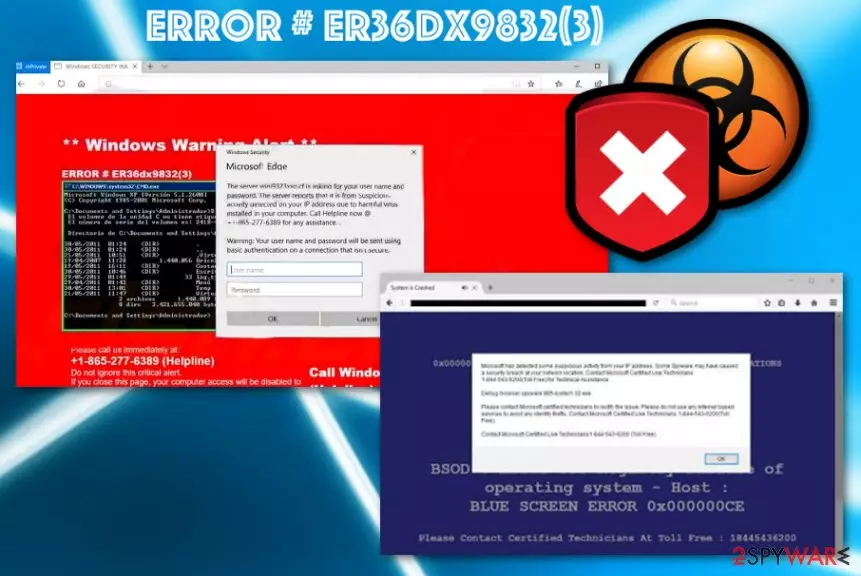
Unfortunately, the initial aim of the ERROR # ER36dx9832(3) scam is to get people into contact with scammers, so they can trick the person into installing the malicious or just shady software or even obtain personal details, credentials, money from the person directly. You need to remember that official software providers and developers never send such messages and always keep the support free of charge. You should never pay for technical support or any help like this.
| Name | ERROR # ER36dx9832(3) |
|---|---|
| Type | Scam |
| Tactics | Social engineering |
| Claims | Error messages, pop-ups with false names of malware, system issues |
| Fake support number | +1-865-277-6389 |
| Distribution | Malicious websites, other PUPs, pop-ups with shady scripts |
| Danger | Scammers aim to get money or sensitive information from the victim |
| Elimination | Get the anti-malware tool for ERROR # ER36dx9832(3) removal. Try FortectIntego for system cleaning |
The fake warning stating about ERROR # ER36dx9832(3) alert appears on the browser unexpectedly and tricks people into believing that the alert is from legitimate Microsoft or Windows officials. However, the fake warning claims to notice suspicious activity or even malware infections that are scary enough to make people more eager to call the provided number.
Unfortunately, this technical support number is not belonging to anyone that can repair your system or fix those critical errors, remove malware or any other intruders from the machine. The aim of this ERROR 36dx9832 warning is to urge users into calling the scammers so they can claim a payment or obtain more personal information from the victim.
ERROR # ER36dx9832(3) tech support scam delivers the following message to scare people:
Windows Warning Alert
ERROR # ER36dx9832(3)
Please call us immediately at: +1-865-277-6389 (Helpline)
Do not ignore this critical alert.
If you close this page, your computer access will be disabled.
The server reports that is is from Suspicious activity detected on your IP address due to harmful virus installed in your computer. Call Helpline now @ +1-865-277-6389 for any assistance.
This is not a new scammer campaign but they get even more advanced with such social engineering attacks like the false ERROR # ER36dx9832(3) alert.[1] This is dangerous and your personal details may be at risk if you click on any content delivered by the false alerts.
This campaign of a typical phishing scam[2] with ERROR # ER36dx9832(3) alerts can damage your device if the pop-up is not closed in time. Any interaction with the browser window or additional pop-ups can lead to malicious pages, shady content, and malware-filled websites.
You need to remove ERROR # ER36dx9832(3) off of the screen as soon as it appears, so you wouldn't click on any malicious script and infect the machine with PUP. When something like this happens, your device gets infected with malware and even damaged.
When you need more help with ERROR # ER36dx9832(3) removal, anti-malware tools should help. The best way to tell if the machine is infected already is to fully check the system using antivirus program like FortectIntego. Get a reliable program, run the system scan, and eliminate useless programs if some got detected as malicious.
Unreliable sites and pop-up redirects lead to infiltration of PUPs
Some of the potentially unwanted programs have official websites where they can be downloaded and installed on purpose., However, fake tools and questionable programs that are promoted with the help of such tech support scams are distributed via those sites.
In most cases, PUPs infiltrate the machines via freeware installations when software bundling is employed. Unfortunately, this stealthy technique allows PUP developers to pack their useless products with software people actually want to get. You can avoid the infiltration and keep your machine virus-free if you follow tips that experts[3] always suggest.
Advanced or Custom installations should be the go-to method while getting anything from the internet, even when the source is trustworthy. This is crucial because this method allows seeing all included programs, and this way, nothing comes on the system behind your back.
Get rid of these ERROR # ER36dx9832(3) scam messages
ERROR # ER36dx9832(3) virus is not that harmful when it comes to pop-up messages and false alerts. However, constant visiting on shady pages, malicious websites can lead to infiltration of something more than this adware. This is the reason why you need to exit the pop-up once it appears.
Unfortunately, not everyone knows what to do when encountered such alerts, so ERROR # ER36dx9832(3) removal is needed later on. When the system gets affected by a potentially unwanted program or any other intrusive cyber threat, you cannot tell what is the cause of all the system problems, in most cases.
So when you want to remove ERROR # ER36dx9832(3), you should get the anti-malware program and run the full system scan to see all the potential threats and risks, or even useless files. This way, your device gets thoroughly cleaned and performance should be improved significantly.
Uninstall from Windows
Uninstall from Windows 10/8:
- Type Control Panel into the Windows search box and open the result.
- Under Programs, select Uninstall a program.


Uninstall from Windows 7/XP:
- Click on Windows Start > Control Panel (Windows XP users should click on Add/Remove Programs).
- In Control Panel, select Programs > Uninstall a program.


Remove the unwanted program:
- In the Programs and Features window, look for any recently installed suspicious entries, select them, and click Uninstall.
- If User Account Control appears, click Yes to confirm, then complete the removal.


Delete from macOS
Remove the unwanted application:
- From the menu bar, select Go > Applications.
- In the Applications folder, look for any suspicious entries, then drag them to Trash (or right-click and pick Move to Trash).


Delete leftover files and folders:
- Select Go > Go to Folder.
- Enter /Library/Application Support and remove any suspicious folders related to the unwanted program.
- Repeat the same check in the /Library/LaunchAgents and /Library/LaunchDaemons folders, deleting any suspicious entries.

- Finally, empty the Trash to permanently remove the leftovers.

Did this guide help?
Be the first to comment