

Homededruju.com is a malicious website that tries to make users subscribe to unwanted pop-up ads

Homededruju.com is a domain that users might encounter on Google Chrome, Internet Explorer, Mozilla Firefox, Safari, or any other browser. The developers of the aim use social engineering[1] techniques to acquire permission from users to display notifications – users are promised and alleged content that will be shown as soon as they subscribe. However, there is no content to be shown after accepting the request, and users will have simply adhered to a feature that allows Homededruju.com to send pop-up ads directly into users' screens, even if their browsers are off. Even if “block” is clicked, visitors will be directed back to the same page will ask to enable notifications once again.
If you subscribed to Homededruju.com ads, you could easily disable the feature via the web browser settings. However, if you spotted that you are frequently redirected to similar websites, your web browser settings have changed, and you notice an overall increase of ads while browsing, it is highly likely that your system is infected with adware, otherwise known as ad-supported software.
| Name | Homededruju.com |
| Type | Push notification virus, adware |
| Infiltration | Users install PUPs via software bundles or after being tricked by an attractive advertisement or fake update while browsing the internet |
| Symptoms | If notifications from Homededruju.com are accepted, users might see various sponsored ads pushed directly to their screens; adware might bring multiple unwanted activities on the web browser, such as redirects to suspicious sites, increased amounts of ads on all visited sites, changed web browser settings, etc. |
| Risk factors | Users infected with adware or those that agree for notifications to be shown from unsafe sites might end up infecting their machines with other PUPs or malware, disclose personal data to cybercriminals or spend money on useless software/services |
| Termination | For automatic elimination, you can employ a reputable anti-malware software. Alternatively, you can use manual removal instructions at the bottom of the article |
| Optimization & recovery | We recoomend using FortectIntego to avoid unwanted cosequences of adware infection, such as system crashes and slowdowns |
Once installed, adware that redirects to Homededruju.com might perform the following on the system:
- Display pop-ups, deals, offers, coupons and other intrusive commercial content on most visited websites;
- Redirect to unknown or suspicious websites;
- Change web browser settings, such as new tab URL, homepage and the search engine;
- Slowdown the operation of the web browser;
- Prevent websites from loading properly.
Additionally, users might notice more potentially unwanted programs installed on their computers without permission. Therefore, Homededruju.com removal is not the only thing that should be performed on the system, as other PUPs might be installed as well. If you want to get rid of them all, scan your machine with anti-malware software.
Besides the regular notifications, Homededruju.com can launch an obfuscated JavaScript code,[2] the purpose of which might vary – some vendors mark the script as JS/Adware.Agent.AC and block the entry to the site altogether. If you noticed such notification from your AV, do not ignore it and leave the site immediately. The background processes that are loaded on the website are invisible, and only anti-virus can protect you from those.

How a useful feature started to be abused by websites like Homededruju.com
Browser notifications are a relatively new feature introduced back in 2013 by Google and was adopted by other browsers such as Firefox and Edge. It lets users decide whether they want to receive important messages from the site that they are visiting – the feature can be useful for many. However, sites like Homededruju.com adopted the feature for malicious purposes and started using social engineering to make users allow notifications to be shown.
Luckily, the feature is getting revamped by Firefox – the notifications will no longer pop-up automatically.[3] While useful, some users found it extremely annoying from being shown on each visited website. Hopefully, other browsers will choose a similar path for the sake of better user online security and browsing experience.
To remove Homededruju.com notifications, you can check the instructions at the bottom of this article. Nevertheless, you should also check your system for adware as well. For best results, we also recommend you to reset all your browsers and scan your machine with FortectIntego to fix the after-effects of the PUP.
To avoid PUPs, pay close attention to freeware installation process
Adware is usually installed along with freeware apps from bundled software packages – it is a common practice among program developers and software hosting sites. Software bundling offers more than one program in a single installer, and users are often misled to believe that they are installing a standalone application, while in reality, potentially unwanted programs are installed as well. Thus, users are mainly unaware of how or why they start seeing redirects and prompts from various suspicious sites.
To avoid PUPs, you should be more vigilant when installing new apps from third-party sources. Of course, the best practice would be to stick to official websites when it comes to new apps (avoiding pirated software sites is mandatory – these often host malware or serve malicious ads), although sometimes it might be inevitable. Thus, make sure you check each of the installation steps carefully, watch out for pre-ticked boxes, misleading buttons, and deceptive offers. Most importantly, you should always pick the Advanced/Custom installation method when prompted, as most of the optional components are hidden behind Recommended/Quick setup settings.
Get rid of Homededruju.com notifications and check your computer for adware
You should proceed with Homededruju.com removal as soon as you notice suspicious browser activity on your PC. Be aware that the presence of potentially unwanted program might indicate other infections as well. Therefore, you should scan your machine with anti-malware software if you want to check the machine properly. Nevertheless, you can also use manual removal instructions below for the process – just make sure you follow each step carefully.
To remove Homededruju.com notifications from your screen, perform the following actions on each of your installed browsers:
Google Chrome
- Go to Menu > Settings
- Scroll down and pick Advanced
- Click Site Settings > Notifications
- Under Allow section, find Homededruju.com
- Click More Actions and then select Block
Mozilla Firefox:
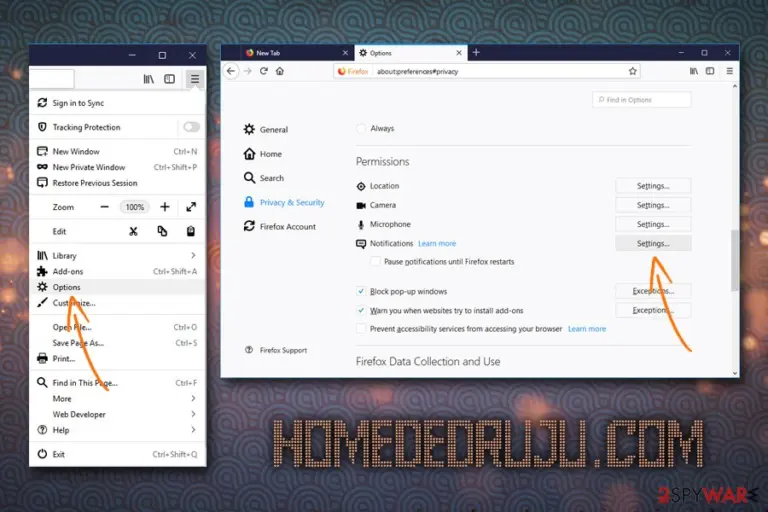
- Go to Menu > Options
- Pick Privacy & Security section and then Notifications
- Choose Settings – you should see Homededruju.com entry
- Click on the the drop-down menu and select Block
- Save Changes

Safari:
- Go to Safari > Preferences…
- Under Websites tab, select Notifications
- Pick Homededruju.com and then choose Deny
MS Edge:
- Go to More and pick Settings
- Select View advanced settings
- Choose Advanced
- Click Manage permissions
- Locate Homededruju.com and turn off notifications
Uninstall from Windows
Uninstall from Windows 10/8:
- Type Control Panel into the Windows search box and open the result.
- Under Programs, select Uninstall a program.


Uninstall from Windows 7/XP:
- Click on Windows Start > Control Panel (Windows XP users should click on Add/Remove Programs).
- In Control Panel, select Programs > Uninstall a program.


Remove the unwanted program:
- In the Programs and Features window, look for any recently installed suspicious entries, select them, and click Uninstall.
- If User Account Control appears, click Yes to confirm, then complete the removal.


Delete from macOS
Remove the unwanted application:
- From the menu bar, select Go > Applications.
- In the Applications folder, look for any suspicious entries, then drag them to Trash (or right-click and pick Move to Trash).


Delete leftover files and folders:
- Select Go > Go to Folder.
- Enter /Library/Application Support and remove any suspicious folders related to the unwanted program.
- Repeat the same check in the /Library/LaunchAgents and /Library/LaunchDaemons folders, deleting any suspicious entries.

- Finally, empty the Trash to permanently remove the leftovers.

Reset Internet Explorer
Remove dangerous add-ons:
- Open Internet Explorer, click on the Gear icon (IE menu) on the top-right corner of the browser
- Pick Manage Add-ons.
- You will see a Manage Add-ons window. Here, look for suspicious plugins. Click on these entries and select Disable.


Change your homepage if it was altered:
- Open IE and click on the Gear icon.
- Select Internet Options.
- In the General tab, delete the Home page address and replace it by your preferred one (for example, Google.com).
- Click Apply and then select OK.


Delete temporary files:
- Press on the Gear icon and select Internet Options.
- Under Browsing history, click Delete...
- Select relevant fields and press Delete.


Reset Internet Explorer:
- Click on Gear icon > Internet options and select Advanced tab.
- Select Reset.
- In the new window, check Delete personal settings and select Reset.


Remove from Microsoft Edge
Delete unwanted extensions from MS Edge:
- Select Menu (three horizontal dots at the top-right of the browser window) and pick Extensions.
- From the list, pick the extension and click on the Gear icon.
- Click Remove.


Clear cookies and other browser data:
- Click on the Menu (three horizontal dots at the top-right of the browser window) and select Settings > Privacy, search, and services..
- Under Clear browsing data, pick Choose what to clear.
- Select Cookies and other site data and Cached images and files. (apart from passwords, although you might want to include Media licenses as well, if applicable) and click on Clear.


Restore new tab and homepage settings:
- Click the menu icon and choose Settings.
- Then find On startup section.
- Click Remove next to any suspicious startup page.
Reset MS Edge if the above steps did not work:
- Press on Ctrl + Shift + Esc to open Task Manager.
- Click on More details arrow at the bottom of the window.
- Select Details tab.
- Now scroll down and locate every entry with Microsoft Edge name in it. Right-click on each of them and select End Task to stop MS Edge from running.


Instructions for Chromium-based Edge
Delete extensions from MS Edge (Chromium):
- Open Edge and click select Settings > Extensions.
- Delete unwanted extensions by clicking Remove.


Clear cache and site data:
- Click on Menu and go to Settings.
- Select Privacy, search and services.
- Under Clear browsing data, pick Choose what to clear.
- Under Time range, pick All time.
- Select Clear now.


Reset Chromium-based MS Edge:
- Click on Menu and select Settings.
- On the left side, pick Reset settings.
- Select Restore settings to their default values.
- Confirm with Reset.
- This will disable extensions and reset startup pages but will not delete bookmarks, saved passwords, or browsing history.


Remove from Mozilla Firefox (FF)
Remove dangerous extensions:
- Open Mozilla Firefox browser and click on the Menu (three horizontal lines at the top-right of the window).
- Select Add-ons.
- In here, select the unwanted extension and click Remove.


Reset the homepage:
- Click three horizontal lines at the top right corner to open the menu.
- Choose Settings.
- Under Home, set your preferred homepage and new tab settings.
Clear cookies and site data:
- Click Menu and pick Settings.
- Go to Privacy & Security section.
- Scroll down to locate Cookies and Site Data.
- Click on Clear Data...
- Select Cookies and Site Data and Temporary cached files and pages, then click Clear.


Reset Mozilla Firefox
If clearing the browser as explained above did not help, reset Mozilla Firefox:
- Open Mozilla Firefox browser and click the Menu.
- Go to Help and then choose Troubleshooting Information.

- Under Give Firefox a tune up section, click on Refresh Firefox...
- Once the pop-up shows up, confirm the action by pressing on Refresh Firefox.



Remove from Google Chrome
Delete malicious extensions from Google Chrome:
- Open Google Chrome, click on the Menu (three vertical dots at the top-right corner) and select More tools > Extensions.
- In the newly opened window, you will see all the installed extensions. Uninstall all suspicious extensions related to the unwanted program by clicking Remove.


Clear cache and web data from Chrome:
- Click on Menu and pick Settings.
- Under Privacy and security, select Clear browsing data.
- Select Browsing history, Cookies and other site data, as well as Cached images and files.
- Click Clear data.


Change your homepage:
- Click menu and choose Settings.
- Look for a suspicious site in the On startup section.
- Click on Open a specific or set of pages and click on three dots to find the Remove option.
Reset Google Chrome:
If the previous methods did not help you, reset Google Chrome to eliminate all the unwanted components:
- Click on Menu and select Settings.
- In the Settings, scroll down and click Advanced.
- Scroll down and locate Reset and clean up section.
- Now click Restore settings to their original defaults.
- Confirm with Reset settings.


Delete from Safari
Remove dangerous extensions:
- Open Safari, click Safari in the menu at the top-left of the screen, and select Preferences.
- Go to the Extensions tab, look for any suspicious entries, and click Uninstall to remove them.


Clear history and website data:
- Click Safari in the menu and pick Clear History.
- Set Clear to all history and confirm with Clear History.


Reset Safari:
- Click Safari in the menu and select Preferences > Advanced.
- Enable Show Develop menu in menu bar.
- From the menu bar, click Develop and select Empty Caches.


Did this guide help?
Be the first to comment