

Moneypoll01.top – a scamming website that offers to win large sums of money by opening prize chests
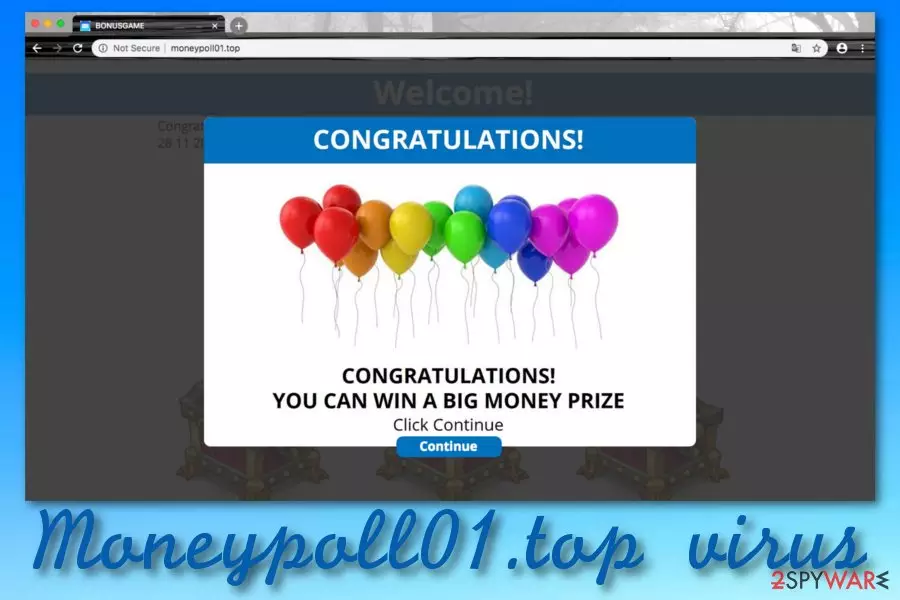
Moneypoll01.top is a scam page that provides you with three locked chests and gives you a turn on pressing one and winning some type of prize. You might be provided with inadequate prize claims that can vary up to $50,000, according to faked winner reports that are posted on the same scam page. Moneypoll01.top website provides the user with an entire load of positive user reports that are happy about winning particular monetary rewards. Do not put your beliefs in that as those reports are supposedly generated by a computer to create a more trustful look for naive visitors.
| Name | Moneypoll01.top |
|---|---|
| Type | Scam/PUP |
| Cause | This scamming website can occur as a redirect while visiting bogus third-party sources or it can be a sign of an adware infection if it shows up on your computer system frequently |
| Aim | The scam claims to provide fake rewards and might ask to enter credential information for receiving some type of monetary prize. This way the developers might lure you into various schemes and swindle some money from you easily |
| Distribution | PUPs are often distributed via “software bundling” techniques or they can be met on unsecured websites that are filled with infectious ads and links |
| Deletion | You can delete the virus that has been forcing the scam to appear by using automatical software or step-by-step guidelines that are added to the end of this article |
| Repair | Try using FortectIntego software to repair compromised files if you have discovered some |
We have made some type of investigation on Moneypoll01.top through different types of web browsers, including Google Chrome, Mozilla Firefox, and Safari. We have picked a prize using all the three browsers and were provided with the same prize claims each time. First, we were given another free move and when the move has been taken, we have been provided with an $11,000 prize.
After that, we were connected with an operator that supposedly also is a robot and encouraged to “give my consent to win”. Do not get tricked here. By pressing the winning button you will not win anything. Moneypoll01.top might aim to ask for your credential information as a way to transfer the prize to your account. However, be aware that such type of sensitive information might be later own used for money swindling.
Moneypoll01.top virus also continuously drops various pop-ups that announce about recently won prizes. Keep in mind that this type of information is all fake and used to attract a bigger number of visitors. Also, do not fall for fake “participants comments” such as this one:
100 bucks in your pocket and that's not bad, I'll have a good weekend, all the luck and big profits!
This type of comment is not the only one you will see, you might be provided with tens or hundreds of similar reports by Moneypoll01.top. Do not believe in anything that is claimed by this scam website as its intentions cannot be good. Nevertheless, the bogus scam might operate as an adware program and result in frequent advertising and redirects during browsing sessions.

If Moneypoll01.top starts acting as an ad-supported application, you might have trouble maintaining your browser session stability as intrusive activities might force your browser apps to struggle or just completely freeze. Additionally, adware might inject questionable helper objects such as extensions, plug-ins, and add-ons to your browser settings. Also, you might not even notice how cookies or beacons are added for spying on your Internet activities.
Moneypoll01.top might start recording information regarding your browsing experience, habits, and history. This type of data might be related to your recent visits, commonly clicked websites, hyperlinks and advertisements accessed, recently saved bookmarks, your IP address, geographic location.[1] Sometimes the developers might even get hold of your email address or mobile phone number and try to deliver you bogus offers via email.
One more time we want to mention that believing in the scam is wrong and can result in unwanted monetary results. If this scamming website has shown up just once or twice while you were visiting and unsecured domain, there might be no PUP in your system at all. However, if the domain just keeps popping out during regular browsing sessions and intruding your Internet activities, there might be an adware program in your system and Moneypoll01.top removal is required.
To permanently remove Moneypoll01.top from your affected computer system and browsers, you need to delete each bogus component that is related to this PUP.[2] This includes cleaning directories such as the Task Manager, Registry, etc. You can use automatical software or manual guidelines to succeed in the process. Also, if the adware has compromised some system files of yours, you can try repairing them with FortectIntego.

The distribution principles of adware programs (PUPs)
Cybersecurity specialists from Virusai.lt[3] state that adware programs can use multiple techniques for succeeding in their distribution. The most common way to place adware on some type of computer is to inject it into a bundle of software.
If you are likely to get your software from websites such as download.com, softonic.com, or cnet.com, there is a big chance that you will receive adware from there. Also, you increase your chances of a PUP infection by opting for the wrong configuration. You should avoid any “Quick” mode and go for the “Advanced” option.
Furthermore, adware programs are capable of pretending to be required software updates of programs such as JavaScript and Adobe Flash Player. If you ever run into some doubts regarding your software upgrading, you should check the official developer's page and look for all newly released updates and get them from there.
Continuously, avoid clicking on secondary downloading links and third-party ads as these clicks might relate in the secret installation of adware. To add, automatical protection is also a necessary step to take. You should employ a reliable antivirus tool that will provide long-term protection and alert you if something concerning is happening.
Removal techniques for Moneypoll01.top virus
Moneypoll01.top removal is a necessary step to take if you have been redirected to this scamming website during almost every browsing session. Thep process can be performed with the help of reliable antimalware software or by carrying out step-by-step instructions that have been added to the end of this article. Here you will learn how to take care of both your operating system and web browsers such as Chrome, Firefox, Explorer, Edge, and Safari.
After you remove Moneypoll01.top from your computer and browsers, check your computer for possibly-compromised files and entries. If you discover some, get a system repair tool and try recovering the components. Also, do not forget to increase the quality of your online and computer protection in the future. We recommend reviewing the above-provided paragraphs one more time and memorizing how to properly protect yourself from repeated PUP attacks.
Uninstall from Windows
Uninstall from Windows 10/8:
- Type Control Panel into the Windows search box and open the result.
- Under Programs, select Uninstall a program.


Uninstall from Windows 7/XP:
- Click on Windows Start > Control Panel (Windows XP users should click on Add/Remove Programs).
- In Control Panel, select Programs > Uninstall a program.


Remove the unwanted program:
- In the Programs and Features window, look for any recently installed suspicious entries, select them, and click Uninstall.
- If User Account Control appears, click Yes to confirm, then complete the removal.


Delete from macOS
Remove the unwanted application:
- From the menu bar, select Go > Applications.
- In the Applications folder, look for any suspicious entries, then drag them to Trash (or right-click and pick Move to Trash).


Delete leftover files and folders:
- Select Go > Go to Folder.
- Enter /Library/Application Support and remove any suspicious folders related to the unwanted program.
- Repeat the same check in the /Library/LaunchAgents and /Library/LaunchDaemons folders, deleting any suspicious entries.

- Finally, empty the Trash to permanently remove the leftovers.

Reset Internet Explorer
Remove dangerous add-ons:
- Open Internet Explorer, click on the Gear icon (IE menu) on the top-right corner of the browser
- Pick Manage Add-ons.
- You will see a Manage Add-ons window. Here, look for suspicious plugins. Click on these entries and select Disable.


Change your homepage if it was altered:
- Open IE and click on the Gear icon.
- Select Internet Options.
- In the General tab, delete the Home page address and replace it by your preferred one (for example, Google.com).
- Click Apply and then select OK.


Delete temporary files:
- Press on the Gear icon and select Internet Options.
- Under Browsing history, click Delete...
- Select relevant fields and press Delete.


Reset Internet Explorer:
- Click on Gear icon > Internet options and select Advanced tab.
- Select Reset.
- In the new window, check Delete personal settings and select Reset.


Remove from Microsoft Edge
Delete unwanted extensions from MS Edge:
- Select Menu (three horizontal dots at the top-right of the browser window) and pick Extensions.
- From the list, pick the extension and click on the Gear icon.
- Click Remove.


Clear cookies and other browser data:
- Click on the Menu (three horizontal dots at the top-right of the browser window) and select Settings > Privacy, search, and services..
- Under Clear browsing data, pick Choose what to clear.
- Select Cookies and other site data and Cached images and files. (apart from passwords, although you might want to include Media licenses as well, if applicable) and click on Clear.


Restore new tab and homepage settings:
- Click the menu icon and choose Settings.
- Then find On startup section.
- Click Remove next to any suspicious startup page.
Reset MS Edge if the above steps did not work:
- Press on Ctrl + Shift + Esc to open Task Manager.
- Click on More details arrow at the bottom of the window.
- Select Details tab.
- Now scroll down and locate every entry with Microsoft Edge name in it. Right-click on each of them and select End Task to stop MS Edge from running.


Instructions for Chromium-based Edge
Delete extensions from MS Edge (Chromium):
- Open Edge and click select Settings > Extensions.
- Delete unwanted extensions by clicking Remove.


Clear cache and site data:
- Click on Menu and go to Settings.
- Select Privacy, search and services.
- Under Clear browsing data, pick Choose what to clear.
- Under Time range, pick All time.
- Select Clear now.


Reset Chromium-based MS Edge:
- Click on Menu and select Settings.
- On the left side, pick Reset settings.
- Select Restore settings to their default values.
- Confirm with Reset.
- This will disable extensions and reset startup pages but will not delete bookmarks, saved passwords, or browsing history.


Remove from Mozilla Firefox (FF)
Remove dangerous extensions:
- Open Mozilla Firefox browser and click on the Menu (three horizontal lines at the top-right of the window).
- Select Add-ons.
- In here, select the unwanted extension and click Remove.


Reset the homepage:
- Click three horizontal lines at the top right corner to open the menu.
- Choose Settings.
- Under Home, set your preferred homepage and new tab settings.
Clear cookies and site data:
- Click Menu and pick Settings.
- Go to Privacy & Security section.
- Scroll down to locate Cookies and Site Data.
- Click on Clear Data...
- Select Cookies and Site Data and Temporary cached files and pages, then click Clear.


Reset Mozilla Firefox
If clearing the browser as explained above did not help, reset Mozilla Firefox:
- Open Mozilla Firefox browser and click the Menu.
- Go to Help and then choose Troubleshooting Information.

- Under Give Firefox a tune up section, click on Refresh Firefox...
- Once the pop-up shows up, confirm the action by pressing on Refresh Firefox.



Remove from Google Chrome
Delete malicious extensions from Google Chrome:
- Open Google Chrome, click on the Menu (three vertical dots at the top-right corner) and select More tools > Extensions.
- In the newly opened window, you will see all the installed extensions. Uninstall all suspicious extensions related to the unwanted program by clicking Remove.


Clear cache and web data from Chrome:
- Click on Menu and pick Settings.
- Under Privacy and security, select Clear browsing data.
- Select Browsing history, Cookies and other site data, as well as Cached images and files.
- Click Clear data.


Change your homepage:
- Click menu and choose Settings.
- Look for a suspicious site in the On startup section.
- Click on Open a specific or set of pages and click on three dots to find the Remove option.
Reset Google Chrome:
If the previous methods did not help you, reset Google Chrome to eliminate all the unwanted components:
- Click on Menu and select Settings.
- In the Settings, scroll down and click Advanced.
- Scroll down and locate Reset and clean up section.
- Now click Restore settings to their original defaults.
- Confirm with Reset settings.


Delete from Safari
Remove dangerous extensions:
- Open Safari, click Safari in the menu at the top-left of the screen, and select Preferences.
- Go to the Extensions tab, look for any suspicious entries, and click Uninstall to remove them.


Clear history and website data:
- Click Safari in the menu and pick Clear History.
- Set Clear to all history and confirm with Clear History.


Reset Safari:
- Click Safari in the menu and select Preferences > Advanced.
- Enable Show Develop menu in menu bar.
- From the menu bar, click Develop and select Empty Caches.


Did this guide help?
Be the first to comment