

Easy Mac Care is the application that claims to offer optimizing, cleaning and decluttering functions
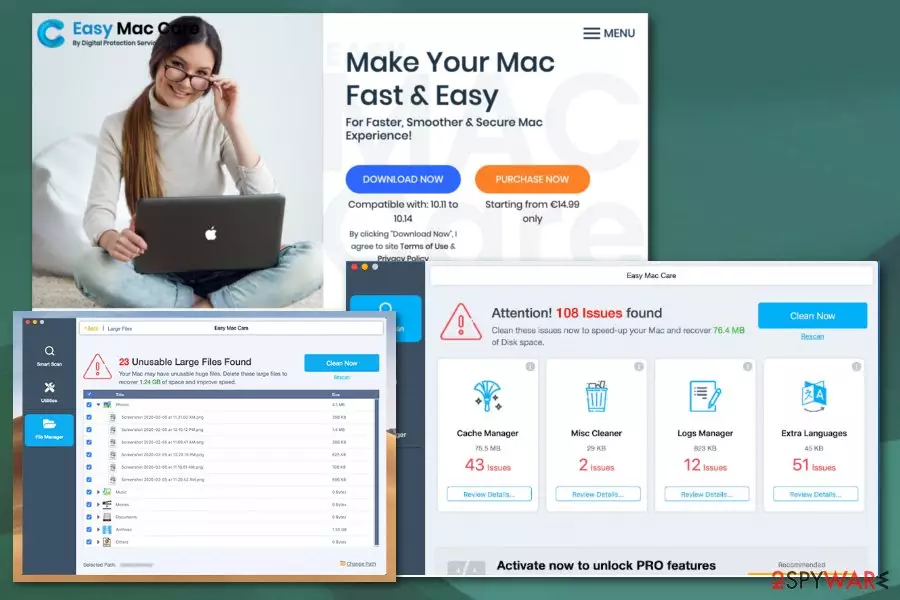
Easy Mac Care PUP usually gets downloaded and installed unintentionally because people are not paying enough attention to the content they click on, so careless behavior leads to the installation of the questionable program like this fake cleaner and other Mac tools. People can also fall for the deceptive claims and download the program themselves, so when the PUP symptoms and shady behavior starts interrupting the performance and affecting the speed of your machine, it seems even more frustrating and out of nowhere. No matter how the PUA managed to get on the system, you need to get rid of the useless program.
| Name | Easy Mac Care |
|---|---|
| Type | System tool/ Potentially unwanted Mac application |
| Danger | This program claims to offer various performance improving functions but asks to pay for the full version of the tool when you want to get rid of the indicated problems. Paying for useless software and contacting fake technicians can lead to monetary and data loss |
| Tactics | Social engineering or technical supports scam campaign techniques[1] |
| Price of the full version | At least €8,99 a month for the license key |
| Developers | Digital Protection Services |
| Distribution | The official website and other deceptive pages promote the program and provide the downloads of the software. Other application installations also can lead to infiltration of this tool when providers rely on software bundling methods and other scamming campaigns |
| Damage | Such fake cleaners and system optimizers claim to clean various files and repair damage, but in reality, these applications can clean registries and junk files. However, this behavior may be harmful when the program eliminates files needed for particular processes or crucial OS functions |
| Elimination | Easy Mac Care removal requires anti-malware programs because you need to delete all associated applications and files that may affect the performance further and cause the infection renewal |
| Repair | Take care of the computer and fix issues regarding the virus damage. Get FortectIntego or a similar system tool that could find and fix altered or corrupted files for you |
Easy Mac Care is the application that has separate tools like Cache Manager, Misc Cleaner, Logs, and Extra Languages manager, and all of them should help with systems' performance and speed. The program also claims to fix issues regarding security, privacy, or different problems that keep you from using the device smoothly.
Unfortunately, Easy Mac Care tool shows that the full system scan is happening and claims to show results filled with various issues. This fake scan with predetermined results is created to trick people into believing that the system is slowed down by those errors, problems, and even malware. According to the scan results and the application, you need to fix these problems by purchasing the full version of the program and paying for the license key.
You may encounter the offer, sale, or particular deal that offers a full version of Easy Mac Care for an extremely low price, but the license key or the full version of the program is not improving anything. In most cases, those issues in front of you on the list of scan results are not related to your device or particular software, files that exist on the system, so there is nothing to fix.
This shady program should be eliminated because there are no real functions that PUA has. Make sure to remove Easy Mac Care instead of trusting the suggested claims, or contacting technical support team members that additional pop-ups or alerts may offer you. Get a professional anti-malware tool and clean the system from any traces and associated files that can cause the renewal of this infection or lead to additional installs and cyber threat attacks. 
Easy Mac Care falls into the category of potentially unwanted programs and often ends up pre-bundled with freeware, so people cannot notice the installation when an insecure option gets chosen. PUPs get delivered during downloads and updates of the Flash Player or similar online programs
You should go straight to Easy Mac Care removal when you encounter any symptoms and suspicious behavior regarding the time online, commercial content delivered on the screen, and redirects or suspicious system alerts and pop-ups. When these questionable scan results with claims about the security issues get displayed, scan the machine with a proper security program to see if those results are true.
When you encounter any symptoms of the Easy Mac Care PUP, you should rely on an anti-malware tool that can fully detect intruders, terminate them, and clean the traces. Separate installers for this program and additional bundle file can get detected[2] by various AV tools as suspicious or even malicious. Also, remember about affected parts of system settings and preferences, so make sure to rely on proper repair tools like FortectIntego for cleaning virus damage. 
Pay attention to promotional content and triggered downloads
In most cases, such programs get installed by the users themselves, knowingly or not. Often these PUAs get offered as additional parts of the installer of the tool or program that you get from the internet. When you skip through some steps of such processes, you allow the automatic installation without even knowing.
Free downloads do not disclose such additional offers, and you get more than you intended. Choosing official sources, reliable providers, developers' page could help you avoid these issues. Also, going for Advanced or Custom installation options every time you download anything can ensure that your device is clean and free of PUPs or malware.
When you for Advanced installations, you can see the full list of included programs and choose or de-select what to install. At this point, you control the process. Recommended options mean that you agree to get anything that is pre-packed already.[3]
Remove Easy Mac Care adware from the system
To remove Easy Mac Care, you need to find all the associated files and applications, so the full system scan is required. Using anti-malware tools and checking the machine fully allows you to see possible intruders, parts of the PUP, or additional infections and issues that can be the result of malicious infection.
Since Easy Mac Care removal is a process that requires some time, you should also think about other things that need to be done manually. Even though this program interferes with the system performance and, in most cases, is not causing additional problems, it can install web browser-based applications.
When Easy Mac Care virus manages to affect your browsing tools, you may find toolbars, extensions, add-ons, and other content added on Google Chrome, Mozilla Firefox, Safari, or another browser. When you find suspicious programs – remove them manually and set the browser to default to clean any traces.
Delete from macOS
Remove the unwanted application:
- From the menu bar, select Go > Applications.
- In the Applications folder, look for any suspicious entries, then drag them to Trash (or right-click and pick Move to Trash).


Delete leftover files and folders:
- Select Go > Go to Folder.
- Enter /Library/Application Support and remove any suspicious folders related to the unwanted program.
- Repeat the same check in the /Library/LaunchAgents and /Library/LaunchDaemons folders, deleting any suspicious entries.

- Finally, empty the Trash to permanently remove the leftovers.

Remove from Mozilla Firefox (FF)
Remove dangerous extensions:
- Open Mozilla Firefox browser and click on the Menu (three horizontal lines at the top-right of the window).
- Select Add-ons.
- In here, select the unwanted extension and click Remove.


Reset the homepage:
- Click three horizontal lines at the top right corner to open the menu.
- Choose Settings.
- Under Home, set your preferred homepage and new tab settings.
Clear cookies and site data:
- Click Menu and pick Settings.
- Go to Privacy & Security section.
- Scroll down to locate Cookies and Site Data.
- Click on Clear Data...
- Select Cookies and Site Data and Temporary cached files and pages, then click Clear.


Reset Mozilla Firefox
If clearing the browser as explained above did not help, reset Mozilla Firefox:
- Open Mozilla Firefox browser and click the Menu.
- Go to Help and then choose Troubleshooting Information.

- Under Give Firefox a tune up section, click on Refresh Firefox...
- Once the pop-up shows up, confirm the action by pressing on Refresh Firefox.



Remove from Google Chrome
Delete malicious extensions from Google Chrome:
- Open Google Chrome, click on the Menu (three vertical dots at the top-right corner) and select More tools > Extensions.
- In the newly opened window, you will see all the installed extensions. Uninstall all suspicious extensions related to the unwanted program by clicking Remove.


Clear cache and web data from Chrome:
- Click on Menu and pick Settings.
- Under Privacy and security, select Clear browsing data.
- Select Browsing history, Cookies and other site data, as well as Cached images and files.
- Click Clear data.


Change your homepage:
- Click menu and choose Settings.
- Look for a suspicious site in the On startup section.
- Click on Open a specific or set of pages and click on three dots to find the Remove option.
Reset Google Chrome:
If the previous methods did not help you, reset Google Chrome to eliminate all the unwanted components:
- Click on Menu and select Settings.
- In the Settings, scroll down and click Advanced.
- Scroll down and locate Reset and clean up section.
- Now click Restore settings to their original defaults.
- Confirm with Reset settings.


Delete from Safari
Remove dangerous extensions:
- Open Safari, click Safari in the menu at the top-left of the screen, and select Preferences.
- Go to the Extensions tab, look for any suspicious entries, and click Uninstall to remove them.


Clear history and website data:
- Click Safari in the menu and pick Clear History.
- Set Clear to all history and confirm with Clear History.


Reset Safari:
- Click Safari in the menu and select Preferences > Advanced.
- Enable Show Develop menu in menu bar.
- From the menu bar, click Develop and select Empty Caches.


Did this guide help?
Be the first to comment