

Thevpnsafety.com is the adware infection that focuses on gaining revenue by displaying fake security alerts
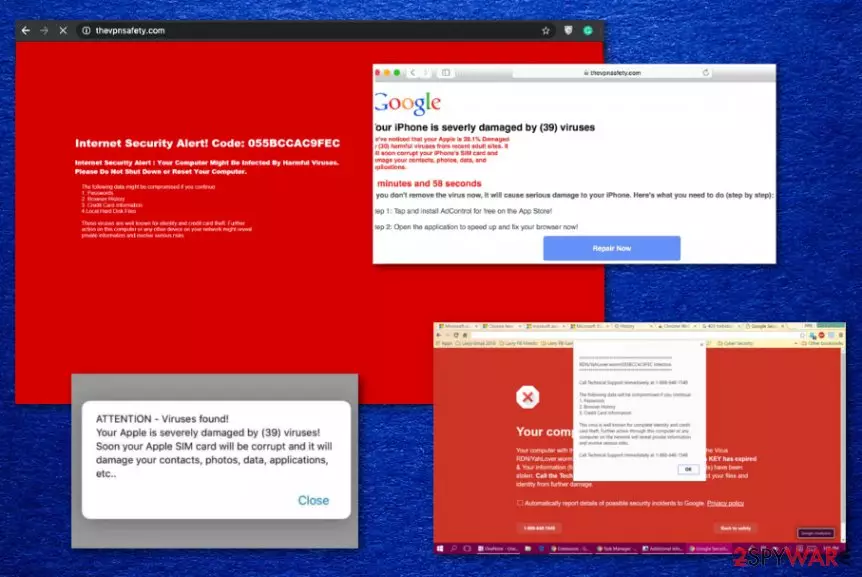
However, nor those security messages nor the applications promoted, are real or useful. You shouldn't trust those random TheVPNsafety alerts that trigger browser redirects on the browser and always avoid clicking on the material that is delivered to you out of nowhere. By doing so, you may trigger exposure or even installation of harmful programs, viruses, and more severe malware.
Close the browser once you encounter any Thevpnsafety.com virus redirects or get a promotional pop-up of macOS tools or different applications. The main idea of such a program is to either get victims to visit additional sites like this and expose to shady material online or scam you directly into paying for technical support or some useless security software that can even include malware scripts.
| Name | Thevpnsafety.com |
|---|---|
| Type | Adware/ Mac virus |
| Promotes | System tools, mac optimizers, fake anti-malware tools |
| Symptoms | The site shows fake alerts about system issues, malware infections, general security problems, causes redirects to advertising pages and other shady sites. Additional advertising material fills up the screen and causes problems with the performance and web browser speed |
| Tactics | Social engineering and technical support scamming campaign[1] methods allow malicious actors to trick people into triggering installations of useless tools or into visiting sponsored material. This is a potentially unwanted program based on scareware tactics |
| Distribution | Freeware installations that include pre-bundled programs, deceptive sites, misleading promotional advertisements, and freeware providers |
| Elimination | Thevpnsafety.com removal process may get difficult due to stealthy infiltration and associations with other intruders, PUPs. Rely on automatic method and get anti-malware tool for the full system scan that indicates, detects and cleans the intruder from your machine |
| Repair | Since PUP manages to inject files and entries in system folders, get a proper system tool or a cleaner utility like FortectIntego and at least check for affected parts or damage to be sure. Such a program may fix such damage for you too |
Thevpnsafety.com is the website that can deliver various content on the screen because it is associated with potentially unwanted program that manages various processes on the machine, including web browser activities, online searching, and other internet-related behavior. This intruder is focusing on redirecting and affecting the speed and performance of the machine in general, but can easily interfere with normal functions of the machine.
However, the PUP that controls Thevpnsafety.com content is not accessing your machine, scanning the system for security or different issues, so alerts with the list of programs and malicious infections or damage are not legitimate or truthful by any means. Cyber threat shows those notifications on purpose to make you visit sites with sponsored or affiliated content intentionally.
Thevpnsafety.com redirects show that your device is infected by the potentially unwanted program, especially when you notice additional commercial content shown on the screen and different symptoms typical for adware-type infections. If you encountered the page out of nowhere, you may avoid additional installations of PUPs, but continuous redirects and affected speed issues require proper tools that can terminate this intruder.
AV tools, in most cases, can detect[2] and indicate the particular program that affects your browsing online, but often such pages are not found malicious or dangerous because scamming campaign is not the initial activity that gets observed. Especially when the page itself displays nothing itself and only trigger different redirects to sites that show the questionable alerts posing as Google, Apple, or Microsoft.
Employ a professional anti-malware program for the proper Thevpnsafety.com removal and clean the machine fully. A thorough check on the machine can significantly improve the performance of your computer or even a mobile device. Also, this is the best way to terminate any cyber intruders because there are many places that PUPs can hide associated files and programs.
Remember that no matter how convincing those Thevpnsafety.com PUP alerts come out, such legitimate companies and software providers or security experts are not sending messages via web browsers and not checking your device for any issues or malware. You can only give permissions to software that wants to scan and perform security checks on the device, so don't fall for the scam like this. 
You can indicate the Thevpnsafety.com PUP infiltration when you experience:
- pop-ups;
- browser redirects;
- banners;
- blinking boxes;
- push notifications.
Since adware is the program that runs in the background, you can only notice the symptoms, results of the infiltration, not the program itself. That affects the general persistence of the threat, especially when the Thevpnsafety.com virus mainly targets macOS devices. Users can often even think that PUPs cannot get on their machines and ignore any of the intrusive symptoms.
Thevpnsafety.com is not a directly dangerous program, but redirects, ads shown by the program can expose you to dangerous, harmful, or even malicious online content that leads to serious infiltrations of malware. Additionally, experts[3] note that PUPs and any ad-supported sites, browser-based threats can access your data and collect various details, preferences.
Advertising sites spread PUPs around
Shady campaigns online can trigger various downloads of potentially unwanted programs or even serious malware. Also, such intruders can get concealed in the Advanced or Custom installation options. Paying proper attention to details like this can cost you a lot when you avoid installing malware and avoid serious damage.
Freeware installations is a tricky thing when you don't rely on official sources and go for torrent sites, pirating services or download program from free software pages or even promotional advertisements. Skipping through steps can be your habit, but this is not a good one. When you choose the recommended or quick install module, all programs included by the provider or injected by a malicious actor get loaded freely.
Going for Advanced installation reveals the full list of included and not fully disclosed programs and gives the opportunity to de-select any suspicious or potentially dangerous applications from the list right away.
Get rid of the shady The VPNSafety PUP
Thevpnsafety.com virus is the name used by many affected people because based on all the intrusive, unwanted, and potentially dangerous symptoms, the program may leave users puzzled and scared. Especially when those alerts and security messages continue to pop-up.
In addition to security notifications, malware alerts, and issues with the speed, users may fall for the scam that actors try to push around. There is no reason to contact any technical support, especially from such alerts. You should remove Thevpnsafety.com as soon as possible instead.
Thevpnsafety.com removal seems intimidating because PUP cannot be easily found on the system as a freshly installed application. However, by choosing a proper anti-malware tools and scanning the system you can fully eliminate this app and clean the machine.
Delete from macOS
Remove the unwanted application:
- From the menu bar, select Go > Applications.
- In the Applications folder, look for any suspicious entries, then drag them to Trash (or right-click and pick Move to Trash).


Delete leftover files and folders:
- Select Go > Go to Folder.
- Enter /Library/Application Support and remove any suspicious folders related to the unwanted program.
- Repeat the same check in the /Library/LaunchAgents and /Library/LaunchDaemons folders, deleting any suspicious entries.

- Finally, empty the Trash to permanently remove the leftovers.

Remove from Mozilla Firefox (FF)
Remove dangerous extensions:
- Open Mozilla Firefox browser and click on the Menu (three horizontal lines at the top-right of the window).
- Select Add-ons.
- In here, select the unwanted extension and click Remove.


Reset the homepage:
- Click three horizontal lines at the top right corner to open the menu.
- Choose Settings.
- Under Home, set your preferred homepage and new tab settings.
Clear cookies and site data:
- Click Menu and pick Settings.
- Go to Privacy & Security section.
- Scroll down to locate Cookies and Site Data.
- Click on Clear Data...
- Select Cookies and Site Data and Temporary cached files and pages, then click Clear.


Reset Mozilla Firefox
If clearing the browser as explained above did not help, reset Mozilla Firefox:
- Open Mozilla Firefox browser and click the Menu.
- Go to Help and then choose Troubleshooting Information.

- Under Give Firefox a tune up section, click on Refresh Firefox...
- Once the pop-up shows up, confirm the action by pressing on Refresh Firefox.



Remove from Google Chrome
Delete malicious extensions from Google Chrome:
- Open Google Chrome, click on the Menu (three vertical dots at the top-right corner) and select More tools > Extensions.
- In the newly opened window, you will see all the installed extensions. Uninstall all suspicious extensions related to the unwanted program by clicking Remove.


Clear cache and web data from Chrome:
- Click on Menu and pick Settings.
- Under Privacy and security, select Clear browsing data.
- Select Browsing history, Cookies and other site data, as well as Cached images and files.
- Click Clear data.


Change your homepage:
- Click menu and choose Settings.
- Look for a suspicious site in the On startup section.
- Click on Open a specific or set of pages and click on three dots to find the Remove option.
Reset Google Chrome:
If the previous methods did not help you, reset Google Chrome to eliminate all the unwanted components:
- Click on Menu and select Settings.
- In the Settings, scroll down and click Advanced.
- Scroll down and locate Reset and clean up section.
- Now click Restore settings to their original defaults.
- Confirm with Reset settings.


Delete from Safari
Remove dangerous extensions:
- Open Safari, click Safari in the menu at the top-left of the screen, and select Preferences.
- Go to the Extensions tab, look for any suspicious entries, and click Uninstall to remove them.


Clear history and website data:
- Click Safari in the menu and pick Clear History.
- Set Clear to all history and confirm with Clear History.


Reset Safari:
- Click Safari in the menu and select Preferences > Advanced.
- Enable Show Develop menu in menu bar.
- From the menu bar, click Develop and select Empty Caches.


Did this guide help?
Be the first to comment