

ITL Driver Updater is a driver updater app that tries to make you purchase its full version
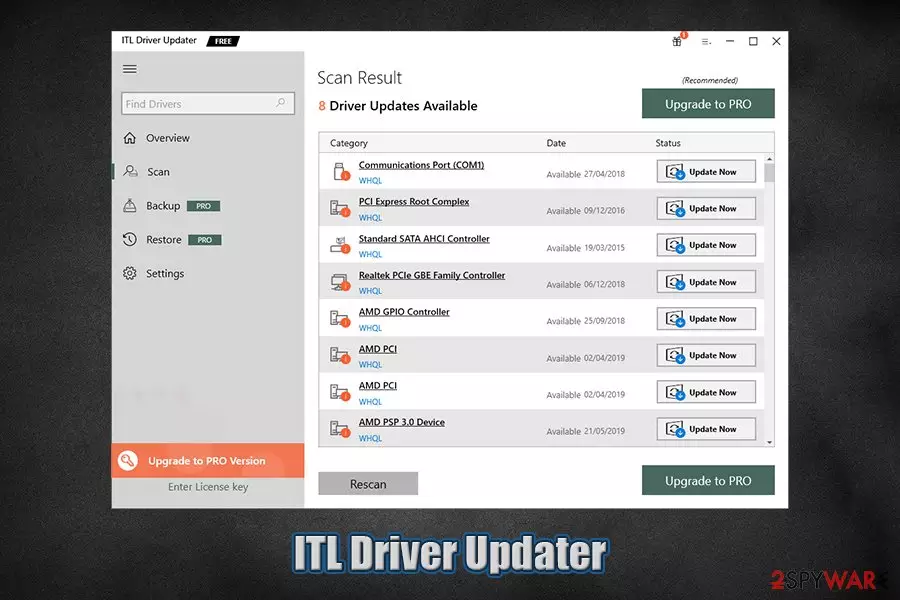
ITL Driver Updater by Innovana Thinklabs Limited is software allegedly designed to fix crashes, freezes, and other Windows computer issues by providing access to thousands of drivers. However, the app is also considered to be a potentially unwanted program, as it is often spread via software bundles offered on third-party websites that distribute freeware. Even those that install the app from its official website will be deceptively offered optional components within the installer.
As a result, most users end up installing ITL Driver Updater unintentionally, although it immediately performs a scan and displays the results shortly after. While drivers are essential parts of any Windows operating system, the importance of driver updates is often exaggerated, and users are tricked into spending money for software that has very little impact on overall computer performance. Thus, you should remove ITL Driver Updater if you found the app performing scans on your system seemingly out of nowhere.
| Name | ITL Driver Updater |
| Type | Driver updater, potentially unwanted program |
| Developer | Innovana Thinklabs Limited |
| Distribution | Potentially unwanted applications are typically installed without user consent via software bundle packages, fake update prompts, or when users look for a particular function within the program |
| Dangers | Some users' claimed that the application managed to corrupt their operating systems, and they had to restore it from scratch. This might happen when incompatible drivers are installed |
| Removal | You can uninstall the app as per the instructions we provide below. If you suffer from ads, redirects, and other browser-related issues, you might be infected with adware. In such a case, it is advisable to scan the machine with anti-malware software |
| Optimization | To speed up your PC and fix Windows errors, we recommend using FortectIntego |
Besides providing driver updates, ITL Driver Updater also claims that it can comprehensively improve computer speed by enhancing video and gaming performance, as well as backing up the existing drivers. While these features may seem useful, their importance is shown in a way to make users purchase a full version of the app.
The developers of the ITL Driver Updater claim the following:
This easy to use system utility automatically detects & installs the broken, outdated and old system drivers. Compatible with all the latest Windows Version, ITL Driver updater also cures the common system issues caused to inappropriate or missing drivers like system crashes, connectivity issues and lags when playing games.
Drivers are software that allows hardware and computer components to communicate with each other correctly, as PC parts are often manufactured by different developers. For the system to work in harmony, drivers are used. If you buy a computer with a pre-installed operating system, necessary drivers will already be installed on it, so you should not worry much.
While drivers are an integral part of any Windows computer, driver updates are not. The truth is, regular computer users should not bother too much with drivers, as the updates typically fix bugs for a very limited amount of configurations, and are not necessary to provide functionality for the hardware component. The only reason you should update drivers is when something does wrong or if you are using a dedicated graphics card (GPU).[1]
Even then, the security research community strongly advises users against apps like ITL Driver Updater. These apps usually drain users' money by making them believe that driver updates are something that is mandatory. In other words, users lack knowledge in the field and trust fraudulent statements instead. Also, downloading driver updates will hardly speed up computer performance. Once the need arises, you could simply visit the manufacturer's website and download the driver manually.

Besides portraying drivers as one of the major factors for high computer performance, ITL Driver Updater can also be the cause of unexpected computer issues, and might also show dubious scan results. Some users who did use the app for a prolonged period of time claimed that these precise issues happened to them.
According to testimonials of a Reddit user, ITL Driver Updater flagged ten driver updates, while the official Application for driver updating provided by Asus did not show any issues whatsoever. This might be explained by the fact that built-in tools only update the necessary drivers and skip those that have very little impact (or no impact) on computer performance. The user wondered whether he should trust the app, and then edited his post by saying the following:[2]
EDIT : I actually got scammed and my system crashed. I’m in The process of restoring it
As evident, some driver updates can cause serious damage to Windows, especially when incompatible drivers are installed. Nonetheless, developers of ITL Driver Updater claim that all drivers provided by the app are WHQL certified (in other terms, checked by Microsoft for compliance). However, we could not find relevant certifications or “Certified for Windows” markings on the official website of the app.
Another reason for ITL Driver Updater removal is that several security applications detect it as unwanted under the following names:[3]
- PUP.Optional.PCVARK
- A Variant Of MSIL/GT32SupportGeeks.AC Pote
- Generic/HEUR/QVM10.2.A115.Malware.Gen
- PUA.GT32SupportGeeks!8.E56B (CLOUD)
- Program.Unwanted.4810
- Unsafe.AI_Score_93%
If you want to uninstall the app safely, please follow the instructions below. Note: if you need an application that would keep your Windows bug-free and would also be able to fix the damage done to the system after a malware attack, rely on tools like FortectIntego.
Your PC will thank you for avoiding PUPs
Potentially unwanted programs are a real issue that can cause a significant decline in computer performance and ruin user experience in many ways. Besides, many PUPs are also set up to deliver intrusive advertisements and track users' web browser activities to profit from targeted marketing. In worst cases, rogue companies are also sharing personal information with third parties, and the security of such actions cannot be guaranteed. Finally, a large number of useless apps clutters the PC and makes it run slower (apps establish their own scheduled tasks, change Windows registry, etc.; all these actions can cause bandwidth or computer processing power lag).
Therefore, you should do everything to avoid potentially unwanted applications that can be downloaded from various online sources. And, since PUPs are typically distributed via software bundles, you should be exceptionally careful when visiting third-party sites that host freeware.
In many cases, medium-to-small websites of such kind use a variety of rogue techniques to make users download programs that they did not want in the first place. For example:
- Fake “Download” buttons;
- Misleading offers;
- Software bundle packages.
Of course, you should stick to official sources when downloading new software when possible. If you still insist on visiting third-party sites, make sure you always pick “Advanced” settings during the installation and remove all the pre-ticked boxes. Besides, watch for other tricks, such as misplaced buttons or fine print text.

Uninstall ITL Driver Updater
ITL Driver Updater removal should not cause you any troubles, although if you are a novice when it comes to application uninstallation, we provide detailed instructions on the process below. Simply access the installed program list via Control Panel and select Uninstall.
However, in case you did not install the app intentionally, we highly recommend that you check for additional potentially unwanted programs, as they often travel in bundles. While most are relatively harmless, they might clutter your computer and show you ads whether you like it or not. You can also do it automatically by employing powerful security software that provides a PUP detection feature.
Once you remove ITL Driver Updater and similar unwanted software, your browser should be secure. In case uninstalling suspicious apps did not help, you should also reset all the installed web browsers, as explained below.
Uninstall from Windows
Uninstall from Windows 10/8:
- Type Control Panel into the Windows search box and open the result.
- Under Programs, select Uninstall a program.


Uninstall from Windows 7/XP:
- Click on Windows Start > Control Panel (Windows XP users should click on Add/Remove Programs).
- In Control Panel, select Programs > Uninstall a program.


Remove the unwanted program:
- In the Programs and Features window, look for any recently installed suspicious entries, select them, and click Uninstall.
- If User Account Control appears, click Yes to confirm, then complete the removal.


Reset Internet Explorer
Remove dangerous add-ons:
- Open Internet Explorer, click on the Gear icon (IE menu) on the top-right corner of the browser
- Pick Manage Add-ons.
- You will see a Manage Add-ons window. Here, look for suspicious plugins. Click on these entries and select Disable.


Change your homepage if it was altered:
- Open IE and click on the Gear icon.
- Select Internet Options.
- In the General tab, delete the Home page address and replace it by your preferred one (for example, Google.com).
- Click Apply and then select OK.


Delete temporary files:
- Press on the Gear icon and select Internet Options.
- Under Browsing history, click Delete...
- Select relevant fields and press Delete.


Reset Internet Explorer:
- Click on Gear icon > Internet options and select Advanced tab.
- Select Reset.
- In the new window, check Delete personal settings and select Reset.


Remove from Microsoft Edge
Delete unwanted extensions from MS Edge:
- Select Menu (three horizontal dots at the top-right of the browser window) and pick Extensions.
- From the list, pick the extension and click on the Gear icon.
- Click Remove.


Clear cookies and other browser data:
- Click on the Menu (three horizontal dots at the top-right of the browser window) and select Settings > Privacy, search, and services..
- Under Clear browsing data, pick Choose what to clear.
- Select Cookies and other site data and Cached images and files. (apart from passwords, although you might want to include Media licenses as well, if applicable) and click on Clear.


Restore new tab and homepage settings:
- Click the menu icon and choose Settings.
- Then find On startup section.
- Click Remove next to any suspicious startup page.
Reset MS Edge if the above steps did not work:
- Press on Ctrl + Shift + Esc to open Task Manager.
- Click on More details arrow at the bottom of the window.
- Select Details tab.
- Now scroll down and locate every entry with Microsoft Edge name in it. Right-click on each of them and select End Task to stop MS Edge from running.


Instructions for Chromium-based Edge
Delete extensions from MS Edge (Chromium):
- Open Edge and click select Settings > Extensions.
- Delete unwanted extensions by clicking Remove.


Clear cache and site data:
- Click on Menu and go to Settings.
- Select Privacy, search and services.
- Under Clear browsing data, pick Choose what to clear.
- Under Time range, pick All time.
- Select Clear now.


Reset Chromium-based MS Edge:
- Click on Menu and select Settings.
- On the left side, pick Reset settings.
- Select Restore settings to their default values.
- Confirm with Reset.
- This will disable extensions and reset startup pages but will not delete bookmarks, saved passwords, or browsing history.


Remove from Mozilla Firefox (FF)
Remove dangerous extensions:
- Open Mozilla Firefox browser and click on the Menu (three horizontal lines at the top-right of the window).
- Select Add-ons.
- In here, select the unwanted extension and click Remove.


Reset the homepage:
- Click three horizontal lines at the top right corner to open the menu.
- Choose Settings.
- Under Home, set your preferred homepage and new tab settings.
Clear cookies and site data:
- Click Menu and pick Settings.
- Go to Privacy & Security section.
- Scroll down to locate Cookies and Site Data.
- Click on Clear Data...
- Select Cookies and Site Data and Temporary cached files and pages, then click Clear.


Reset Mozilla Firefox
If clearing the browser as explained above did not help, reset Mozilla Firefox:
- Open Mozilla Firefox browser and click the Menu.
- Go to Help and then choose Troubleshooting Information.

- Under Give Firefox a tune up section, click on Refresh Firefox...
- Once the pop-up shows up, confirm the action by pressing on Refresh Firefox.



Remove from Google Chrome
Delete malicious extensions from Google Chrome:
- Open Google Chrome, click on the Menu (three vertical dots at the top-right corner) and select More tools > Extensions.
- In the newly opened window, you will see all the installed extensions. Uninstall all suspicious extensions related to the unwanted program by clicking Remove.


Clear cache and web data from Chrome:
- Click on Menu and pick Settings.
- Under Privacy and security, select Clear browsing data.
- Select Browsing history, Cookies and other site data, as well as Cached images and files.
- Click Clear data.


Change your homepage:
- Click menu and choose Settings.
- Look for a suspicious site in the On startup section.
- Click on Open a specific or set of pages and click on three dots to find the Remove option.
Reset Google Chrome:
If the previous methods did not help you, reset Google Chrome to eliminate all the unwanted components:
- Click on Menu and select Settings.
- In the Settings, scroll down and click Advanced.
- Scroll down and locate Reset and clean up section.
- Now click Restore settings to their original defaults.
- Confirm with Reset settings.


Delete from Safari
Remove dangerous extensions:
- Open Safari, click Safari in the menu at the top-left of the screen, and select Preferences.
- Go to the Extensions tab, look for any suspicious entries, and click Uninstall to remove them.


Clear history and website data:
- Click Safari in the menu and pick Clear History.
- Set Clear to all history and confirm with Clear History.


Reset Safari:
- Click Safari in the menu and select Preferences > Advanced.
- Enable Show Develop menu in menu bar.
- From the menu bar, click Develop and select Empty Caches.


Did this guide help?
Be the first to comment