

Seamletneds.club is the program based on adware-type intruder methods because it focuses on redirecting
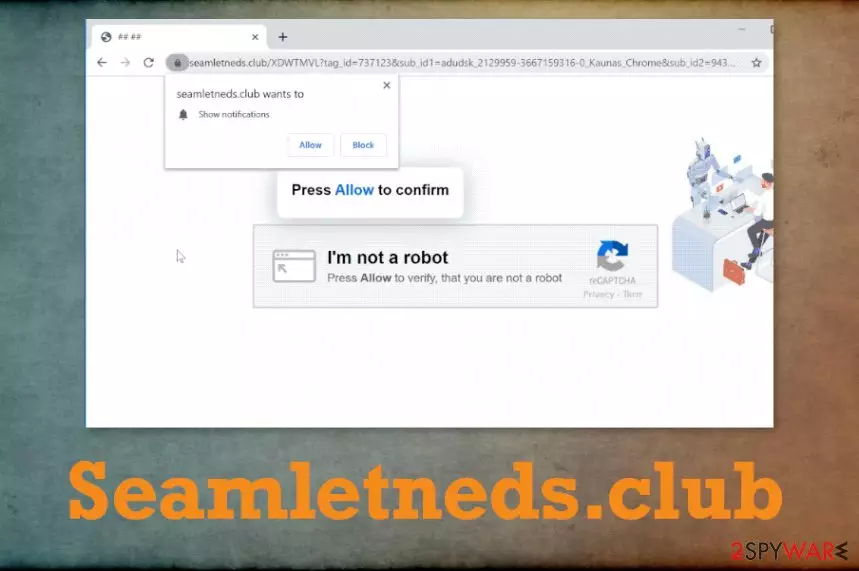
Unfortunately, Seamletneds.club PUP is not an entirely harmless application because it is associated with other services that send various material to your screen and leads to unwanted pages with harmful content. You shouldn't click on any pop-ups, notifications, or ads that get delivered to you, so you avoid intrusive behavior. In addition to this activity, any potentially unwanted programs also can track and record information about your browsing habits and some details that can help identify you for advertisers or third-party companies. This ad-tracking issue is related closely to personalized commercial content creation. Advertisers need to access your browsing habits, so pop-ups can trigger more views and traffic on sponsored sites. This is how all the PUP developers get profit and can create more unwanted applications.
| Name | Seamletneds.club |
|---|---|
| Type | Adware/push notifications virus |
| Symptoms | This program shows pop-ups and push notifications that trigger unwanted changes and intrusive commercial material distribution. This is a browser-based threat that cannot be easily spotted since it causes redirects and remains undetected for a while |
| Distribution | Freeware installations from shady sites and free pages can affect the security or directly lead to issues with PUP infiltration |
| Damage | PUPs can track and record information from clicks and visits on commercial sites, so your data gets exposed to third-party companies. Such behavior and exposure to harmful content can trigger damage and malware infection or privacy issues |
| Elimination | Seamletneds.club removal process can get the best results and improve the performance when all the PUPs and viruses get cleaned automatically for you during a full system scan |
| Repair | The computer that receives PUPs can be significantly affected when files or programs get added in the background. You should rely on tools like FortectIntego an focus on system function repair since such changes in the registry, and similar system folders can lead to damage and more crucial issues |
Seamletneds.club virus mainly focuses on push notifications and online traffic redirects, so you receive additional messages, pop-ups on the browser that trigger all the intrusive and unwanted operations. This is why the program gets named malicious by users online. Users cannot deal with these symptoms normally because PUP can get extremely persistent and annoying.
However, this is not a malware program of any sort. Seamletneds.club adware is one of the thousands. There are many adware sites that trigger such notifications and affect the system by running in the background just to promote useless apps or redirect websites, free download pages for crappy software.
Seamletneds.club shows various content to reroute you to suspicious domains and trigger installations of other browser-based programs or system tools that do nothing valuable instead. When this potentially unwanted program is installed on the machine it causes all the issues and produces redirects, pop-ups, freezes of the browser. It significantly affects your browsing sessions and even interferes with the security.[1]
You should take into consideration that Seamletneds.club PUP is connected to many redirecting URLs and can trigger shady installations of system programs, applications that perform questionable processes, or leads to scammy pages and malicious content. You should consider this domain potentially dangerous and avoid anything that comes from unfamiliar pages, so you avoid possibly malicious content. 
You should remove Seamletneds.club as soon as you notice any issues related to online traffic and speed. If you don't clean the machine in time, some of the settings and preferences can get changed or modified, so more procedures get controlled by the intruder itself. You land on various shady pages, so you cannot browse the wanted pages.
These are the main issue that should make you more eager to perform the proper Seamletneds.club removal on the machine. You can clear traces of the potentially unwanted program when you run the proper anti-malware tool and check various parts of the computer for suspicious or malicious programs and files. Unfortunately, PUP can ad various programs and files to run from the background and affect the performance.
Those alterations also include registry and startup preferences, so Seamletneds.club can get extremely persistent and renew its processes when those related files are still on the system. Unfortunately, manual interference with such system folders and programs can trigger serious issues with security or crucial functions of the OS.
You can get rid of the program with a full system scan using the AV tool and then clear the Seamletneds.club virus damage by running the program like a system optimizer or a PC repair program. FortectIntego can check for affected or corrupted files and trigger reverse changes to recover needed procedures. 
Redirect sites trigger third-party installations
Distribution ways associated with the potentially unwanted programs are stealthy and deceptive, so victims cannot notice the infiltration of the intrusive PUP initially until the system performance is affected. It means that your machine can be affected for a longer time than you think since symptoms occur after some time.
This website is a result of the potentially unwanted program – adware intruder. This application runs in the system and triggers those redirects to shady advertising services and malware-spreading pages. You should avoid clicking on anything suspicious and exit newly-opened pages.
However, PUPs can infiltrate the machine easily when you install them during freeware installations and don't pay enough attention to important details. When you download any programs from the internet or sources that are not reliable, you risk getting additional applications automatically.
Experts[3] always note how important every process on the system is. Skipping through steps during the installation when you download a new program in the system is crucial. You need to choose Advanced or Custom installation options, so every step is controlled fully.
Clear the system from traces of Seamletneds.club PUP
The installation of Seamletneds.club virus happens behind your back, and those symptoms that you see are related to the application that works in the background. It is crucial to find all the programs related to the adware-type intruder, but this is not the easiest task, especially for a user that is not tech-savvy.
You should instead remove Seamletneds.club by using a proper system tool designed for cleaning viruses from the machine. Running the anti-malware program can show you all the results of deceptive programs and potential intruders, so one click on the proper button clears all the intruders for you.
When you go for the automatic method and perform the proper Seamletneds.club removal, you can be sure that PUP is no longer triggering those unwanted redirects and other activities. Clean the machine and make sure to repair virus damage with tools designed for PC repair or system optimization.
Uninstall from Windows
Uninstall from Windows 10/8:
- Type Control Panel into the Windows search box and open the result.
- Under Programs, select Uninstall a program.


Uninstall from Windows 7/XP:
- Click on Windows Start > Control Panel (Windows XP users should click on Add/Remove Programs).
- In Control Panel, select Programs > Uninstall a program.


Remove the unwanted program:
- In the Programs and Features window, look for any recently installed suspicious entries, select them, and click Uninstall.
- If User Account Control appears, click Yes to confirm, then complete the removal.


Delete from macOS
Remove the unwanted application:
- From the menu bar, select Go > Applications.
- In the Applications folder, look for any suspicious entries, then drag them to Trash (or right-click and pick Move to Trash).


Delete leftover files and folders:
- Select Go > Go to Folder.
- Enter /Library/Application Support and remove any suspicious folders related to the unwanted program.
- Repeat the same check in the /Library/LaunchAgents and /Library/LaunchDaemons folders, deleting any suspicious entries.

- Finally, empty the Trash to permanently remove the leftovers.

Reset Internet Explorer
Remove dangerous add-ons:
- Open Internet Explorer, click on the Gear icon (IE menu) on the top-right corner of the browser
- Pick Manage Add-ons.
- You will see a Manage Add-ons window. Here, look for suspicious plugins. Click on these entries and select Disable.


Change your homepage if it was altered:
- Open IE and click on the Gear icon.
- Select Internet Options.
- In the General tab, delete the Home page address and replace it by your preferred one (for example, Google.com).
- Click Apply and then select OK.


Delete temporary files:
- Press on the Gear icon and select Internet Options.
- Under Browsing history, click Delete...
- Select relevant fields and press Delete.


Reset Internet Explorer:
- Click on Gear icon > Internet options and select Advanced tab.
- Select Reset.
- In the new window, check Delete personal settings and select Reset.


Remove from Microsoft Edge
Delete unwanted extensions from MS Edge:
- Select Menu (three horizontal dots at the top-right of the browser window) and pick Extensions.
- From the list, pick the extension and click on the Gear icon.
- Click Remove.


Clear cookies and other browser data:
- Click on the Menu (three horizontal dots at the top-right of the browser window) and select Settings > Privacy, search, and services..
- Under Clear browsing data, pick Choose what to clear.
- Select Cookies and other site data and Cached images and files. (apart from passwords, although you might want to include Media licenses as well, if applicable) and click on Clear.


Restore new tab and homepage settings:
- Click the menu icon and choose Settings.
- Then find On startup section.
- Click Remove next to any suspicious startup page.
Reset MS Edge if the above steps did not work:
- Press on Ctrl + Shift + Esc to open Task Manager.
- Click on More details arrow at the bottom of the window.
- Select Details tab.
- Now scroll down and locate every entry with Microsoft Edge name in it. Right-click on each of them and select End Task to stop MS Edge from running.


Instructions for Chromium-based Edge
Delete extensions from MS Edge (Chromium):
- Open Edge and click select Settings > Extensions.
- Delete unwanted extensions by clicking Remove.


Clear cache and site data:
- Click on Menu and go to Settings.
- Select Privacy, search and services.
- Under Clear browsing data, pick Choose what to clear.
- Under Time range, pick All time.
- Select Clear now.


Reset Chromium-based MS Edge:
- Click on Menu and select Settings.
- On the left side, pick Reset settings.
- Select Restore settings to their default values.
- Confirm with Reset.
- This will disable extensions and reset startup pages but will not delete bookmarks, saved passwords, or browsing history.


Remove from Mozilla Firefox (FF)
Remove dangerous extensions:
- Open Mozilla Firefox browser and click on the Menu (three horizontal lines at the top-right of the window).
- Select Add-ons.
- In here, select the unwanted extension and click Remove.


Reset the homepage:
- Click three horizontal lines at the top right corner to open the menu.
- Choose Settings.
- Under Home, set your preferred homepage and new tab settings.
Clear cookies and site data:
- Click Menu and pick Settings.
- Go to Privacy & Security section.
- Scroll down to locate Cookies and Site Data.
- Click on Clear Data...
- Select Cookies and Site Data and Temporary cached files and pages, then click Clear.


Reset Mozilla Firefox
If clearing the browser as explained above did not help, reset Mozilla Firefox:
- Open Mozilla Firefox browser and click the Menu.
- Go to Help and then choose Troubleshooting Information.

- Under Give Firefox a tune up section, click on Refresh Firefox...
- Once the pop-up shows up, confirm the action by pressing on Refresh Firefox.



Remove from Google Chrome
Delete malicious extensions from Google Chrome:
- Open Google Chrome, click on the Menu (three vertical dots at the top-right corner) and select More tools > Extensions.
- In the newly opened window, you will see all the installed extensions. Uninstall all suspicious extensions related to the unwanted program by clicking Remove.


Clear cache and web data from Chrome:
- Click on Menu and pick Settings.
- Under Privacy and security, select Clear browsing data.
- Select Browsing history, Cookies and other site data, as well as Cached images and files.
- Click Clear data.


Change your homepage:
- Click menu and choose Settings.
- Look for a suspicious site in the On startup section.
- Click on Open a specific or set of pages and click on three dots to find the Remove option.
Reset Google Chrome:
If the previous methods did not help you, reset Google Chrome to eliminate all the unwanted components:
- Click on Menu and select Settings.
- In the Settings, scroll down and click Advanced.
- Scroll down and locate Reset and clean up section.
- Now click Restore settings to their original defaults.
- Confirm with Reset settings.


Delete from Safari
Remove dangerous extensions:
- Open Safari, click Safari in the menu at the top-left of the screen, and select Preferences.
- Go to the Extensions tab, look for any suspicious entries, and click Uninstall to remove them.


Clear history and website data:
- Click Safari in the menu and pick Clear History.
- Set Clear to all history and confirm with Clear History.


Reset Safari:
- Click Safari in the menu and select Preferences > Advanced.
- Enable Show Develop menu in menu bar.
- From the menu bar, click Develop and select Empty Caches.


Did this guide help?
Be the first to comment