

OneLaunch – a Windows application for your everyday tasks
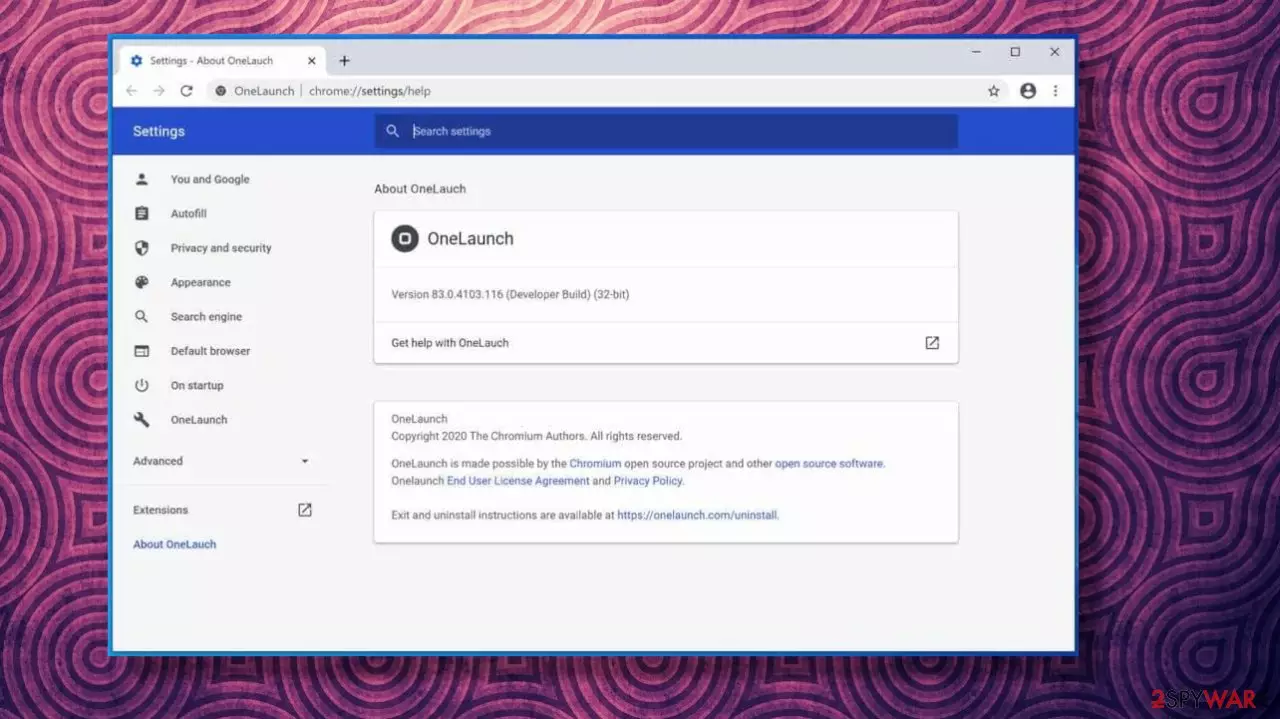
OneLaunch is an application for a Windows computer. According to its developers, the app is developed to make the user experience better by adding an additional bar at the top of the screen. Besides, a customized, Chromium-based browser is also installed which is used for online search activities as a default.
While these features can indeed be useful for users, others might find the app behavior rather intrusive. If that is the case for you, you should follow our guide for the quick removal of all the app's components.
| name | OneLaunch |
|---|---|
| Distribution | Official website |
| Operation | App's icon and a new toolbar docked at the top of the desktop; a customized web browser is used instead of default one |
| Removal | At the bottom of this article, you'll find extensive instructions on how to get rid of this software from the computer |
| further steps | Once you delete the application, you should clean your web browsers. Either follow the instructions below or use FortectIntego to do that automatically |
Features and operation
Once installed, the app creates a startup item that allows it to be launched automatically upon Windows bootup. This function can be changed via the Task Manager > Startup section.
According to the official website, the app provides a variety of features, including an addition of a full dock that is applied at the top of the screen. It would allow users to access certain Windows features much quicker from there, e.g., a built-in snippet tool, file explorer, and browser access. Via the dock, users can also view:
- Weather
- Time
- Location
- Bookmarks
- News.
A search bar at the top of the screen can also be used to quickly access the web. However, while accessing the internet might be faster, it would not be the same routine that most users are used to. This is because the app uses a customized browser that replaces the default one. Unfortunately, this also means that your searchers would be redirected to Yahoo (note that this can be altered to Bing or Google within the Settings menu), which would also sometimes include promotional links at the top.

Since the markings are minuscule, some might not even notice that what they are clicking on is actually an ad – this is a rather unfair practice. In order to stop these redirects to a customized web browser, you would have to stop using the search bar at the top or remove OneLaunch altogether.
Besides, we found some functions to be rather useless. For example, the dock provides access to already active tabs of the browser or other apps. However, you can view it via the taskbar already, which makes the functionality pointless.
Information collection practices
Just like many other programs, OneLaunch collects a certain amount of user data for research and other purposes. It is also important to note that, by installing the program, you agree to terms of service and information gathering practices.
The developers clearly state in the Privacy Policy (which you can view before installing the app) that personal and anonymous information is collected when users use the related website, purchase a software license, or “use the software in any way.” It may include your name, phone number, home address, unique identifier of the PC, credit card details, and more.[1]
This information is stored on appropriate servers, and that will not be used unless it is required, for example, when processing a transaction when a purchase is made.
While the gathering of information is very common, companies usually avoid gathering personal data. Indeed, when a consumer installs software or uses the services of a company, they rely on and trust it to be secure. Considering the number of data breaches, it is best to avoid applications or services that collect an extensive amount of information, especially when it comes to personal details.
In any case, if OneLaunch did not meet your expectations, you can remove it easily. Below we provide several steps on how to do that, so follow the instructions below. Note that security software will not delete this app as it is not recognized as a potentially unwanted program,[2] according to Virus Total.[3]

OneLaunch removal instructions
If you like the application and the functionality it provides, you should keep it installed, as it is completely safe to use. If you are not a fan of altered search preferences changes or data gathering practices, you should proceed with OneLaunch removal.
Below you will find a step-by-step guide on uninstalling the program from Windows via the Control Panel. Also, you might want to clean your web browser data and cookies. Finally, you can contact the app's developers to get the gathered information about you to be deleted.
Note: you do not have to reset your web browsers in this case – cleaning them should be sufficient
Uninstall from Windows
Uninstall from Windows 10/8:
- Type Control Panel into the Windows search box and open the result.
- Under Programs, select Uninstall a program.


Uninstall from Windows 7/XP:
- Click on Windows Start > Control Panel (Windows XP users should click on Add/Remove Programs).
- In Control Panel, select Programs > Uninstall a program.


Remove the unwanted program:
- In the Programs and Features window, look for any recently installed suspicious entries, select them, and click Uninstall.
- If User Account Control appears, click Yes to confirm, then complete the removal.


Remove from Microsoft Edge
Delete unwanted extensions from MS Edge:
- Select Menu (three horizontal dots at the top-right of the browser window) and pick Extensions.
- From the list, pick the extension and click on the Gear icon.
- Click Remove.


Clear cookies and other browser data:
- Click on the Menu (three horizontal dots at the top-right of the browser window) and select Settings > Privacy, search, and services..
- Under Clear browsing data, pick Choose what to clear.
- Select Cookies and other site data and Cached images and files. (apart from passwords, although you might want to include Media licenses as well, if applicable) and click on Clear.


Restore new tab and homepage settings:
- Click the menu icon and choose Settings.
- Then find On startup section.
- Click Remove next to any suspicious startup page.
Reset MS Edge if the above steps did not work:
- Press on Ctrl + Shift + Esc to open Task Manager.
- Click on More details arrow at the bottom of the window.
- Select Details tab.
- Now scroll down and locate every entry with Microsoft Edge name in it. Right-click on each of them and select End Task to stop MS Edge from running.


Instructions for Chromium-based Edge
Delete extensions from MS Edge (Chromium):
- Open Edge and click select Settings > Extensions.
- Delete unwanted extensions by clicking Remove.


Clear cache and site data:
- Click on Menu and go to Settings.
- Select Privacy, search and services.
- Under Clear browsing data, pick Choose what to clear.
- Under Time range, pick All time.
- Select Clear now.


Reset Chromium-based MS Edge:
- Click on Menu and select Settings.
- On the left side, pick Reset settings.
- Select Restore settings to their default values.
- Confirm with Reset.
- This will disable extensions and reset startup pages but will not delete bookmarks, saved passwords, or browsing history.


Remove from Mozilla Firefox (FF)
Remove dangerous extensions:
- Open Mozilla Firefox browser and click on the Menu (three horizontal lines at the top-right of the window).
- Select Add-ons.
- In here, select the unwanted extension and click Remove.


Reset the homepage:
- Click three horizontal lines at the top right corner to open the menu.
- Choose Settings.
- Under Home, set your preferred homepage and new tab settings.
Clear cookies and site data:
- Click Menu and pick Settings.
- Go to Privacy & Security section.
- Scroll down to locate Cookies and Site Data.
- Click on Clear Data...
- Select Cookies and Site Data and Temporary cached files and pages, then click Clear.


Reset Mozilla Firefox
If clearing the browser as explained above did not help, reset Mozilla Firefox:
- Open Mozilla Firefox browser and click the Menu.
- Go to Help and then choose Troubleshooting Information.

- Under Give Firefox a tune up section, click on Refresh Firefox...
- Once the pop-up shows up, confirm the action by pressing on Refresh Firefox.



Remove from Google Chrome
Delete malicious extensions from Google Chrome:
- Open Google Chrome, click on the Menu (three vertical dots at the top-right corner) and select More tools > Extensions.
- In the newly opened window, you will see all the installed extensions. Uninstall all suspicious extensions related to the unwanted program by clicking Remove.


Clear cache and web data from Chrome:
- Click on Menu and pick Settings.
- Under Privacy and security, select Clear browsing data.
- Select Browsing history, Cookies and other site data, as well as Cached images and files.
- Click Clear data.


Change your homepage:
- Click menu and choose Settings.
- Look for a suspicious site in the On startup section.
- Click on Open a specific or set of pages and click on three dots to find the Remove option.
Reset Google Chrome:
If the previous methods did not help you, reset Google Chrome to eliminate all the unwanted components:
- Click on Menu and select Settings.
- In the Settings, scroll down and click Advanced.
- Scroll down and locate Reset and clean up section.
- Now click Restore settings to their original defaults.
- Confirm with Reset settings.


Delete from Safari
Remove dangerous extensions:
- Open Safari, click Safari in the menu at the top-left of the screen, and select Preferences.
- Go to the Extensions tab, look for any suspicious entries, and click Uninstall to remove them.


Clear history and website data:
- Click Safari in the menu and pick Clear History.
- Set Clear to all history and confirm with Clear History.


Reset Safari:
- Click Safari in the menu and select Preferences > Advanced.
- Enable Show Develop menu in menu bar.
- From the menu bar, click Develop and select Empty Caches.


Did this guide help?
Be the first to comment