

TheVideoSearch.com – a fake search site that users get redirected to if they have a browser hijacker installed
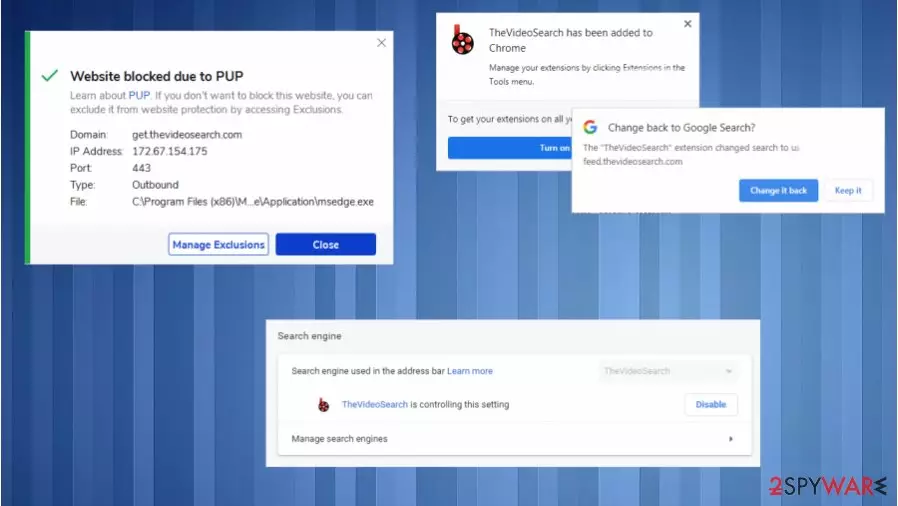
TheVideoSearch.com is a browser hijacker promoting other shady sites. Windows, Mac, Android, and other system users get redirected to this site because their browser settings, such as the default search engine, new tab, and homepage, are altered without their permission. The intruder might come as a browser extension or the application that triggers all the changes to the browsing experience.
Every time users open a new tab or type something into the URL search bar, they are automatically redirected to or through TheVideoSearch.com. The site doesn't generate any search results itself. Hence it's a fake search engine. It redirects to other shady pages that can be considered browser hijackers or show Google, Yahoo, Bing as the search provider while results get injected with advertisements.
This happens when TheVideoSearch.com browser hijacker is installed with shareware/software/freeware bundles. We're delighted you chose us to accompany you on this cybersecurity journey. This article details the peculiarities of this potentially unwanted program, as well as its distribution techniques and removal options.
| name | TheVideoSearch.com |
|---|---|
| type | Browser hijacker, PUP |
| Ip addresses | 104.21.5.194, 172.67.154.175 |
| Browser changes | New tab, start page, the default search engine gets altered |
| Symptoms | All search traffic is redirected through a site that the user didn't choose willingly, all results get injected with commercial content |
| Risks | Browser hijackers are capable of collecting various browsing data, which might be shared with third-parties. Their intentions might not be harmless |
| Distribution | Deceptive ads, software bundling[1] |
| Removal | Eliminate PUPs causing redirects by running a full system scan with dependable anti-malware tools |
| Repair | Fix all system issues and clean browsing data with powerful system repair tools such as the FortectIntego app |
Browser hijackers weren't created yesterday. They've been around for a while now. But people still fail to recognize their traits and keep falling for deceptive ads promoting them. Usually, they're advertised to increase user privacy and security while browsing the internet.
In reality, though, they tend to do the exact opposite. Browser hijackers, like Junkie web virus, Best Searcher virus, Streaming plus virus, are capable of collecting various users' browsing habits and other browser-related data, including:
- most frequently visited sites,
- search inquiries,
- browser and device details,
- geolocations,
- IP addresses, and so on.
To make a profit, operators of potentially unwanted programs like TheVideoSearch.com can share this data with third parties that might have ill intentions. Furthermore, browser hijackers can bombard their users with all kinds of ads – pop-ups, banners, surveys, or show affiliated sites as top search results.

We recommend all our users remove TheVideoSearch.com immediately. It can be installed as a browser extension or as an application (or both). To eliminate the latter, use reliable anti-malware software such as SpyHunterCombo Cleaner or MalwarebytesMalwarebytes to take care of this problem automatically.
If it's installed as a browser extension, then you'll have to finish TheVideoSearch.com removal manually. If you're unsure how browser extension can be removed, refer to our free instructions displayed at the bottom of this article. And lastly, IT experts[2] advise using the FortectIntego system repair tool to clean browsing history and restore system files and settings to their normal values.
Preventive measures to dodge malware and PUPs
More and more various malware[3] and potentially unwanted programs are created and distributed on the internet every day. This illegal industry is growing, and it won't stop anytime soon. Although tech giants try to keep up with cybercriminals, it's extremely hard to do so.

Therefore, cybersecurity must be the top priority for all home users that values their security and privacy. Our cybersecurity team has brought together a list of guidelines that should increase the safety of devices that are regularly used to browse the internet:
- Keep your operating system and installed software updated with the latest available (except Beta version) updates.
- Purchase a professional anti-malware solution that will be powerful enough to catch malware infections.
- Store backups of your essential files on two separate devices/locations, e.g., cloud, USB flash drive, external HDD, etc.
- Maintain overall system health with system repair software that could also clean your browsing activities.
- Learn about the most frequently used techniques by cybercriminals to infect victim devices.
Guidelines to restore system health and remove TheVideoSearch.com browser hijacker
If you're redirected to TheVideoSearch.com search site, that could mean only one thing – your browser has been hijacked. That's not the end of the world, but you have to take action now. PUPs tend to promote other junkware, so if you ignore one, your device might soon be riddled with them.
TheVideoSearch.com removal process consists of three parts. First, you need to scan your device with a steadfast anti-malware tool and eliminate all suspicious entries that the software detects. Then refer to our instructions below to manually remove browser extensions causing the redirections.
Finally, perform a full system scan with powerful system tune-up tools to remove TheVideoSearch.com once and for all. These tools should also be regularly used to refresh corrupted or outdated files and wipe devices' tracking cookies.
Uninstall from Windows
Uninstall from Windows 10/8:
- Type Control Panel into the Windows search box and open the result.
- Under Programs, select Uninstall a program.


Uninstall from Windows 7/XP:
- Click on Windows Start > Control Panel (Windows XP users should click on Add/Remove Programs).
- In Control Panel, select Programs > Uninstall a program.


Remove the unwanted program:
- In the Programs and Features window, look for any recently installed suspicious entries, select them, and click Uninstall.
- If User Account Control appears, click Yes to confirm, then complete the removal.


Delete from macOS
Remove the unwanted application:
- From the menu bar, select Go > Applications.
- In the Applications folder, look for any suspicious entries, then drag them to Trash (or right-click and pick Move to Trash).


Delete leftover files and folders:
- Select Go > Go to Folder.
- Enter /Library/Application Support and remove any suspicious folders related to the unwanted program.
- Repeat the same check in the /Library/LaunchAgents and /Library/LaunchDaemons folders, deleting any suspicious entries.

- Finally, empty the Trash to permanently remove the leftovers.

Reset Internet Explorer
Remove dangerous add-ons:
- Open Internet Explorer, click on the Gear icon (IE menu) on the top-right corner of the browser
- Pick Manage Add-ons.
- You will see a Manage Add-ons window. Here, look for suspicious plugins. Click on these entries and select Disable.


Change your homepage if it was altered:
- Open IE and click on the Gear icon.
- Select Internet Options.
- In the General tab, delete the Home page address and replace it by your preferred one (for example, Google.com).
- Click Apply and then select OK.


Delete temporary files:
- Press on the Gear icon and select Internet Options.
- Under Browsing history, click Delete...
- Select relevant fields and press Delete.


Reset Internet Explorer:
- Click on Gear icon > Internet options and select Advanced tab.
- Select Reset.
- In the new window, check Delete personal settings and select Reset.


Remove from Microsoft Edge
Delete unwanted extensions from MS Edge:
- Select Menu (three horizontal dots at the top-right of the browser window) and pick Extensions.
- From the list, pick the extension and click on the Gear icon.
- Click Remove.


Clear cookies and other browser data:
- Click on the Menu (three horizontal dots at the top-right of the browser window) and select Settings > Privacy, search, and services..
- Under Clear browsing data, pick Choose what to clear.
- Select Cookies and other site data and Cached images and files. (apart from passwords, although you might want to include Media licenses as well, if applicable) and click on Clear.


Restore new tab and homepage settings:
- Click the menu icon and choose Settings.
- Then find On startup section.
- Click Remove next to any suspicious startup page.
Reset MS Edge if the above steps did not work:
- Press on Ctrl + Shift + Esc to open Task Manager.
- Click on More details arrow at the bottom of the window.
- Select Details tab.
- Now scroll down and locate every entry with Microsoft Edge name in it. Right-click on each of them and select End Task to stop MS Edge from running.


Instructions for Chromium-based Edge
Delete extensions from MS Edge (Chromium):
- Open Edge and click select Settings > Extensions.
- Delete unwanted extensions by clicking Remove.


Clear cache and site data:
- Click on Menu and go to Settings.
- Select Privacy, search and services.
- Under Clear browsing data, pick Choose what to clear.
- Under Time range, pick All time.
- Select Clear now.


Reset Chromium-based MS Edge:
- Click on Menu and select Settings.
- On the left side, pick Reset settings.
- Select Restore settings to their default values.
- Confirm with Reset.
- This will disable extensions and reset startup pages but will not delete bookmarks, saved passwords, or browsing history.


Remove from Mozilla Firefox (FF)
Remove dangerous extensions:
- Open Mozilla Firefox browser and click on the Menu (three horizontal lines at the top-right of the window).
- Select Add-ons.
- In here, select the unwanted extension and click Remove.


Reset the homepage:
- Click three horizontal lines at the top right corner to open the menu.
- Choose Settings.
- Under Home, set your preferred homepage and new tab settings.
Clear cookies and site data:
- Click Menu and pick Settings.
- Go to Privacy & Security section.
- Scroll down to locate Cookies and Site Data.
- Click on Clear Data...
- Select Cookies and Site Data and Temporary cached files and pages, then click Clear.


Reset Mozilla Firefox
If clearing the browser as explained above did not help, reset Mozilla Firefox:
- Open Mozilla Firefox browser and click the Menu.
- Go to Help and then choose Troubleshooting Information.

- Under Give Firefox a tune up section, click on Refresh Firefox...
- Once the pop-up shows up, confirm the action by pressing on Refresh Firefox.



Remove from Google Chrome
Delete malicious extensions from Google Chrome:
- Open Google Chrome, click on the Menu (three vertical dots at the top-right corner) and select More tools > Extensions.
- In the newly opened window, you will see all the installed extensions. Uninstall all suspicious extensions related to the unwanted program by clicking Remove.


Clear cache and web data from Chrome:
- Click on Menu and pick Settings.
- Under Privacy and security, select Clear browsing data.
- Select Browsing history, Cookies and other site data, as well as Cached images and files.
- Click Clear data.


Change your homepage:
- Click menu and choose Settings.
- Look for a suspicious site in the On startup section.
- Click on Open a specific or set of pages and click on three dots to find the Remove option.
Reset Google Chrome:
If the previous methods did not help you, reset Google Chrome to eliminate all the unwanted components:
- Click on Menu and select Settings.
- In the Settings, scroll down and click Advanced.
- Scroll down and locate Reset and clean up section.
- Now click Restore settings to their original defaults.
- Confirm with Reset settings.


Delete from Safari
Remove dangerous extensions:
- Open Safari, click Safari in the menu at the top-left of the screen, and select Preferences.
- Go to the Extensions tab, look for any suspicious entries, and click Uninstall to remove them.


Clear history and website data:
- Click Safari in the menu and pick Clear History.
- Set Clear to all history and confirm with Clear History.


Reset Safari:
- Click Safari in the menu and select Preferences > Advanced.
- Enable Show Develop menu in menu bar.
- From the menu bar, click Develop and select Empty Caches.


Did this guide help?
Be the first to comment