

ConvertItSearch – a browser hijacker that modifies browser preferences to redirect search traffic and show ads
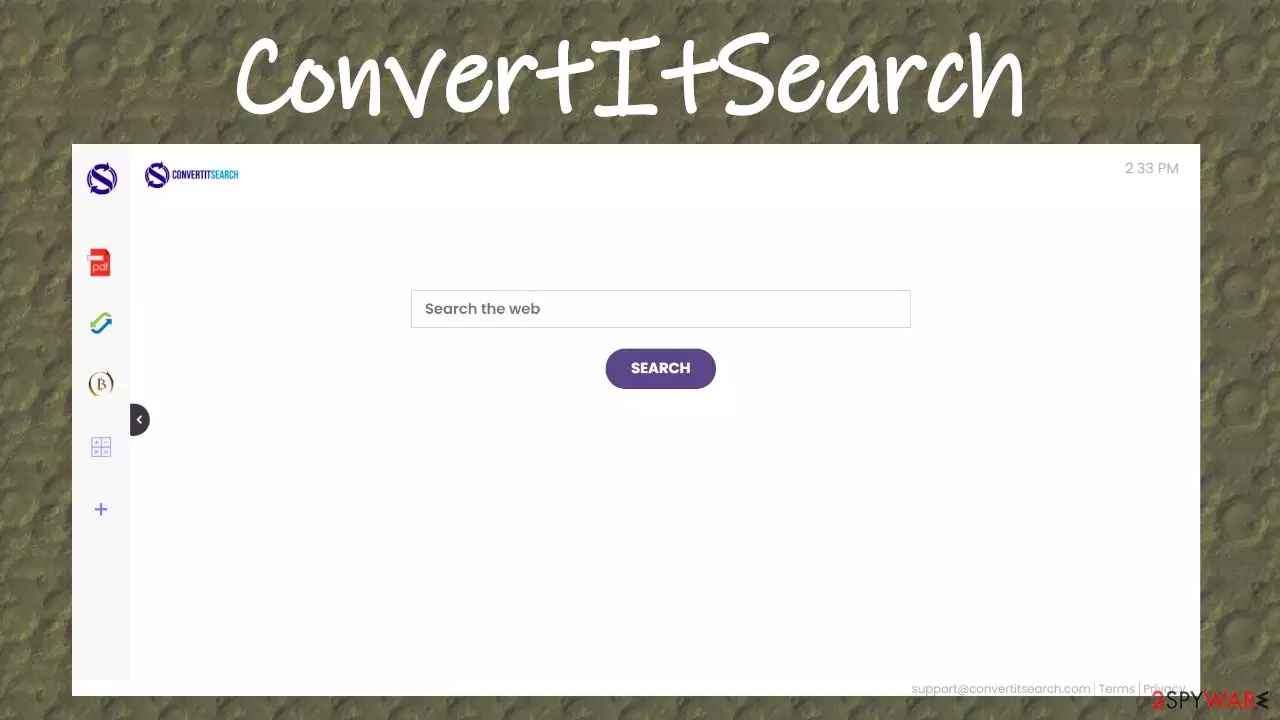
ConvertItSearch is a browser extension or program that displays ads, redirects all search inquiries through a fake search site, and pushes to subscribe to its notifications in order to show even more ads. Due to the alterations of browser settings, including the homepage, new tab, and default search engine, it's deemed as a browser hijacker.
If this browser hijacker infects your device, all your searches will be rerouted through feed.convertitsearch.com. That's an address of a fake search engine as it doesn't generate any results. It shows altered results from, depending on your geolocation, Yahoo, Google, or Bing.
ConvertItSearch ads are displayed as search recommendations, pop-ups, banners, notifications, and alike. They might redirect you to malicious sites, thus making them hazardous. If your device shows any symptoms of infection, please don't click on any of the ads. By reading this article, you'll find out how this infection spreads, its functions, and how to get rid of it once and for all.
| name | ConvertItSearch |
|---|---|
| Type | Push notification virus, browser hijacker, PUP |
| Ip address | 104.31.93.186 |
| promoted search site | feed.convertitsearch.com |
| Altered browser settings | Startpage, new tab, default search engine |
| Distribution | Freeware bundles, deceptive ads, official browser web stores, torrent sites |
| Symptoms | Apart from the changed browser settings, users see more than usual ads, might encounter sudden redirects |
| Risks | Ads and redirects might force into visiting malicious sites. Data collection might lead to privacy issues |
| Removal | Browser hijackers, adware, other PUPs, and malware should be safely eliminated by using a professional anti-malware tool compatible with user devices |
| system fix | To restore system settings and clean up your device, you should use the powerful FortectIntego system repair tool or similar software |
People can infect their computers and cell phones with ConvertItSearch browser hijacker and potentially unwanted programs[1] (PUPs) alike in many ways. A few of the most popular distribution techniques are freeware/software bundles and deceptive ads. For a limited time, they might even be available at official browser web stores.
Modified browser settings that redirect to a fake search site enables ConvertItSearch to collect various non-personal data, including but not limited to:
- search inquiries,
- used apps,
- device and browser details,
- links of visited pages,
- geolocations,
- IP addresses, etc.
Advertisers use this gather information to tailor ads explicitly for you. But if those details fell into the wrong hands, you might become a victim of a cybercrime. Moreover, if ConvertItSearch virus shown ads are clicked, they could redirect to questionable pages that could try to extract private info, force to install additional PUPs or similar shenanigans.
And lastly, if you press the Allow button and subscribe to ConvertItSearch notifications, you might see even more irritating ads. But these ones could start popping up directly on your phone screen or desktop and try to deceive you into pressing them to receive an awesome deal or view an imaginary secret story.

Therefore, it's not wise and unsafe to keep using this browser hijacker. Remove ConvertItSearch by performing a full system scan with a reliable anti-malware tool. If you don't own one, we suggest using trustworthy security tools such as SpyHunterCombo Cleaner or MalwarebytesMalwarebytes.
When ConvertItSearch removal is completed, and your device is virus-free, you should take care of its overall health. Cybersecurity experts[2] highly recommend using the powerful FortectIntego system repair tool to fix any system-related issues. Furthermore, it will take care of tracking cookies and other browser matters.
Upgrade your software and take other precautionary measures to evade various infections
First, computer viruses were created decades ago,[3] and since then, they have evolved into an enormous illegal business. There are various malware types, from worms to Trojans, and all of them can infect anyone's computer. People have to take cybersecurity seriously as they might become the next victim.
Thus our team has compiled guidelines that would help home users increase their cybersecurity level and minimize the chance of catching an infection. These suggestions don't guarantee that your device won't get infected, but the damages might be a lot lower if you stick to them.
- Keep backups of all essential information on two separate devices. One of them should be offline storage.
- Operating System and other installed software must be up-to-date.
- Professional security tools must be used regularly and their virus databases updated frequently.
- System diagnostic tools or legitimate optimizers should be routinely used to clean up devices and maintain system files and settings in order.
- Read our articles, or google the most popular techniques used by hackers to infect devices to be in the know.

Options for ConvertItSearch virus removal from infected computers and cell phones
Whether you've installed ConvertItSearch willingly or not, clicked on any ads, or allowed its notifications, you have to scan your device for PUPs and malware immediately. Usually, one infection leads to another, so please don't for a minute before eliminating it.
To safely remove ConvertItSearch and any other PUPs, malware, and suspicious files, scan your device with a trustworthy anti-malware tool. When the scan is finished, adhere to the security tools suggestions. Please remember to keep its virus database updated frequently so it could block infections.
In some cases, you might need to finish ConvertItSearch removal manually. That's not that hard and doesn't require extensive IT knowledge. Follow our free tutorials below to eliminate this browser extension from any device and any browser.
Uninstall from Windows
Uninstall from Windows 10/8:
- Type Control Panel into the Windows search box and open the result.
- Under Programs, select Uninstall a program.


Uninstall from Windows 7/XP:
- Click on Windows Start > Control Panel (Windows XP users should click on Add/Remove Programs).
- In Control Panel, select Programs > Uninstall a program.


Remove the unwanted program:
- In the Programs and Features window, look for any recently installed suspicious entries, select them, and click Uninstall.
- If User Account Control appears, click Yes to confirm, then complete the removal.


Delete from macOS
Remove the unwanted application:
- From the menu bar, select Go > Applications.
- In the Applications folder, look for any suspicious entries, then drag them to Trash (or right-click and pick Move to Trash).


Delete leftover files and folders:
- Select Go > Go to Folder.
- Enter /Library/Application Support and remove any suspicious folders related to the unwanted program.
- Repeat the same check in the /Library/LaunchAgents and /Library/LaunchDaemons folders, deleting any suspicious entries.

- Finally, empty the Trash to permanently remove the leftovers.

Reset Internet Explorer
Remove dangerous add-ons:
- Open Internet Explorer, click on the Gear icon (IE menu) on the top-right corner of the browser
- Pick Manage Add-ons.
- You will see a Manage Add-ons window. Here, look for suspicious plugins. Click on these entries and select Disable.


Change your homepage if it was altered:
- Open IE and click on the Gear icon.
- Select Internet Options.
- In the General tab, delete the Home page address and replace it by your preferred one (for example, Google.com).
- Click Apply and then select OK.


Delete temporary files:
- Press on the Gear icon and select Internet Options.
- Under Browsing history, click Delete...
- Select relevant fields and press Delete.


Reset Internet Explorer:
- Click on Gear icon > Internet options and select Advanced tab.
- Select Reset.
- In the new window, check Delete personal settings and select Reset.


Remove from Microsoft Edge
Delete unwanted extensions from MS Edge:
- Select Menu (three horizontal dots at the top-right of the browser window) and pick Extensions.
- From the list, pick the extension and click on the Gear icon.
- Click Remove.


Clear cookies and other browser data:
- Click on the Menu (three horizontal dots at the top-right of the browser window) and select Settings > Privacy, search, and services..
- Under Clear browsing data, pick Choose what to clear.
- Select Cookies and other site data and Cached images and files. (apart from passwords, although you might want to include Media licenses as well, if applicable) and click on Clear.


Restore new tab and homepage settings:
- Click the menu icon and choose Settings.
- Then find On startup section.
- Click Remove next to any suspicious startup page.
Reset MS Edge if the above steps did not work:
- Press on Ctrl + Shift + Esc to open Task Manager.
- Click on More details arrow at the bottom of the window.
- Select Details tab.
- Now scroll down and locate every entry with Microsoft Edge name in it. Right-click on each of them and select End Task to stop MS Edge from running.


Instructions for Chromium-based Edge
Delete extensions from MS Edge (Chromium):
- Open Edge and click select Settings > Extensions.
- Delete unwanted extensions by clicking Remove.


Clear cache and site data:
- Click on Menu and go to Settings.
- Select Privacy, search and services.
- Under Clear browsing data, pick Choose what to clear.
- Under Time range, pick All time.
- Select Clear now.


Reset Chromium-based MS Edge:
- Click on Menu and select Settings.
- On the left side, pick Reset settings.
- Select Restore settings to their default values.
- Confirm with Reset.
- This will disable extensions and reset startup pages but will not delete bookmarks, saved passwords, or browsing history.


Remove from Mozilla Firefox (FF)
Remove dangerous extensions:
- Open Mozilla Firefox browser and click on the Menu (three horizontal lines at the top-right of the window).
- Select Add-ons.
- In here, select the unwanted extension and click Remove.


Reset the homepage:
- Click three horizontal lines at the top right corner to open the menu.
- Choose Settings.
- Under Home, set your preferred homepage and new tab settings.
Clear cookies and site data:
- Click Menu and pick Settings.
- Go to Privacy & Security section.
- Scroll down to locate Cookies and Site Data.
- Click on Clear Data...
- Select Cookies and Site Data and Temporary cached files and pages, then click Clear.


Reset Mozilla Firefox
If clearing the browser as explained above did not help, reset Mozilla Firefox:
- Open Mozilla Firefox browser and click the Menu.
- Go to Help and then choose Troubleshooting Information.

- Under Give Firefox a tune up section, click on Refresh Firefox...
- Once the pop-up shows up, confirm the action by pressing on Refresh Firefox.



Remove from Google Chrome
Delete malicious extensions from Google Chrome:
- Open Google Chrome, click on the Menu (three vertical dots at the top-right corner) and select More tools > Extensions.
- In the newly opened window, you will see all the installed extensions. Uninstall all suspicious extensions related to the unwanted program by clicking Remove.


Clear cache and web data from Chrome:
- Click on Menu and pick Settings.
- Under Privacy and security, select Clear browsing data.
- Select Browsing history, Cookies and other site data, as well as Cached images and files.
- Click Clear data.


Change your homepage:
- Click menu and choose Settings.
- Look for a suspicious site in the On startup section.
- Click on Open a specific or set of pages and click on three dots to find the Remove option.
Reset Google Chrome:
If the previous methods did not help you, reset Google Chrome to eliminate all the unwanted components:
- Click on Menu and select Settings.
- In the Settings, scroll down and click Advanced.
- Scroll down and locate Reset and clean up section.
- Now click Restore settings to their original defaults.
- Confirm with Reset settings.


Delete from Safari
Remove dangerous extensions:
- Open Safari, click Safari in the menu at the top-left of the screen, and select Preferences.
- Go to the Extensions tab, look for any suspicious entries, and click Uninstall to remove them.


Clear history and website data:
- Click Safari in the menu and pick Clear History.
- Set Clear to all history and confirm with Clear History.


Reset Safari:
- Click Safari in the menu and select Preferences > Advanced.
- Enable Show Develop menu in menu bar.
- From the menu bar, click Develop and select Empty Caches.


Did this guide help?
Be the first to comment