

Tionscalen.top – an iPhone and Mac tech scam that pushes shady software installs
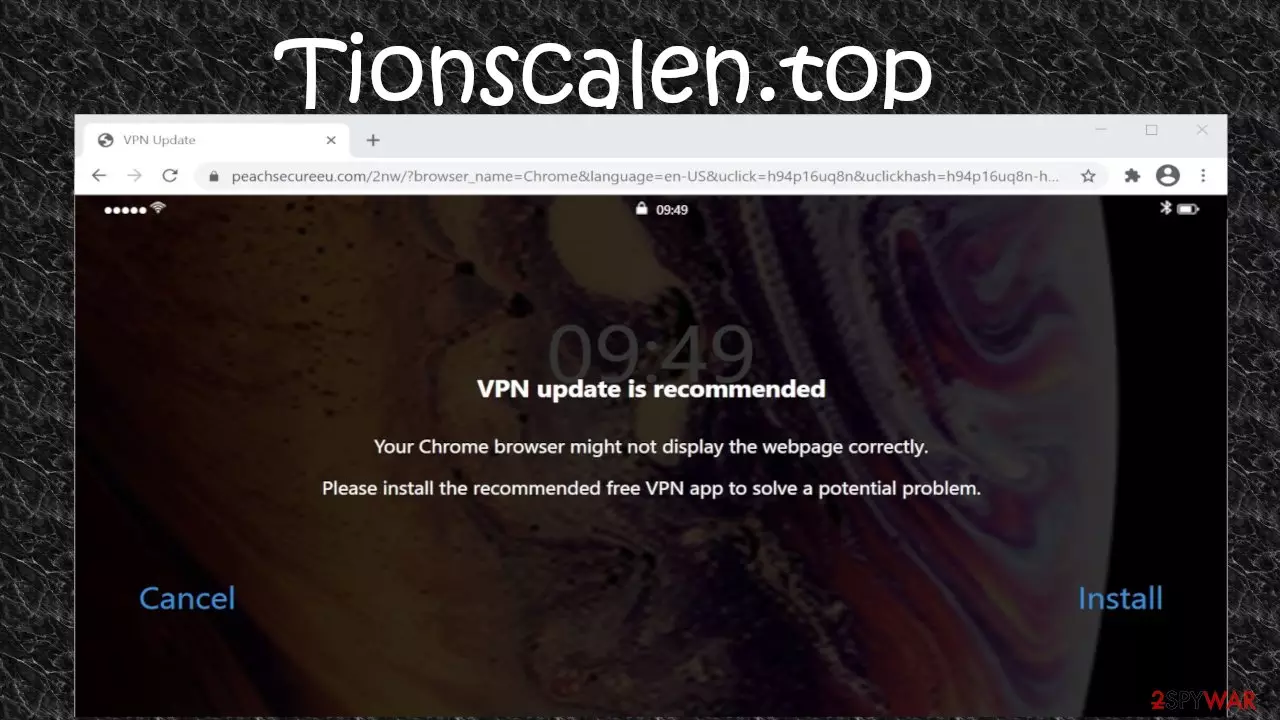
Tionscalen.top is a website that claims that users must install either a VPN client because they are being watched or an ad-blocking software because they can be targeted by malware. You can get redirected to this site either by pushing deceptive ads on questionable pages or having an adware infection. This tech scam targets mainly Apple iPhone, iPad, and Mac users but could also affect Windows computers.
There is more than one option that you could see when redirected to Tionscalen.top scam site. Most of them had two choices – “Cancel” and “Install” buttons. Former redirects to your default search engine, the latter to Apple App Store. A few had only the “OK” button redirecting to the same app store. You can find other promotional or advertising material on this or related sites.
The goal of this Mac scam site is to sell you sponsored software, trick you into installing applications. Our research shows that it's either Adblockers or VPN clients. Please note that there is nothing wrong with your device. Please don't press the “Install” button. We'll tell you how to eliminate adware causing these redirects and explain how tech scam pages work.
| name | Tionscalen.top |
|---|---|
| Type | Mac virus, tech support scam, redirect |
| Affected devices | Mac computers, iPhones, iPads. In some cases, machines running Windows OS |
| false claims | The device needs to have a VPN client or ad blocking software |
| Purpose | To push worthless programs |
| Symptoms | Fake error messages, redirects |
| Risks | Installation of potentially unwanted programs may lead to slower device performance, additional PUPs, browsing data tracking, privacy issues |
| Distribution | Software bundles, deceptive ads, fake installers/updaters |
| Removal | Scan your device with trustworthy anti-malware software to detect and remove any PUPs and malware |
| System fix | Devices that have corrupted system files or settings may exhibit all kinds of strange behavior. Resolve these issues and clean up your devices with the powerful FortectIntego system repair tool |
There are tons of tech scam websites that try to trick people into believing there's something wrong with their devices. Some might lock the phone or computer screen and claim that it's infected with a severe virus. Others might state that your device's system files are corrupted, and it can't run properly. If you see any virus detection names or IP addresses – those are most likely not related to your system.
To appear more trustworthy, these sites often are imitating legitimate tech support pages. Cybercriminals could create these sites for various purposes, including:
- to sell worthless software,
- to get remote access to your device,
- to fish out money,
- to infect devices with malware,
- etc.
When using Safari or Chrome browsers, users redirected to Tionscalen.top tech support scam portal might see one of many variations. One claims that the page couldn't be opened correctly, the second one that their devices are exposed to malware, the third one that the video couldn't load properly, and so on.

No one ever visits sites like Tionscalen.top on purpose. This is the page you get redirected to randomly. As we've mentioned before, the reason causing redirects might be adware or other potentially unwanted programs[1] (PUPs). To get rid of it, you will need to scan your devices with compatible anti-malware software.
We recommend acquiring professional security applications such as SpyHunterCombo Cleaner or MalwarebytesMalwarebytes. To remove Tionscalen.top launch the AV tool and select a full system scan. It will find, isolate and eliminate all PUPs, malware, and any other suspicious entries automatically. You can see all the intruders yourself and notice that any of the claimed trojans and malware are not found by the proper AV app.
Once your security tools are finished with Tionscalen.top removal, you have to take care of your device's health. Cybersecurity experts from Uirusu.jp[2] highly advise using the FortectIntego tool that will restore any corrupted system files and clean tracking cookies along with other browser-related issues.
Potentially unwanted programs usually cause redirections to tech support scam pages and other dubious sites
Scammers rely on adware, browser hijackers, and other potentially unwanted programs to redirect users to their created tech support scam sites. These PUPs aren't as dangerous as malware[3] but can still cause performance and other system-related issues.
They are spread using stealthy techniques. One of them is called software bundling. These packs contain more than one app installer and all of them are preselected for installation. If you desperately want a program from a bundle, make sure to choose the Custom/Advanced installation option and agree to install only the app that you initially wanted.

Another sneaky method of how PUPs find their way onto devices is deceptive ads. They are displayed on various questionable sites and claim that your device needs some sort of an upgrade, e.g., a security tool, a system tool, a VPN client, etc. Please don't believe in any ads that try to sell you unwanted apps.
Directions for Tionscalen.top virus removal from Mac, Windows computers, and iOS products
If Tionscalen.top tech support scam website, is opened on your device, that could mean one of two things – either you clicked on a deceptive ad, or your device is infected with a potentially unwanted program that causes redirects. The good news is that this infection can be easily eliminated by using dependable anti-malware tools.
To remove Tionscalen.top from any device, launch your security tool. Make sure its virus database is updated. Perform a full system scan. Whatever suspicious files, PUPs or malware is found – eliminate it immediately. Please remember to scan your devices regularly to make sure they are virus-free.
AV tools are irreplaceable when we need to stop an infection or obliterate it. But they can't repair broken system files or clean tracking browser cookies. That's why after Tionscalen.top removal, we highly recommend running system diagnostics with compatible system repair tools to fix any system irregularities and enjoy your device anew.
Uninstall from Windows
Uninstall from Windows 10/8:
- Type Control Panel into the Windows search box and open the result.
- Under Programs, select Uninstall a program.


Uninstall from Windows 7/XP:
- Click on Windows Start > Control Panel (Windows XP users should click on Add/Remove Programs).
- In Control Panel, select Programs > Uninstall a program.


Remove the unwanted program:
- In the Programs and Features window, look for any recently installed suspicious entries, select them, and click Uninstall.
- If User Account Control appears, click Yes to confirm, then complete the removal.


Delete from macOS
Remove the unwanted application:
- From the menu bar, select Go > Applications.
- In the Applications folder, look for any suspicious entries, then drag them to Trash (or right-click and pick Move to Trash).


Delete leftover files and folders:
- Select Go > Go to Folder.
- Enter /Library/Application Support and remove any suspicious folders related to the unwanted program.
- Repeat the same check in the /Library/LaunchAgents and /Library/LaunchDaemons folders, deleting any suspicious entries.

- Finally, empty the Trash to permanently remove the leftovers.

Remove from Google Chrome
Delete malicious extensions from Google Chrome:
- Open Google Chrome, click on the Menu (three vertical dots at the top-right corner) and select More tools > Extensions.
- In the newly opened window, you will see all the installed extensions. Uninstall all suspicious extensions related to the unwanted program by clicking Remove.


Clear cache and web data from Chrome:
- Click on Menu and pick Settings.
- Under Privacy and security, select Clear browsing data.
- Select Browsing history, Cookies and other site data, as well as Cached images and files.
- Click Clear data.


Change your homepage:
- Click menu and choose Settings.
- Look for a suspicious site in the On startup section.
- Click on Open a specific or set of pages and click on three dots to find the Remove option.
Reset Google Chrome:
If the previous methods did not help you, reset Google Chrome to eliminate all the unwanted components:
- Click on Menu and select Settings.
- In the Settings, scroll down and click Advanced.
- Scroll down and locate Reset and clean up section.
- Now click Restore settings to their original defaults.
- Confirm with Reset settings.


Delete from Safari
Remove dangerous extensions:
- Open Safari, click Safari in the menu at the top-left of the screen, and select Preferences.
- Go to the Extensions tab, look for any suspicious entries, and click Uninstall to remove them.


Clear history and website data:
- Click Safari in the menu and pick Clear History.
- Set Clear to all history and confirm with Clear History.


Reset Safari:
- Click Safari in the menu and select Preferences > Advanced.
- Enable Show Develop menu in menu bar.
- From the menu bar, click Develop and select Empty Caches.


Did this guide help?
Be the first to comment